The Fluix MCP connector lets you connect your Fluix account to an AI assistant and ask questions about your data in plain language. Instead of building a report or exporting a spreadsheet, you can ask “Which inspections failed last month?” and get an answer drawn from your live Fluix records.
Note: The Fluix MCP connector is available from the Crewsplan.
MCP explained
MCP stands for Model Context Protocol. It is an open standard that lets AI assistants connect to outside tools and data sources in a consistent, secure way.
Without MCP, your AI assistant only knows what you type into the chat. It has no way to reach your actual systems. MCP gives the AI assistant a structured channel to a service like Fluix, so it can read real records and answer based on them.
You can think of MCP as a universal adapter: once a service offers an MCP connector, any MCP-compatible assistant can work with it.
What the connector can access
The Fluix MCP connector gives your AI assistant read-only access to two parts of your Fluix account:
Document and workflow status. Every document moving through your workflows, including its assignee, current status, number of signatures required and collected, creation and last modified dates, and whether it is overdue.
Form submission data. The structured field data captured in your completed forms, organized into datasets or reports. For an equipment inspection, this includes every captured field: PPE checks, fall protection items, tool checks, site conditions, wind speed, temperature, results, issue notes, and so on.
Note: The Fluix MCP connector is built for reading and analysis only. It cannot create, edit, submit, or delete anything in Fluix, so you can explore your data without risking any changes.
How it works
When you ask a question, the assistant decides which Fluix data it needs and requests it through the connector. The connector can:
List the datasets your account can access.
Read the field-level data inside a dataset, one set of submissions at a time.
Look up the column structure of a dataset, so the assistant knows which fields exist.
Find documents by status, workflow, assignee, group, date, or name.
The assistant then reads the returned data and writes the answer. You see a clean response in the chat rather than raw records.
Permissions and security
The connector operates within your existing Fluix access rights. You can only query the documents and datasets your account is already allowed to see, and connecting it does not grant you or the assistant any additional access.
Access is granted when you sign in to Fluix during setup and can be revoked at any time by removing the connector from your assistant’s settings.
The MCP Server feature is enabled for your company’s Fluix plan. It is off by default — contact your Fluix admin or support@fluix.io. Without it, sign-in works, but the connection fails right after you approve access.
Access to the workflows and datasets you want to query.
Permission to add connectors in that assistant. In some organizations, this is controlled by an IT or workspace administrator.
What you can do with Fluix MCP
Below are the kinds of questions the connector handles well, grouped by what you are trying to find out.
Track workflow progress and bottlenecks
See what is overdue and who it is assigned to.
Find every document still waiting on a signature.
Check what is sitting in a specific person’s inbox.
Get a count of documents by status across a workflow.
Analyze field and inspection data
Pull every inspection that failed and list the issue notes.
Filter submissions by site, work type, technician, or date range.
Surface inspections that recorded out-of-range conditions, such as high wind speed.
Compare pass and fail counts across sites or work types.
Summarize and report
Summarize this week’s completed inspections by work type.
Build a table of inspections by site with pass and fail counts.
Roll up activity for a given technician or crew over a date range.
Prepare a readout for a daily standup or a client update.
Because you are talking to an assistant rather than running a fixed report, you can ask follow-up questions, reshape the output, and drill into anything that looks unusual, all in the same conversation.
Tips for better results
Be specific about the time frame. “In the last 30 days” or “this week” gives the assistant a clear window to query.
Name the field or outcome you care about. Referencing results, sites, work types, or conditions helps the assistant filter precisely.
Ask for the format you want. Request a table, a short summary, or a ranked list, and the assistant will shape the output to match.
Iterate in the same chat. Follow-up questions are faster than starting over, and the assistant keeps the context.
Verify before you act. For anything that drives a decision, check the underlying documents in Fluix to confirm.
Choose the guide for your assistant to connect to Fluix and run your first query:
Once Fluix is connected to your AI assistant, you can ask about your task reports, form submissions, and document statuses in simple language. This article collects prompts that work well, grouped by what you are trying to do.
These prompts work the same way in Claude, ChatGPT, Copilot, or any other assistant connected to the Fluix MCP server. Choose the guide for your assistant to connect to Fluix and run your first query:
Replace <report> with the name of one of your own task reports or datasets — for example, Site Safety InspectionsorVehicle Pre-Use Checks. You do not need report IDs or field names; the name is enough.
If you are not sure what you can access, start here:
“List my Fluix task reports.”
Your assistant reads only the data your own Fluix account can already see, in the single company you selected when you connected. Access is read-only, so none of these prompts change anything in Fluix.
Getting the overall picture
Use these when you want the shape of a whole report rather than one specific record.
What does <report> show? Summarize the key metrics.
What’s overdue or stuck in <report> right now, and who owns it?
Give me the top 5 <assets/units> that keep failing, with what’s actually going wrong each time.
Prepare an operational dashboard for my manager based on <report>.
Rank the findings in <report> by severity, and flag anything found but never verified as fixed.
Which sites or forms in <report> produce messy or inconsistent data?
Are our safety and quality numbers in <report> trending better or worse over time?
Regular digests
Use these for a recurring catch-up, or when you need to summarize progress for someone else.
Give me a <daily/weekly/monthly> digest of <report> — what changed, what’s new, what needs attention.
Summarize my own pending work in <report> — anything missing a signature or required field before someone flags it?
I need a simple summary for a customer confirming <report> inspections were completed and passed — nothing internal.
Deciding what to work on
Use these to cut a large report down to a handful of items that actually need you.
What needs my immediate attention in <report> right now?
What’s overdue or stuck in <report>, and how long has it been sitting?
What should I focus on today across <report>?
Give me this week’s priority list for <report> — just the things that actually need action.
Checking data quality
Use these before you rely on a report for a decision, an audit, or a customer.
Check <report> for missing data — are all required fields filled in?
Are all required photos attached in <report>, and is anything missing a signature?
Can I trust the data in <report>? Run an integrity check before I use it.
Are there any records in <report> that contradict themselves — like something marked both “needs replacement” and “approved”?
Which records in <report> are missing something they should already have, given how far along they are?
Getting better answers
Name the report and a time range.“Overdue items in Site Safety Inspections from the last 30 days” returns a far more useful answer than “what’s overdue.”
Open unfamiliar reports by asking about their structure.“Show the columns available in <report> before pulling any rows” tells you what questions are worth asking.
Keep narrowing instead of starting over. Once your assistant has pulled a report, follow up: “now group that by site,”“now show only the failed ones.”
Ask where a number came from. Your assistant can point back to the records behind a total — worth doing before you forward anything onward.
Be specific in large reports. Big result sets are read page by page rather than all at once, so a narrower question is usually both faster and more accurate.
What your assistant can access
Permission
What it allows
Documents
Read document statuses
Datasets
Read form-submission datasets
Access is read-only. Your assistant cannot create, change, or delete anything in Fluix, cannot assign or complete tasks, and cannot see data outside the company you selected when connecting.
Note: Since answers are generated by the assistant rather than by Fluix, it is worth spot-checking anything you plan to act on or send to a customer, ask it to show the underlying records.
In case you have any additional questions, feel free to contact us atsupport@fluix.io. We will be happy to assist you!
Was this article helpful?
Thanks for your feedback!
Oops, something went wrong. Please, try again later.
Thank you!
What details or examples would have made this article more helpful for you? We appreciate your insights!
Connect Microsoft Copilot to Fluix to access your Fluix task reports, form submissions, and document statuses using natural language.
The Fluix agent is already available in the Microsoft 365 Copilot Agent Store. Simply add it to your Copilot, sign in with your Fluix account, and start asking questions about your Fluix data.
Before you start
You need:
A Fluix account with access to at least one company.
The MCP Server feature enabled for your company’s Fluix plan. This feature is not enabled by default — contact your Fluix admin or support@fluix.io to enable it.
Access to Microsoft Copilot.
What Copilot can accessin Fluix Docs
Permission
What it allows
Datasets
Read form-submission datasets
Documents
Read document statuses
Access is read-only — Copilot can read your Fluix data, but cannot create, modify, or delete anything. Access is limited to the single company you select during sign-in and to the data your own Fluix user account can already see. Connecting Fluix to Copilot does not give the agent broader access than you already have in Fluix.
Set up Fluix in Microsoft Copilot
Unlike AI assistants, which require manual configuration of the Fluix MCP server, Fluix is available as a Microsoft 365 Copilot agent. Once the agent is available in your organization, connecting it is just a matter of signing in to Fluix.
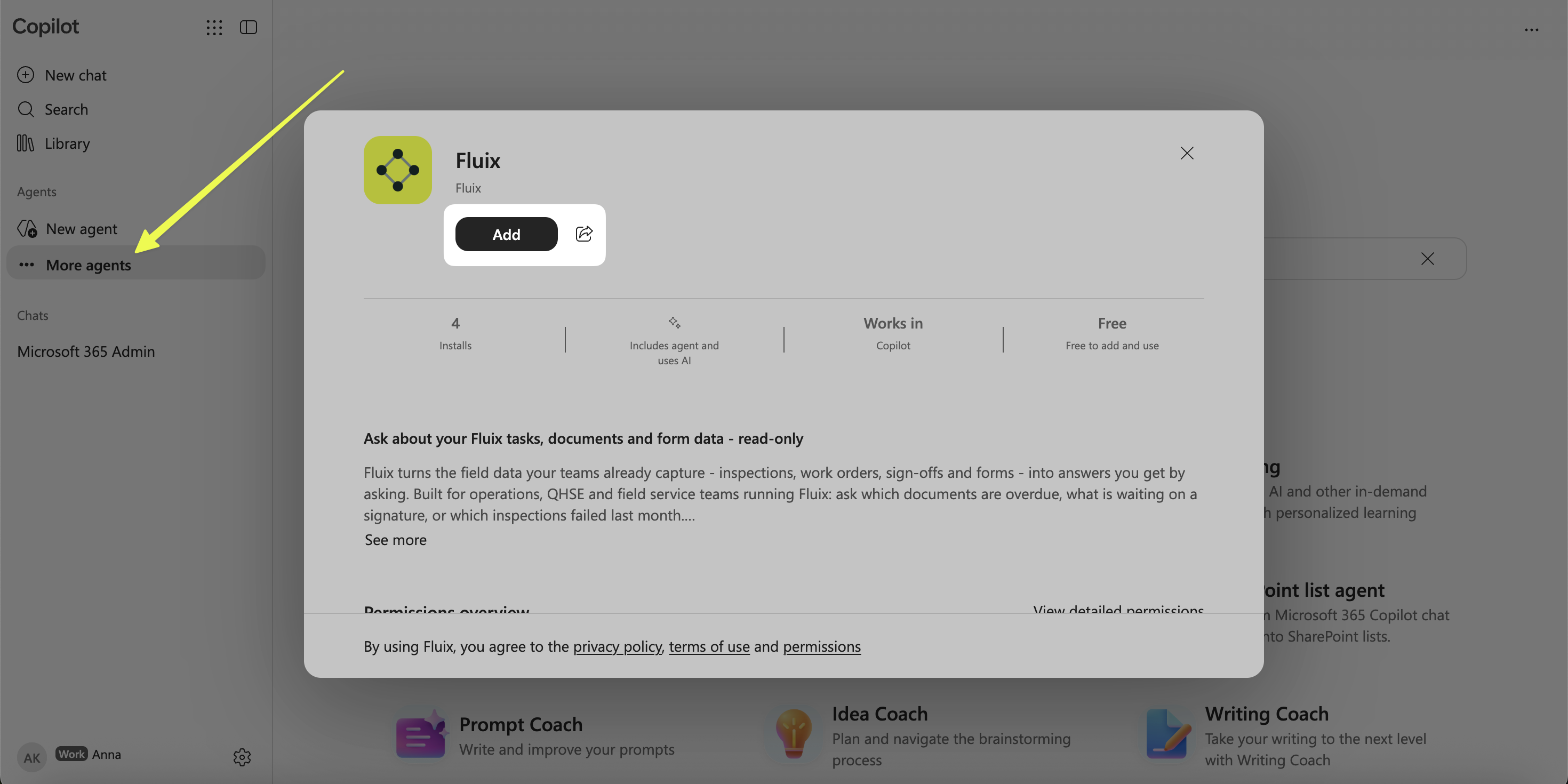
In the left sidebar, click on the “More Agents” tab and search for Fluix.
Click Add. If your admin has already deployed it directly to you, it may already be installed and appear in your Agents list.
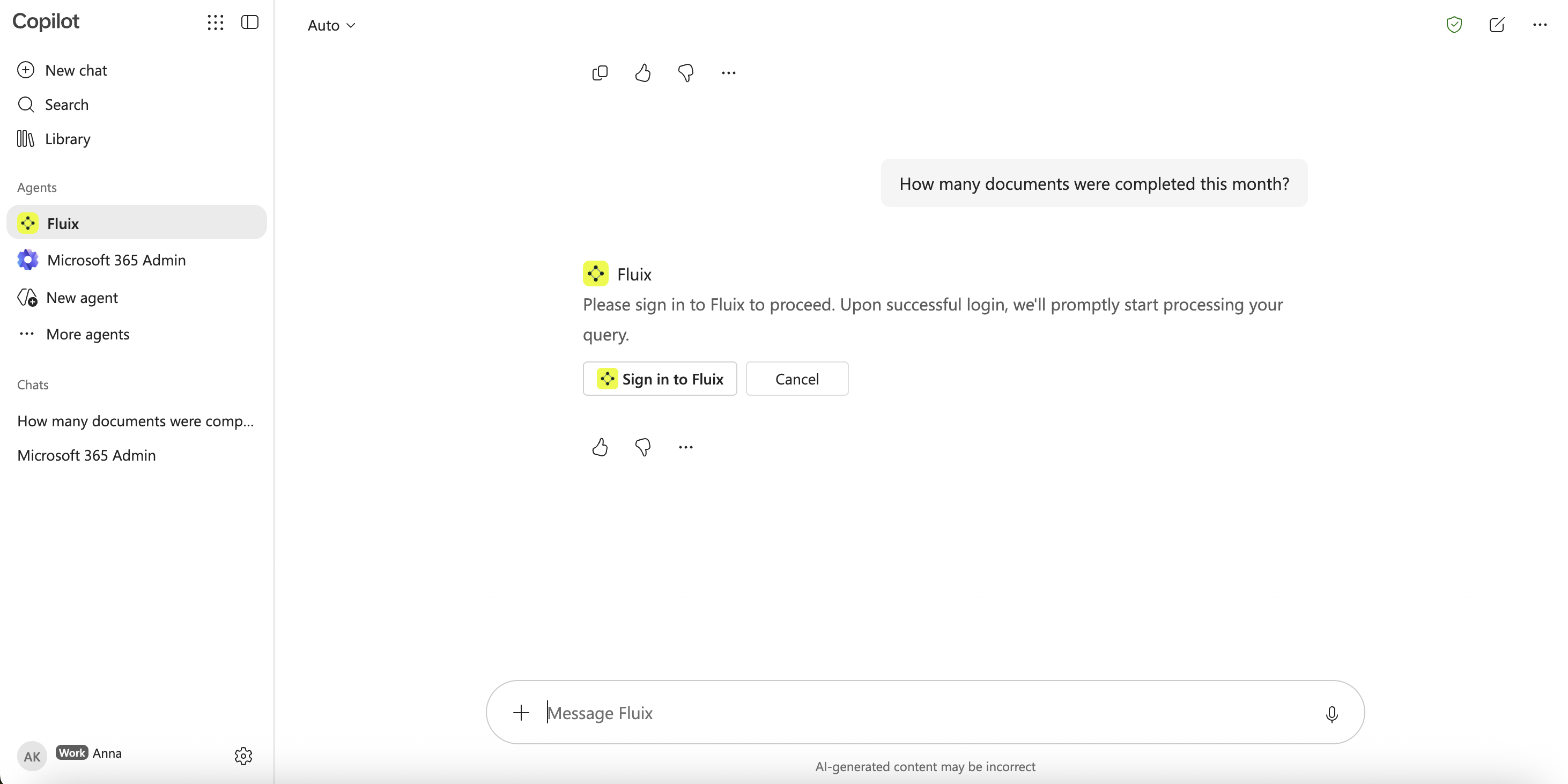
Open the Fluix agent and start a conversation. You can enter your own question or select one of the suggested prompts.
The first time Copilot needs to use a Fluix tool, it asks you to confirm the action. Once confirmed, Copilot then asks you to connect your Fluix account.
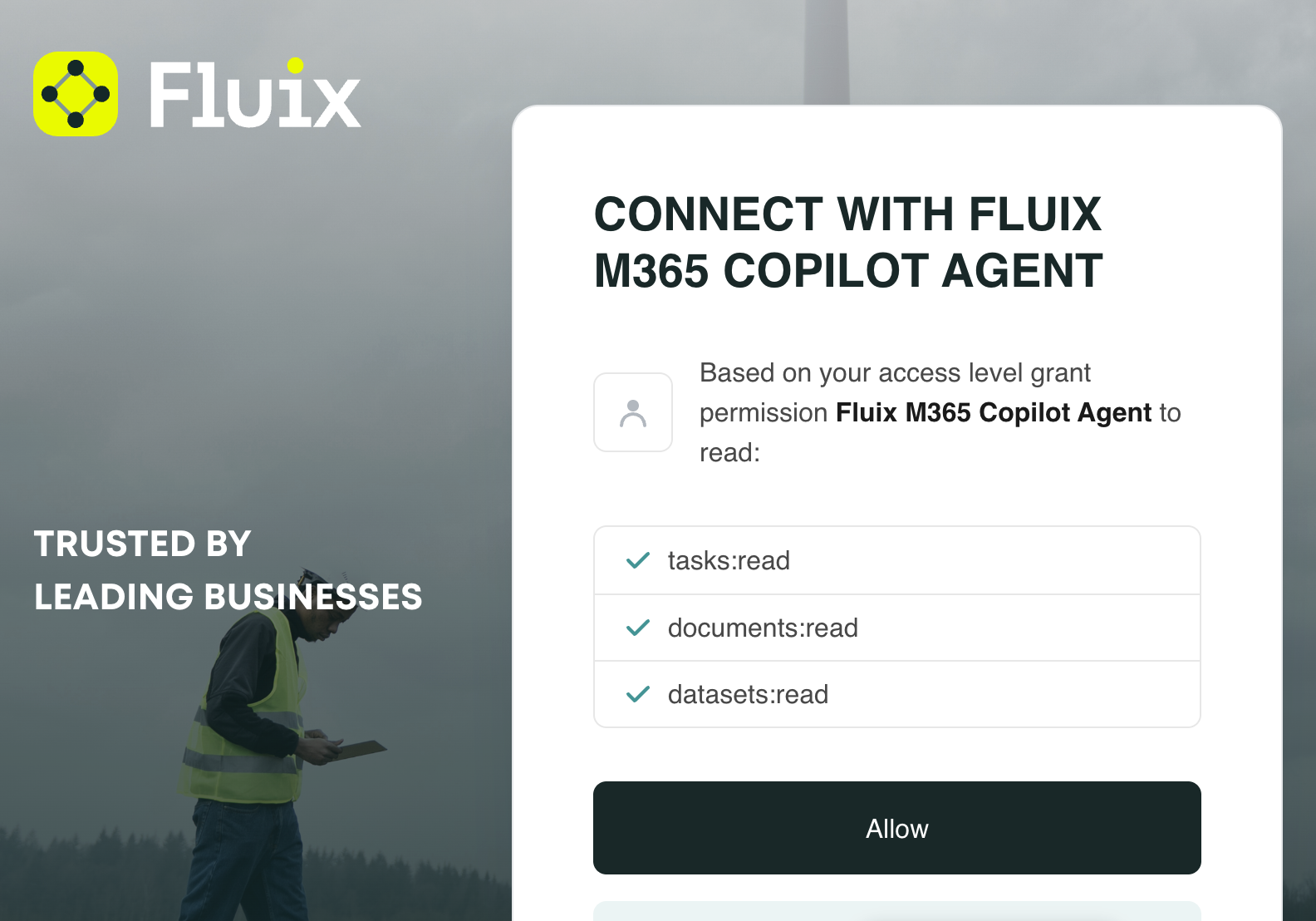
Sign in to your Fluix account. Review the requested permissions on the consent screen and press Allow.
Note: Copilot may ask you to confirm again the first time it calls a different Fluix tool. For example, after listing your task reports, it may ask for another confirmation before reading the rows of a selected report.
The Fluix connection provides read-only capabilities for:
Datasets — list available datasets and subviews, inspect their fields, and read form submissions.
Document statuses — find and analyze documents by status, workflow, owner, group, date range, document name, and other available properties.
How long the connection lasts
The connection renews itself automatically while you keep using it. If it goes unused for more than 30 days, you will be asked to sign in again. To disconnect sooner, revoke Copilot’s access from the Fluix side. You can also ask your Microsoft 365 admin to remove the Fluix agent if you no longer need it.
Using Fluix with Copilot
You can ask questions about your Fluix data in plain language.
For example:
“Show me the tasks that are currently overdue and group them by assignee.”
“Which documents are currently in progress, and what workflows do they belong to?”
“How many documents were completed this month?”
“Show me the columns available in my process report before pulling any rows.”
For broad questions, we recommend specifying the dataset, workflow, or time period you are interested in. This helps Copilot retrieve the most relevant Fluix data.
Privacy and data handling
When connecting Copilot to Fluix:
Your Fluix access remains limited to the company selected during authentication.
Copilot can access only the Fluix data that your user account is already authorized to see.
The integration provides read-only access and cannot create, edit, or delete your Fluix data.
Your Fluix credentials are entered through the Fluix authentication flow rather than provided to the AI assistant.
The Fluix MCP server reads the required information from Fluix on demand and does not store a separate copy of your Fluix content.
See the Fluix Privacy Notice for full details on how Fluix handles personal data.
Your organization’s use of Microsoft Copilot and the handling of data within Microsoft services are also subject to your organization’s Microsoft configuration and policies.
Troubleshooting
Symptom
What it means and how to fix it
The connection fails after I sign in to Fluix
Make sure the MCP Server feature is enabled for your Fluix company. It is not enabled by default. Contact your Fluix admin or support@fluix.io if you are unsure.
Copilot cannot see my reports, datasets, or documents
First, check whether your Fluix user has access to the requested information directly in Fluix. Copilot receives the same level of access as your Fluix user and cannot retrieve data that your account is not authorized to access.
Copilot shows data from the wrong Fluix company
If your Fluix account belongs to multiple companies, a different company may have been selected during authentication. Reconnect Fluix and select the correct company.
I don’t see Fluix among the available agents
If Fluix is unavailable, contact your Microsoft 365 admin and ask them to make the Fluix agent available for your organization.
Copilot asks me to authenticate again
Your Fluix session may have expired or been revoked. Please sign in to Fluix again when prompted.
In case you need our assistance, feel free to contact us at support@fluix.io. We are always here to help!
Was this article helpful?
Thanks for your feedback!
Oops, something went wrong. Please, try again later.
Thank you!
What details or examples would have made this article more helpful for you? We appreciate your insights!
Connect ChatGPT to Fluix by adding the Fluix plugin and signing in with your regular Fluix account — no API tokens or server URLs to copy. Once connected, you can ask ChatGPT about your Fluix task reports in plain language.
Before you start
You need:
A Fluix account with access to at least one company.
The MCP Server feature isenabled for your company’s Fluix plan. It is off by default — contact your Fluix admin or support@fluix.io. Without it, sign-in works, but the connection fails right after you approve access.
A ChatGPT account with the Plugins menu available. Fluix is listed publicly in the ChatGPT plugin directory, so there is no custom connector to build and no admin publishing step.
What ChatGPT can access in Fluix Docs
Permission
What it allows
Datasets
Read form-submission datasets
Documents
Read document statuses
Access is read-only, limited to the one company you picked at sign-in, and limited to what your own Fluix account can already see. ChatGPT cannot create, change, or delete anything in Fluix, and connecting does not give it more access than you have yourself.
Step 1 — Add the Fluix plugin
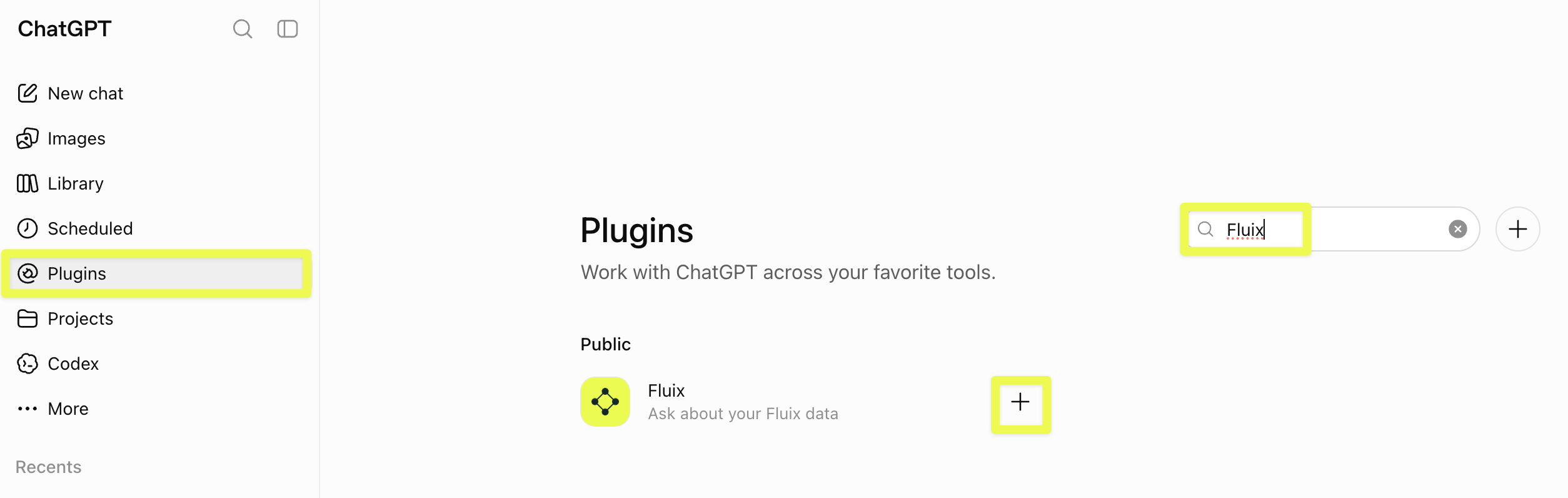
Open Plugins in the left sidebar.
Type Fluix in the search field. Fluix appears under Public.
Click + next to it.
Note: You can only set up and use the Fluix plugin in ChatGPT on the web version.
Step 2 — Sign in and approve
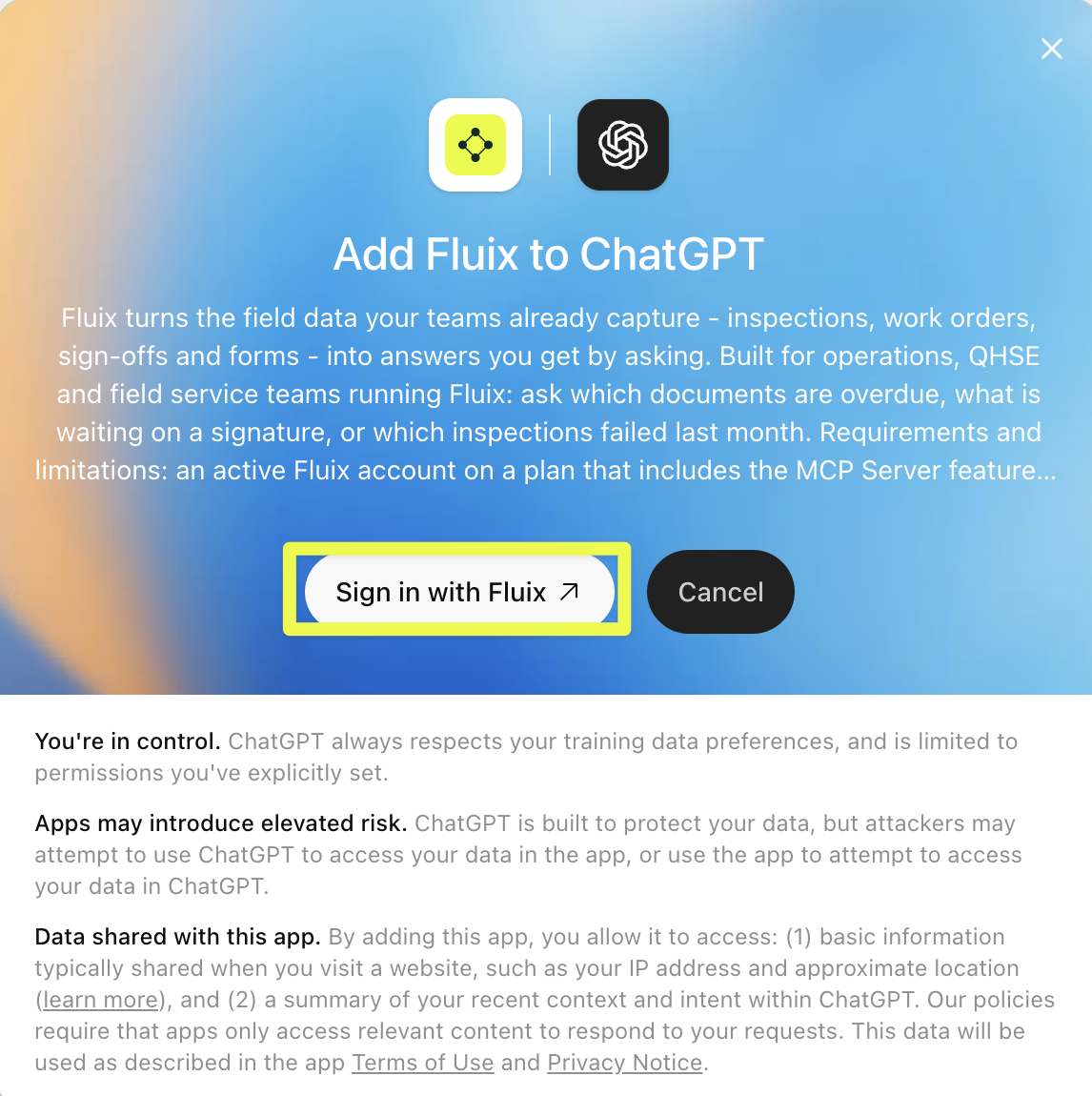
The Add Fluix to ChatGPT dialog opens with a summary of the plugin’s functionality and what it shares with ChatGPT. Click Sign in with Fluix. Clicking Cancel closes the dialog without adding anything.
The dialog notes that apps may introduce elevated risk. This is ChatGPT’s standard notice for any plugin, and it appears no matter which service you add. Fluix access stays read-only either way.
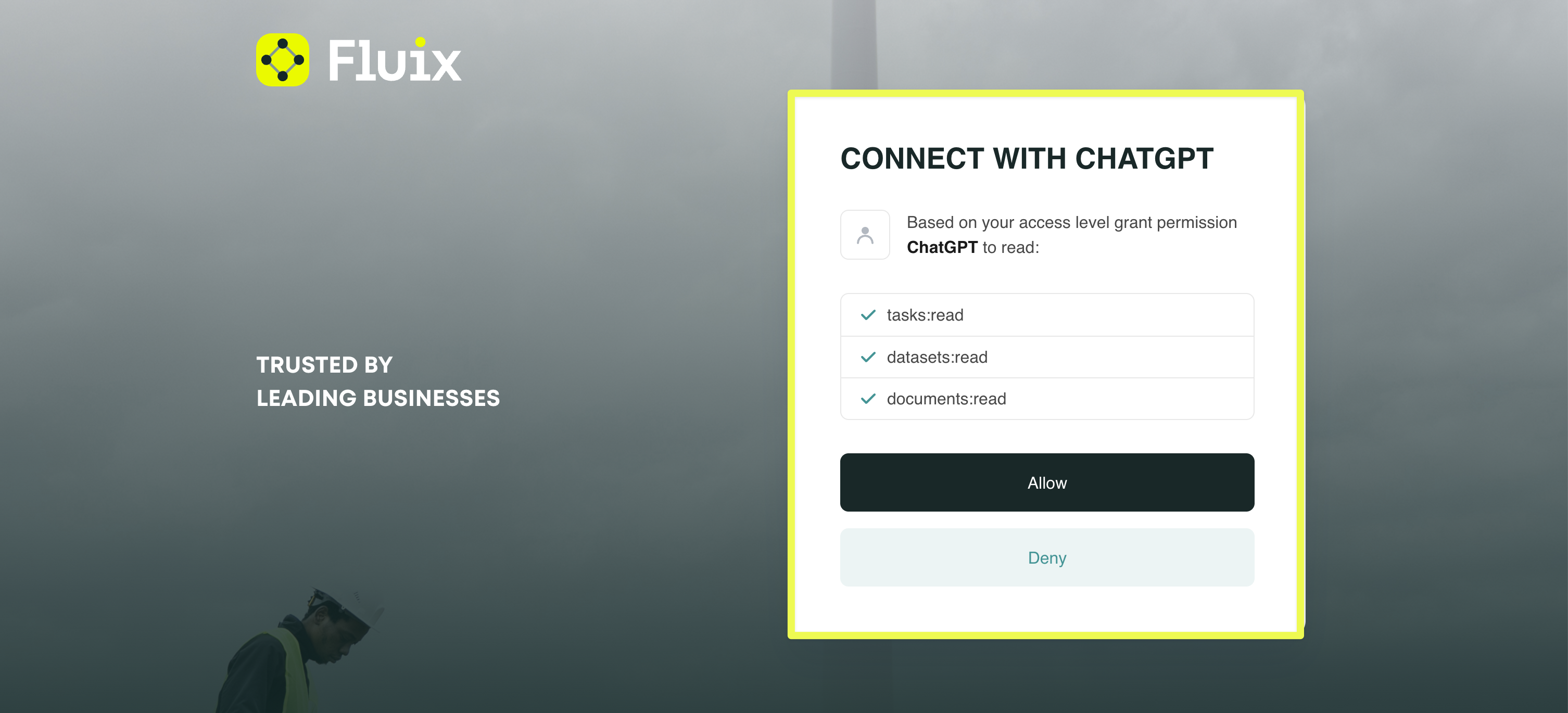
ChatGPT opens the Fluix sign-in page.
Sign in with your Fluix email and password, plus two-factor authentication if your account has it.
If you belong to more than one company, pick the one you want ChatGPT to access.
Check the permissions on the consent screen and press Allow.
Pressing Deny cancels the connection and shares nothing.
That’s it — Fluix now appears in your Plugins list, and ChatGPT can answer questions about your Fluix data.
Using it
Point ChatGPT at Fluix. There are two ways, and either works:
Name it in your prompt — start the message with the plugin name, for example, “Fluix, list my datasets.”
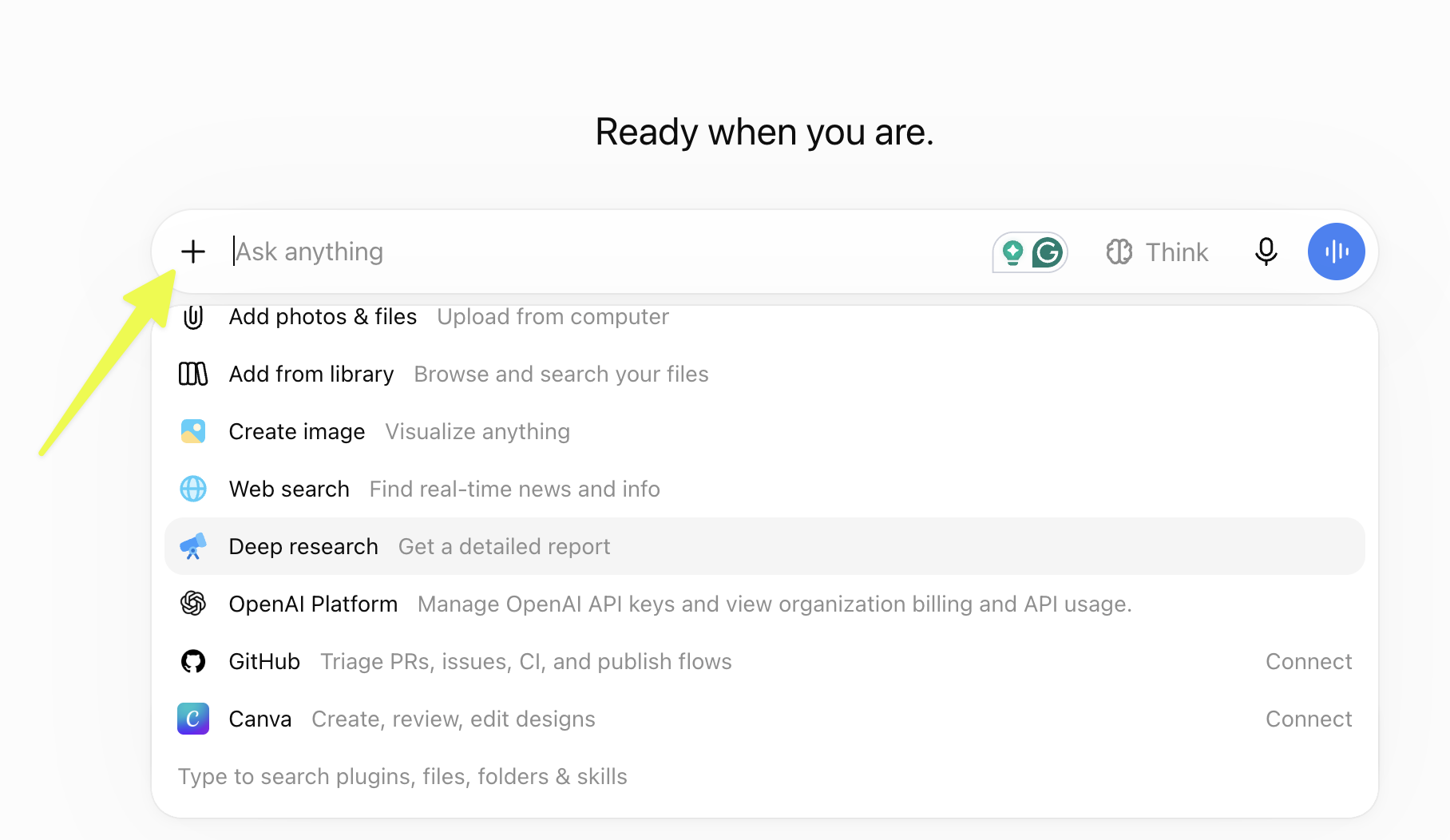
Select it from the tools menu — click + in the message composer and choose Fluix for that conversation.
Selecting it from the tools menu applies it to the current chat rather than to your account, so you would need to repeat it in a new conversation. If Fluix does not appear in that list straight after you connect it, start a new chat and look again.
Ask in plain language — ChatGPT picks the right Fluix data for the question. You do not need report IDs or field names.
A few examples:
“Which documents are still waiting for signature? Group them by workflow.”
“Summarise the form submissions in the Site Safety dataset from this month.”
“How many documents were completed last week versus the week before?”
To answer those questions, ChatGPT has five read-only capabilities:
Permission
What it does
Datasets
List datasets (masters and subviews); inspect a dataset’s fields; read form submissions
Documents
Inspect the available status fields; find documents filtered by status, condition, workflow, owner, group, date range, or name
Large results are read page by page, so narrowing the time range or naming the report usually gives a faster, tidier answer.
How long the connection lasts
The connection renews itself as long as you keep using it. After 30 days without use, you will be asked to sign in again.
To disconnect, remove the Fluix plugin in ChatGPT (Plugins → Fluix → remove), or ask your Fluix admin to revoke the connection. Either way, any live session stops working within 15 minutes.
Privacy and Data Handling
Credentials are entered only on the Fluix sign-in page in your own browser — never in ChatGPT.
The connection uses OAuth 2.1. You never create, copy, or store a token.
The Fluix MCP server keeps no copy of your data. It reads from the Fluix API on demand for each request.
The MCP Server feature is almost certainly not enabled for your company. Contact your Fluix admin or support@fluix.io.
Fluix does not appear when you search the plugin directory
Check that you are looking under Public. If the Plugins menu is missing from your sidebar entirely, plugins are not available on your ChatGPT plan or have been switched off for your workspace — check with your ChatGPT admin.
ChatGPT ignores Fluix in a chat
Enable the Fluix plugin for that conversation, or name it: “Using Fluix, list my datasets.”
Data from the wrong company
Disconnect, reconnect, and select the right company at sign-in.
Asked to sign in again mid-conversation
The session expired or was revoked — reconnect from the Fluix plugin.
A request fails with a permissions error
The connection was approved with reduced permissions. Reconnect and press Allow on the full list.
No datasets or documents visible
Your Fluix user may not have access to any — check in Fluix directly, or confirm the company you selected.
In case you need our assistance, feel free to contact us at support@fluix.io. We are always here to help!
Was this article helpful?
Thanks for your feedback!
Oops, something went wrong. Please, try again later.
Thank you!
What details or examples would have made this article more helpful for you? We appreciate your insights!
Connect Claude to Fluix by signing in with your regular Fluix account — no API tokens to copy or manage. Once connected, you can ask Claude about your Fluix task reports, form submissions, and document statuses in plain language.
Before you start
You need:
A Fluix account with access to at least one company.
The MCP Server feature enabled for your company’s Fluix plan. This is not enabled by default —contact your Fluix admin or support@fluix.io to turn it on. Without it, sign-in and consent will succeed, but the connection will fail immediately afterward (see Troubleshooting section).
A paid Claude plan. On Claude Team and Enterprise plans, your Claude admin may need to allow connectors first.
What Claude can access
Permission
What it allows
Tasks
Read task reports
Documents
Read document statuses
Datasets
Read form-submission datasets
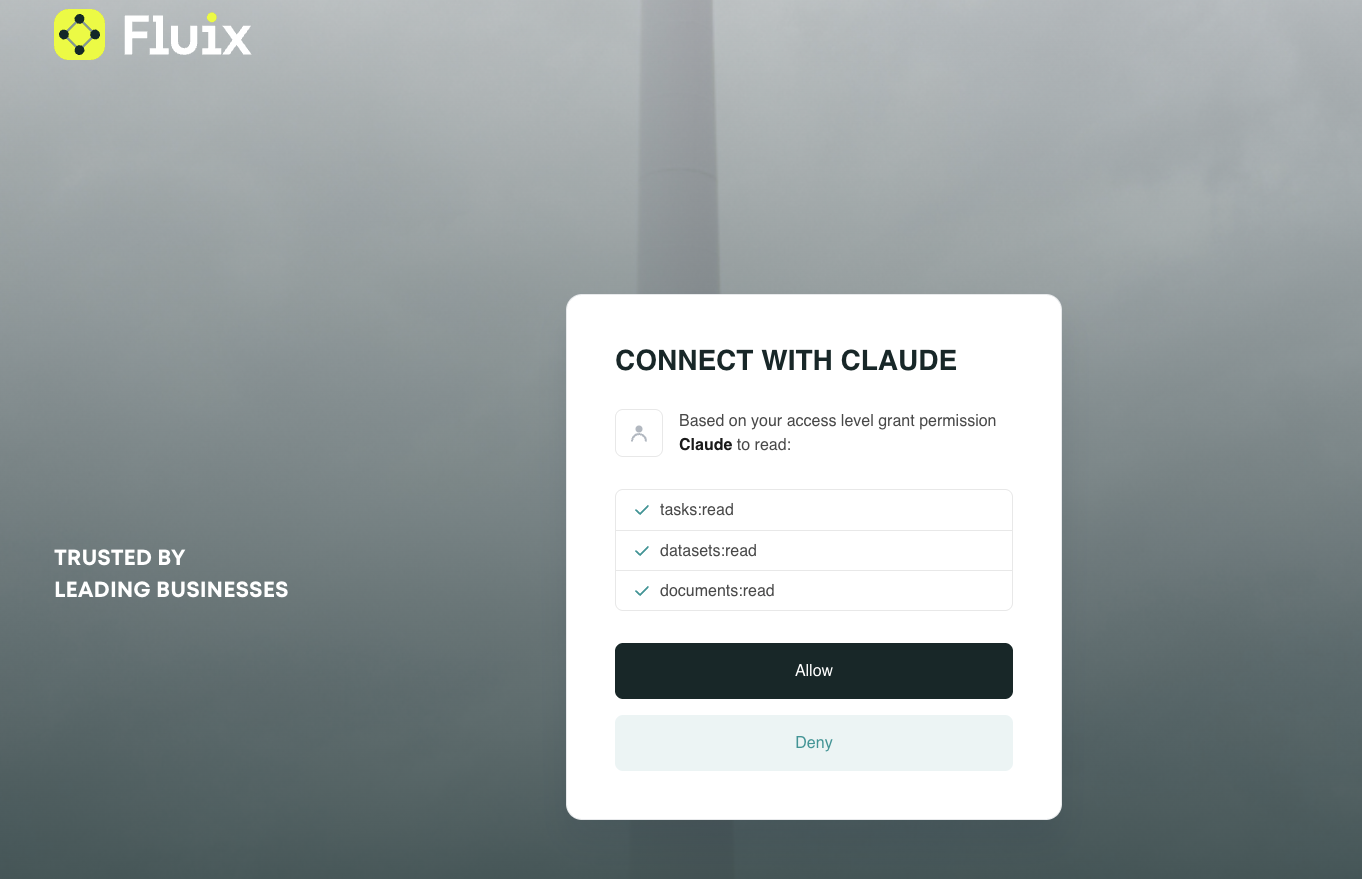
Access is read-only — Claude can read your Fluix data but cannot create, modify, or delete anything. Access is limited to the single company you select during sign-in and to the data your own Fluix user account can already see. Connecting does not grant Claude broader access than you have yourself.
Set up (claude.ai, Claude Desktop, Claude mobile, Claude Code)
Connecting once covers all three — the connection is tied to your Claude account, not to a device.
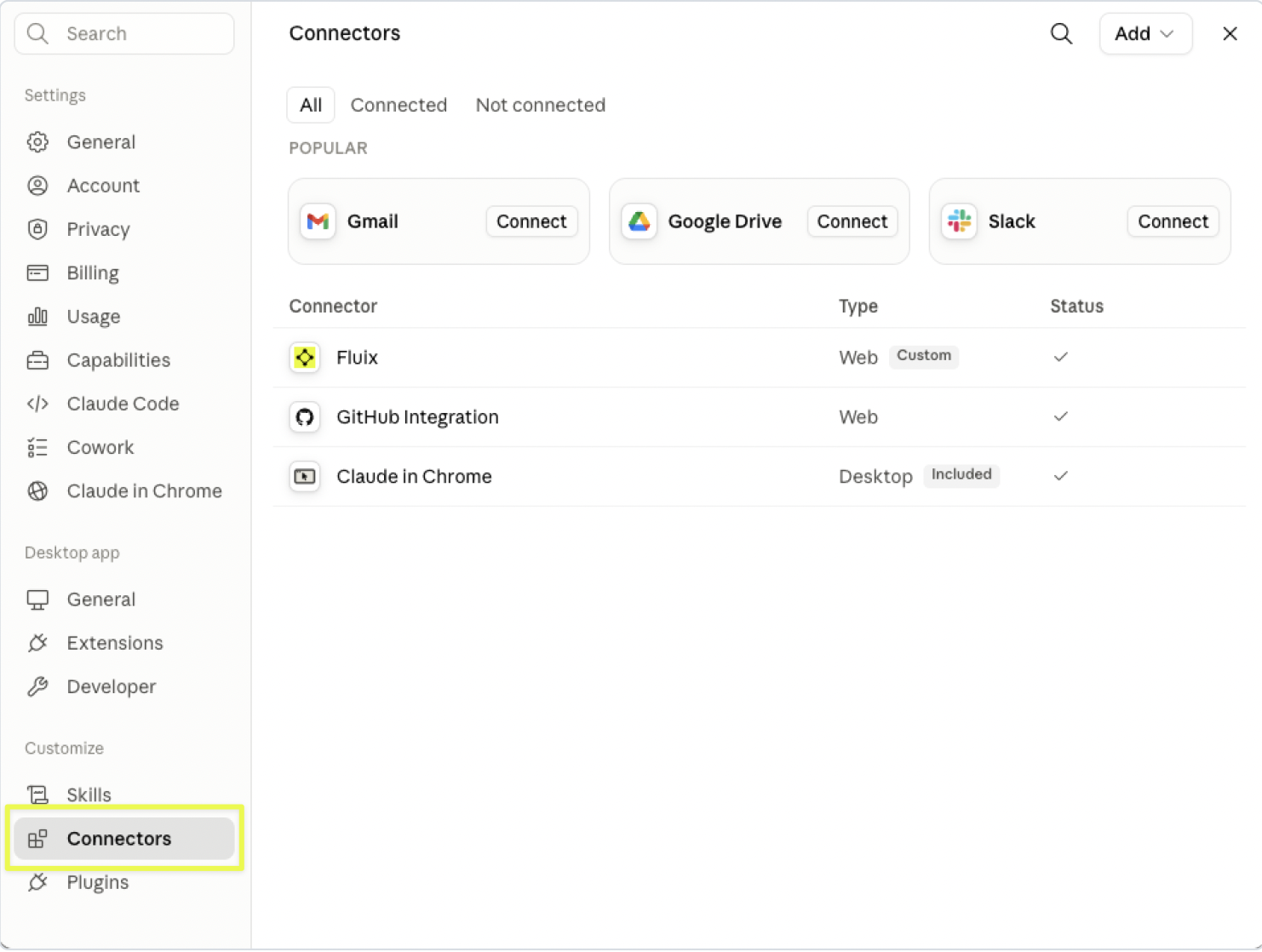
1. Open Settings → Connectors.
If Fluix is already listed, skip to step 3 and click it directly.
2. If Fluix isn’t listed yet, browse Fluix manually in the Search or locate the connector via this link https://claude.ai/directory/fluix.
3. Click Connect. Your browser opens the Fluix sign-in page.
4. Sign in with your Fluix email and password (plus two-factor authentication, if your account has it enabled).
5. If you belong to more than one company, pick the company you want Claude to access.
6. Review the requested permissions on the consent screen and press Allow.
Pressing Deny cancels the connection and shares nothing
That’s it — Fluix now appears as a connected connector, and Claude can answer questions about your Fluix data.
Using it
Ask in plain language — Claude picks the right Fluix data for the question. Examples:
“List my Fluix task reports, then show me the overdue tasks from the safety checklist report.”
“Which documents are still waiting for signature? Group them by workflow.”
“Summarise the form submissions in the Site Safety dataset from this month.”
“How many documents were completed last week versus the week before?”
“Show the columns available in my process report before pulling any rows.”
Behind the scenes, Claude has eight read-only capabilities:
Area
What Claude can do
Task reports
List the reports you can access; inspect a report’s columns; read its rows
Datasets
List datasets (masters and subviews); inspect a dataset’s fields; read form submissions
Document statuses
Inspect the available status fields; find documents filtered by status, condition, workflow, owner, group, date range, or name
Large result sets are paginated, so Claude reads them page by page rather than pulling everything at once. For broad questions, it helps to be specific about the time range or the report you mean.
Staying connected and disconnecting
The connection renews itself automatically while you keep using it. If it goes unused for more than 30 days, you will be asked to sign in again.
To disconnect, remove the Fluix connector in Claude (Settings → Connectors → Fluix → remove), or run claude mcp remove fluix in Claude Code. You can also revoke Claude’s access from the Fluix side at any time — ask your Fluix admin to revoke the connection for your user. Either way, any live session stops working within 15 minutes.
Privacy and data handling
Your Fluix credentials are entered only on the Fluix sign-in page in your own browser. They are never typed into or seen by Claude.
The connection is authorized with OAuth 2.1. No API token is created, copied, or stored by you.
The Fluix MCP server stores no Fluix content. It reads data from the Fluix API on demand to answer each request and keeps no copy.
Data Claude reads is limited to the company you selected and to what your own Fluix account can access.
See the Fluix Privacy Notice for full details on how Fluix handles personal data.
Troubleshooting
Symptom
What it means and how to fix it
Claude says, “Your account was authorized, but Fluix returned an error when connecting,” right after you press Allow
Almost always, the MCP Server feature is not enabled for your company’s plan. Contact your Fluix admin or support@fluix.io.
Claude Code shows MCP error -32002: Failed[FEATURE_DISABLED]: MCP server access is not enabled for your Fluix account
Same cause as above — the feature needs to be enabled for your company.
Connection fails right after the browser step
You pressed Deny or closed the browser tab before finishing. Reconnect and press Allow.
Claude asks you to authenticate mid-conversation again
The session expired or was revoked. Reconnect — press Connect on the Fluixconnector, or run /mcp in Claude Code.
Claude shows data from the wrong company
A different company was selected during sign-in. Disconnect, reconnect, and pick the right one.
A specific request fails with a permissions error
The connection was approved with reduced permissions. Reconnect and press Allow onthe full permission list.
The Fluix sign-in page rejects you
Complete two-factor authentication if your account has it. Confirm the credentials work by signing in to Fluix directly.
Claude can’t see any reports, datasets, or documents
Your Fluix user may not have access to any. Check in Fluix directly, or confirm you selected the intended company.
In case you need our assistance, feel free to contact us at support@fluix.io. We are always here to help!
Was this article helpful?
Thanks for your feedback!
Oops, something went wrong. Please, try again later.
Thank you!
What details or examples would have made this article more helpful for you? We appreciate your insights!
Sign Up to Our Product Newsletter
The latest updates from our Product team, straight to your inbox