



Connect Claude to Fluix by signing in with your regular Fluix account — no API tokens to copy or manage. Once connected, you can ask Claude about your Fluix task reports, form submissions, and document statuses in plain language.
Before you start
You need:
- A Fluix account with access to at least one company.
- The MCP Server feature enabled for your company’s Fluix plan. This is not enabled by default —contact your Fluix admin or support@fluix.io to turn it on. Without it, sign-in and consent will succeed, but the connection will fail immediately afterward (see Troubleshooting section).
- A paid Claude plan. On Claude Team and Enterprise plans, your Claude admin may need to allow connectors first.
What Claude can access
| Permission | What it allows |
| Tasks | Read task reports |
| Documents | Read document statuses |
| Datasets | Read form-submission datasets |
Access is read-only — Claude can read your Fluix data but cannot create, modify, or delete anything. Access is limited to the single company you select during sign-in and to the data your own Fluix user account can already see. Connecting does not grant Claude broader access than you have yourself.
Set up (claude.ai, Claude Desktop, Claude mobile, Claude Code)
Connecting once covers all three — the connection is tied to your Claude account, not to a device.
1. Open Settings → Connectors.
If Fluix is already listed, skip to step 3 and click it directly.
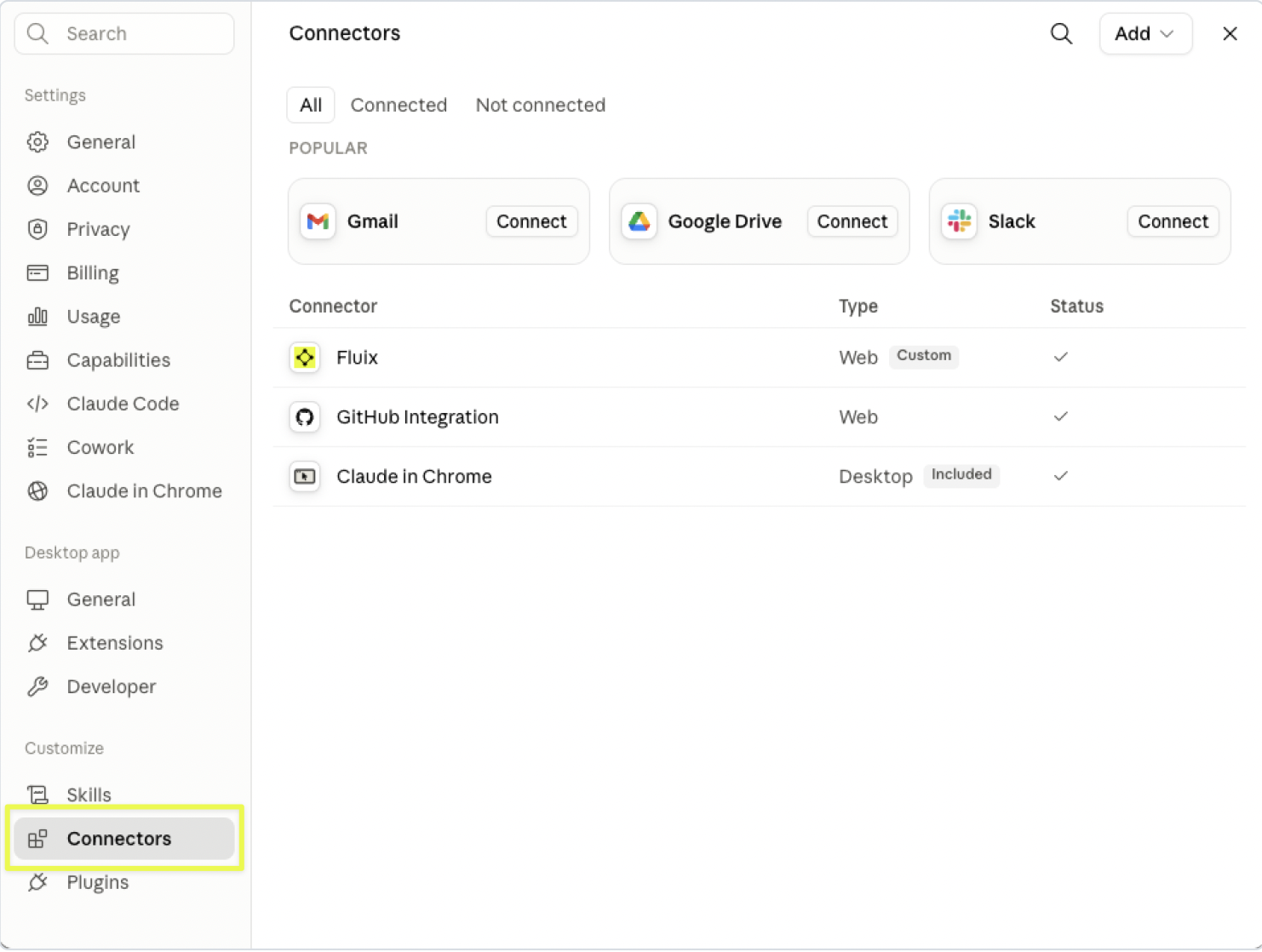
2. If Fluix isn’t listed yet, browse Fluix manually in the Search or locate the connector via this link https://claude.ai/directory/fluix.
3. Click Connect. Your browser opens the Fluix sign-in page.
4. Sign in with your Fluix email and password (plus two-factor authentication, if your account has it enabled).
5. If you belong to more than one company, pick the company you want Claude to access.
6. Review the requested permissions on the consent screen and press Allow.
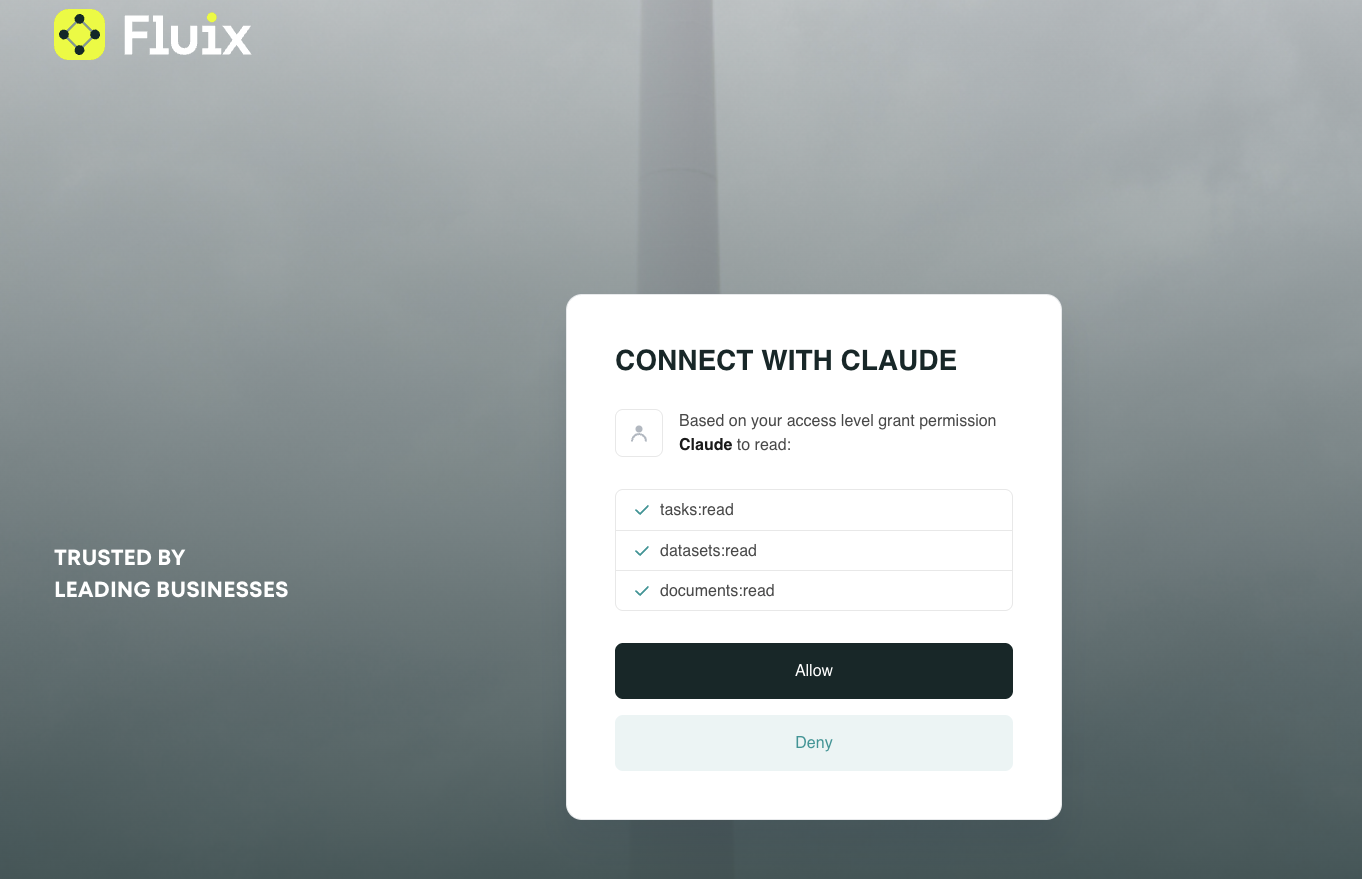
Pressing Deny cancels the connection and shares nothing
That’s it — Fluix now appears as a connected connector, and Claude can answer questions about your Fluix data.
Using it
Ask in plain language — Claude picks the right Fluix data for the question. Examples:
- “List my Fluix task reports, then show me the overdue tasks from the safety checklist report.”
- “Which documents are still waiting for signature? Group them by workflow.”
- “Summarise the form submissions in the Site Safety dataset from this month.”
- “How many documents were completed last week versus the week before?”
- “Show the columns available in my process report before pulling any rows.”
Behind the scenes, Claude has eight read-only capabilities:
| Area | What Claude can do |
| Task reports | List the reports you can access; inspect a report’s columns; read its rows |
| Datasets | List datasets (masters and subviews); inspect a dataset’s fields; read form submissions |
| Document statuses | Inspect the available status fields; find documents filtered by status, condition, workflow, owner, group, date range, or name |
Large result sets are paginated, so Claude reads them page by page rather than pulling everything at once. For broad questions, it helps to be specific about the time range or the report you mean.
Staying connected and disconnecting
The connection renews itself automatically while you keep using it. If it goes unused for more than 30 days, you will be asked to sign in again.
To disconnect, remove the Fluix connector in Claude (Settings → Connectors → Fluix → remove), or run claude mcp remove fluix in Claude Code. You can also revoke Claude’s access from the Fluix side at any time — ask your Fluix admin to revoke the connection for your user. Either way, any live session stops working within 15 minutes.
Privacy and data handling
- Your Fluix credentials are entered only on the Fluix sign-in page in your own browser. They are never typed into or seen by Claude.
- The connection is authorized with OAuth 2.1. No API token is created, copied, or stored by you.
- The Fluix MCP server stores no Fluix content. It reads data from the Fluix API on demand to answer each request and keeps no copy.
- Data Claude reads is limited to the company you selected and to what your own Fluix account can access.
See the Fluix Privacy Notice for full details on how Fluix handles personal data.
Troubleshooting
| Symptom | What it means and how to fix it |
| Claude says, “Your account was authorized, but Fluix returned an error when connecting,” right after you press Allow | Almost always, the MCP Server feature is not enabled for your company’s plan. Contact your Fluix admin or support@fluix.io. |
| Claude Code shows MCP error -32002: Failed[FEATURE_DISABLED]: MCP server access is not enabled for your Fluix account | Same cause as above — the feature needs to be enabled for your company. |
| Connection fails right after the browser step | You pressed Deny or closed the browser tab before finishing. Reconnect and press Allow. |
| Claude asks you to authenticate mid-conversation again | The session expired or was revoked. Reconnect — press Connect on the Fluixconnector, or run /mcp in Claude Code. |
| Claude shows data from the wrong company | A different company was selected during sign-in. Disconnect, reconnect, and pick the right one. |
| A specific request fails with a permissions error | The connection was approved with reduced permissions. Reconnect and press Allow onthe full permission list. |
| The Fluix sign-in page rejects you | Complete two-factor authentication if your account has it. Confirm the credentials work by signing in to Fluix directly. |
| Claude can’t see any reports, datasets, or documents | Your Fluix user may not have access to any. Check in Fluix directly, or confirm you selected the intended company. |
In case you need our assistance, feel free to contact us at support@fluix.io. We are always here to help!