

A static form makes the inspector scroll through every field, even the ones that don’t apply. Multiply by 10 inspections a day, and half the day is spent scrolling.
Mobile-friendly forms solve that. Conditional logic shows only the fields that matter based on what the inspector selects. Multi-photo capture, data prefill, offline sync, progressive table of contents, and other automations all sit inside the same form, so the inspector’s phone becomes the whole data-collection surface.
In this guide, I’ll walk through how dynamic forms work in Fluix, where inspection teams use them most, and the habits that make them run smoothly.
Note: Dynamic Forms are available starting with the Crews plan. Compare Fluix pricing plans to see what’s included.
Contents:
What Are Dynamic Forms?
Key Features of Dynamic Forms
Mobile Responsiveness
Conditional Logic
Multi-Photo Capture with Annotations
Dropdown Prefill
Text Scanner
Reference Number Autogeneration
Linked PDF Manuals Inside the Form
Auto-Generated Report Summary
Offline Capture and Sync
Form Builder
Dynamic Forms Best Practices
What Problem Dynamic Forms Solve
Fluix Dynamic Forms FAQ
What Are Dynamic Forms?
Dynamic Forms are mobile-friendly forms that adapt to what the inspector enters — showing, hiding, or requiring fields in real time based on preset rules.
Instead of forcing every inspector to scroll past every possible field, a dynamic form reveals only the sections that apply to the specific asset, condition, or outcome being inspected.
For field teams, this matters because most inspection templates cover many possible states of an asset. A wind turbine inspection form might have sections for gearbox condition, blade root fittings, tower welds, safety equipment, and 20 more categories. Only some of them apply on any given day. A dynamic form asks the inspector what they’re inspecting, then shows only the relevant sections.
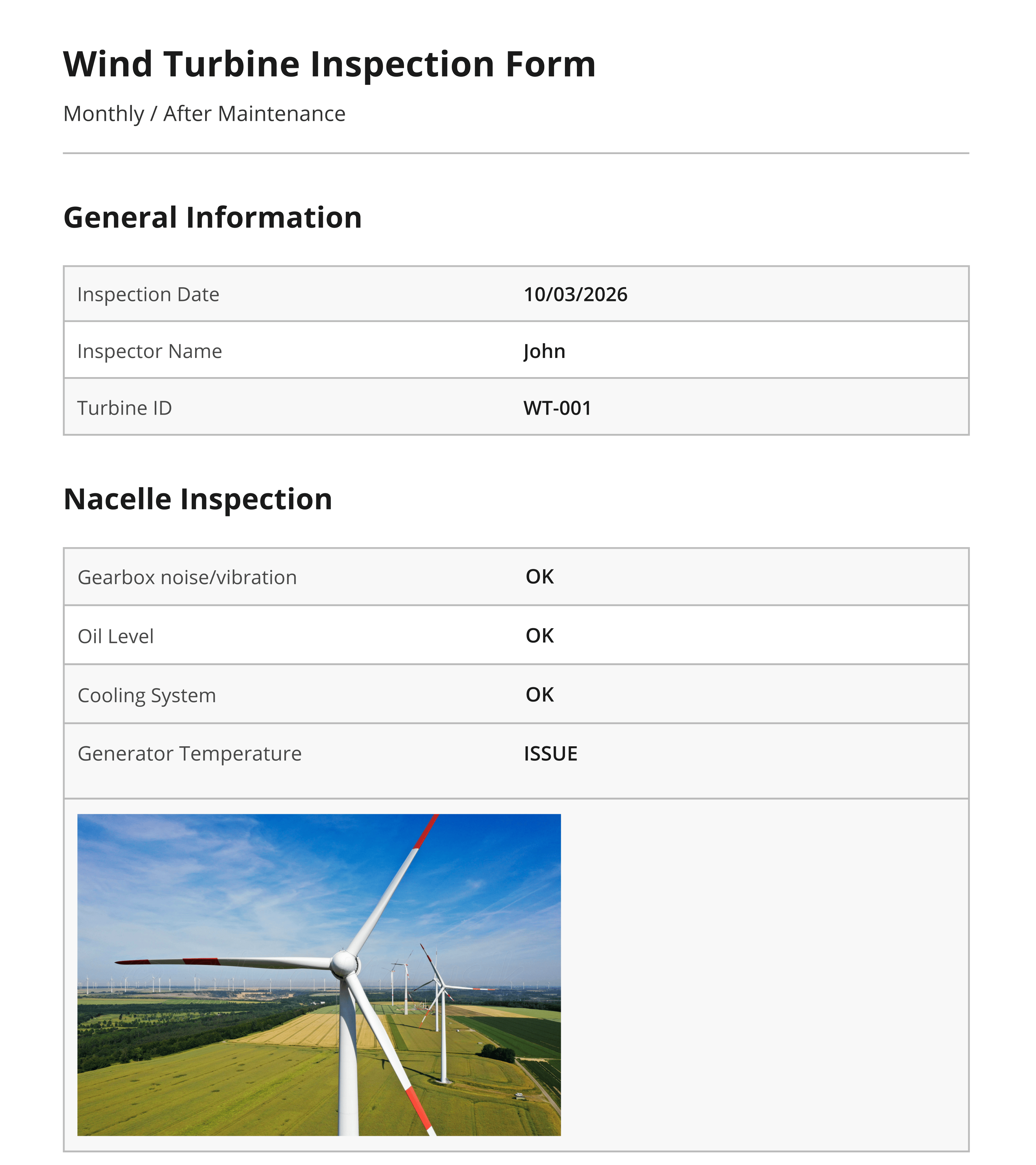
Good dynamic forms share four traits:
- They adapt to user input in real time — conditional logic shows or hides fields as the inspector fills them in
- They handle rich data types — photos, signatures, timestamps, geotags, barcode scans
- They work offline — inspections happen where connectivity dies, so the form has to capture and sync when the connection returns
- They stay editable and reusable — the same form template evolves as regulations, equipment, or workflows change
Most inspection tools handle one or two of these. The ones that handle all four are the ones field teams trust for high-volume, compliance-critical workflows.
Key Features of Dynamic Forms
Fluix is inspection management software for field teams that gives you the full dynamic-forms toolkit – conditional logic, multi-photo capture, dropdown prefill, offline sync, and text scanning — built into every form you create.
Mobile Responsiveness
Dynamic forms automatically adjust to mobile screens, making them fast and easy to complete in the field. With the adaptive layout, fields stack vertically for smooth navigation on any device.
Forms are touch-optimized – tap, swipe, and type easily with fingers – every field is designed for touch.
Conditional Logic
With conditional logic in forms, you can set rules that show, hide, or require fields based on what the inspector enters.
If a technician selects “Electrical Systems” from a dropdown, only the electrical checklist appears. If they mark a piece of equipment as “Failed,” the corrective-action fields open automatically. The form template stays the same across inspections; the visible form changes based on real conditions.
You can also group related fields into collapsible sections — one per inspection type, work category, or asset class. The inspector sees the sections that apply to their job, expands the one they’re working on, and moves through the form without a wall of fields.
Multi-Photo Capture with Annotations
Every image field supports multiple photos with per-photo comments and on-image annotations.
Inspectors can mark up a defect photo, add context, and chain shots showing different angles or before-and-after states – all inside the form, all attached to the same submission.
Related: How to manage inspection photos with photo documentation >
Dropdown Prefill
Admins can predefine dropdown values based on conditions or link them to a live CSV source. Instead of typing an asset ID, the inspector picks from a maintained list. The values stay consistent across every inspection.
Related: How to autopopulate forms using data prefill >
Text Scanner
The inspector’s phone camera reads printed or handwritten text directly into a form field — asset tags, serial numbers, meter readings, logbook entries.
Reference Number Autogeneration
Every inspection gets a unique ID the moment it opens. If your process uses sequential numbers (report IDs, inspection numbers, reference codes), dynamic forms populate them automatically when the technician starts a new form. Admin sets the numbering rule once. Every form after that follows it.
Linked PDF Manuals Inside the Form
Field teams can open a linked PDF manual — equipment specs, safety procedures, regulatory reference — directly inside the active form.
Auto-Generated Report Summary
At the end of an inspection, Fluix can automatically generate a summary of every flagged item — failed checks, defects, corrective actions — so supervisors see what needs attention without reading the full report.
Offline Capture and Sync
Every dynamic form works offline. The inspector captures data, photos, and signatures on the device, and everything syncs automatically when the connection returns.
Form Builder
Every capability above is configured in Fluix’s drag-and-drop Form Builder. Admins update templates as regulations change, then push the new version to every field device.
If you’d rather skip the manual build entirely, Fluix’s AI Form Creation generates a full inspection form from a text prompt in under 10 seconds.
Ready to try Dynamic Forms?
Already a Fluix customer? Dynamic forms are in your account right now — open the Form Builder to create your first one, or add conditional logic to an existing form.
New to Fluix or just want to try it first? Start a free trial and build your first dynamic inspection form in about 15 minutes.
Dynamic Forms Best Practices
These six habits will help you get the most of dynamic forms in the field.
1. Start with the simplest conditional rule.
The temptation with dynamic forms is to configure every possible branch. Resist it. Start with one or two conditions that solve a specific pain — “if fail, require defect photo” or “if equipment type = X, show these sections.” Add complexity only when you see it’s needed.
2. Test the form on a real device.
Preview mode is useful, but the form behaves differently under actual field conditions. Test on the same iPad or Android model your team uses. Test in landscape and portrait. Test with a gloved finger, if that’s your reality.
3. Use data prefill for anything that repeats.
Asset IDs, site names, inspector names, equipment codes — anything the team enters more than once should be a dropdown, not a text field. It cuts entry time and eliminates typos.
4. Keep the “which sections apply” logic on the first screen.
Ask the “what are you inspecting” question first, before any details. That way the form only reveals the relevant sections once the inspector has committed to a specific inspection type.
5. Build corrective-action logic into every fail path.
Any dynamic form that captures a Fail, Non-conformance, or Defect should automatically prompt for a defect photo, issue description, and follow-up assignment. Don’t leave that decision to the inspector’s memory.
6. Review templates quarterly.
Regulations change. Equipment changes. Team feedback surfaces bad field-ordering or missing sections. A quarterly review of your dynamic form templates keeps them accurate and prevents template drift.
What Problem Dynamic Forms Solve
These five patterns show up across every inspection team we work with.
- Rigid forms that don’t fit a phone. Static PDF forms force inspectors to zoom in and out to reach fields, tap the wrong element, and lose their place. Dynamic forms stack fields vertically and adapt to any screen size, so inspectors fill them out with a thumb, not a magnifying glass.
- No digital library to start from. Teams moving off paper often don’t know where to begin. With Dynamic Forms, you can start from ready-made blocks in the drag-and-drop Builder – pick a template, use ready sections, adjust the fields, add conditional rules.
- Wasted inspector attention. Conditional logic reclaims time spent on form scrolling by showing only what applies to the specific asset, site, or condition.
- Missed follow-up on failed inspections. If the form doesn’t prompt the inspector for defect photos, corrective actions, or supervisor sign-off at the moment, that information gets lost.
- Inconsistent data. Different formats for asset IDs and different levels of detail in the same field add fragmentation. Dynamic forms enforce consistency by controlling which fields appear when.
What customers say about using mobile forms in Fluix:
“Being able to digitize paperwork and run everything through Fluix has made things faster and ensures that we’re on top of our compliance objectives.” Ryan Parrock, Deputy ATO Manager, Simaero. Read full Simaero story >
Fluix Dynamic Forms FAQ
- What is a dynamic form?
A dynamic form is a digital form that adapts to what the user enters — showing, hiding, or requiring fields in real time based on preset rules.
Unlike a static form that displays every field to every user, a dynamic form reveals only the sections that apply to the specific context being captured.
- How is a dynamic form different from a regular digital form?
A regular digital form is a static replica of paper. A dynamic form uses conditional logic to adapt: fields appear or disappear based on user input, dropdowns prefill from data sources, and workflows route based on answers. The form template stays the same; the visible form changes based on the situation.
- What is conditional logic in a form?
Conditional logic is a set of “if-then” rules that control which fields appear based on user input. If an inspector selects “Failed,” the corrective-action section appears. If they select “Passed,” the form skips ahead. The rule set is defined once in the form template and applied automatically every time the form is used.
- Can I use Fluix dynamic forms offline?
Yes. Every dynamic form works offline — the inspector captures data, photos, and signatures on the device, and everything syncs automatically when the app reconnects.
- Do I need coding skills to build a dynamic form in Fluix?
No. Fluix’s Form Builder uses a drag-and-drop interface — you add fields, set conditional rules, and configure dropdowns without writing code. Admins update templates directly, no developer required.
- Can dynamic forms include photos, signatures, and barcode scans?
Yes. Every dynamic form supports multi-photo capture with annotations, e-signatures, GPS timestamps, and barcode or QR code scanning.
- How do Fluix dynamic forms handle regulatory changes?
Update the template once in the Form Builder, and the new version pushes to every field device the next time it’s opened.