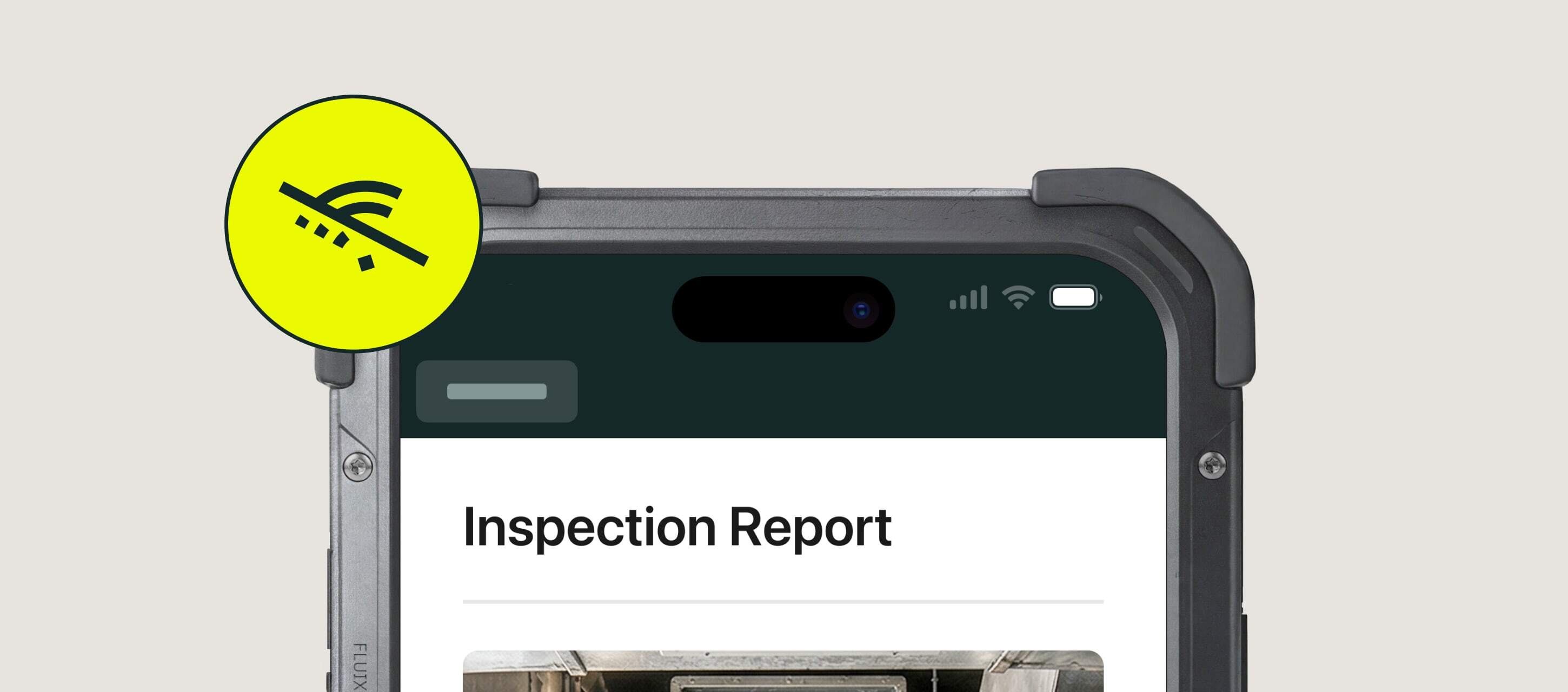
Field inspections often happen where connectivity dies – inside a wind turbine, on the deck of an offshore rig, on a construction site with no cell coverage.
To keep the data safe, modern inspection management software offers offline mode. The team captures forms, photos, and signatures on the device, and everything syncs automatically the moment the connection comes back.
Fluix has offered offline mode since day one. In this guide, I’ll walk through how it works, when your team should use it, and the habits that keep it running smoothly in the field.
Offline mode is included with every Fluix plan. Every Fluix account gets 10 GB of free cloud storage, with the option to add more if your team needs it.
Contents:
- What Is Fluix Offline Mode?
- How Offline Mode Actually Works
On the device
On sync
- What Problems Offline Mode Solves
- How to Get the Most Out of Offline Mode
Fluix Offline Mode FAQ
- What can I do offline in Fluix?
What can’t I do offline?
How does sync actually work?
What happens if the device is lost before syncing?
Can I use offline mode on iPad, iPhone, and Android?
How much storage do I get?
Does offline mode work with photos and signatures?
Do I need to configure offline mode per user or per form?
- The Bottom Line
What Is Fluix Offline Mode?
Fluix offline mode is a capability that lets your field team open, fill, sign, and submit inspection forms without an internet connection. Photos, signatures, form data, and completed submissions all capture locally on the device. When the device reconnects (over Wi-Fi or mobile data) everything syncs automatically to your workflow and cloud storage.
There’s nothing admins need to configure per user, per form, or per site. If a form is available to a Fluix user, it’s available offline, and sync happens in the background.
How Offline Mode Actually Works
The mechanics are straightforward, but they’re worth understanding before your team relies on them.
On the device
When a Fluix user is online, the mobile app syncs everything they need: assigned forms, cloud storage files, safety briefings, PDFs, reference documents. All of it caches locally on the device.
When connectivity drops (or when the user switches to airplane mode deliberately), the app keeps working. The user opens forms, fills them out, captures photos with timestamps and geotags, adds signatures, and hits Submit the same way they would online.
Submitted forms land in the Outgoing section of the app and sit there, marked “waiting to sync,” until the device reconnects.
On sync
The moment the device gets Wi-Fi or mobile data, Fluix starts syncing everything in the outgoing queue automatically. Photos, signatures, and form data all flow into your workflow the same way they would if the submission had happened online. Cloud storage integrations (SharePoint, Google Drive, Dropbox, Box) receive the submissions. Version control captures any edits made offline against the authoritative online version.
For teams that do heavy offline work — offshore, mining, wind — we recommend batch-syncing over Wi-Fi rather than cellular, because photo-heavy submissions add up on mobile data plans.
RELATED RELATED See how photo documentation works in Fluix
What Problems Offline Mode Solves
Based on what we often hear from our customers on discovery calls and during on-site visits, offline mode solves four specific problems:
1. Connectivity dead zones interrupt inspections. Wind turbine internals, offshore installations, plant basements, underground utilities, remote job sites are the environments where most inspection value is created. And they are the environments where signal drops out. Without offline mode, the tech either walks somewhere with signal (losing time), takes paper notes (losing accuracy), or delays the inspection (losing the schedule).
2. Paper backups break the audit trail. When a form can’t submit in the moment, the fallback is usually paper. Handwritten notes get transcribed later, incorrectly.
3. Team leads can’t tell what’s actually done in the field. When forms sit in a “waiting to submit” queue on the device, managers back at the office have no visibility.
4. Mobile data costs quietly add up. For inspectors uploading dozens of photos over cellular data every day, mobile costs compound.
Let’s put a number on it. If your inspection team runs 30% of their work in low-connectivity environments (the standard for wind, offshore, mining, and heavy construction) and each interrupted form costs 10 minutes to recover once you’re back online (rewriting notes, re-uploading photos, chasing missed submissions), that’s roughly 15 hours of lost time per week for a team of 10 inspectors. Offline mode reclaims most of it.
Related Related How Drax Power runs inspections during planned turbine outages with Fluix
How to Get the Most Out of Offline Mode
Six things come up in customer onboarding often enough that I think they’re worth flagging upfront.
1. Log in before you head out. Authentication requires connectivity. Have your team log into the Fluix app while they’re still on Wi-Fi. Once they’re in, the app runs offline for as long as their session stays active. First-time login on a rig or at 80 metres up a turbine won’t work.
2. Sync at least once a day. Anything captured offline lives on the device until it syncs. If the device is lost, damaged, or reset before sync, that data is gone. Building a “sync at end of shift” habit protects every submission your team captured that day.
3. Sync before you reinstall the app. Rare but worth knowing: if a field tech needs to reinstall Fluix (troubleshooting, device swap, OS upgrade), any submissions still in the outgoing queue disappear with the uninstall. Rule of thumb: sync first, reinstall second. If in doubt, our support team can walk your tech through it.
4. Batch-sync photos over Wi-Fi. A day of heavy inspection can produce hundreds of photos with metadata. Syncing that volume over cellular data adds up fast — especially on international mobile plans. For photo-heavy workflows, we recommend teams do the day’s inspection offline, then sync everything at once when they’re back on Wi-Fi at the office, hotel, or vessel.
5. Coordinate on shared forms. If two people edit the same form offline and both submit, Fluix’s version control flags the conflict on sync so nothing gets silently overwritten. It works well, but the cleaner pattern is to assign one owner per form for the offline portion of the workflow. Save the collaborative editing for when both people are online.
6. Know which features pause offline. Notifications, live dashboards, and real-time updates from teammates all pause while the device is disconnected — they resume as soon as sync completes. Plan the offline portion of the work around what needs live data (usually nothing) versus what can wait (usually everything).
Follow these six and offline mode does what it’s supposed to do: keep your team productive in the places where inspections actually happen.
Fluix Offline Mode FAQ
What can I do offline in Fluix?
Fill inspection forms, capture photos with timestamps and geotags, sign documents, access synced files (manuals, safety briefings, reference PDFs), and submit forms. Submissions queue in the outgoing folder until connectivity returns, then sync automatically.
What can’t I do offline?
Log in for the first time (authentication needs connectivity), see real-time updates from teammates, receive live notifications, or view live dashboards. Anything that depends on live server data is paused until reconnection.
How does sync actually work?
Automatically, the moment the device gets Wi-Fi or mobile data. Nothing for the user to do. The outgoing queue drains, photos and form data flow into your workflow, and cloud storage integrations receive the submissions.
What happens if the device is lost before syncing?
Unsynced data is lost. This is why we recommend teams sync at least once a day, especially in high-risk environments (offshore, remote sites, mining).
Can I use offline mode on iPad, iPhone, and Android?
Yes. Offline mode is a mobile app feature. Web browsers don’t support it — you’ll need the Fluix app on iOS or Android.
How much storage do I get?
Every Fluix account includes 10 GB of free cloud storage for your team, with the option to add more if you need it. Storage limits are per-account, not per-user.
Does offline mode work with photos and signatures?
Yes. Photos capture with timestamps and geolocation metadata, signatures apply cryptographically at the point of signing, and both sync as part of the completed form when the device reconnects.
Do I need to configure offline mode per user or per form?
No. Offline is a default behaviour of the Fluix mobile app. Any form your team can access online works offline.
The Bottom Line
Inspections happen where connectivity dies, and most inspection management software of today isn’t built for.
Fluix offline mode is part of Fluix software trusted by 12,000 field service teams to run inspections, safety, and compliance in the field. If your team runs inspections anywhere connectivity is unreliable — and it almost certainly does — offline mode is already in your Fluix subscription.