


Besides submit actions, preconfigured in a workflow, users can share documents with their colleagues and customers via sharing options. Additionally, you can customize the Application Tab Titles and add shortcuts for the work-related apps.
File Sharing Tab
In the File Sharing tab, you can control which sharing options are available to your end users. To proceed, please navigate to the File Sharing tab of the User Settings section on the Admin Portal:
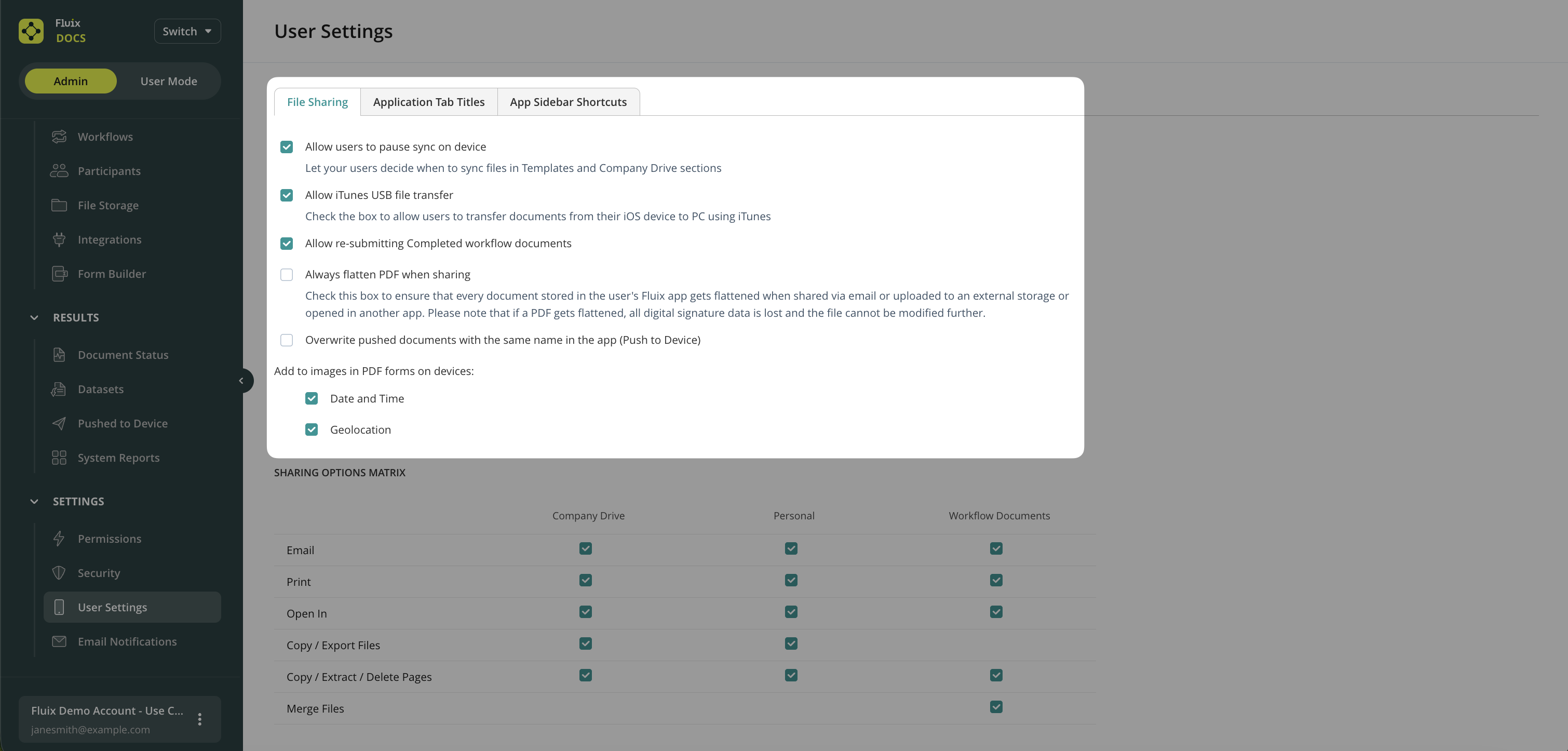
- Allow users to pause sync on device—Let you enable the sync control in the Fluix Docs App. By allowing it, you let your users prioritize which folders they want to sync first in the Fluix Docs app. Check out this tutorial to learn how to use this feature.
- Allow iTunes USB file transfer — enables users to transfer files from the iPad app to computers via USB cable and iTunes.
- Allow re-submitting completed workflow documents—This option enables users to modify files under the Completed tab and resubmit them.
- Always flatten PDF when sharing: will flatten each PDF once it leaves Fluix, i.e the file will no longer be editable
- Overwrite pushed documents with the same name in the app: if this setting Push to device is enabled and you push a file with an already existing name to the Fluix app on device, Fluix will replace the old file with a new one.
- Add to images in PDF forms on devices:
- Date and Time — once enabled, the date and time stamp will be added to all images inserted into the forms while working in the Fluix app on devices.
- Geolocation — once enabled, the geolocation will be added to all images inserted into the forms while working in the Fluix app on devices.
Sharing Options Matrix
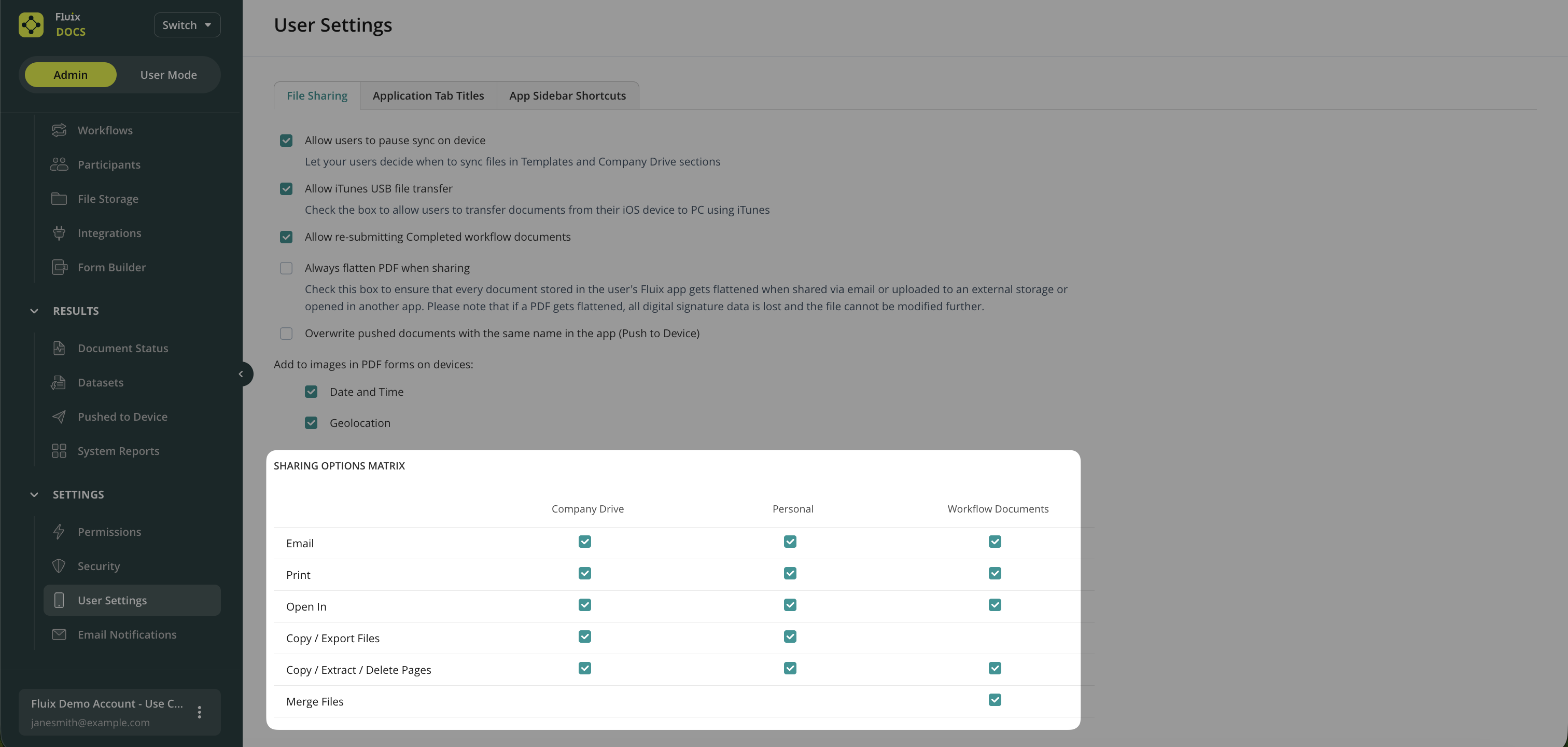
The options below are enabled separately for:
- Files in the Company Drive tab in the user app. These include files from three kinds of workflow sources:
- A folder with the option to sync changes back to the server.
- A folder with the option to make changes on the device only.
- A folder with documents that are manually downloaded on the device.
- Documents in the Personal tab of the app. These are the documents that can be accessed by a user only and are not available to the admin.
- Workflow documents. These include documents at all workflow stages: Templates, Drafts, My and Group Inbox, Cabinet, Sent for Signature, Reassigned, Completed.
Possible sharing options
- Email allows emailing files directly via the default email app on an iOS device or PC.
- Print: allows users to print documents from Fluix using AirPrint-compatible printers.
- Open In: makes it possible to open PDF files located in Fluix to other applications on the device.
- Copy/Export files: allows copying and exporting files within the Personal tab and Documents tab (Sync folders).
- Copy/Extract/Delete Pages: This option allows copying individual pages, extracting them, and deleting them within one file. It is available under the grid view icon located in the top left corner.
- Merge files: allows combining several workflow PDF files into one. Check the feature tutorial here.
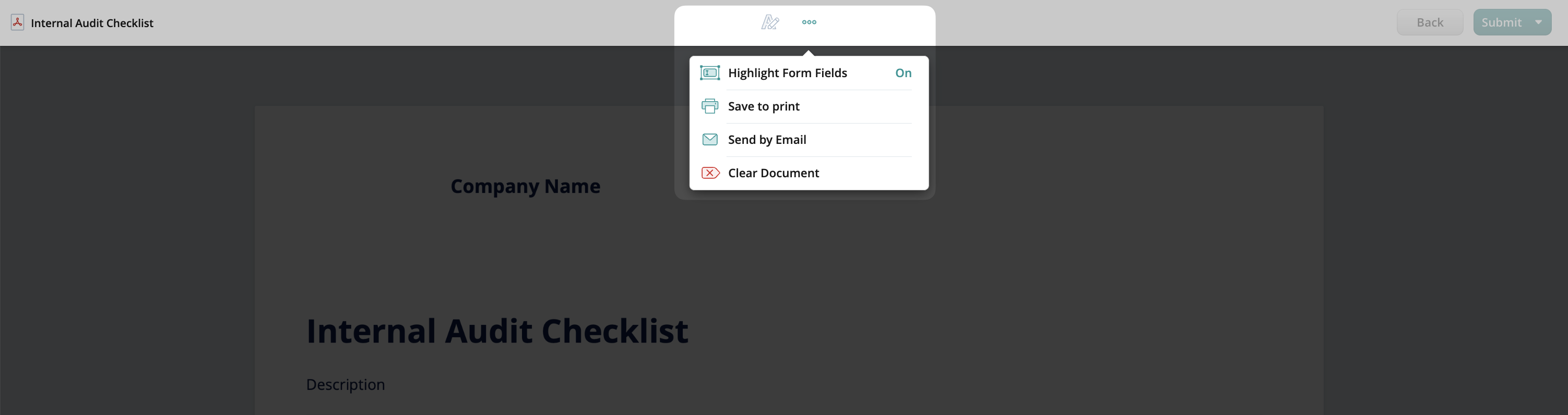
Once enabled, in a web browser application, a user will see the options upon opening the document:
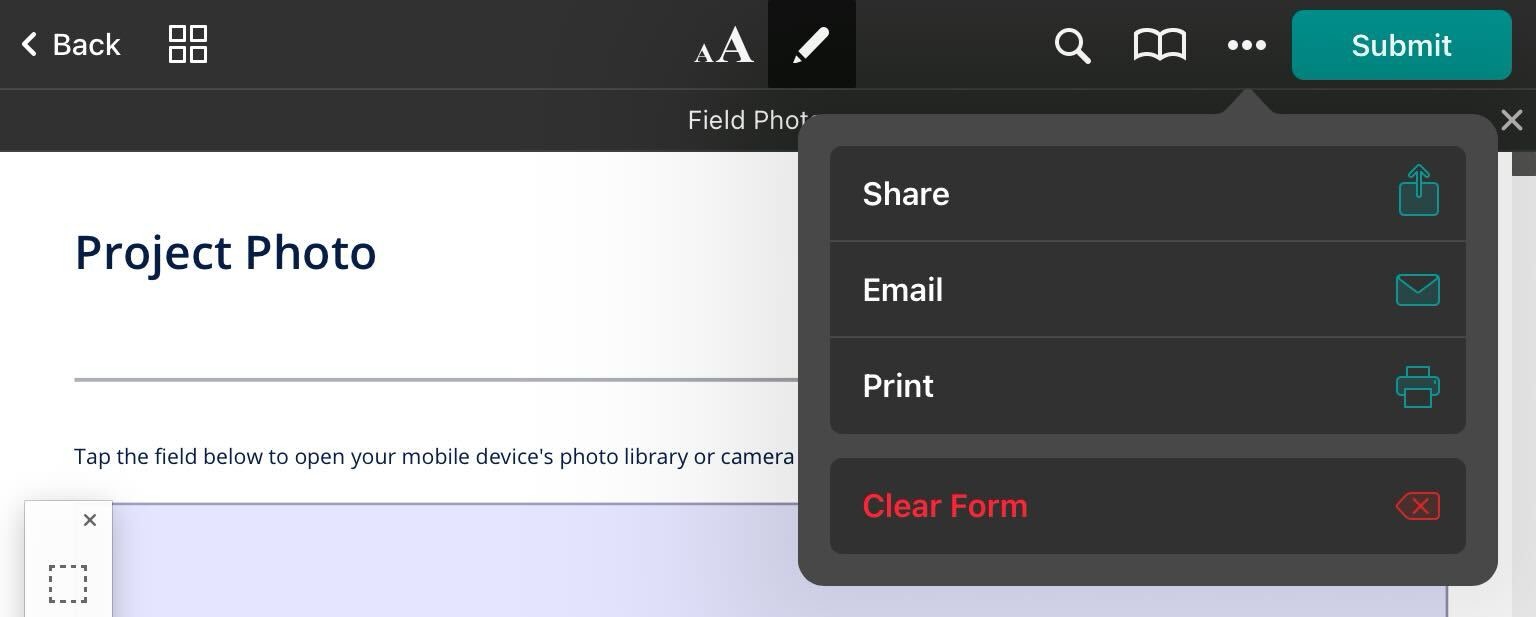
On the iOS device, the options are available under the sharing option at the top.
Was that helpful? Learn more about Email Notifications Settings in the next article or contact us at support@fluix.io if you have any questions or comments.