
For AI to answer questions about your field data, it needs a secure, structured connection to it. Historically, that meant custom integrations, developer time, and long lead times.
The Fluix MCP connector changes that. It lets you connect your Fluix account to an AI assistant and then just ask. “Which inspections failed last month?” You get answers in seconds, drawn straight from your live Fluix data.
In this guide, I’ll explain what the connector does, what you can do with it, how to set it up, and how to get good results from it.
Note: Fluix MCP is available from the Crews plan. Compare Fluix pricing plans to see what’s included.
Contents:
What Is MCP?
MCP stands for Model Context Protocol. It is an open standard that lets AI assistants connect to outside tools and data sources in a consistent, secure way.
Before MCP, an AI assistant only knew what you typed into the chat. It had no way to reach your actual systems. MCP gives the assistant a safe, structured channel to a service like Fluix, so it can read real data and answer questions grounded in it rather than guessing.
You can think of MCP as a universal adapter. Once a service offers an MCP connector, any MCP compatible assistant can work with it.
What Is the Fluix MCP Connector?
The Fluix MCP connector works with AI assistants that support MCP (Microsoft Copilot, Claude, etc.), by giving them secure, read access to two parts of your Fluix account:
- Document and workflow status. Every document that moves through your workflows, including who it is assigned to, its current status, how many signatures it needs and has, when it was created and last changed, and whether it is overdue.
- Form submission data. The structured field data captured in your completed forms, organized into datasets. For an equipment inspection, that means every captured field: PPE checks, fall protection items, tool checks, site conditions, wind speed, temperature, results, issue notes, and more.
In other words, the connector turns your Fluix documents and form data into something you can question in natural language. You ask, the assistant queries Fluix on your behalf, and it answers using your real records.
The connector is built for reading and analysis. It does not change, delete, or submit your documents, so you can explore your data without any risk of altering it.
Before you connect, make sure you have:
- A Fluix account with access to the workflows and datasets you want to query
- An MCP compatible AI assistant
- Permission to connect the Fluix MCP connector for your account
The connector respects your existing Fluix access. You can only query the documents and datasets your account is already allowed to see.
How Fluix MCP works with Microsoft Copilot >
What You Can Do with Fluix MCP
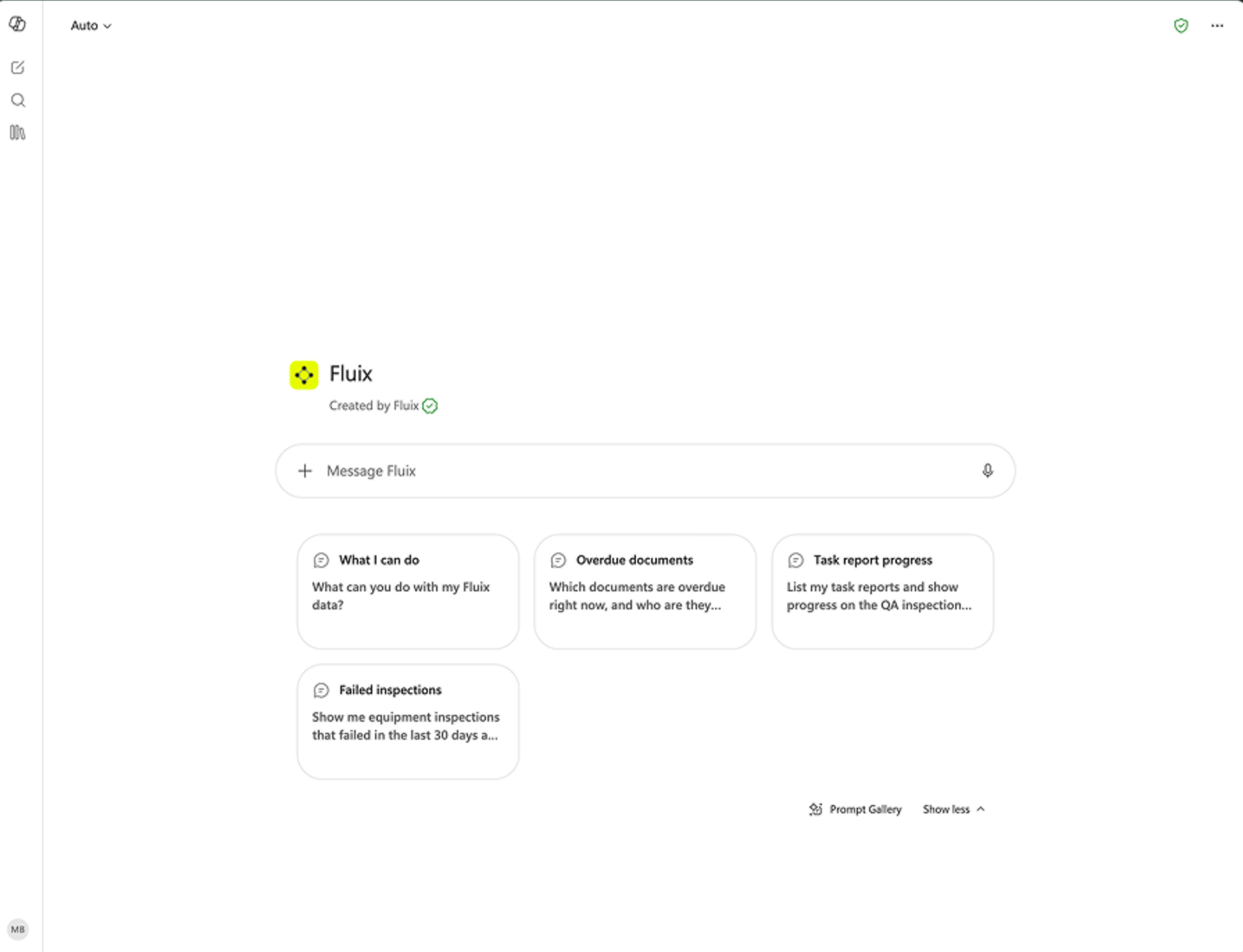
Here are the kinds of questions and tasks the connector handles well, grouped by what you are trying to find out.
Track workflow progress and bottlenecks
- See what is overdue and who it is assigned to
- Find every document still waiting on a signature
- Check what is sitting in a specific person’s inbox
- Get a count of documents by status across a workflow
Analyze field and inspection data
- Pull every inspection that failed and list the issue notes
- Filter submissions by site, work type, technician, or date range
- Surface inspections that recorded out of range conditions, such as high wind speed
- Compare pass and fail counts across sites or work types
Summarize and report
- Summarize this week’s completed inspections by work type
- Build a table of inspections by site with pass and fail counts
- Roll up activity for a given technician or crew over a date range
- Prepare a quick readout for a daily standup or a client update
Because you are talking to an AI assistant rather than a fixed report, you can ask follow up questions, reshape the output, and drill into anything that looks off, all in the same conversation.
How to Connect Fluix to Claude
Setting up the connector takes a few minutes.
- Open your AI assistant’s connector settings. In Claude, go to settings and find the connectors section.
- Search for and add the Fluix connector.
- Authorize the connection. Sign in to Fluix when prompted and approve access. This links the connector to your Fluix account so the assistant can query your data on your behalf.
- Confirm it is working. Start a new chat and ask a simple question, such as “List my Fluix datasets.” If the connector returns your datasets, you are connected.
Once connected, the connector stays available across your conversations until you remove it.
For more detailed instructions, see this full guide >
Example Prompts to Get You Started
Try these to see what the connector can do. They map directly to the data Fluix captures.
- “List all my Fluix datasets and tell me how many submissions each one has.”
- “Which documents are overdue right now, and who are they assigned to?”
- “How many pre use inspections are still waiting on a supervisor signature?”
- “Show me every equipment inspection that failed in the last 30 days and list the issue notes.”
- “Pull all wind turbine climb inspections at Baltic Breeze and flag any that recorded a wind speed above 15.”
- “Summarize this week’s completed inspections by work type.”
- “Build a table of inspections by site with pass and fail counts.”
- “Which technicians currently have documents sitting in their inbox?”
Start broad, then refine. If the first answer is close but not quite what you need, just ask the assistant to narrow the date range, change the grouping, or add a column.
How It Works Behind the Scenes
When you ask a question, the assistant decides which Fluix data it needs and queries the connector for it. Under the hood, the connector can:
- List the datasets your account can access
- Read the field level data inside a dataset, one set of submissions at a time
- Look up the column structure of a dataset so it knows what fields exist
- Find documents by status, workflow, assignee, group, date, or name
The assistant then reads the returned data and writes the answer. You see a clean response in the chat, not raw records.
On security: the connector only reads. It cannot create, edit, submit, or delete anything in Fluix. It also operates within your existing permissions, so it can never surface data your account is not already allowed to see. You can disconnect it at any time from your assistant’s connector settings.
Tips for Getting Better Results with Fluix MCP
- Be specific about the time frame. “In the last 30 days” or “this week” gives the assistant a clear window to query.
- Name the field or outcome you care about. Referencing results, sites, work types, or conditions helps the assistant filter precisely.
- Ask for the format you want. Request a table, a short summary, or a ranked list, and the assistant will shape the output to match.
- Iterate in the same chat. Follow up questions are cheaper and faster than starting over, and the assistant keeps the context.
- Verify before you act. For anything that drives a decision, glance at the underlying documents in Fluix to confirm.
Frequently Asked Questions
- Does the connector change my Fluix data?
No. It is read-only. It can query and analyze your documents and datasets, but it cannot create, edit, submit, or delete anything.
2. Can it see data I am not allowed to access?
No. The connector works within your existing Fluix permissions. You can only query what your account can already see.
3. Which AI assistants does it work with?
Any assistant that supports MCP, and where the Fluix connector is published in the AI assistant marketplace.
4. Do I need to be an admin to set it up?
Your role will need access to data within your Fluix environment. If you account has access and you have the necessary permissions to connect to the data you can use the MCP connector in your preferred marketplace.
5. How do I disconnect it?
Remove the Fluix connector from your AI assistant’s connector settings at any time. That immediately revokes its access to your Fluix data.
Get Started with Fluix MCP
The Fluix MCP connector turns the field data your teams already capture into answers you can get just by asking. Connect it to your AI assistant, try a few of the example prompts above, and see how quickly you can go from question to answer.