


Let’s get familiar with the list of workflow elements available in the menu on the left-hand side of the workflow builder:
Events
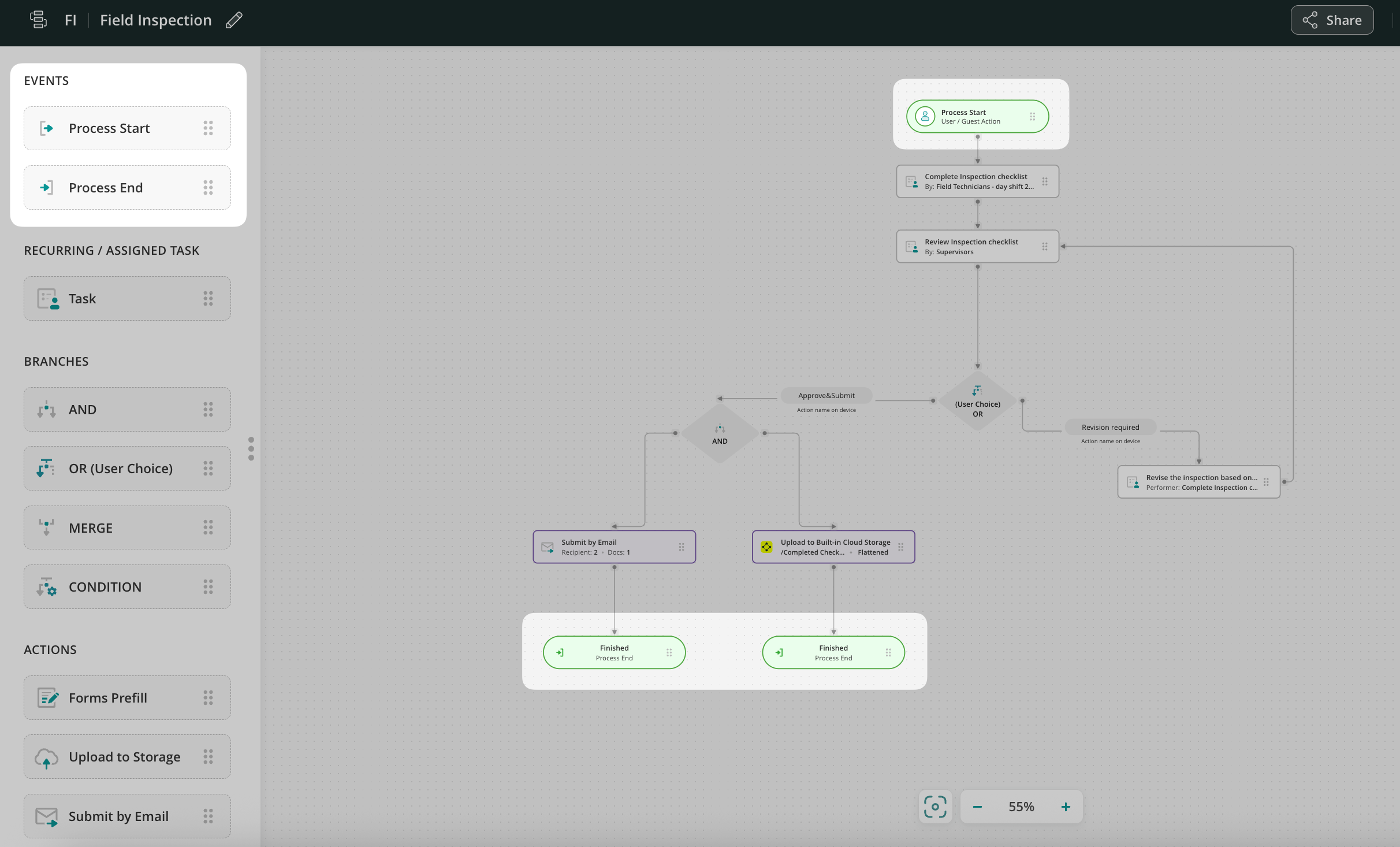
- Process Start is the element to be used at the beginning of your chart. It marks the start of the flow and is visible only to you and other admins who have access to the workflow.
- Process End is the element that marks where the workflow process will end visually. It can usually be added after actions such as Upload to Storage, Send by Email, or Share to (external tools).
Templates/Assigned Task
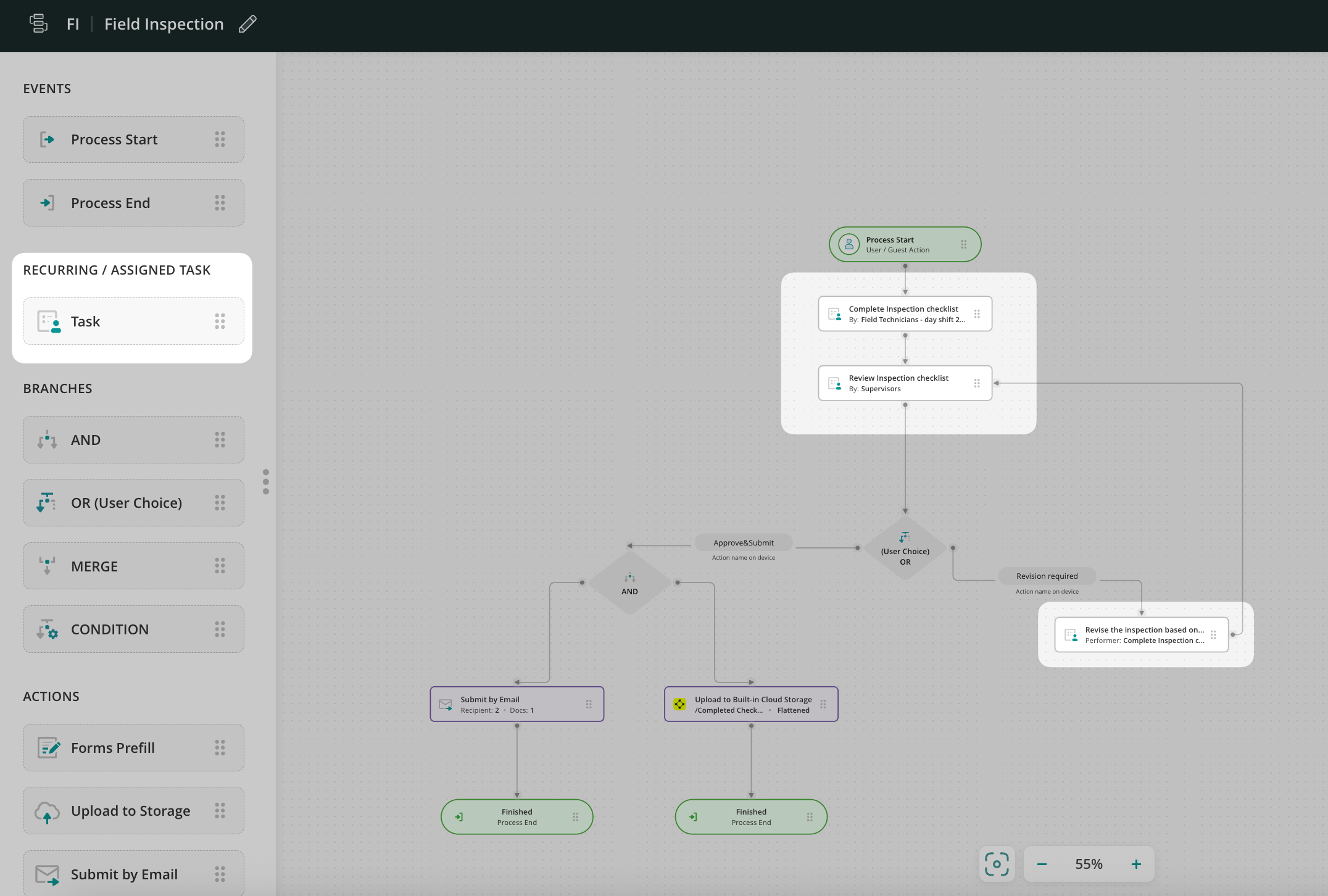
- Task is a recurring or assigned action that the Assignee will perform on a preconfigured basis. The Assignee can be:
- A group of users with Fluix accounts
- External users with web access to the preconfigured forms.
- A task consists of a description of the job to be done, fillable forms, and attachments for review. The priority, duration, and reminders can be set up for each task. You may add as many tasks for your process as needed; they should be connected accordingly with other workflow elements to meet the desired outcome of the built flow.
Branches
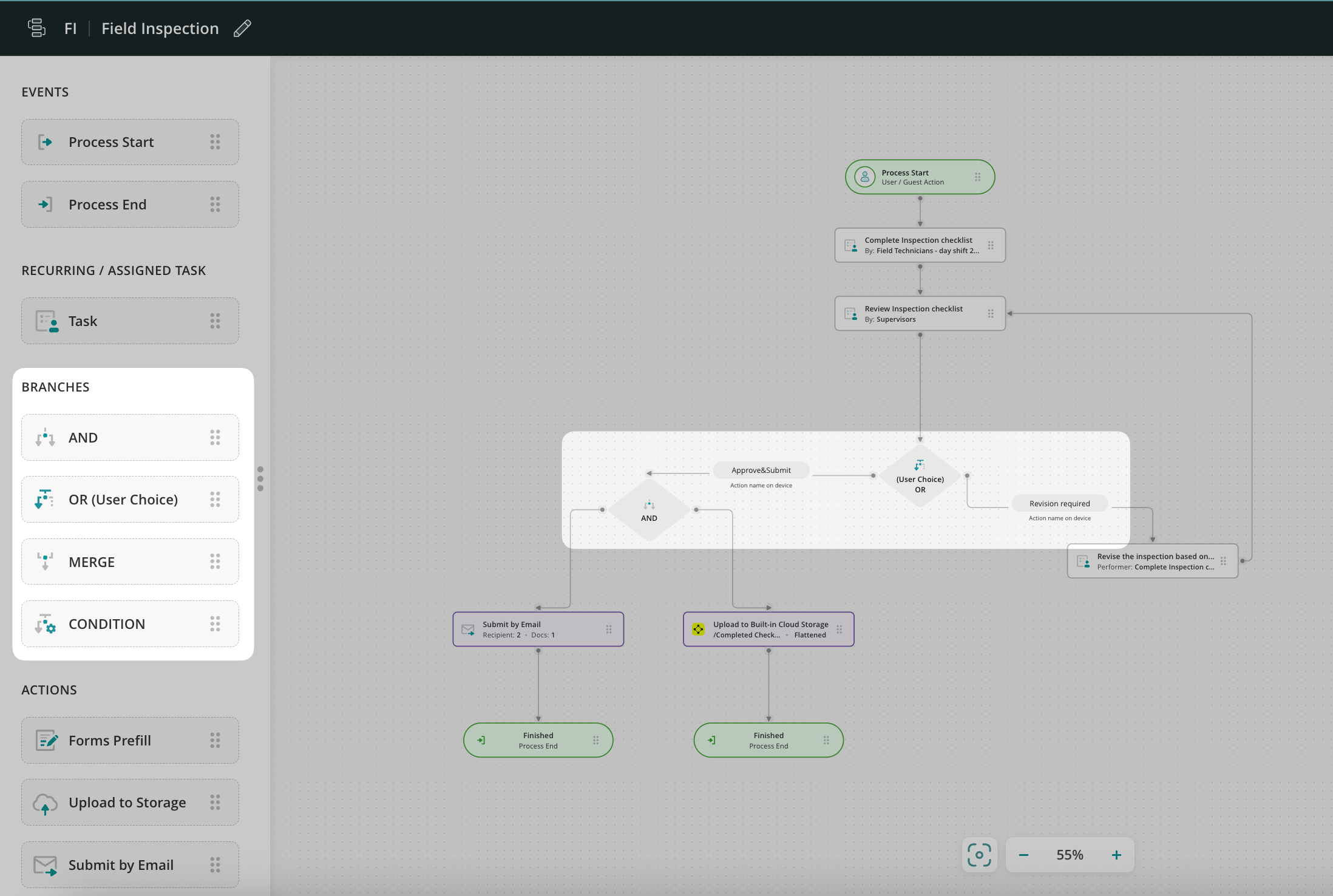
- And action is an element that helps configure two or more parallel branches of the process.
- Or (User Choice) action is an element that configures two or more branches of the process. A user on the device will choose manually which action to take for the task.
- Merge action is needed to ensure that the parallel user tasks (e.g., simultaneous completion of different parts of one form) pass to the next step (e.g., manager’s review).
- Condition action is an element that defines the task flow based on the data filled out in a particular field of the form. Learn more about this functionality in the Conditional Routing to automate a business process tutorial.
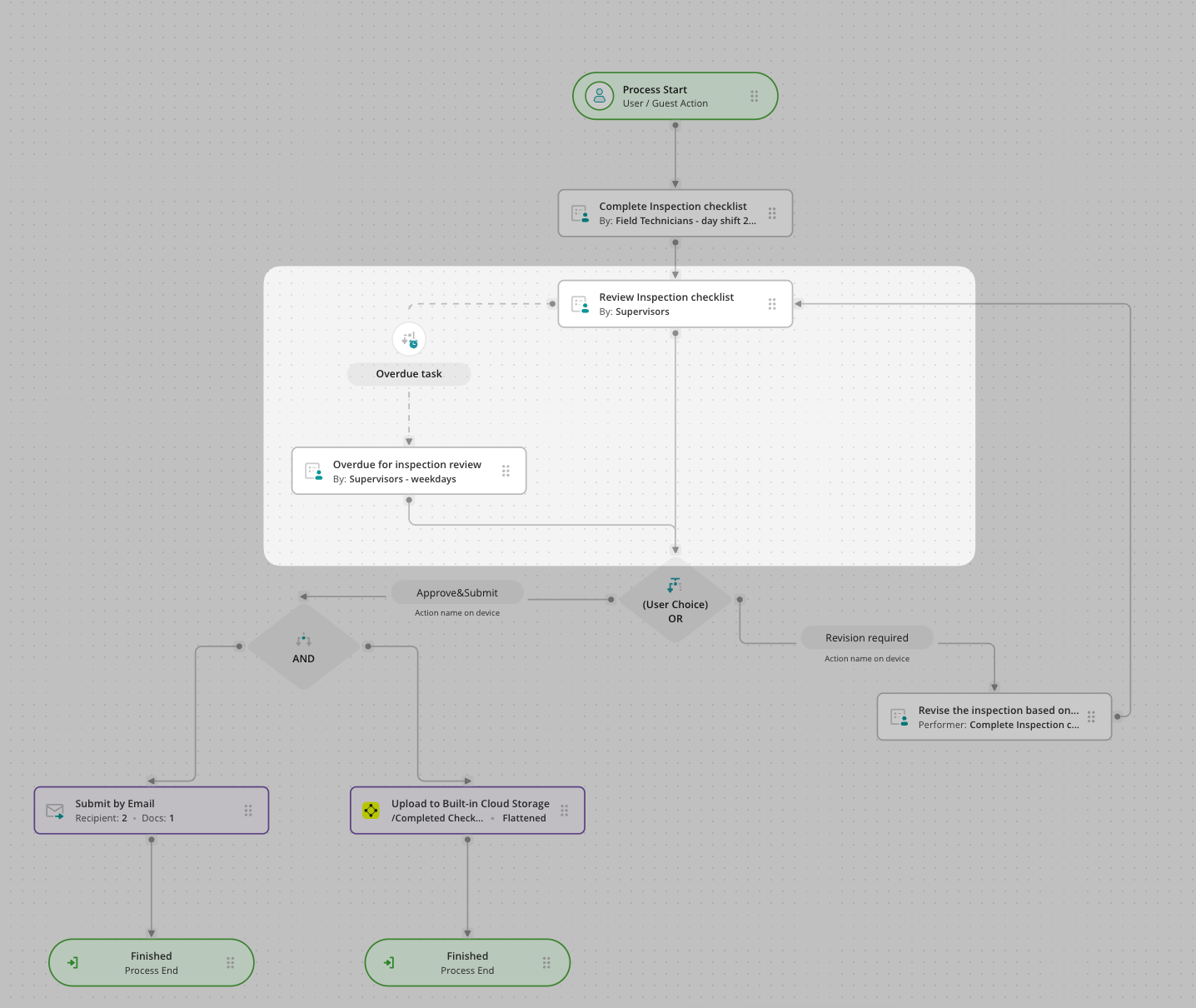
- Redirect Overdue Task Action – an element that allows automatic redirect of the task to another predefined flow in case it was not completed on time by the user.
Actions
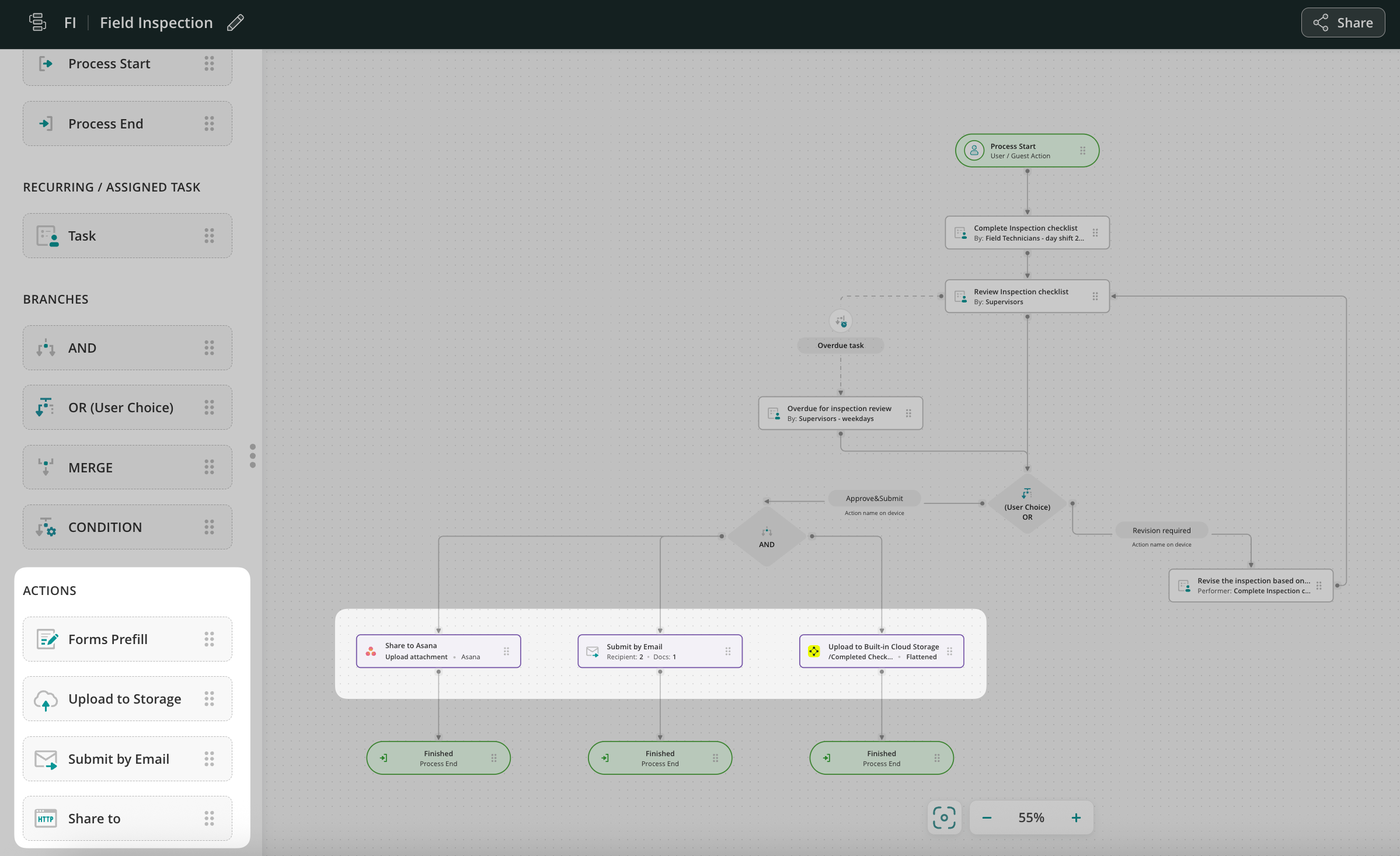
- Forms Prefill is an element that you may use to configure the pre-population of data in the forms from one task to another or from external software to Fluix forms. Learn more about this functionality in the Forms Prefill in Fluix tutorial.
- Upload to Storage action can be used to upload completed forms to the preconfigured Fluix’s built-in cloud storage or your external cloud storage.
- Submit by Email action allows you to send documents from Fluix to any email without manually entering the email address and message in the field. You can preconfigure the recipients’ addresses and email subjects and add custom messages.
- Share to action allows to share the completed documents or the data from them to any third-party software.
Let’s proceed to the next step – building of a taskstream.