People who fill out inspection forms in the field deal with the same problem every shift. The form needs a long list of identifiers – asset ID, serial number, batch code, certification number — and each one has to be read off a label and typed in by hand.
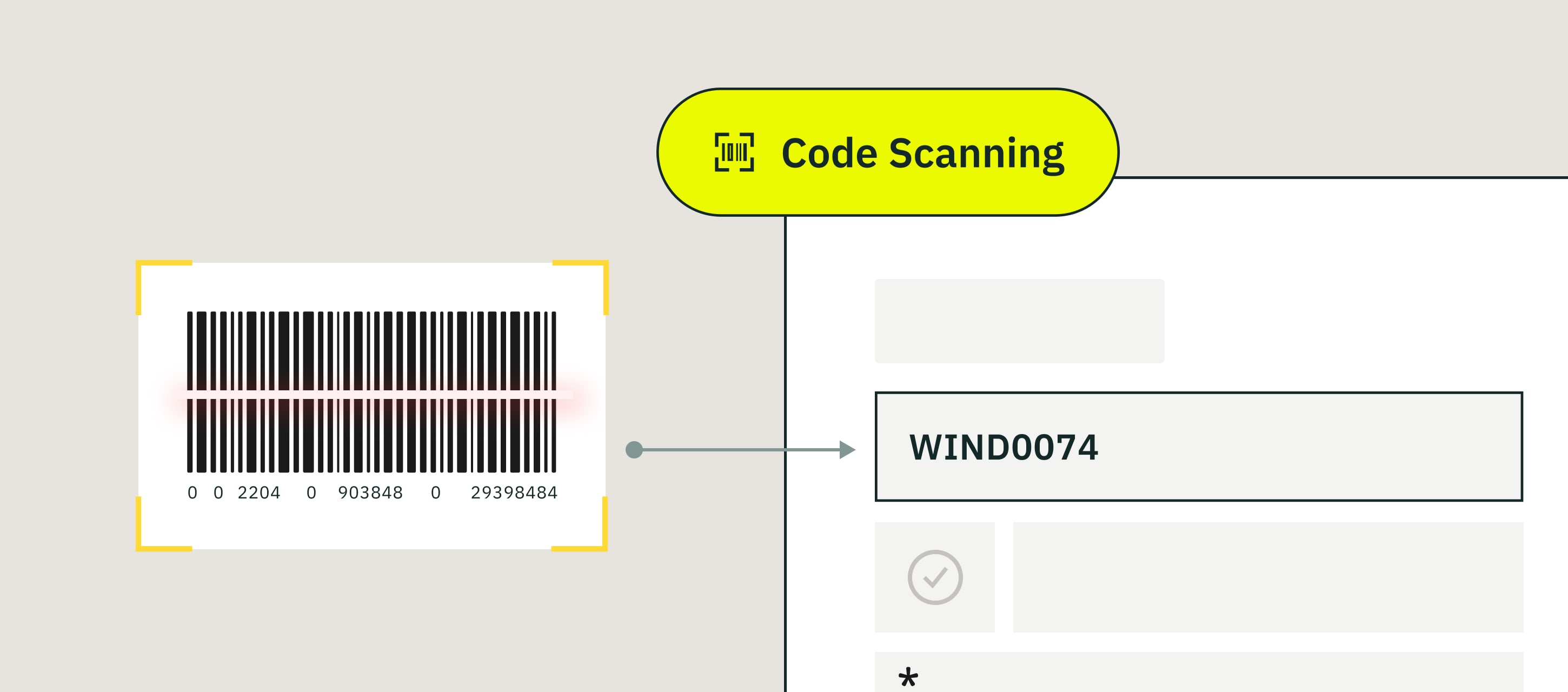
Scanning the code with a phone camera is what removes the typing and the transcription errors in one step. And that’s what Fluix QR code and barcode scanning does — it lets your field team scan codes directly into the inspection form, with no manual entry.
In this guide, I’ll walk through how scanning works in Fluix, what it covers, and where we’re heading next.
Note: QR Code and Barcodes are available starting with the CREWS plan. Compare Fluix plans on our pricing page to view all available features.
Contents:
What Is QR code and Barcode Scanning in Fluix?
How It Works
Supported Formats
What Problem QR and Barcode Scanning Solves
What Inspection Teams Use It For
- The Bottom Line
What Is QR code and Barcode Scanning in Fluix?
QR code and barcode scanning lets your field team scan a code directly into any editable field in an inspection form, without manual typing, switching apps, or internet required.
It works on iOS and Android, supports 11 of the most common barcode and QR formats, and works for offline data collection. If your team works in places where signal drops out — basements, remote sites, inside steel structures — the scanner doesn’t care.
How It Works
The flow is short by design:
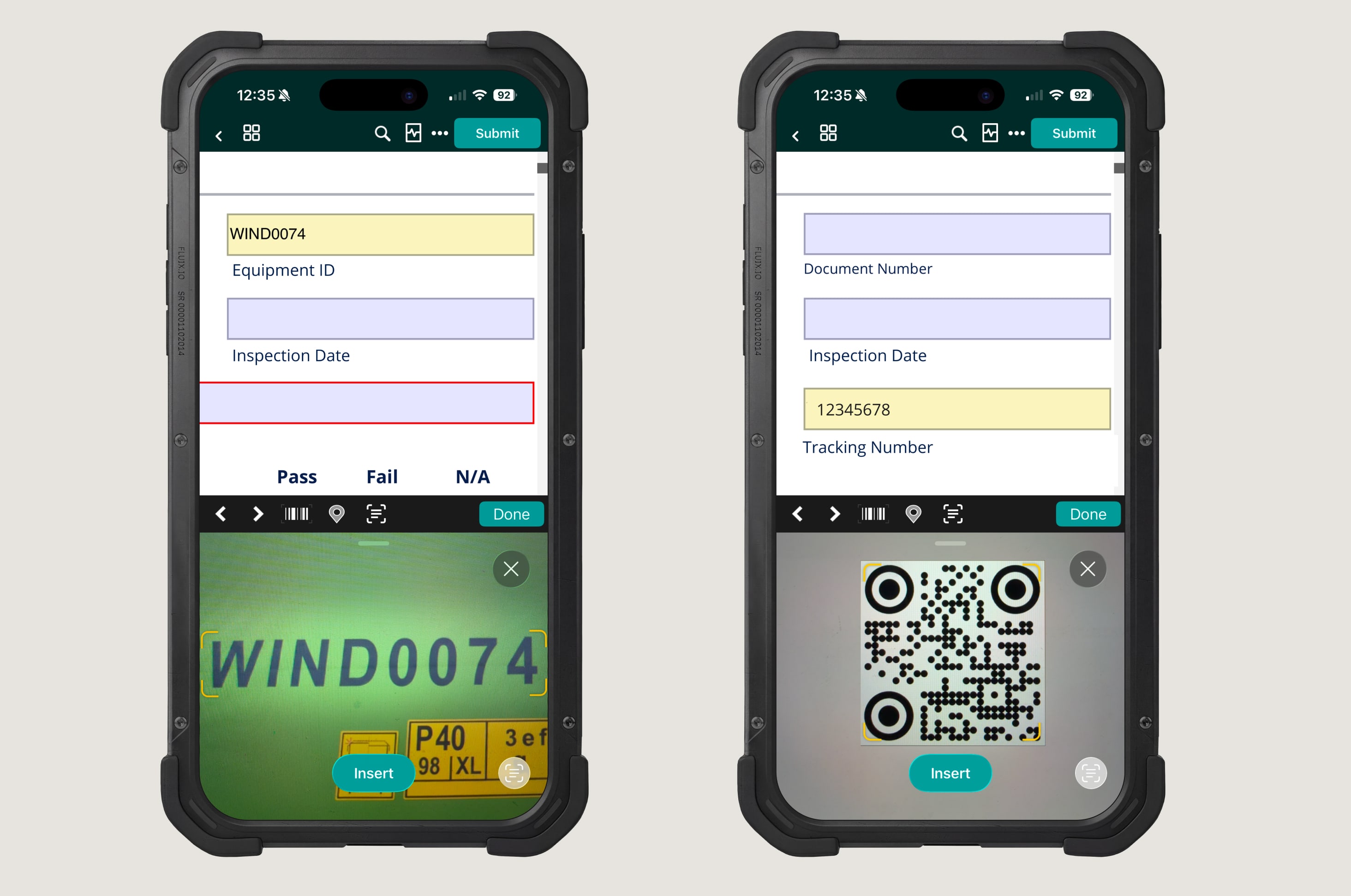
A field worker opens an inspection form. They tap an editable field that’s expected to contain a code — equipment ID, asset number, serial, lot, whatever. The camera opens. They point it at the QR code or barcode. The scanned value drops into the field. They move on to the next field.
On the admin side, scanning is enabled automatically on every editable text and number field. There’s no separate “scan field” type to configure. Your existing forms work with scanning today, no changes required.
Supported Formats
Fluix supports 11 of the most commonly used barcode and QR formats:
- 2D codes: QR, Aztec, Data Matrix, PDF417
- Linear barcodes: UPC-A, UPC-E, EAN-13, Code 39, Code 93, GS1-128, Code 2 of 5 Interleaved (ITF)
If you’ve labelled your assets with any of these, scanning works out of the box.
Already a Fluix customer? Scanning is in your app right now — open any inspection form, tap a text field, and try it on your next walkaround. No admin setup needed.
Not on Fluix yet? Start a free trial — your first inspection form is ready in under five minutes, scanning included.
What Problem QR and Barcode Scanning Solves
Most inspection forms include codes somewhere. Equipment serial numbers, asset IDs, lot numbers, PPE tags, harness IDs, extinguisher labels. Without scanning, those codes get typed in by hand and the errors happen.
QR and barcode scanning solves three specific problems:
1. Manual data entry is slow and error-prone. Typing a 12-character asset ID on a phone keyboard, in gloves, in bad lighting, while standing on a roof is a recipe for typos. Scanning eliminates the typing entirely.
2. Switching apps to look up a code wastes time. Without in-form scanning, the alternative is opening a separate scanner app, copying the value, switching back to Fluix, and pasting. Multiply by 30 inspections a day and you’ve lost an hour. In-form scanning keeps everything in one tap.
3. Offline environments break most scanning workflows. A lot of inspection sites — wind turbines, oil rigs, basements, tunnels, remote construction sites — have no reliable internet. Scanners that need to validate against a server fail. Fluix scanning runs entirely on the device, so connectivity isn’t a factor.
“The app is user-friendly, self-explanatory, and easy to navigate. The mobility of the app used on an iPad has changed our operations exponentially.” Corey Heinemann, Technical Reliability Manager, Siemens Gamesa
Read More: How Siemens Gamesa saves 2.000 hours annually with Fluix
What Inspection Teams Use It For
Construction is where we see scanning used most heavily, but the pattern shows up across any inspection-heavy industry. A few real examples:
Pre-shift safety equipment checks
A safety officer opens the inspection form before a shift, taps the equipment ID field, and scans the QR tag on each harness, extinguisher, or PPE item. The codes populate; the officer completes the remaining checks and submits.
Equipment and tool inspections
Maintenance leads use scanning to log inspections against specific tools, machines, or vehicles. The serial number is on the asset; the scan puts it in the form; the inspection report now correctly references the right asset every time.
Lot and batch tracking
In manufacturing and food-adjacent inspection workflows, codes get used to track specific batches or lots. Scanning the lot code into the inspection form links the record to that specific batch — useful for traceability when something needs to be recalled or audited later.
Materials and inventory checks
Construction teams use scanning to confirm what materials arrived, what’s in storage, and what’s been used. Scan the code, fill the form, move on.
The Bottom Line
Fluix is inspection management software trusted by field service teams to run inspections, safety, and compliance in the field. Scanning is one of the features that makes the everyday work of those teams faster and less error-prone.
If your team types codes into inspection forms today, scanning is already in your app — no setup, every plan, every form. Open a form, tap a field, and try it.