


In Templates, you can access documents that are synced from the folder on your company storage:
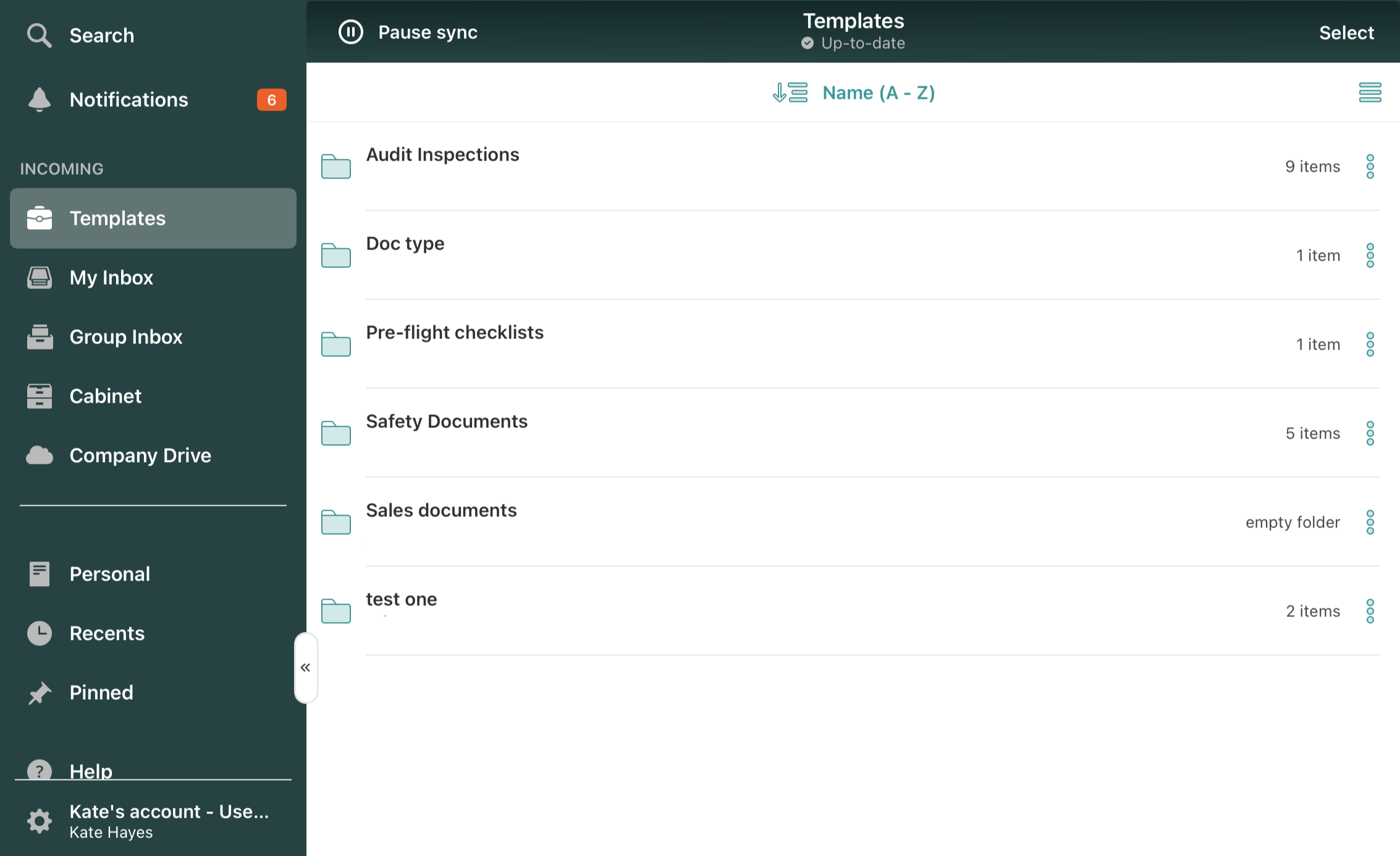
There are two ways of working with documents from Templates:
- Blank forms that are used for repetitive jobs and submitted to the next stage as per workflow rules, preconfigured by your company’s Admin;
- The documents are distributed by the company Admin for your review. Any changes you make will be available to you only, and there is no preconfigured submit action.
In both cases, once you open a document in Templates and start making changes, a copy will be saved to your device, while the template itself will always stay intact.
Templates with preconfigured submit action
As mentioned above, your company’s Admin configures this option to give you access to templates for repetitive work.
After you pick up a new form from Templates and modify it (fill out a form field or add an annotation), a file with your changes will be automatically saved to the Drafts section of the app. The initial form available in Templates always stays blank.
To save changes, tap the Back button in the upper left corner. All your changes are automatically saved every 3 minutes.
Each document is saved to Drafts with its original name (as in Templates); however, you can rename it by tapping on the Back button in the opened document. You will be able to rename it in a new window.
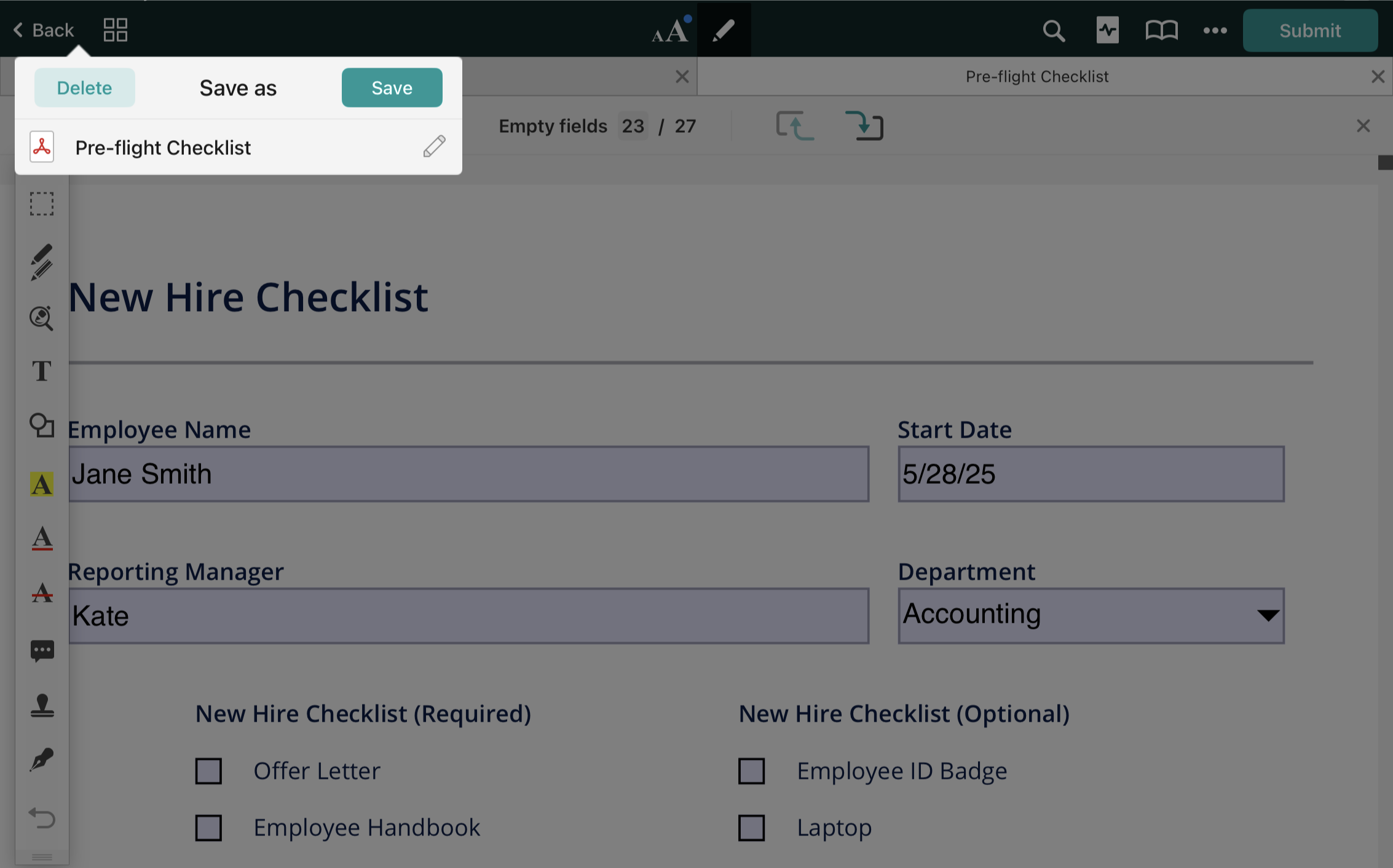
Note: If a file contains an automatic naming convention created by your Admin, the name is generated based on specific fields you fill out in the document. In this case, you are not allowed to change the name manually.
If your company Admin has preset more than one action, you will see the alternative actions once you tap the Submit button.
After you submit the file, it will follow the preconfigured submit rules. It will be saved in your Completed (if the file reached its final destination) or Reassigned section (if further actions need to be taken by your colleagues upon the document):
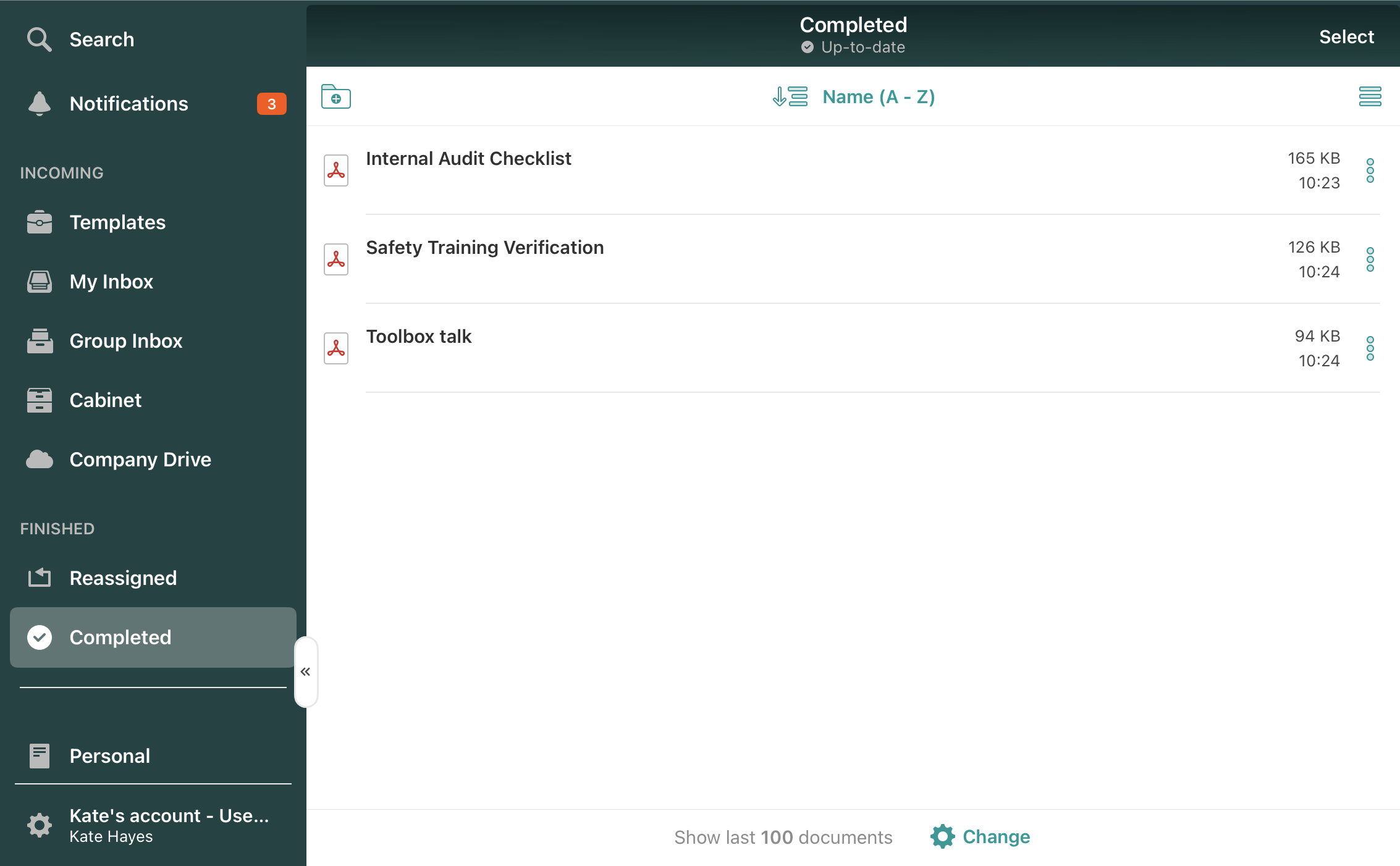
Up to 500 recently submitted files can be seen in Completed or Reassigned. To save space on your device, you can regulate the number of displayed documents in the app Settings -> File Manager section or by clicking the Change button at the bottom of the screen in the Completed or Reassigned sections.
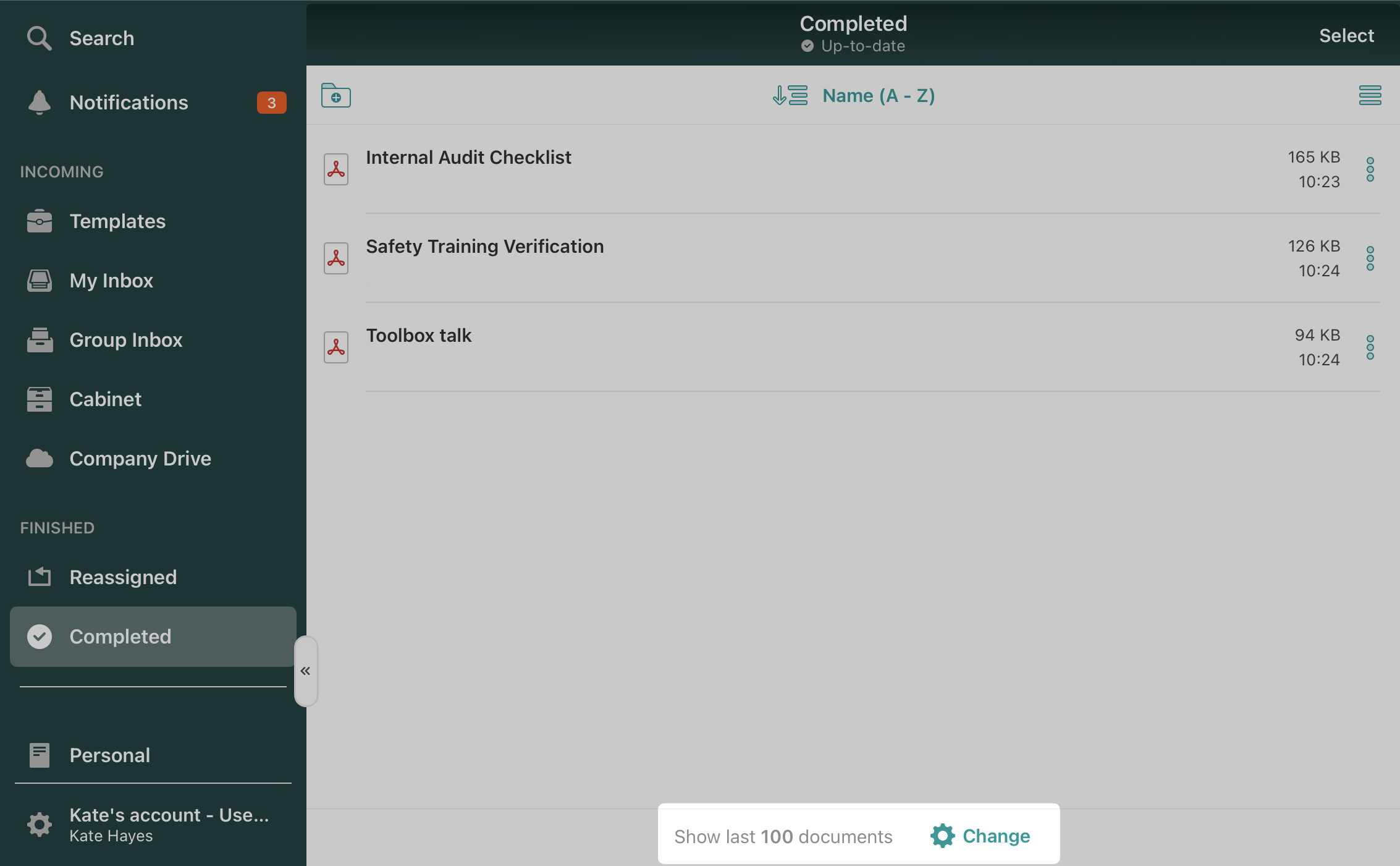
Note: If you do not see the Completed section, it was hidden per your company policy.
If pre-configured by your company Admin, you can also resubmit already submitted files from the Completed section. Each resubmitted document will come as a separate copy (won’t overwrite the very first version).
Templates without submit action
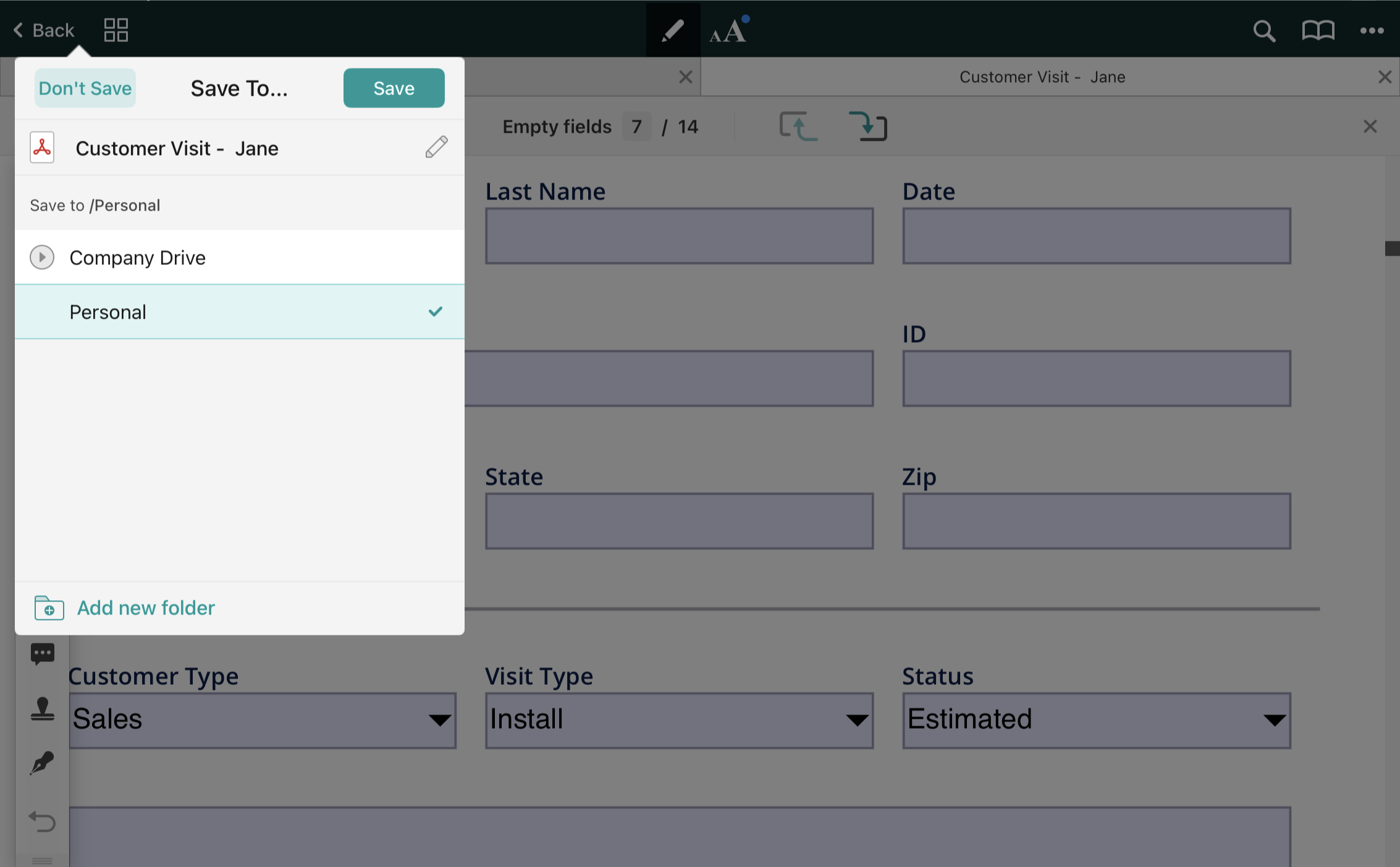
If there are no submit actions configured by your Admin for Templates, once you make any changes to the file originating from Templates, you may save a copy to the Personal or Company Drive section by tapping Back and selecting the folder. In these sections, you can rename, delete or move files to other local subfolders.
You can also rename the document by tapping on the pencil icon:
Feel free to contact us at support@fluix.io if you have any questions or comments.