


In Fluix Docs, the Retention Policy determines how long documents remain stored on Fluix Servers after being completed, deleted, or left in progress. This feature allows you to automatically manage the document lifecycle, ensuring that old or unnecessary files are removed after a specified period, while important records remain accessible for as long as needed.
Note: Once the retention period has expired, the documents will be permanently deleted and cannot be restored. Therefore, we may suggest regularly reviewing and adjusting the policy if needed.
To manage the Retention Policy settings, you should have the permission to access the Settings, which your account admin can grant by following the guidelines below:
- Log in to Fluix Admin Portal.
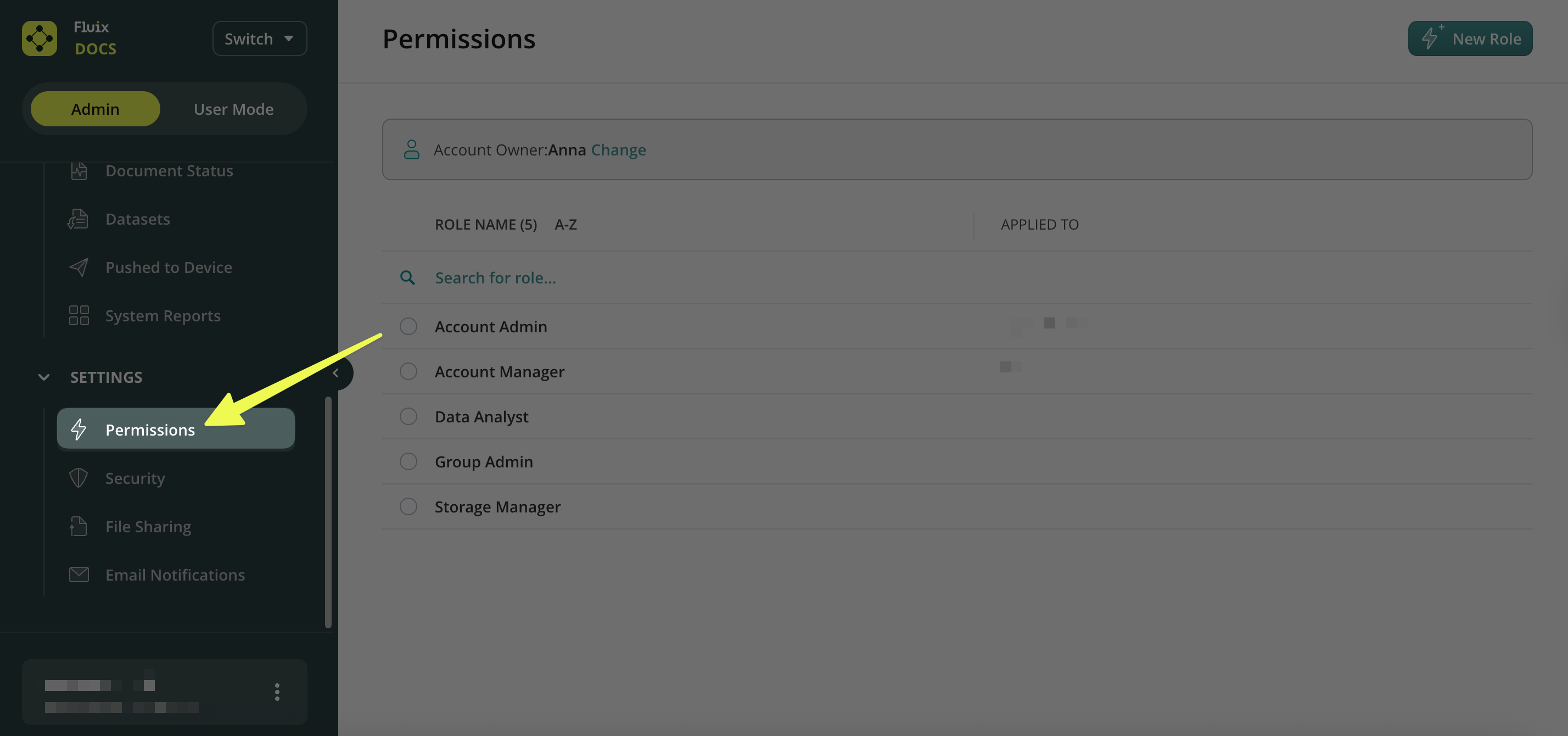
- On the left-side menu, scroll down and navigate to Permission under the Settings section.
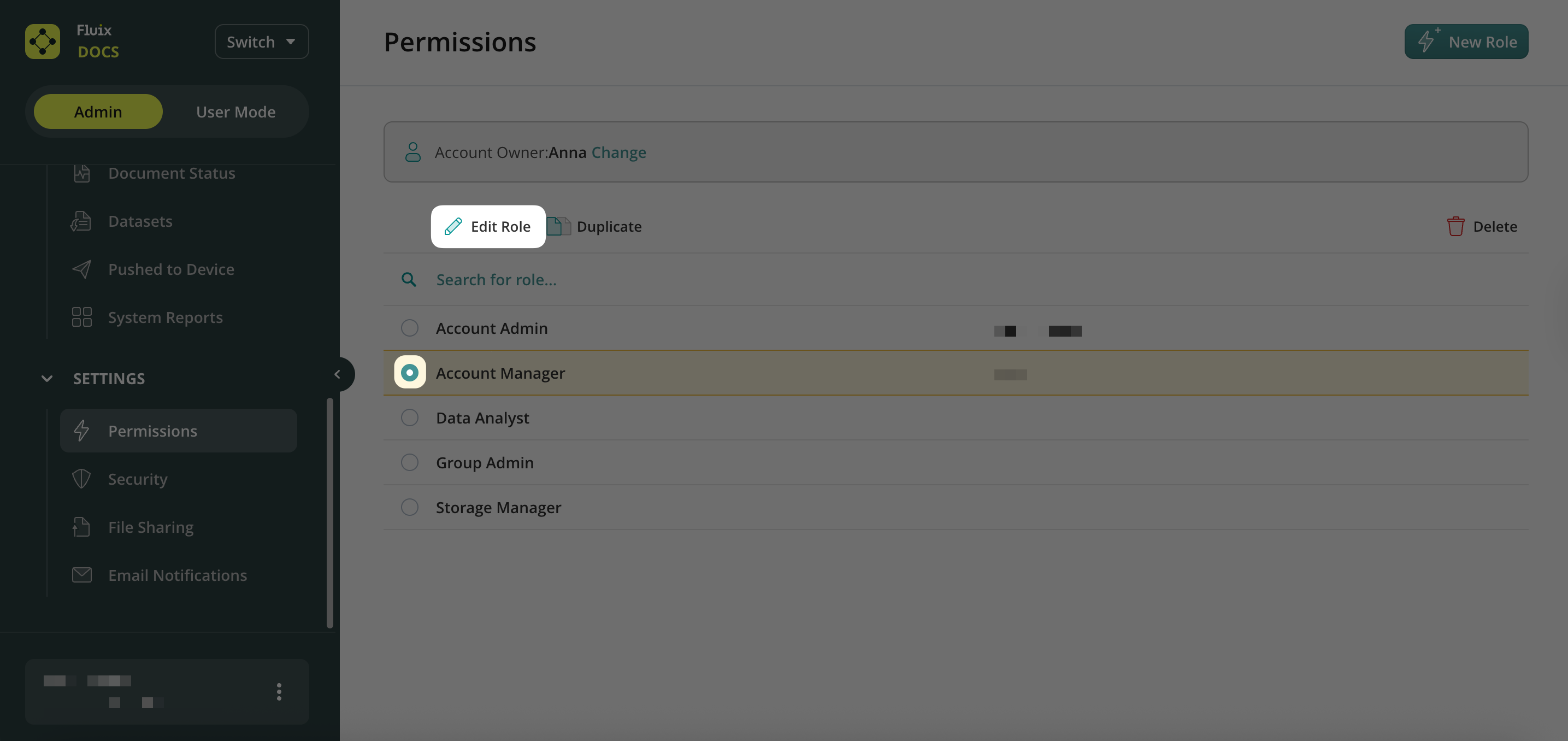
- Select the respective role → click Edit Role.
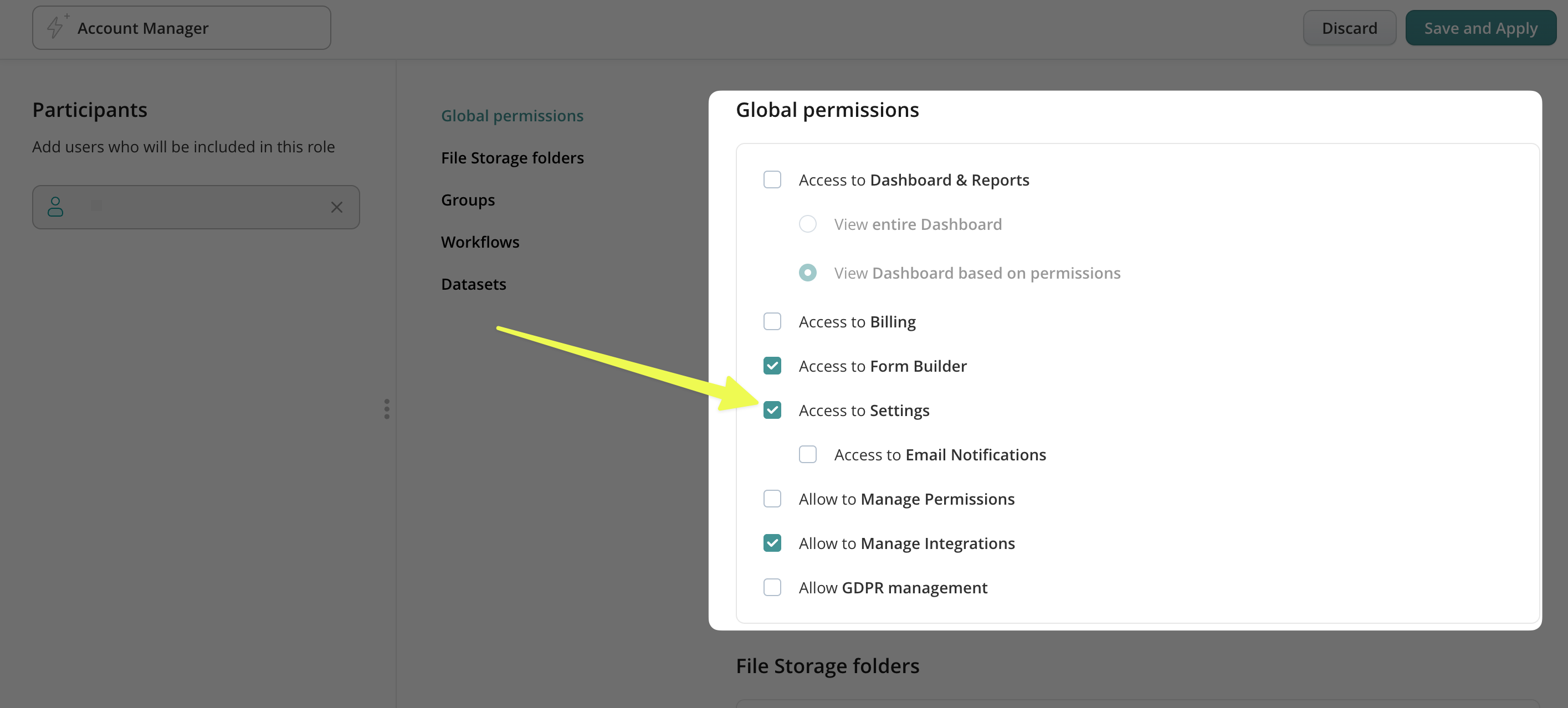
- In the Global permissions, select the Access to Settings permission by placing a check mark next to it.
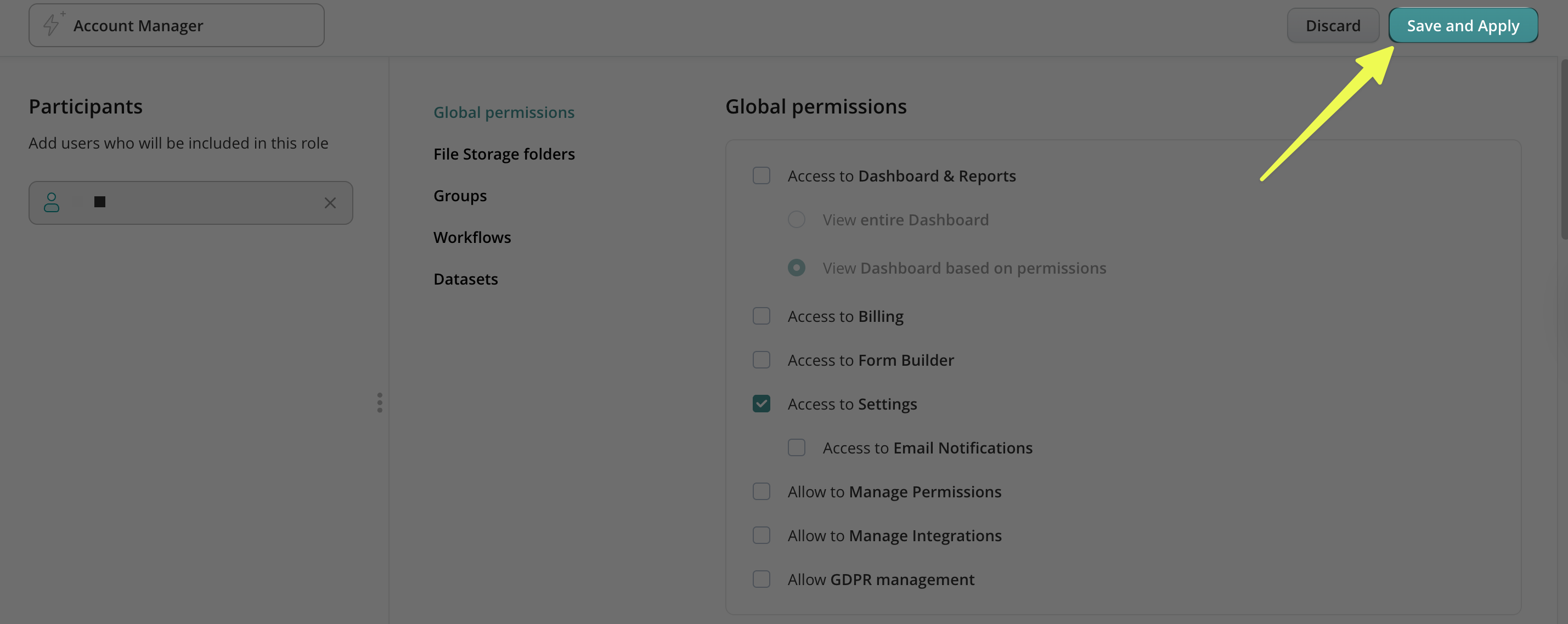
- Click Save and Apply.
How to Set the Retention Policy in Fluix Docs?
- Log in to Fluix Admin Portal.
- On the left-side menu, navigate to Settings → Security.
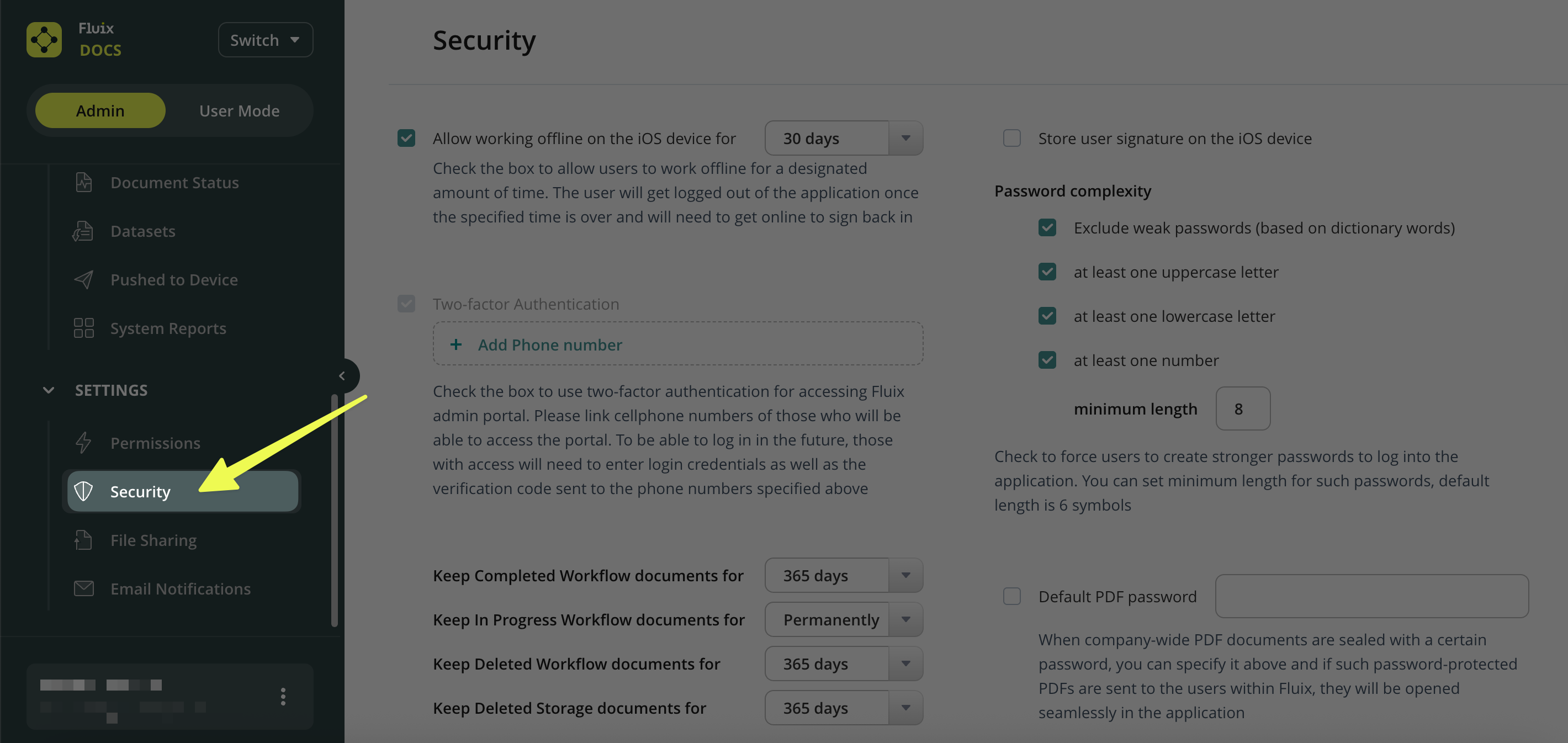
- In the Security section, find the following options:
Keep Completed Workflow Documents For – determines how long completed documents remain stored in the Document Status.
Keep In-Progress Workflow Documents For – sets how long ongoing workflow documents are stored in the Document Status.
Keep Deleted Workflow Documents For – defines how long deleted workflows remain in the Document Status before being permanently removed.
Keep Deleted Storage Documents For – sets the duration for which deleted documents in Fluix Storage are kept. - Select the Retention Period → use the dropdown menu to select the desired time frame (e.g., 1 week, 1 month, 1 year, permanently, etc.).
Note: the maximum period you can select is 999 days.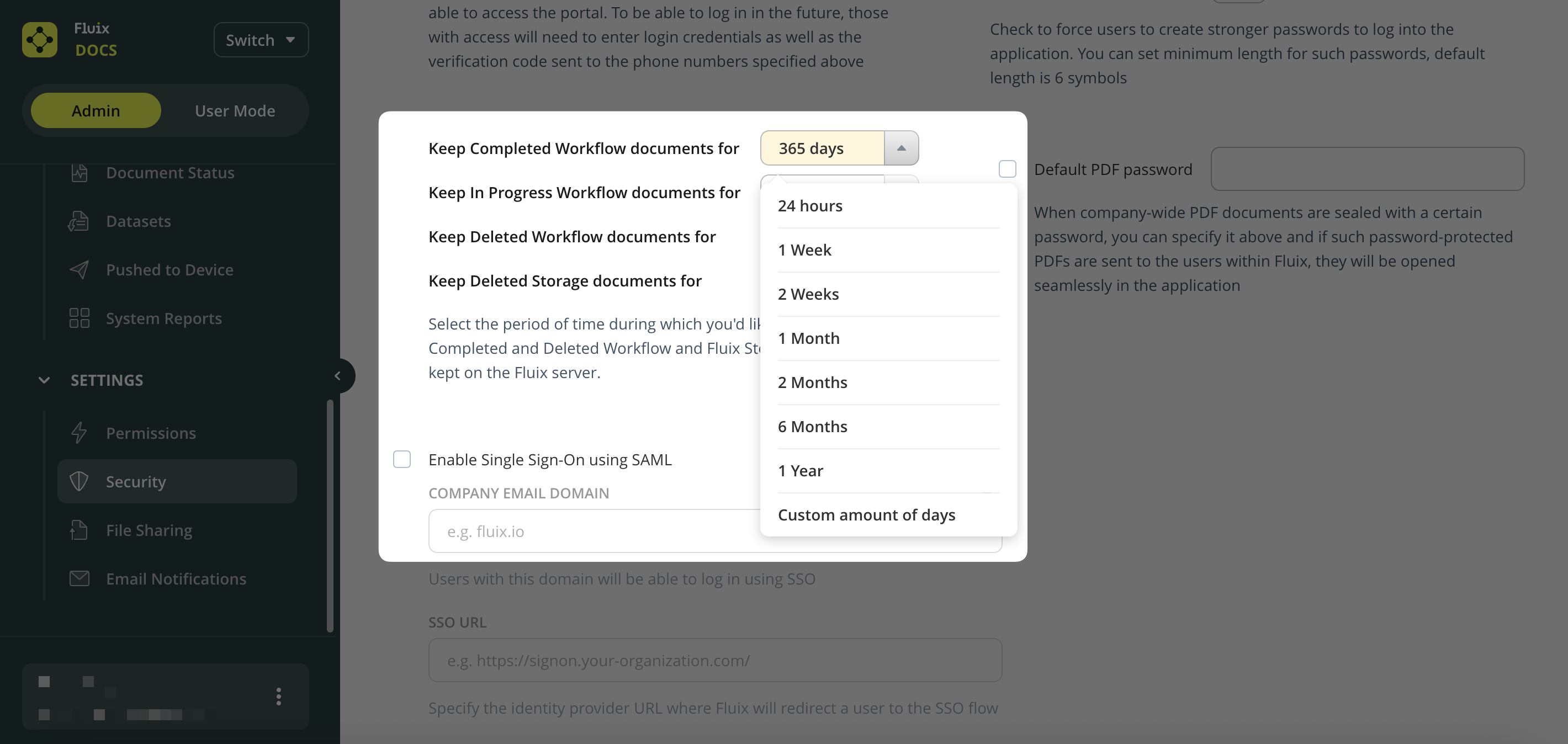
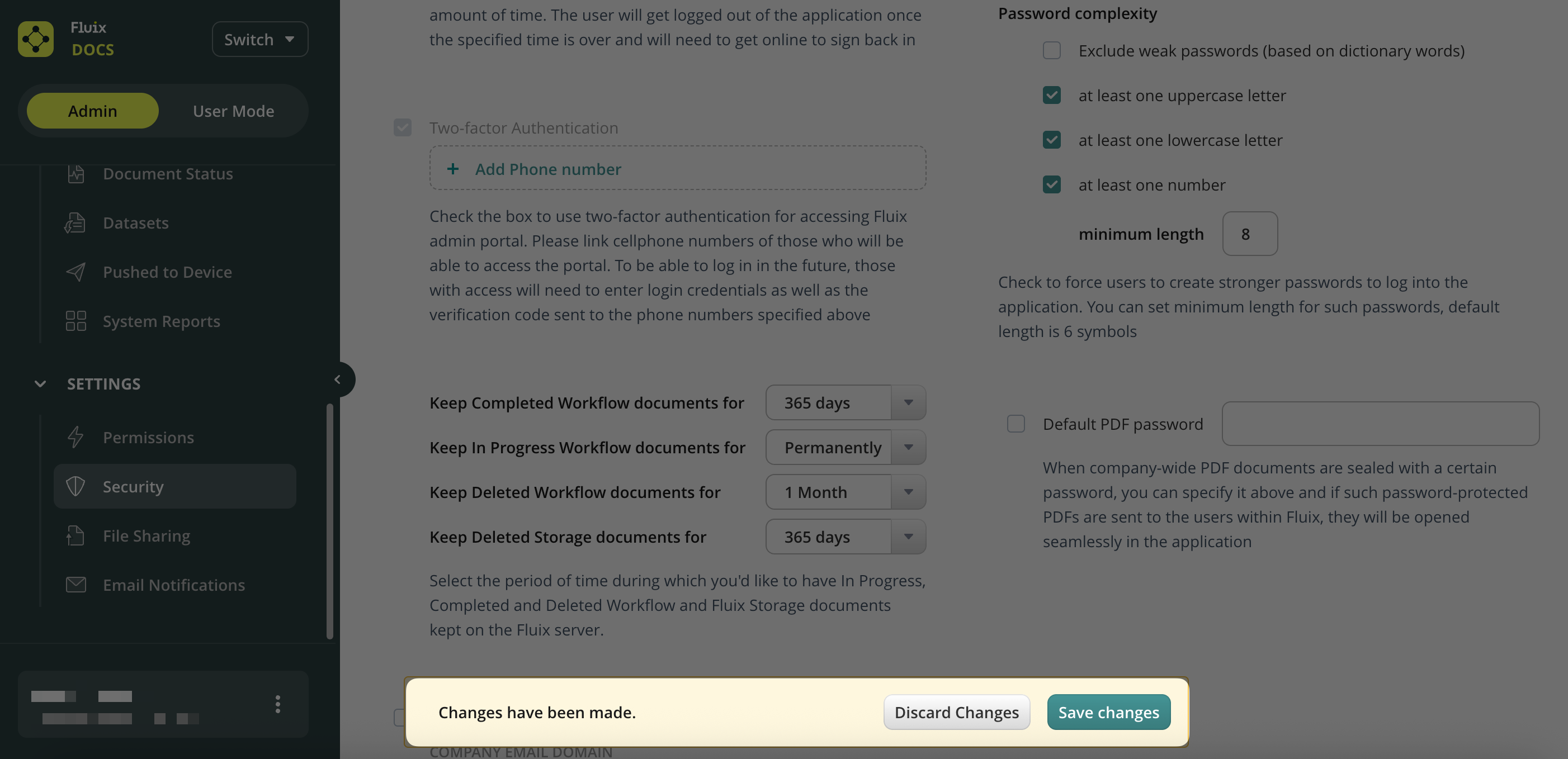
- Save Changes.
Feel free to contact us at support@fluix.io if you have any questions or comments.