


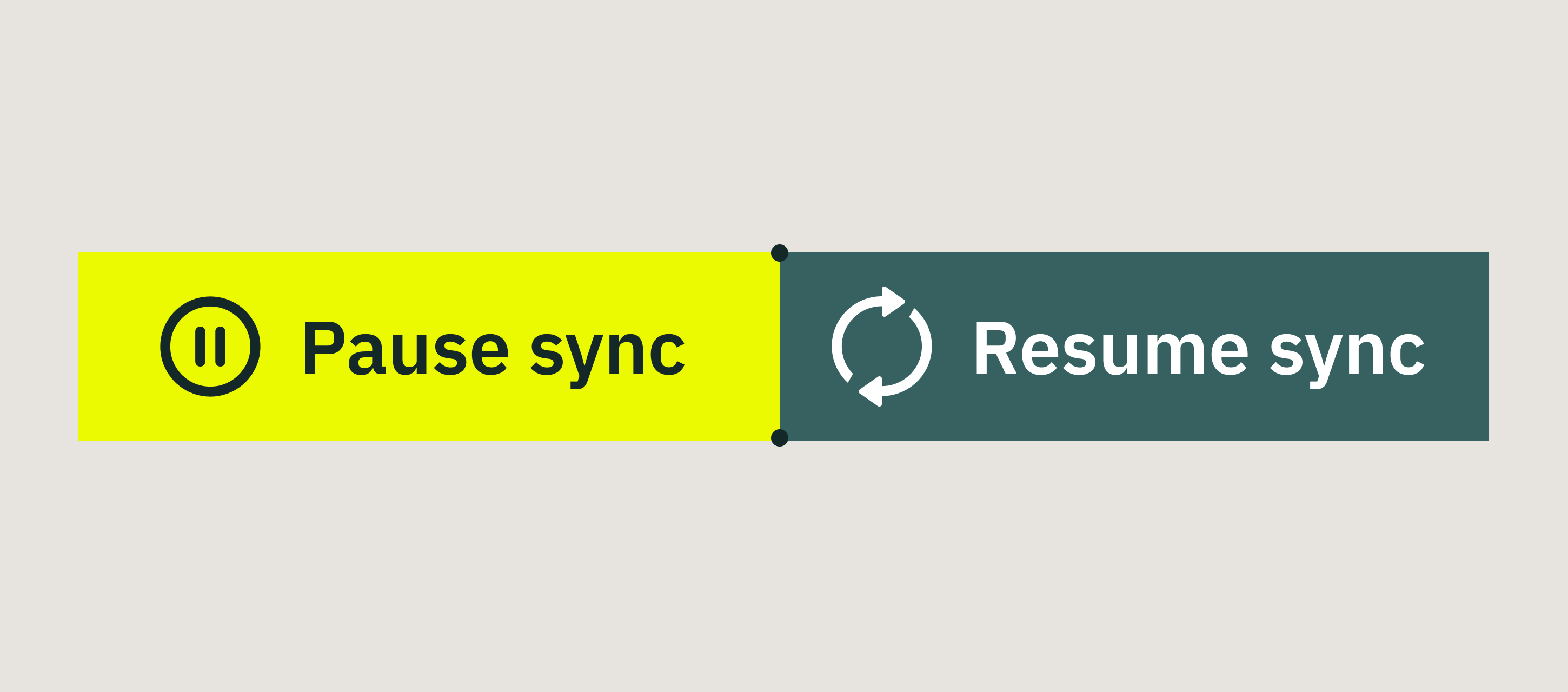
What is Sync Regulation?
The Sync Regulation feature lets your team manually pause or resume syncing of specific folders in the Templates or Company Drive on their devices. This gives your users control over when and what content to sync first.
Other top-notch benefits are:
- Saving battery since a permanent auto sync will no longer be performed.
- Decrease the usage of the storage capacity of the user’s device.
- The users may independently prioritize which folders they want to sync first, working with slow internet.
When Is It Useful?
- Your Fluix setup includes many documents for the user working in the iOS app, and syncing everything takes up space.
- Your team often works in areas with weak or unstable internet.
- You want to let your team sync only specific relevant folders for them at a certain point.
How to Enable Sync Regulation in the Admin Portal
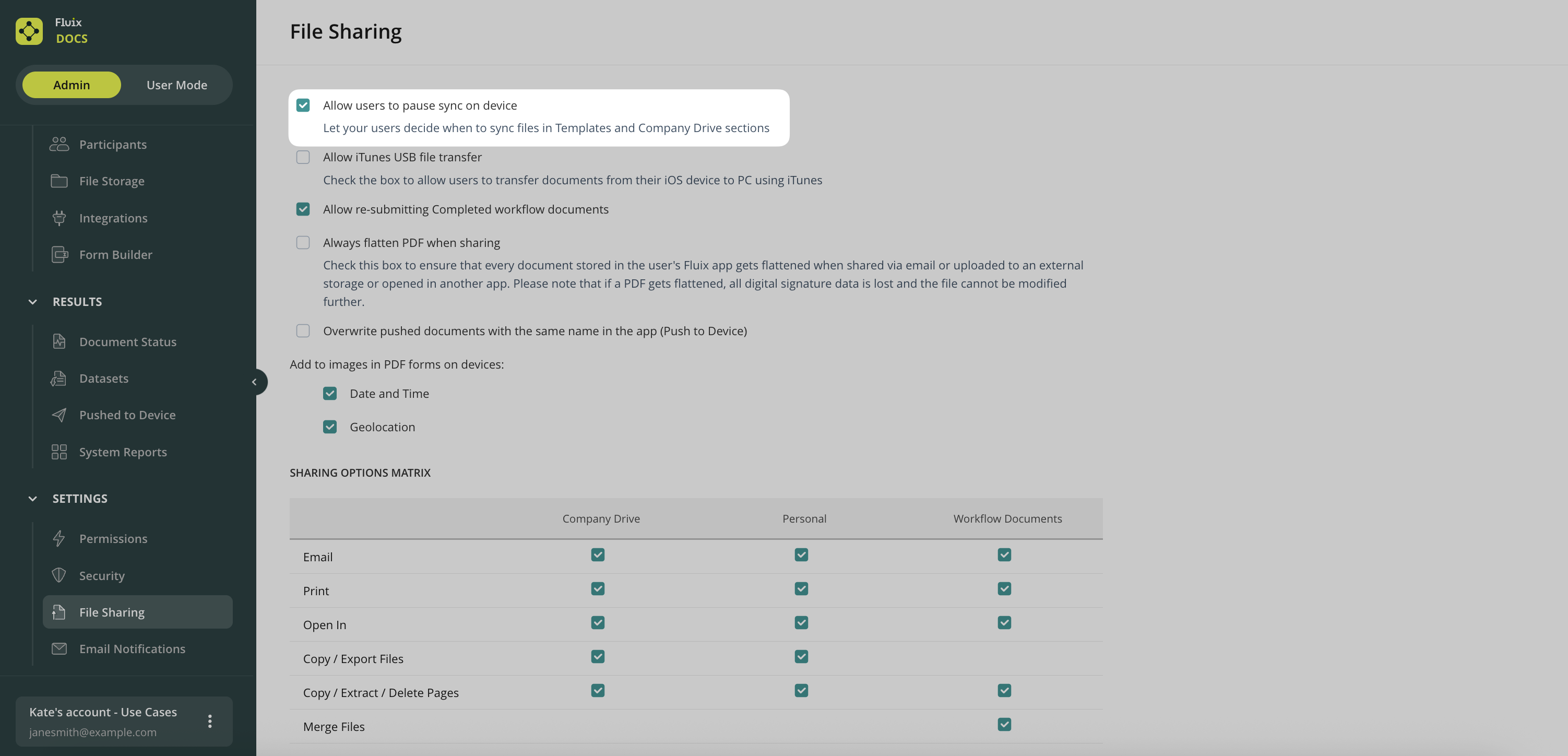
To enable this feature for your whole Fluix company account:
1. Go to Admin Portal → Settings → File Sharing section.
2. Check the box Allow users to pause sync on device.
3. After that, click Save changes when it appears on your screen.
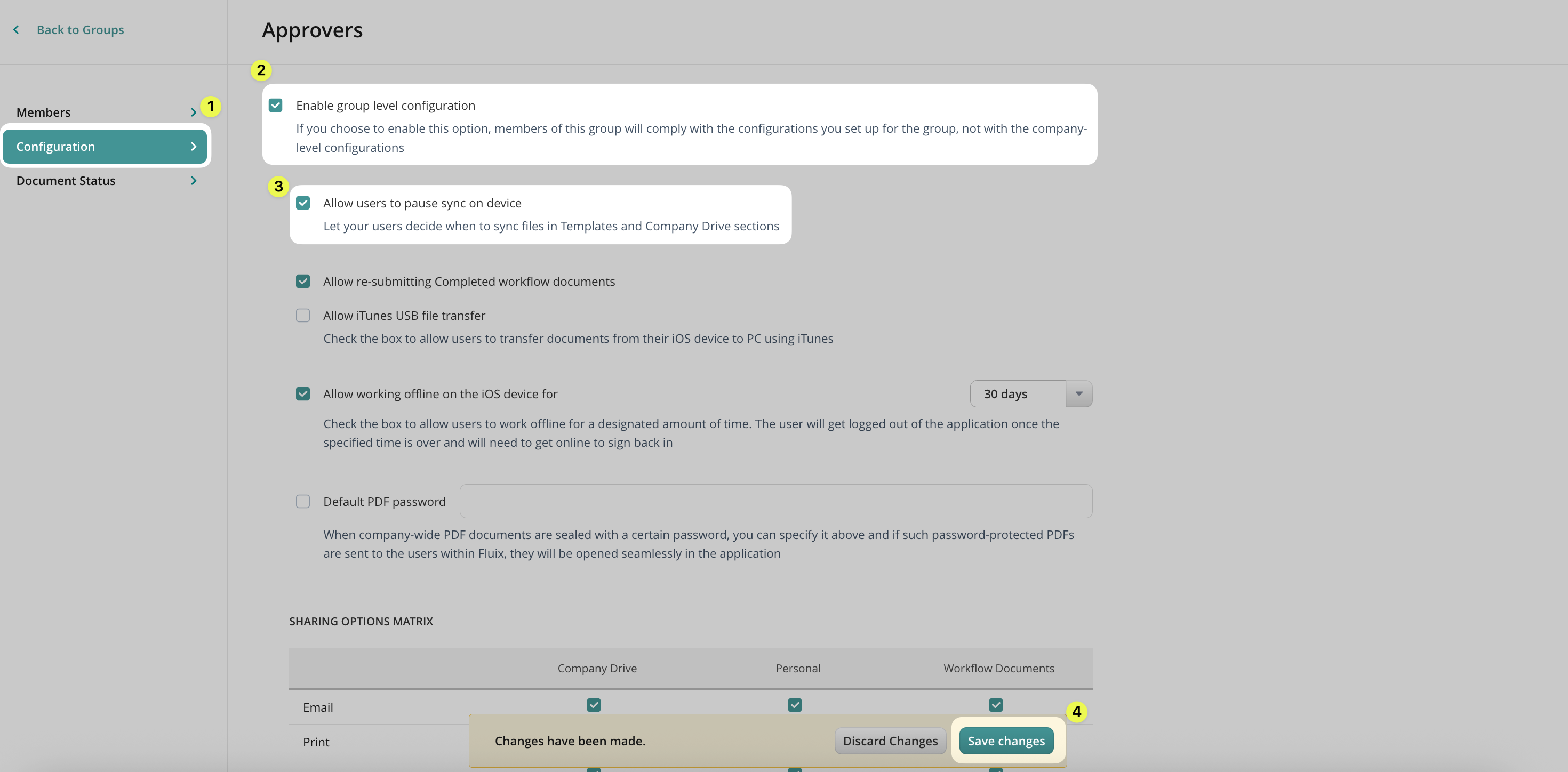
To enable this feature for the specific group in your company’s account:
1. Navigate to Participants → Groups.
2. Choose the group and open the Configuration tab.
3. Check the box Enable group-level configuration, and then check the box Allow users to pause sync on device.
4. After that, click Save changes when it appears on your screen.
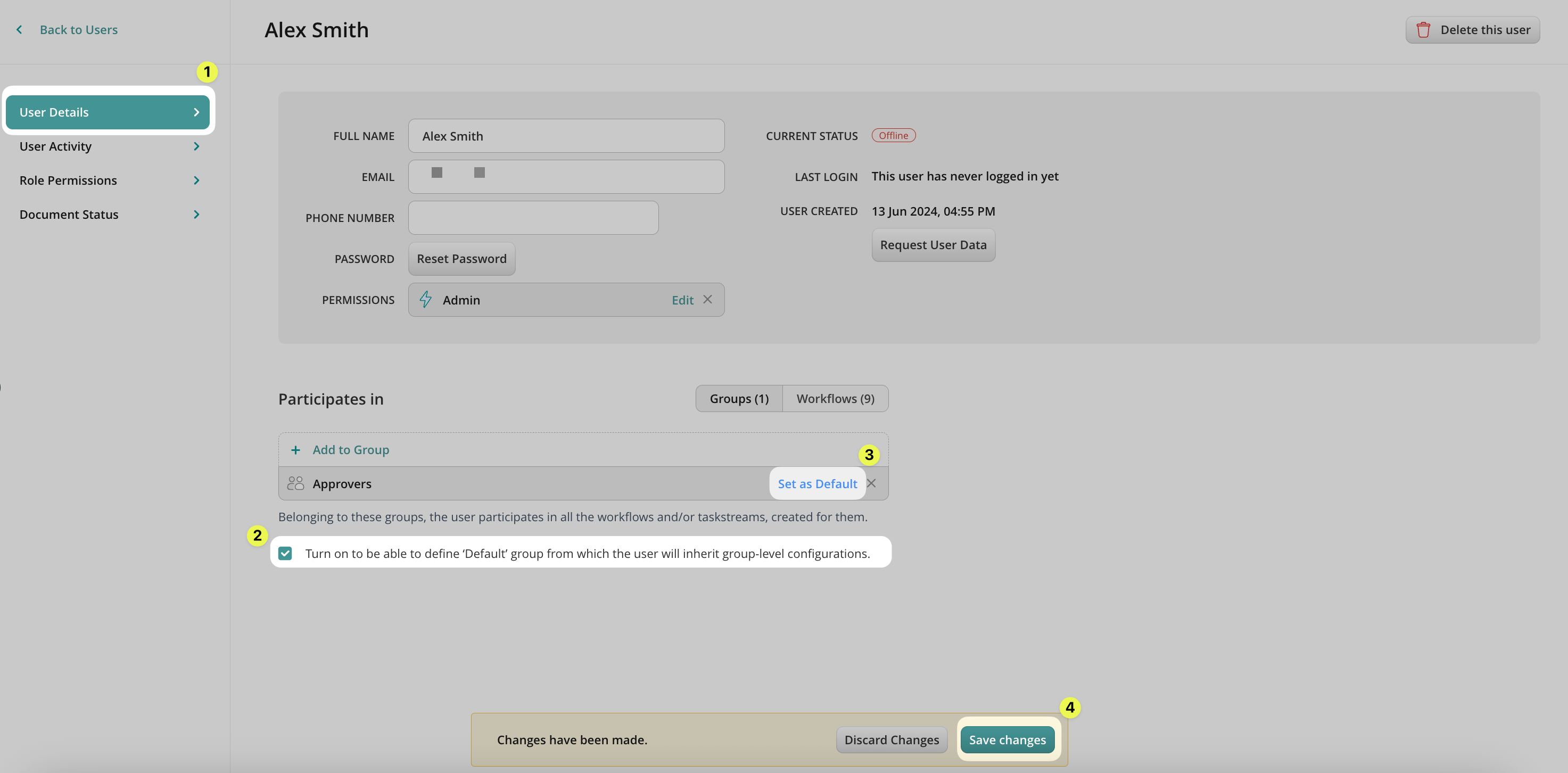
Ensure each user’s profile has this group set as a default in their User Details.
Note: This overrides company-wide settings for those users in the group. This means that the configurations you set for them in their default group will be assigned to all the users within this group.
How Sync Control Works for Users in Fluix Docs App
The users can pause or resume a sync in a couple of different ways:
1. Pause Sync For The Specific Section:
- Tap Pause Sync next to a section name to stop syncing all its folders.
- Tap Resume Sync to restart it.
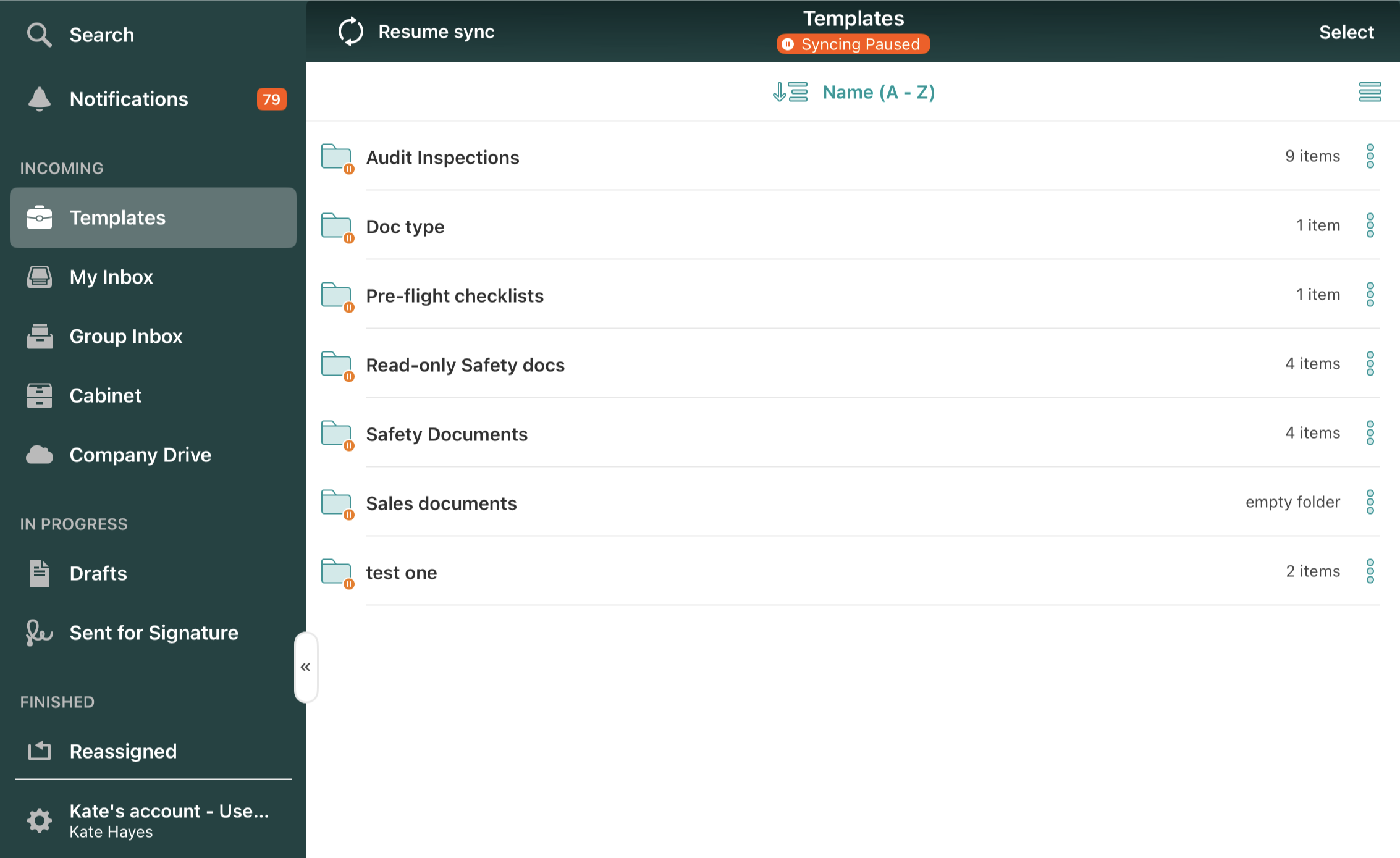
2. Pause or Resume Sync for an Individual Folder:
- Tap the three dots next to the folder. Select Pause Sync.
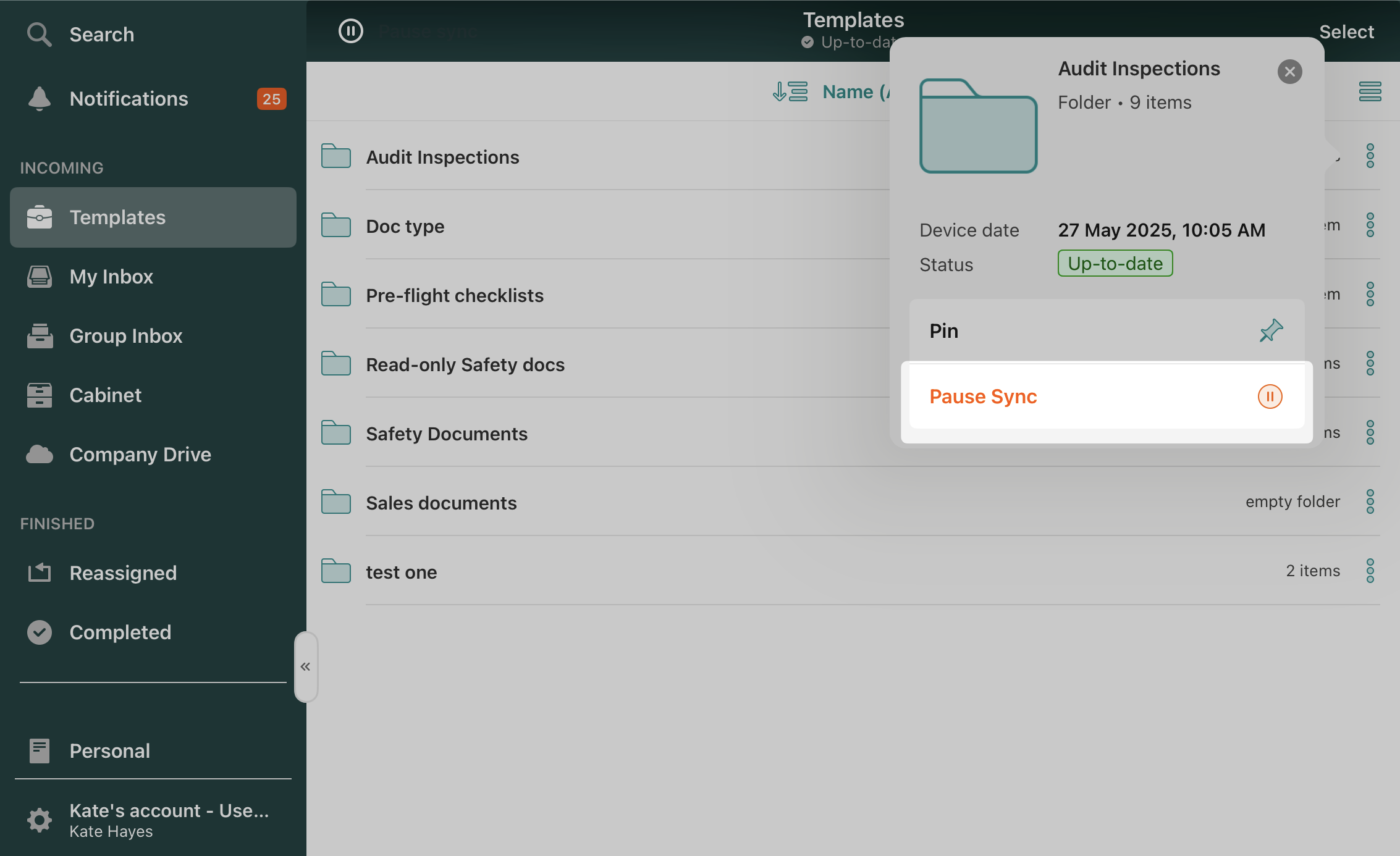
- Tap Resume Sync when necessary.
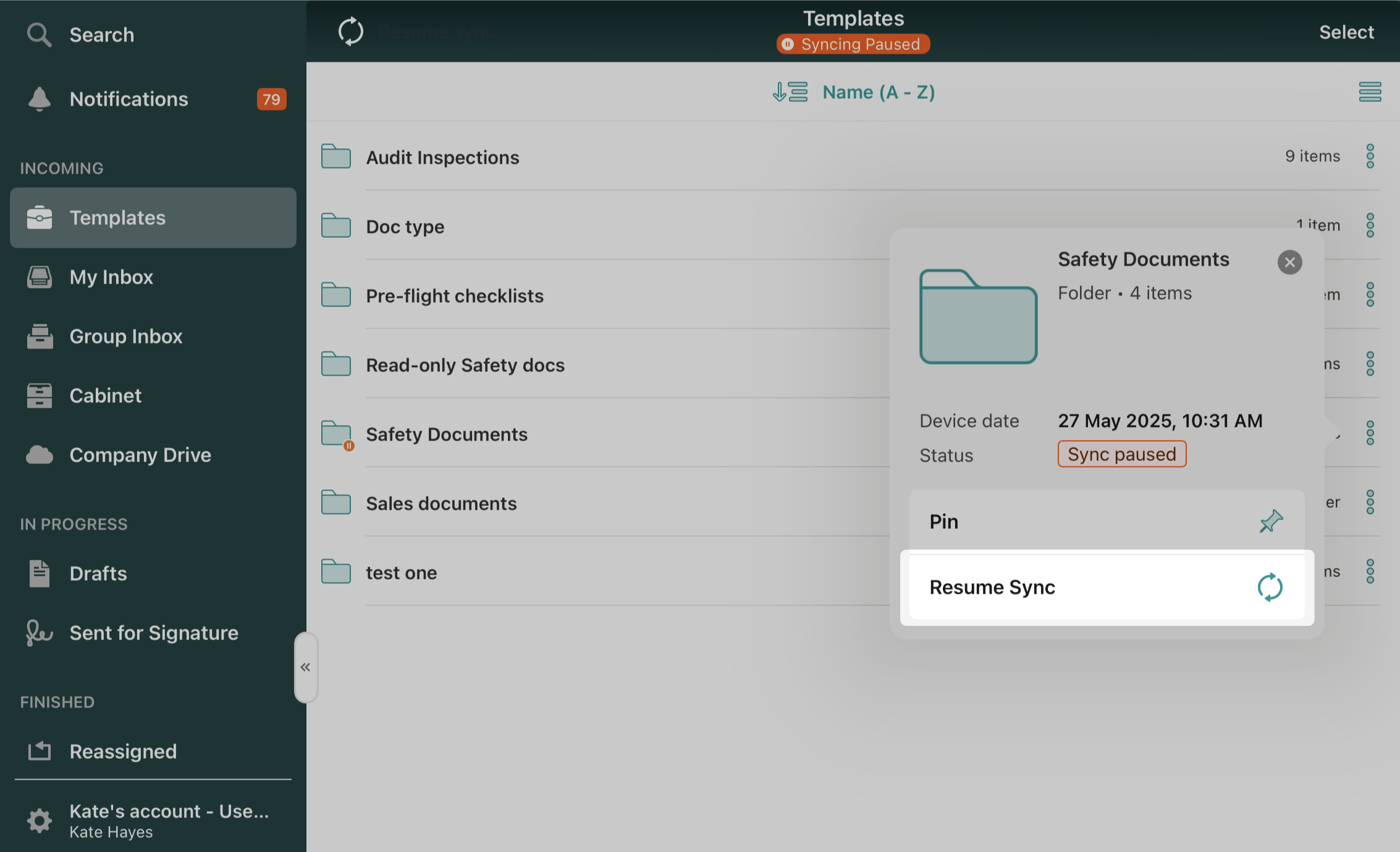
Note: The users can only pause sync for root folders, not subfolders individually. Pausing a root folder will pause the sync for all its contents.
3. Pause Sync For Selected Folders:
- Tap Select, choose the folders that need to stop syncing, and hit Pause Sync.
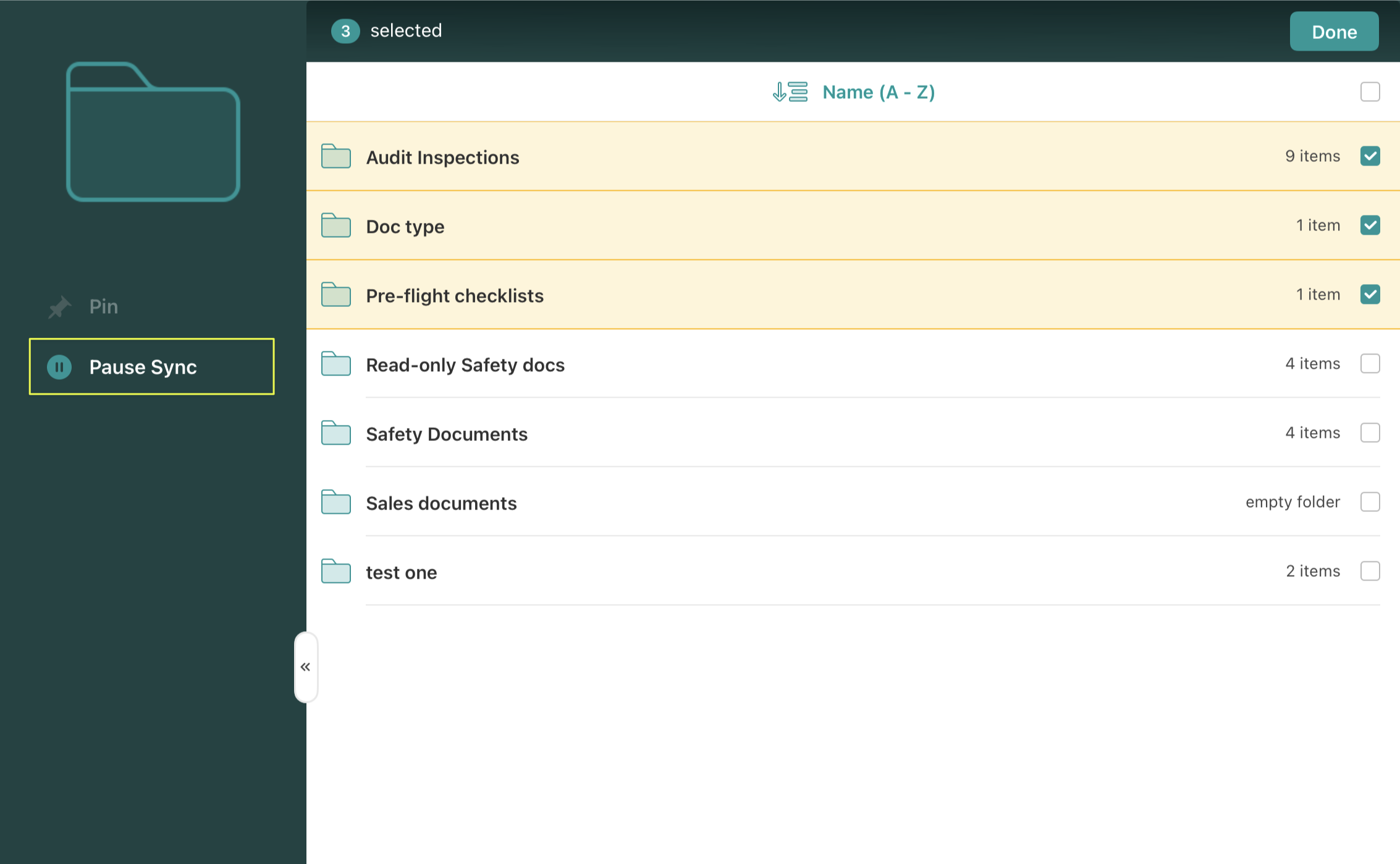
Note: If the users tap the Resume option from the three-dot menu, it only affects the one folder that they selected.
Feel free to contact us at support@fluix.io if you have any questions or comments.