


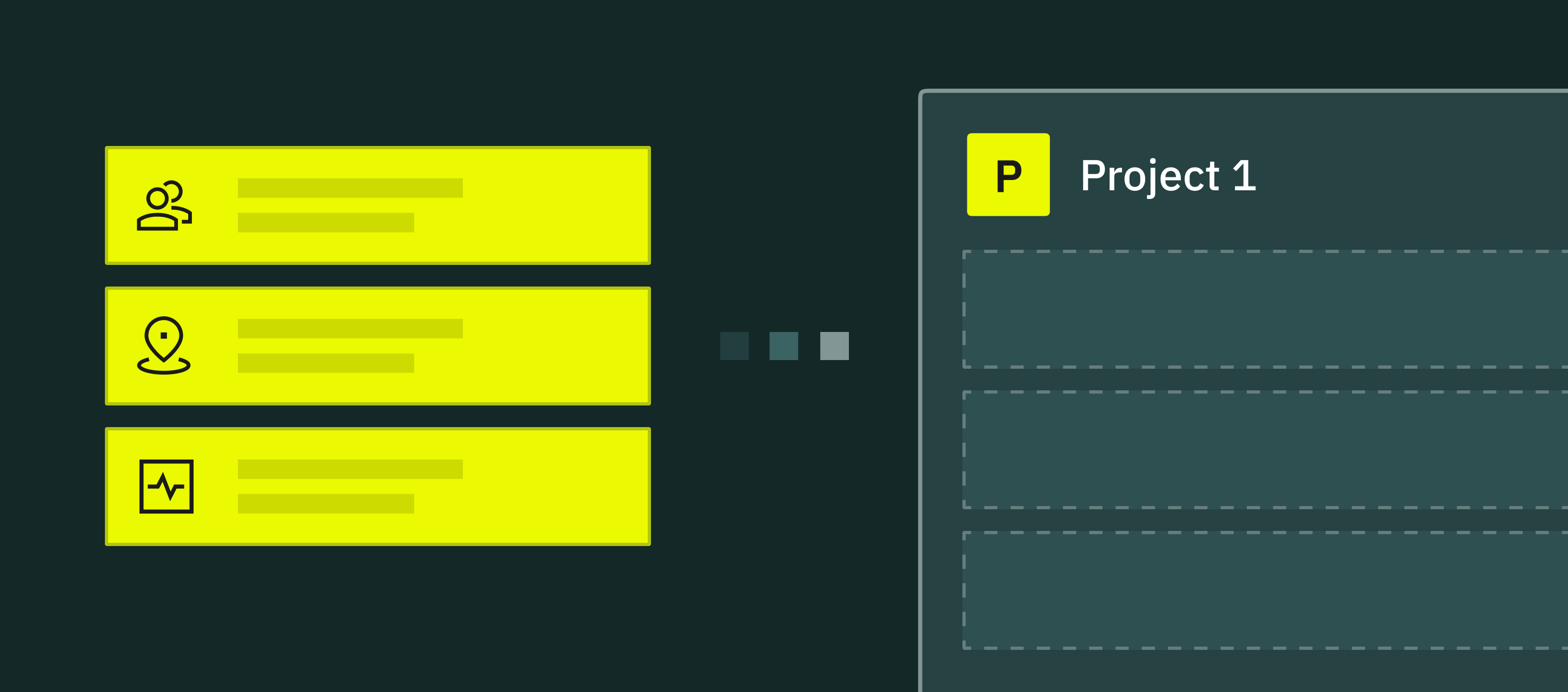
Projects in Fluix help you organize forms, teams, workflows, and assets related to a specific department, location, or function — all within one dedicated space. This keeps operations structured, secure, and easy to manage.
Note: Projects are available starting from the Basic Plan, which includes one project. Unlimited Projects are available on the Core Plan and above.
What Are Projects?
Projects are isolated environments within your Fluix account that enable both account admins and the field team to structure processes by any differentiator — such as region, site, or department.
Each Project can include:
- Project Admins
- Workflows
- Forms
- Dedicated storage
- Groups of users
- Activity per project
This setup keeps information localized to the relevant team, helping to maintain data security.
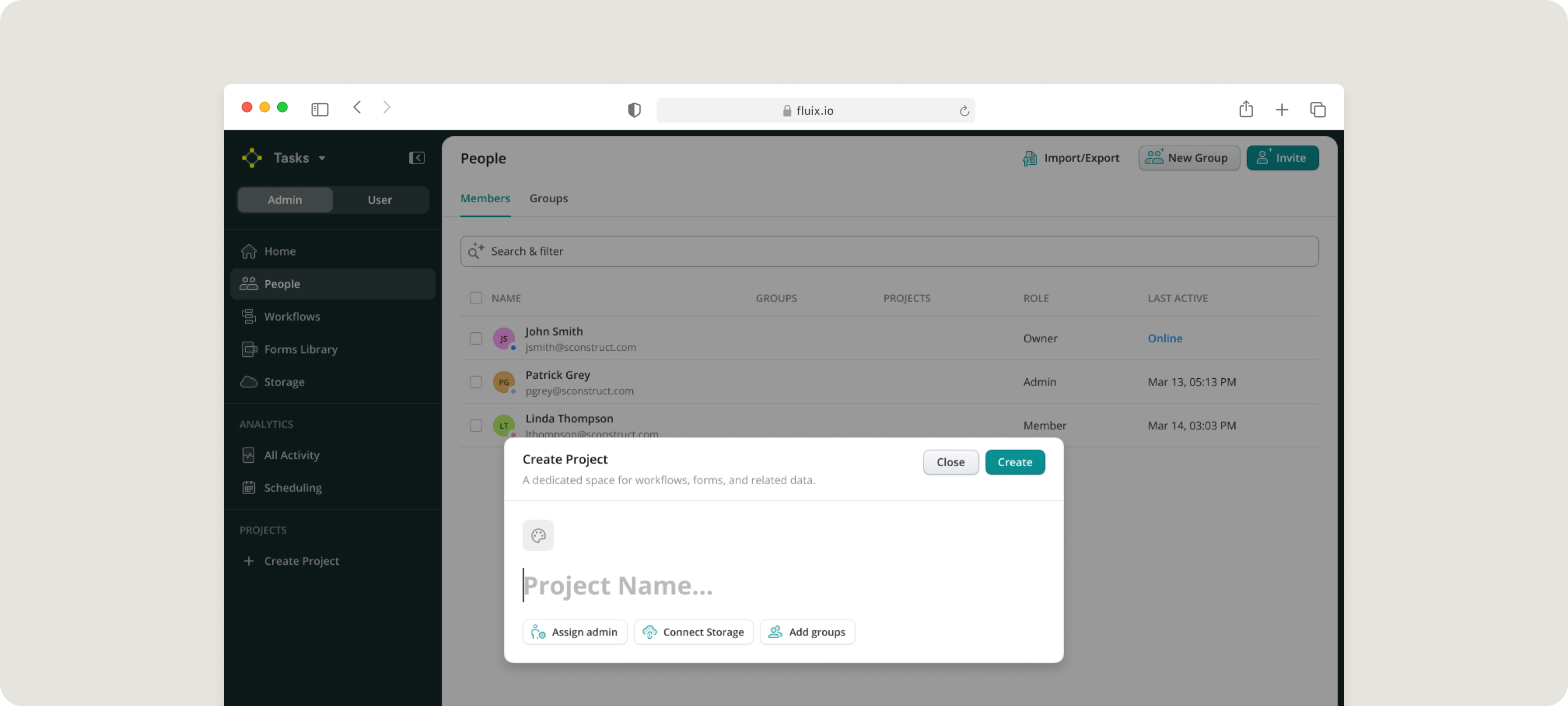
Creating a New Project
- In the Admin Portal, open the Projects section.
- Click New Project.
- Enter a name — for example, “North Region”.
- Click Create. After the project is created, you can begin adding its components.
Setting Up a Project
You can configure the following sections inside each Project:
General Settings
Adjust the project name, connect the dedicated storage, assign a Project Admin, and specify the groups that will participate.
Workflows and Forms
You can:
- Create new workflows and forms inside the project.
- Copy or move them from your main account. Reusing approved templates of workflows and forms helps streamline setup and ensures consistency across teams.
Storage
Connect the storage location that will be used specifically for this project — for example, Fluix Storage.
This keeps completed forms and project documents organized and easily accessible.
Project Admin
Assign a team member to oversee the project. They have access only to their assigned project and can:
- Track workflow activity
- Manage submitted data
- Schedule follow-up tasks
- Generate project-specific reports
Groups
Create user groups for the project and add the team members who will work on it. Groups help control who can access workflows, forms, and data associated with that project.
Managing Project Workflows
Workflows can be organized by department, location, team, or any structure your organization uses.
For example:
- Create a workflow for site inspections in the North Region.
- Assign it to the corresponding field team.
- Define the storage folder where completed forms will be saved.
- Click Save and Publish to make it active for your users.
Tracking Activity and Trends
Use the Dashboard to:
- Monitor in-progress and completed tasks.
- Identify recurring issues or emerging patterns.
- Schedule corrective actions, maintenance, or additional inspections.
This helps project managers stay informed and respond quickly.
Benefits of Using Projects
- Clear separation of workflows, forms, groups, and data for each location or department
- Simplified reporting and performance tracking
- Granular access control based on project roles
- Faster setup through reusable templates
- Improved data protection and operational oversight
How to Track Activity and Trends
Use the Dashboard to:
- Monitor progress on active projects
- Identify trends or recurring issues
- Visualize data that your field team captures in the field
- Schedule maintenance or follow-up inspections based on collected data
This helps project managers make informed decisions and maintain visibility into team performance.
How to Standardize Processes Across Projects
If your organization follows standardized procedures, Projects make it easy to replicate approved processes across multiple locations.
You can:
- Build and approve workflows and forms in your primary company account.
- Copy or move them into the respective Projects (e.g., by region, department, or function).
This approach saves setup time and ensures all teams follow the same company standards.
Benefits of Using Projects
- Isolated environment of workflows, forms, and groups, per department, location, or activity within the main Admin Portal.
- Simplified reporting and trend tracking within the project.
- Granular access per project based on the role and responsibility.
- Faster setup with reusable templates.
With Projects in Fluix, you can manage your teams, sites, and workflows within a dedicated, isolated environment. This way, you can improve the structure and maintenance of project assets, ensuring that the collected data is accessible only to dedicated admins with relevant, granular permissions.
Feel free to contact us at support@fluix.io if you have any questions about the setup.