Every field ops team has recurring tasks that must happen on time. When any of them slip, a missed check becomes a non-conformance, an insurance claim, a regulatory fine, or worse.
Fluix solves this by automating the scheduling itself – assigning the right task to the right person on the right day, tracking completion, and flagging overdue items automatically.
In this guide, I’ll walk through how it works step by step, where teams use it most, and the habits that keep scheduled workflows running across months and years.
Note: Automated scheduling is available on all Fluix plans. Compare Fluix pricing plans to see what’s included.
Contents:
What Is Automated Task Scheduling?
How Fluix Handles Scheduled Tasks
What Problem Automated Scheduling Solves
Best Practices for Automated Task Scheduling
Fluix Scheduling FAQ
What Is Automated Task Scheduling?
Automated task scheduling is the practice of configuring recurring work – inspections, audits, safety checks, maintenance rounds, training refreshers – to run on their own. Set the rule once, and software executes it: the task goes to the right person on the right day, tracks its own completion, and flags itself if it’s overdue.
For field ops teams, the recurring-task pattern shows up everywhere: daily pre-shift checks, weekly safety walks, monthly equipment maintenance, quarterly compliance audits, annual certifications. Without automation, someone has to remember, assign, follow up, and record each one. With automation, all of that happens by workflow rules.
Good automated scheduling shares four traits:
- Rules replace reminders – the system assigns tasks by schedule and role, not by someone remembering
- Assignments respect skill and certification – the right task goes to a person qualified to complete it
- Missed tasks escalate automatically – reminders go out before deadlines; overdue items reassign or notify a supervisor
- Every completion is recorded – the schedule and its execution history are both audit-ready
How Fluix Handles Scheduled Tasks
Fluix is inspection management software for field teams that implements all four traits above. You configure the scheduling rule once inside a workflow, and every recurrence (daily, weekly, monthly, quarterly, annually) runs automatically from that point forward.
A few things worth knowing up front:
- It’s rule-based. You define the recurrence pattern once, and it runs indefinitely until you change it.
- It supports assignment by role, skill, certification, or location. A safety inspection at Site A can automatically go to a certified inspector working in that region.
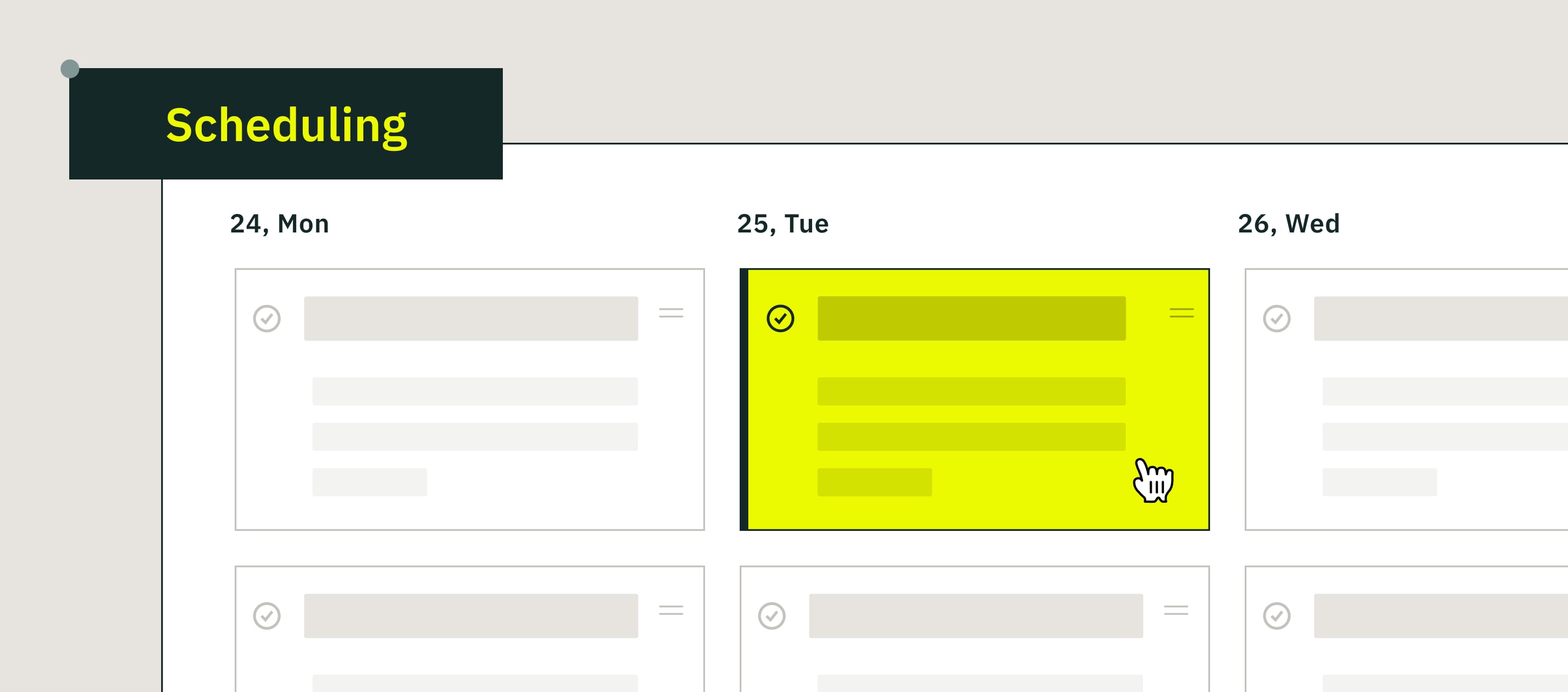
- It integrates with the planner. Every scheduled task shows on a shared calendar view for the whole team.
- Overdue tasks escalate automatically. Configure reminders before deadlines and fallback assignments if tasks aren’t completed.
On the admin side
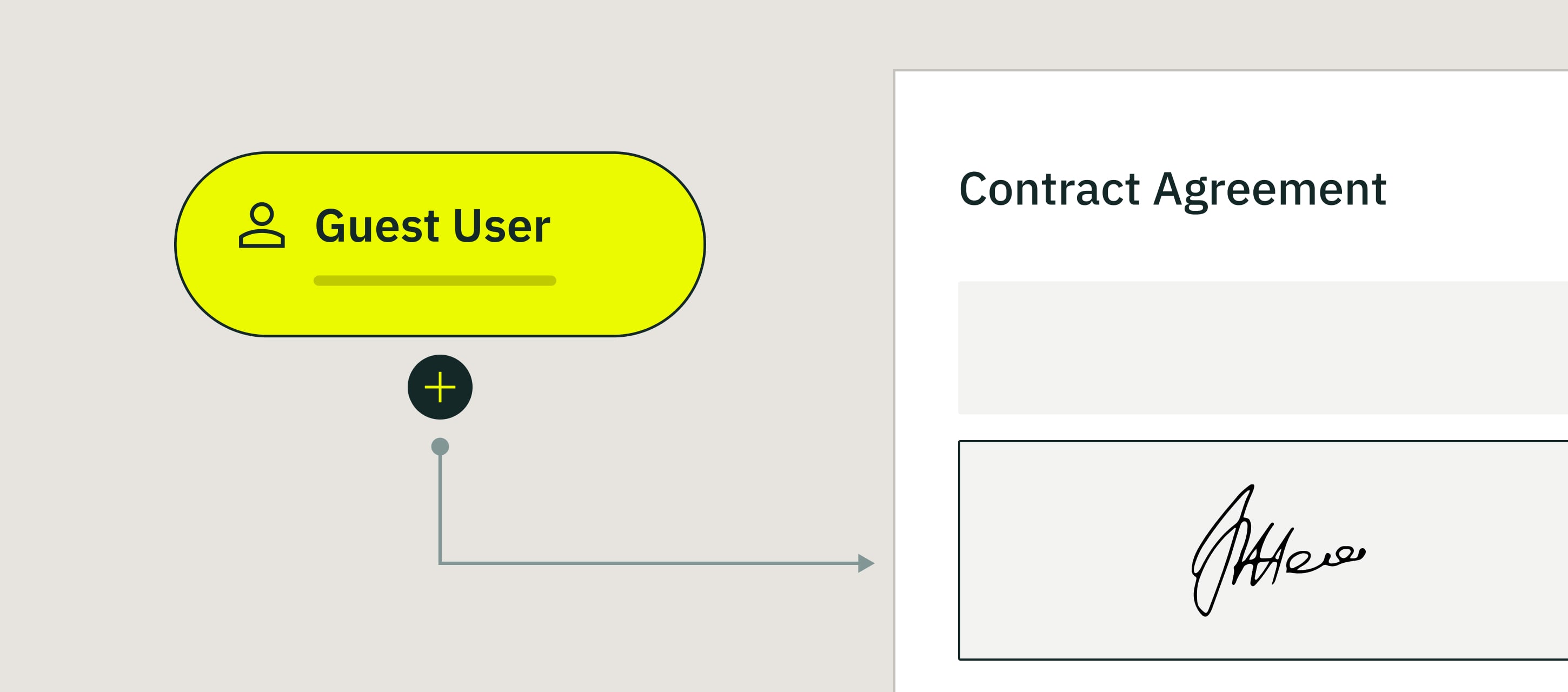
When you build a workflow in Fluix, you enable the scheduling feature and configure three things: who receives the task, how often it recurs, and what the workflow steps are.
For assignment, you have three options:
- Fixed recipient — a specific person or role gets every recurrence
- Skill or certification match — the task routes to any qualified person available (useful when multiple inspectors can complete the same work)
- Location match — the task goes to whoever’s assigned to that site or region
For recurrence, you set a start date and cadence: daily, weekly, monthly, quarterly, annually, or custom intervals. The rule runs until you change or disable it.
For escalation, you configure how the system responds if a task is overdue: send a reminder to the assignee, notify a supervisor, or reassign to a backup person.
The admin does this once per inspection type. After that, every scheduled task runs itself.
On the field side
The inspector gets the task on the day it’s due — in the Fluix mobile app, with a notification, and (if configured) an email or SMS reminder. They open the task, complete the inspection, submit it. The workflow closes and the next recurrence queues automatically.
If they’re offline when the task is due, it queues on the device and syncs when the connection returns. Nothing gets lost.
The planner view
Every scheduled task shows up in the Fluix planner – a shared calendar view that shows what’s coming up across the whole team, week by week, month by month, or year by year. Ops managers use it to spot overloaded days, spread work across the team, and prevent scheduling conflicts before they happen.
What Problem Automated Scheduling Solves
Manual scheduling breaks down when you have numerous tasks. Fluix handles this by making the scheduling logic part of the workflow itself
- Missed tasks. The most expensive problem in recurring tasks is forgetting. A safety walk that gets skipped once becomes a pattern, and the pattern becomes a compliance gap that surfaces during an audit.
- Manual coordination overhead. A facilities team running 20 recurring task types spends roughly 90 minutes a week on coordination alone. Across a year, that’s around 78 hours of ops-manager time before anyone actually completes a task.
- Wrong person, right task. A scheduled task is useless if it lands with someone who isn’t qualified to complete it. Fall protection checks, electrical work, confined-space entries, first-aid refreshers — all have certification or training requirements.
- Overdue items falling through the cracks. Even with scheduled assignments, tasks slip. Someone is off sick, a shift changes, a task gets acknowledged but not completed.
- No visibility across teams and sites. Ops managers running scheduled work across multiple sites, teams, or regions can’t rely on a per-site spreadsheet. They need one view that shows what’s happening everywhere.
Related: How Panorama Helicopters saves 600+ labor hours a year with Fluix →
Best Practices for Automated Task Scheduling
These six practical habits make automated scheduling work smoothly in the field.
1. Communicate the shift when you go from ad-hoc to scheduled.
If your team used to grab tasks from a shared queue whenever they had time, and suddenly tasks appear only on their assigned day, that’s a change in workflow rhythm. A small timing change can throw people off if they don’t see it coming.
2. Use descriptive task names.
“Inspection” or “Checklist” tells the assignee nothing. Names like “Weekly Safety Walk — Site A” or “Monthly HVAC Check — Building 3” tell them exactly what’s due, where, and how often. Descriptive names also make the audit trail easier to read months later.
3. Configure escalation before you need it.
Set up reminder cadences and supervisor notifications when you first build the workflow, not after the first task slips. A supervisor notified at 24 hours overdue can intervene before an issue becomes a compliance risk.
4. Respect time zones for global teams.
A task assigned at 9 AM in London lands at 4 AM in Sydney. If your teams work across regions, configure schedules in each recipient’s local time zone. Fluix handles this per user, worth confirming during setup.
5. Use the planner view to prevent overload.
Before you enable a new recurring workflow, look at what’s already scheduled that day for the assigned team. Adding a new weekly inspection to a team already running four others creates a bottleneck. The planner shows this before it becomes a problem.
6. Review and adjust quarterly. Scheduled workflows aren’t set-and-forget. Every quarter, review completion rates, escalation patterns, and repeat findings. If a monthly inspection has zero findings for 12 months straight, the interval might be too tight.
Fluix Scheduling FAQ
- Which Fluix plan includes automated scheduling?
Automated scheduling is included with every Fluix plan. No tier restrictions.
- What kinds of tasks can I schedule?
Any workflow you can build in Fluix — inspections, safety audits, maintenance rounds, compliance checks, competency verifications, incident report reviews. Anything that recurs on a schedule can be automated.
- Can I schedule a task once and have it recur indefinitely?
Yes. Configure the start date and recurrence pattern, and Fluix runs it until you change or disable the workflow. No annual re-setup.
- What happens if the assigned person is unavailable?
You can configure escalation rules — reminders before the deadline, supervisor notification if overdue, and automatic reassignment.
- Does scheduling work with offline mode?
Yes. If a scheduled task lands when the assignee is offline, it queues on the device and syncs when the connection returns. The task completion, timestamps, and audit trail all sync normally.
- Can I see all scheduled tasks in one view?
Yes. The Fluix planner shows every scheduled task across the team, filterable by task status, groups involved or workflows. Weekly, monthly, and annual views help with workload planning.