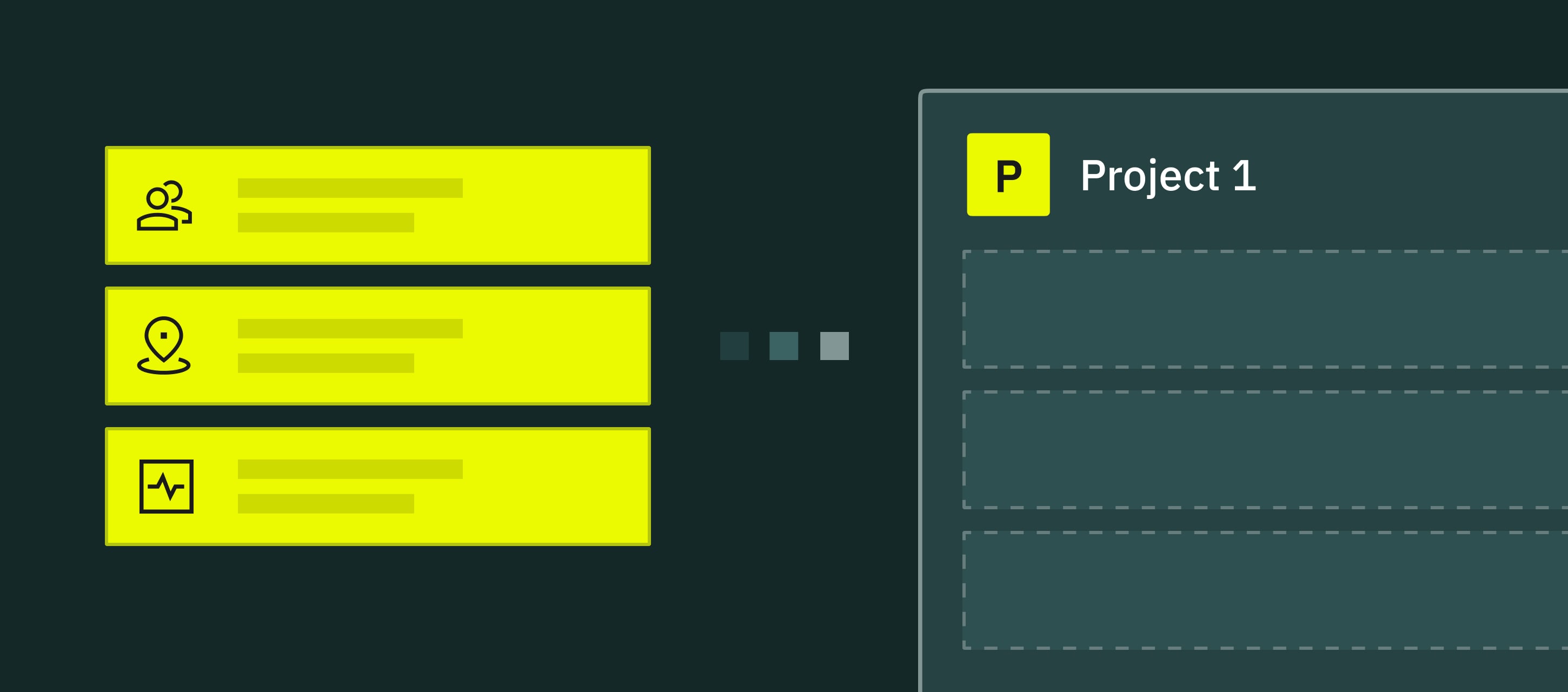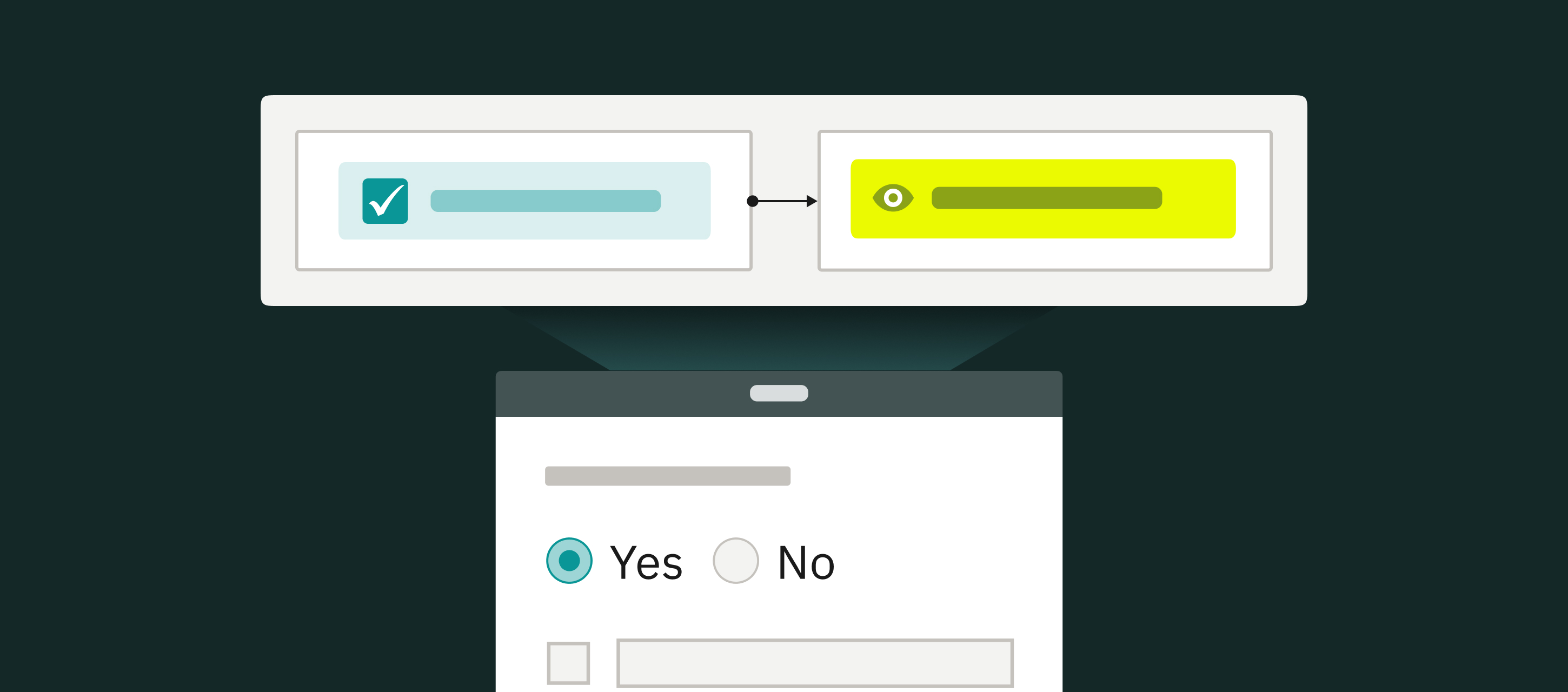
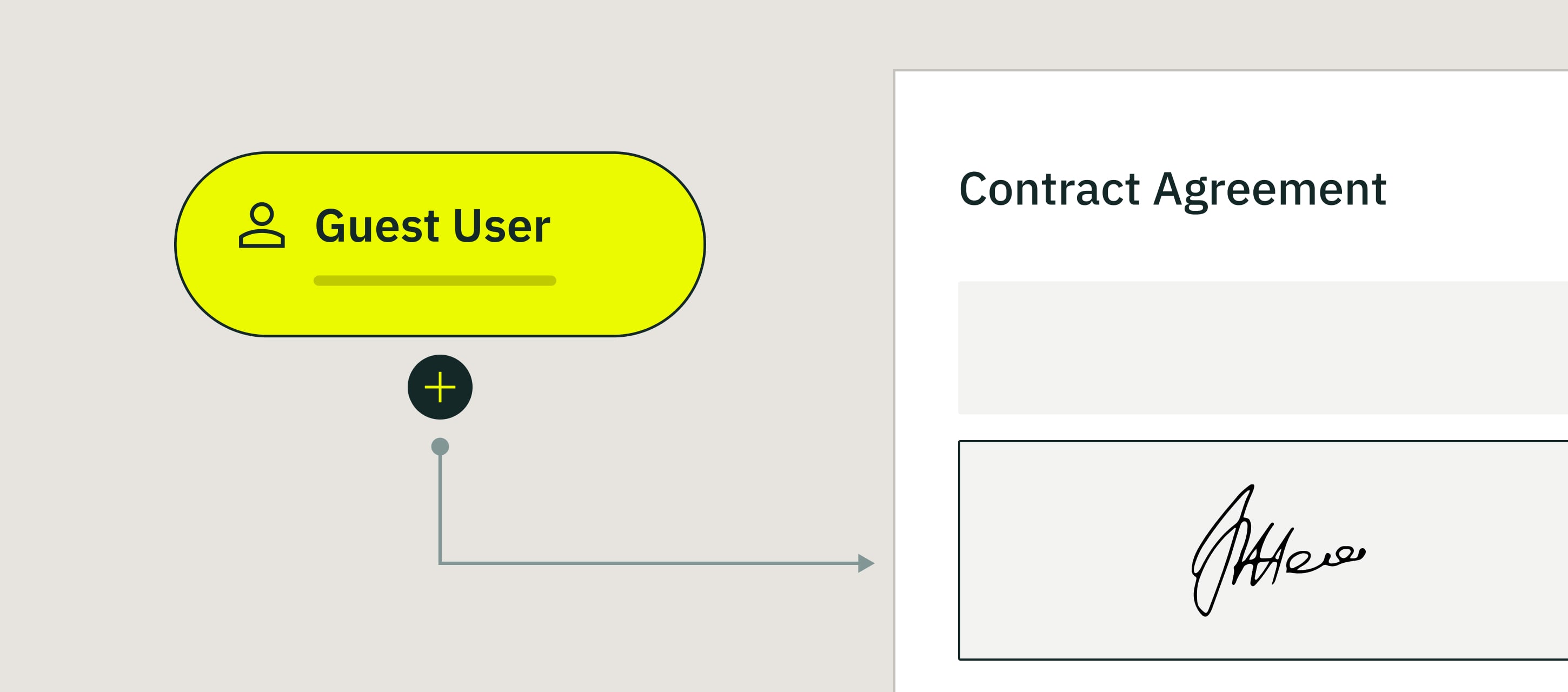
Most inspection workflows have at least one external signature in the chain. Each one costs admin time to chase down, especially when the external person isn’t in your Fluix account.
We’ve designed Guest Access to let the external signer complete the task in their browser, without an account, an app, or a separate license.
In this guide, I’ll walk through how guest access works in Fluix today, where teams use it most, and where it can work for your particular use case.
Note: Guest Access is available on the CREWS plan. Compare Fluix pricing plans to see what’s included.
Contents:
What Is Fluix Access?
Fluix Guest Access lets external people – contractors, clients, auditors, vendors, anyone outside your Fluix account – open an inspection form or document in their browser, fill it out, sign it, and submit it back into your workflow.
They click a link you send them, complete the task, and the data flows into your inspection process automatically.
A few things worth knowing up front:
- It’s browser-based. Guests open the task on any device — phone, tablet, laptop. And they don’t need to install the app.
- It’s unlimited. Any number of guests can be assigned per task.
- It’s part of your workflow. When the guest submits, the completed form flows down the same workflow path as any other Fluix submission — to email, cloud storage, the manager’s review queue, or wherever else you’ve routed it.
Already a Fluix customer? Guest access is in your account right now. Not on Fluix yet? Start a trial now, and set up a guest task in your first workflow in under 10 minutes.
How Guest Access Works in Fluix
Guest access works in two ways, depending on where the guest task sits in your workflow.
Method 1: Guest task as a step inside a process
This is the more common pattern where the guest task is one stage in a workflow that’s already running.
On the admin side: You configure a Guest Task as part of any Fluix workflow. When the workflow reaches that stage, Fluix automatically generates the link and sends it to the recipient Three options for who receives it:
- Fixed recipient. Hard-code an email address or phone number in the workflow itself. The guest task always routes to the same person — useful for cases where one specific external party (e.g., your main client contact, your insurance adjuster, your regulatory reviewer) handles every instance of this workflow.
- Dynamic recipient pulled from the form. Use a dynamic value that picks the email or phone number from a field in the preceding form. If the inspector enters the client’s email when filling out the inspection, the guest task automatically routes there.
- Recipient defined by the previous user. Let the person who finishes the preceding task pick the recipient when they hand off. Useful when the right external signer varies by job (a different subcontractor lead per site, a different client manager per project) and only the field worker knows who it should be.
Whichever option you configure, the routing is automatic. The admin sets it up once, and every subsequent run of the workflow handles its own dispatch.
On the guest side, they click the link, open the task in their browser, enter their email and full name, complete the form or sign the document, and hit Finish task. The submission flows back into the workflow – to the back office, to cloud storage, to a manager’s review queue, or wherever else you’ve routed it.
Each link is generated specifically for that submission and that recipient. One link, one process, one signature.
Pattern 2: Guest task as the first step in a process
This is where guest access gets more interesting for site-wide or field-wide use cases. When the guest task is the first task in a workflow, the generated link doesn’t belong to one specific submission. It can be used by multiple people at the same time, with each submission starting its own process in Fluix.
That means you can:
- Share a single link with everyone who needs to complete the form (an email to 200 subcontractors, a notice in a project Slack channel, a poster on a noticeboard)
- Generate a QR code for the link, print it, and stick it somewhere physical, at the gate, on the equipment, at the entrance to a site
Anyone who has the link or scans the QR code can complete the form. Each completion creates a separate submission that routes into your workflow individually.
The admin sees every submission come in, with the submitter’s email and full name attached, the same way any Fluix submission is logged.
RELATED RELATED How Dyna Crane runs sign-offs and audit-ready documentation with Fluix
What problem Guest Access solves
Guest access solves different problems, and these are the ones we hear most often from our customers:
1. Buying licenses for one-time signatories. A client who signs off on inspection reports four times a year or subcontractor who signs a site safety briefing once before a job doesn’t need a Fluix license. Guest Access gives you an option to interact without digital bureaucracy.
2. PDF-by-email workflows breaking the audit trail. The moment a form leaves your system as a PDF attachment, you’ve lost control of it. Was it signed? When? By whom? Did it get edited? Email-based signing creates exactly the kind of fragmented audit trail that compliance teams have to reconstruct manually six months later. In-platform guest signing keeps the audit trail intact.
3. Asking external parties to install apps. A contractor on a one-week job or a client signing once a quarter won’t install a new app. Browser-based guest access removes the install step entirely.
4. Time-consuming manual chase-up. If your operation collects, say, 50 external sign-offs a month and each one takes 20 minutes of back-and-forth (email the PDF, follow up, receive it back, file it correctly), that’s 16+ hours of admin per month just chasing signatures. Move that to guest access, and the same 50 sign-offs go out automatically, get completed in the browser, and route themselves into the right folder when done.
Fluix Guest Access FAQ
What does a guest need to do to access a task?
Click the link, enter their email and full name, and complete the task. No account creation, no app installation, no password.
Can guests access Fluix on mobile?
Yes. Guest access works on any modern browser, on any device. Most guests complete tasks on a phone or tablet.
Is guest activity tracked in the audit trail?
Yes. When a guest opens a task and submits it, their email, full name, and submission timestamp are recorded as part of the form’s audit trail — the same way any Fluix submission is logged.
Which Fluix plan includes guest access?
Guest access is included with all Fluix plans. No tier restrictions, no per-guest fees.
Is guest access covered by Fluix’s security certifications?
Yes. Guest access runs on the same Fluix infrastructure as the rest of the platform, covered by Fluix’s ISMS’ ISO 27001 certification and SOC 2 attestation.
The Bottom Line
When you work with inspections, you have clients, subcontractors, auditors, and vendors who need to plug in at specific moments, and the friction of getting them in is where most inspection processes lose time.
Fluix guest access is part of Fluix inspection management software, the platform trusted by 12,000 field service teams to run inspections, safety, and compliance in the field. It turns “we need a signature from the client” into a one-click task that completes itself, with the audit trail intact.
If your inspection process involves anyone outside your Fluix account — and it almost certainly does – guest access is already part of your subscription. Open any workflow, add a guest task, and try it on your next external sign-off.