


The Completed section contains a list of the last 500 documents you submitted, which you can use for reference.
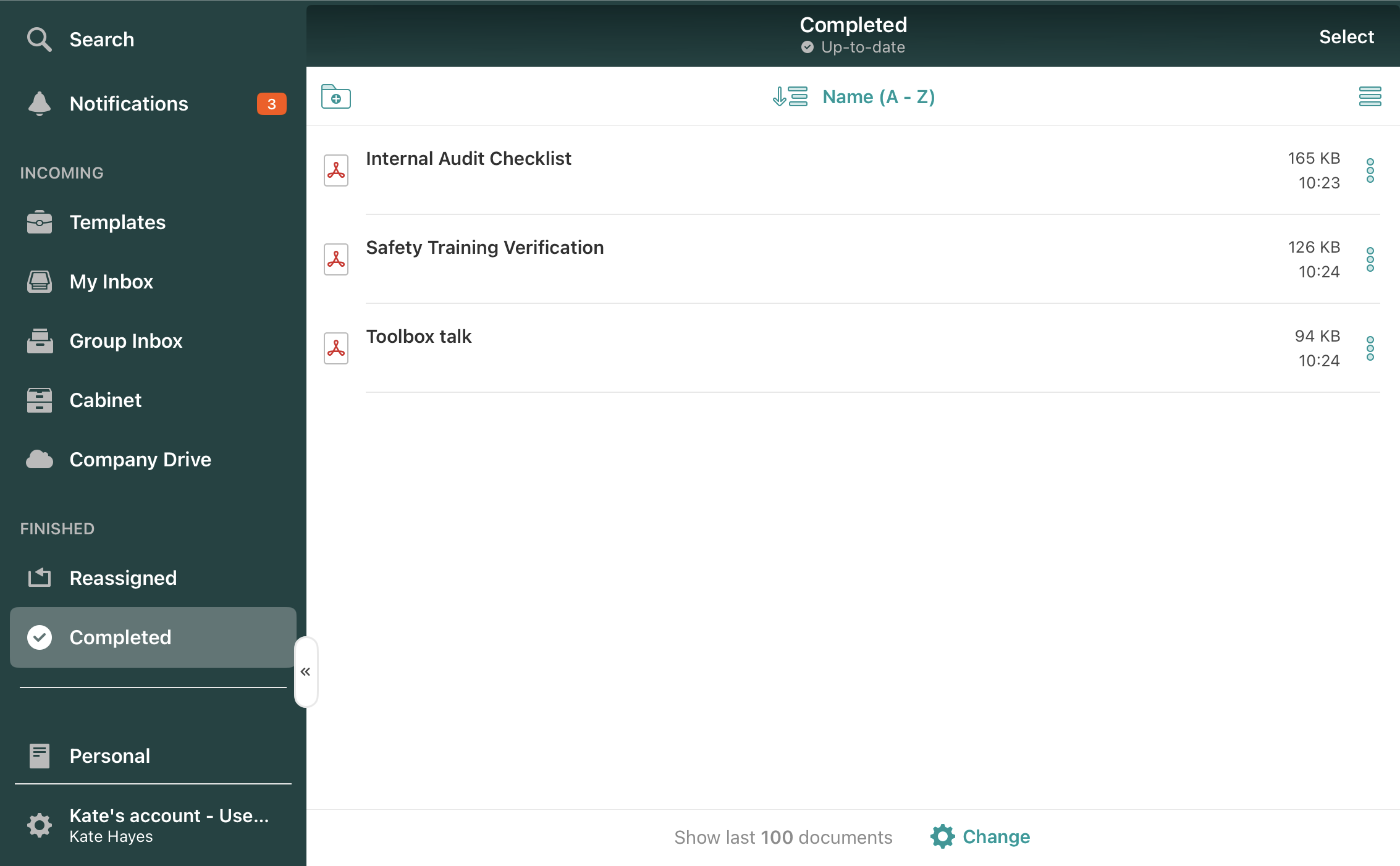
Organize documents in the Completed section by creating folders
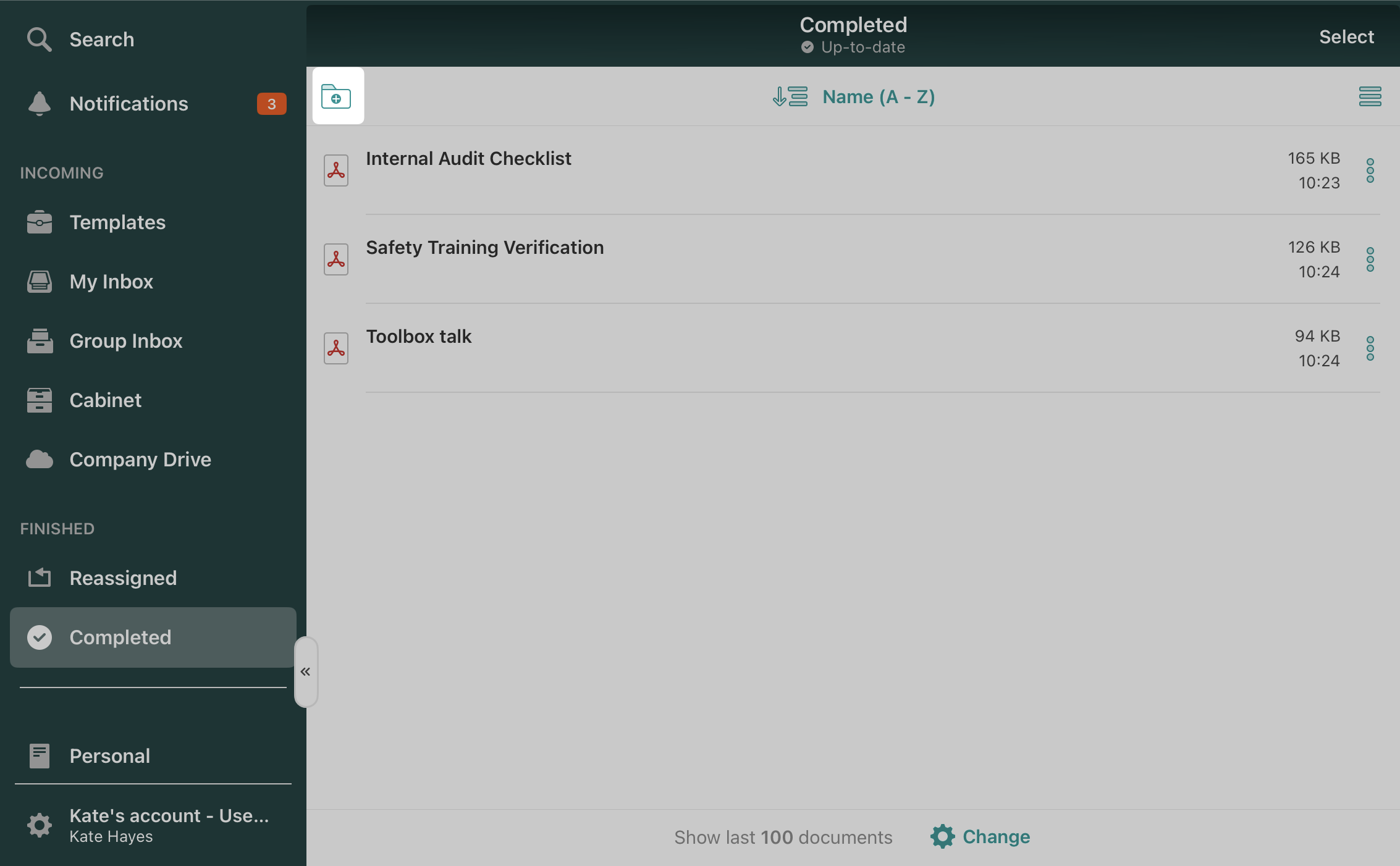
To keep the files organized, you may create folders by tapping “+” on the folder icon as shown below and add the respective documents there:
If you do not see the Completed section, it means that it was hidden per your company policy.
If pre-configured by your company Admin, you can also edit and resubmit already submitted files from the completed section or create a copy of the completed document. In order to do so, open the respective document in the Completed section and tap the Actions button, where you will see two options:
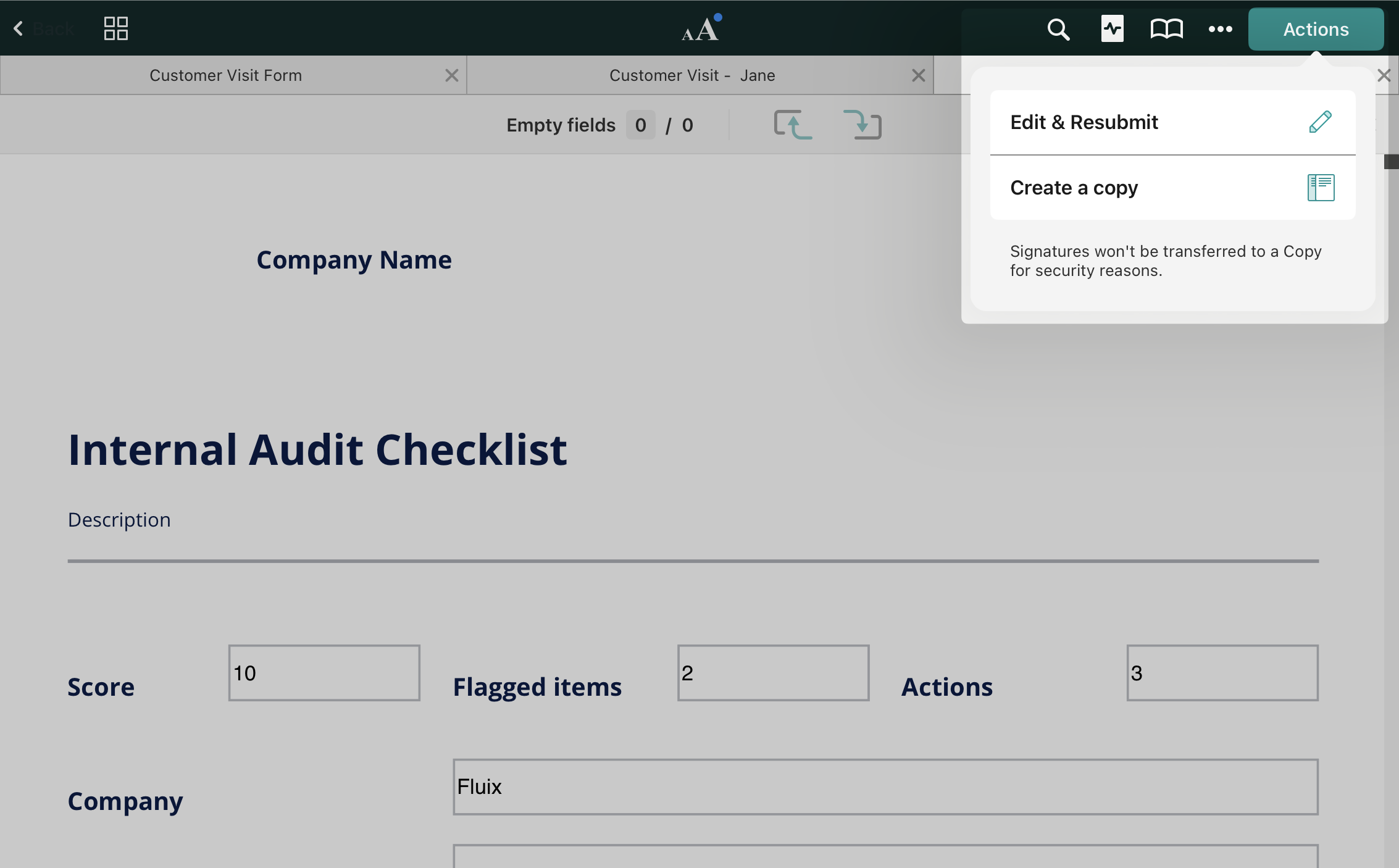
1) Edit & Resubmit option will allow you to make additional annotations and/or edits to the document and resubmit it accordingly. Please note that each resubmitted document will come as a separate copy (won’t overwrite the very first version).
2) The Create a copy option allows you to duplicate the already completed document so that the edits initially added to the original document remain in the created copy.
Use Storage Space on your Device Wisely
Up to 500 recently submitted files can be seen in Completed or Reassigned. To save space on your device, you can regulate the number of displayed documents in the app Settings -> File Manager section or by clicking the Change button at the bottom of the screen in the Completed or Reassigned sections.
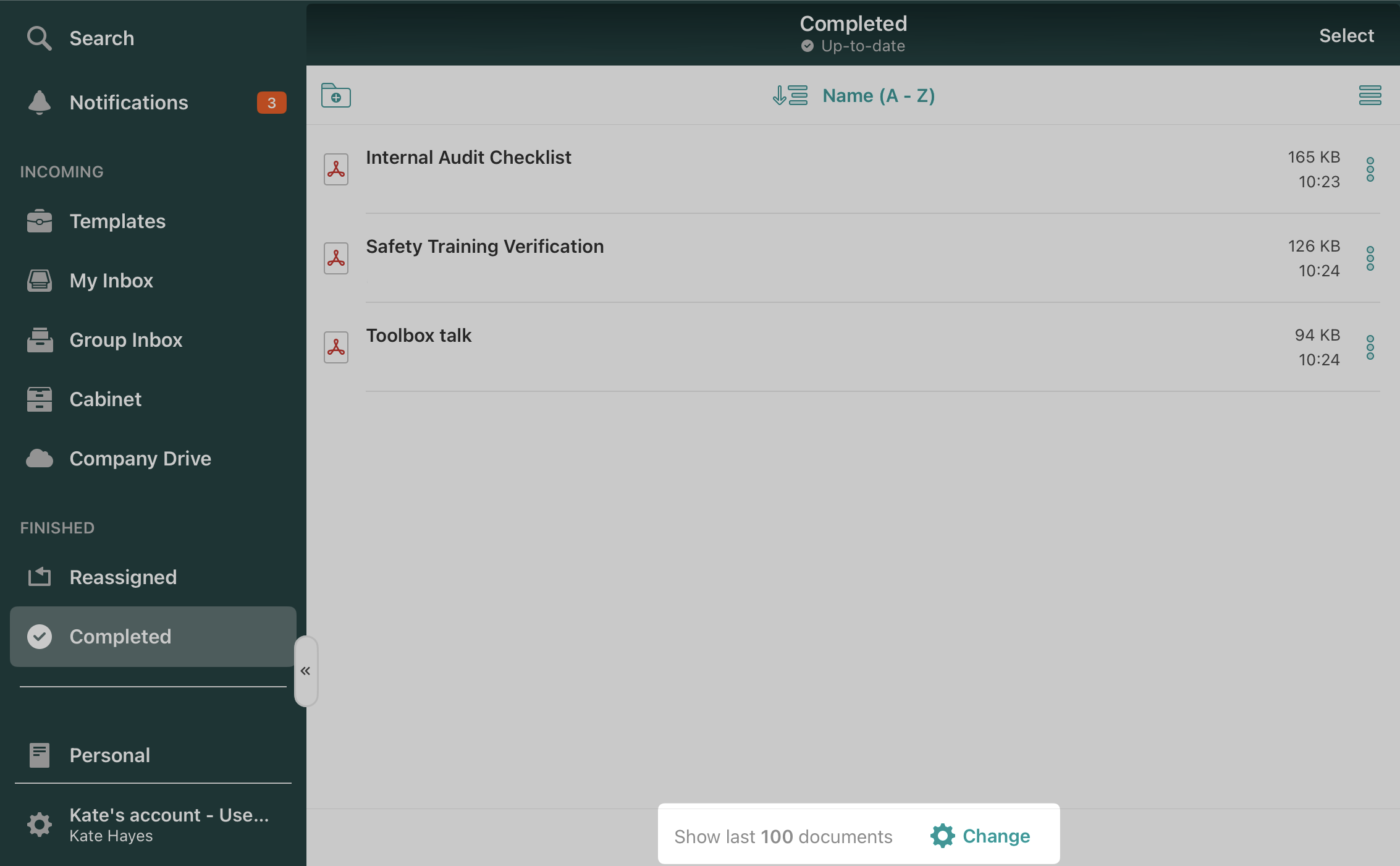
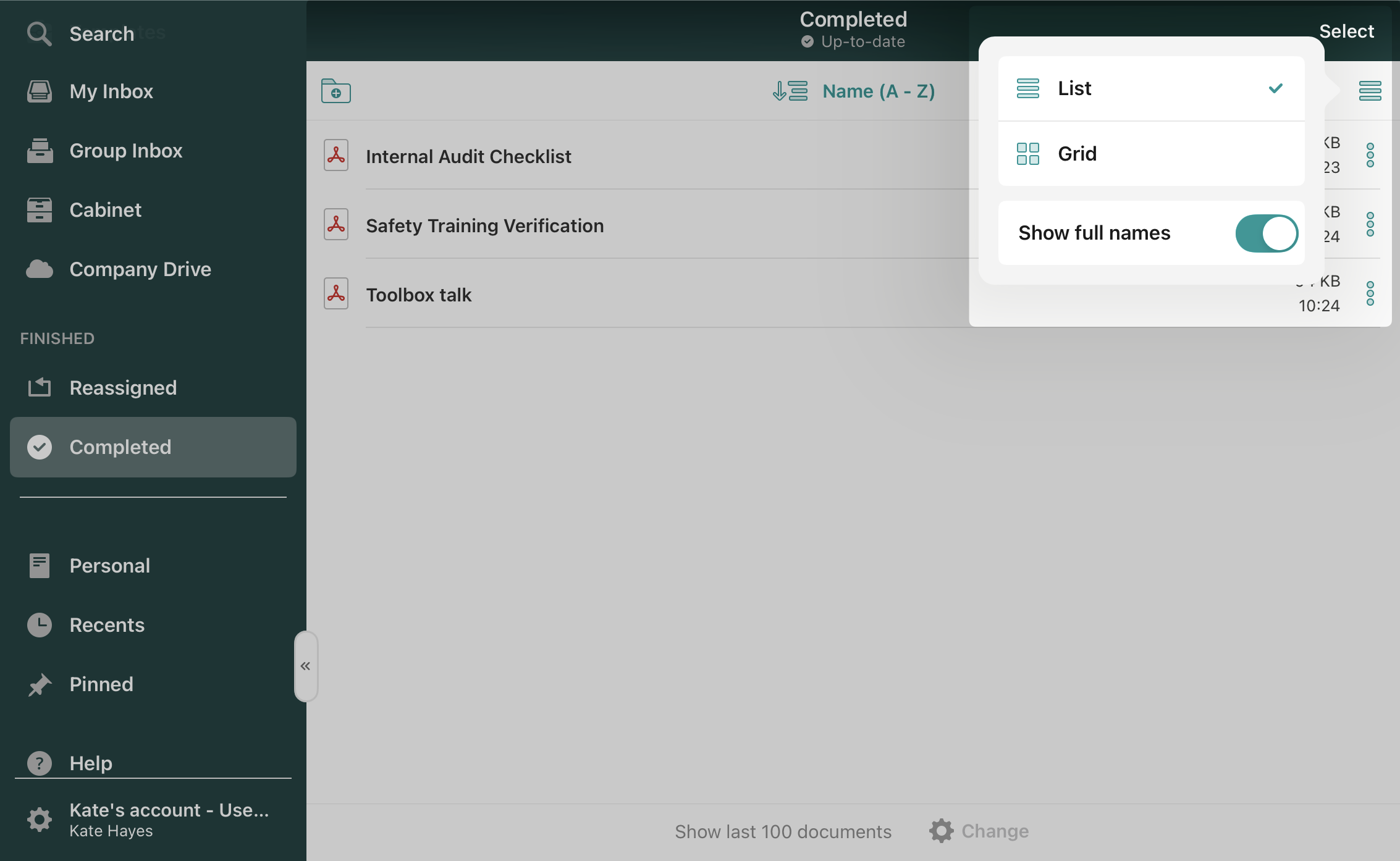
Customize Document Display View
You may also choose the most convenient way for you to display the completed documents in the list or grid view, as shown below:
Can’t find what you’re looking for? Feel free to contact us at support@fluix.io if you have any questions or comments.
Check what you can do with Fluix. Explore features >