


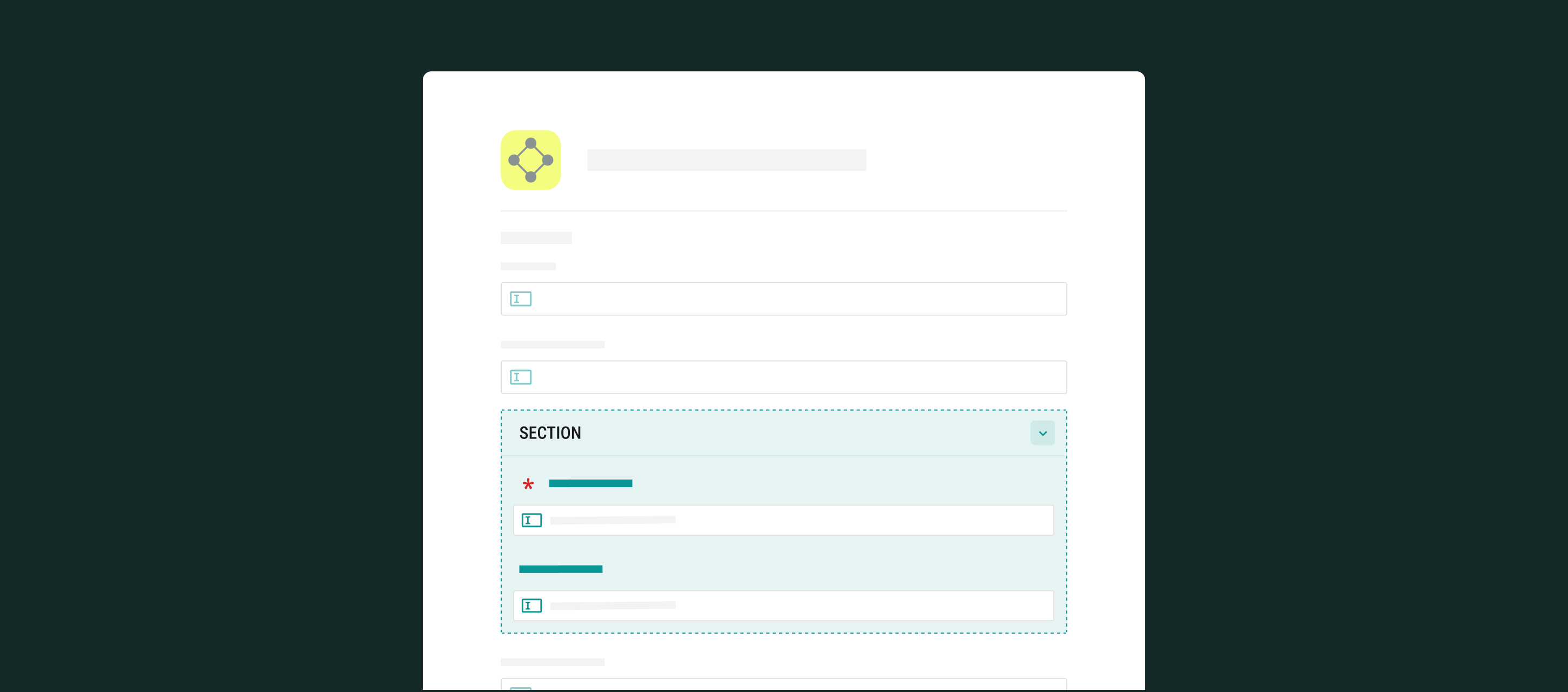
Sections help you build smart and flexible dynamic forms faster, especially when you need to repeat groups of fields, add logic, or simplify long forms for your field teams.
Why Use Sections?
Here’s why Sections in Dynamic Forms can be helpful for you:
- Build One Section, Use Anywhere through the Form
Instead of recreating the same fields over and over, create a Section and duplicate it in one click.
Example: Inspecting 10 rooms with the same checklist? Create one Section and duplicate it 9 times. - Keep Long Dynamic Forms Easy to Navigate
Allowing Sections to collapse once filled to prevent unnecessary scrolling makes your forms cleaner and easier to use. This helps field teams focus on the necessary parts of the forms.
Example: A technician can fold completed sections and stay focused on the next room. - Add Conditional Logic
Use conditional logic to show or hide entire Sections or just individual fields within a Section based on the user’s input.
Example: If “Additional inspection needed” is selected, a Section with follow-up questions appears and becomes required.
How to Create a Section in a Dynamic Form?
Note: This feature is available in the Fluix Tasks app for iOS & Android starting from v. 2.5.
1.Navigate to your Admin Portal > Forms -> open an existing form or click New Form.
2.In the Form Builder, locate the Section under the Layout elements.

3.Drag and drop the Section into your form -> add the necessary fields inside it (e.g., checkboxes, dropdowns, comment boxes, image upload)

4.You can also:
- Add a Section title and description or set its initial visibility (Visible or Hidden options).

- Make it collapsible for end users. Below, you can see how this function will look for the field team in the Fluix Tasks app.

Conditional Logic: Field vs. Section Level
How to Configure Conditional Logic?
1.Go to the Add Logic tab in the Form Builder -> click Add Conditional Logic to configure the trigger field (e.g., a checkbox or radio button)
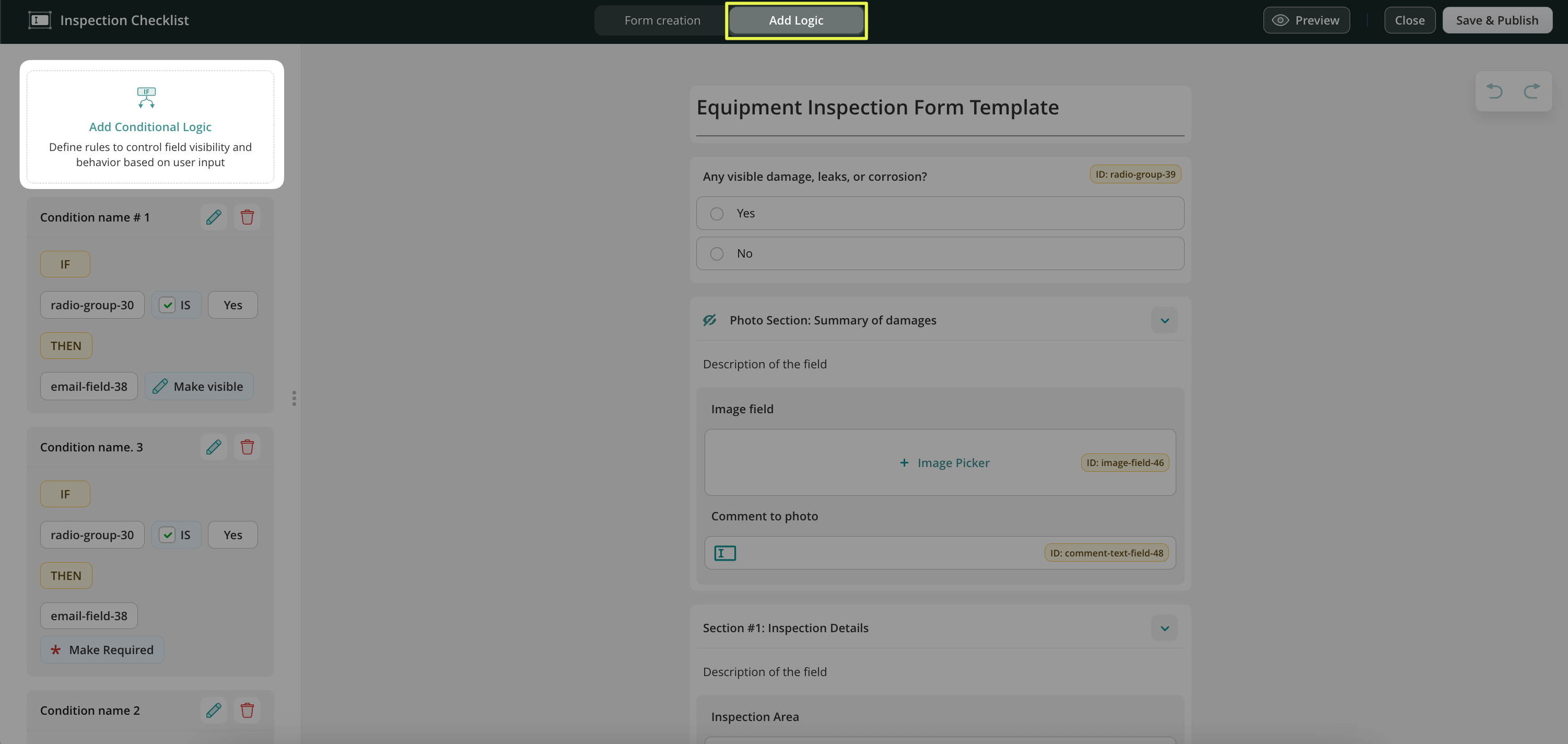
2. Set the action. Check an example of the possible logic in the examples below.
Add Logic to Fields within a Section
You may use this approach when specific answers should trigger additional input fields.
Example: If “Maintenance Required” is selected, show a field for Supervisor Email and make it required.

Add Logic to Entire Sections
You may use this when a group of related fields should appear based on earlier answers.
Example: If a user selects “Leak Detected,” show a Section with image upload + comment fields. Keep it hidden unless needed.

What appears in the Final version of the form?
To check the progress of tasks completed by the field team, navigate to the Dashboard in the Admin Portal and open the process to view the completed form.
- Folded-but-visible sections in the forms will appear in the exported documents.
- Hidden sections (never shown during the field team’s completion) will not appear in the form.
- All required fields will still be filled before submission.
If you have questions about setting up Sections or conditional logic, contact us at support@fluix.io — we’re here to help!