


To check the details of the respective process, in the Process View, select the process on which you would like more insights and click Show Details.
There, you will see the task’s history, track the group’s time to complete it, download the forms submitted within the task, troubleshoot, or take action if needed.
The Process Details block on the left side of the screen, by default, shows information from the beginning of the flow and the current status of this process. On the right side, you will see an overview of the workflow setup. If you need to make any changes to the workflow, click Edit Initial workflow in the top right corner to open the workflow builder in edit mode.
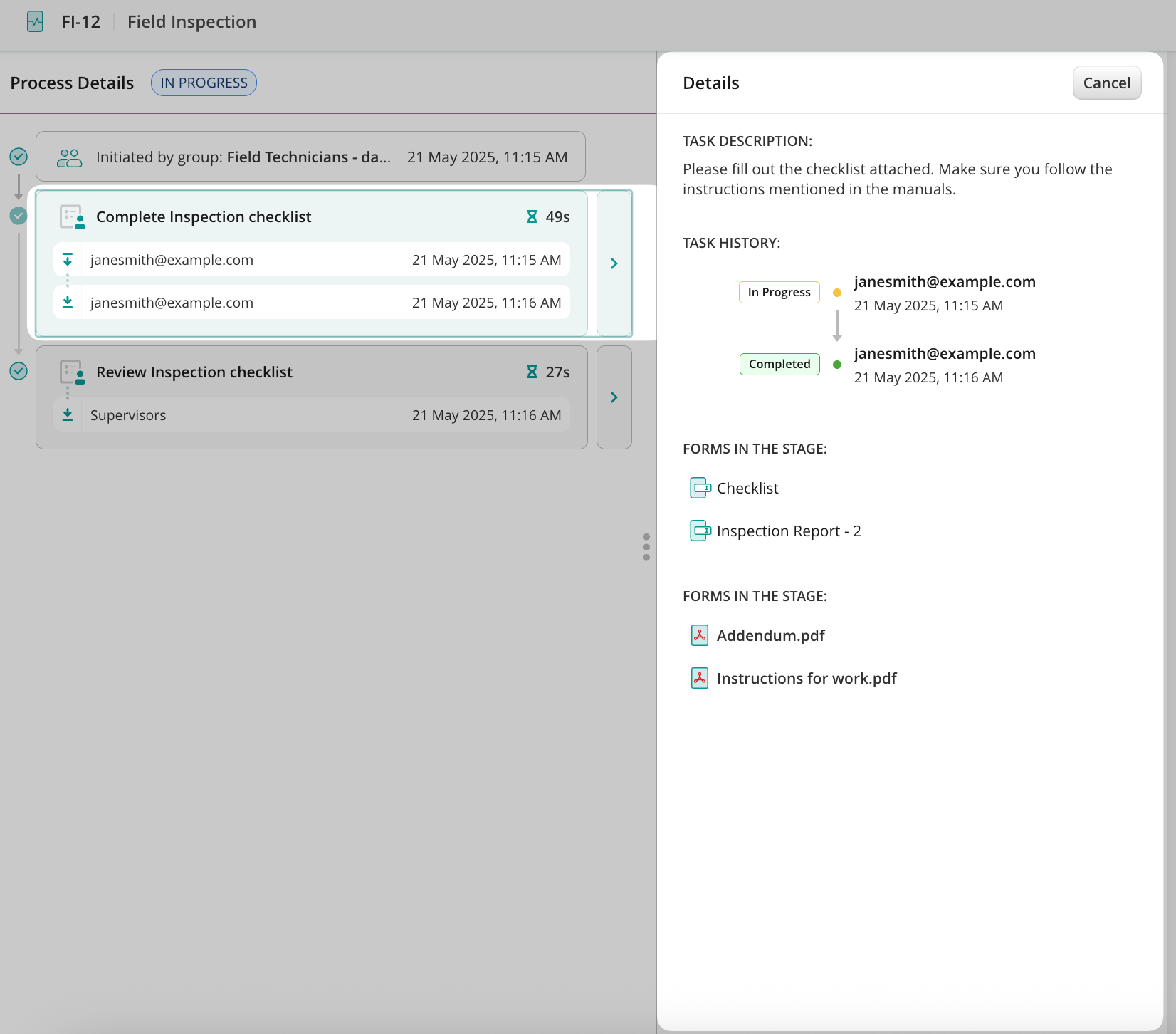
To check the history of the respective task, click on the blue arrow next to the task name.

In the Details section, Fluix will mirror the Task Description from the workflow builder so that you have a complete overview of what the user who initiated the start of this process needed to do in this task.
The Task History section shows the email of the task’s performer. Forms in the Stage section store the version of the form submitted by the user or guest. You may view or download the form the user was working on.
Let’s check what the Process Details look like in the example of the two flows:
– successfully submitted;
– failed process.
Success Flow:
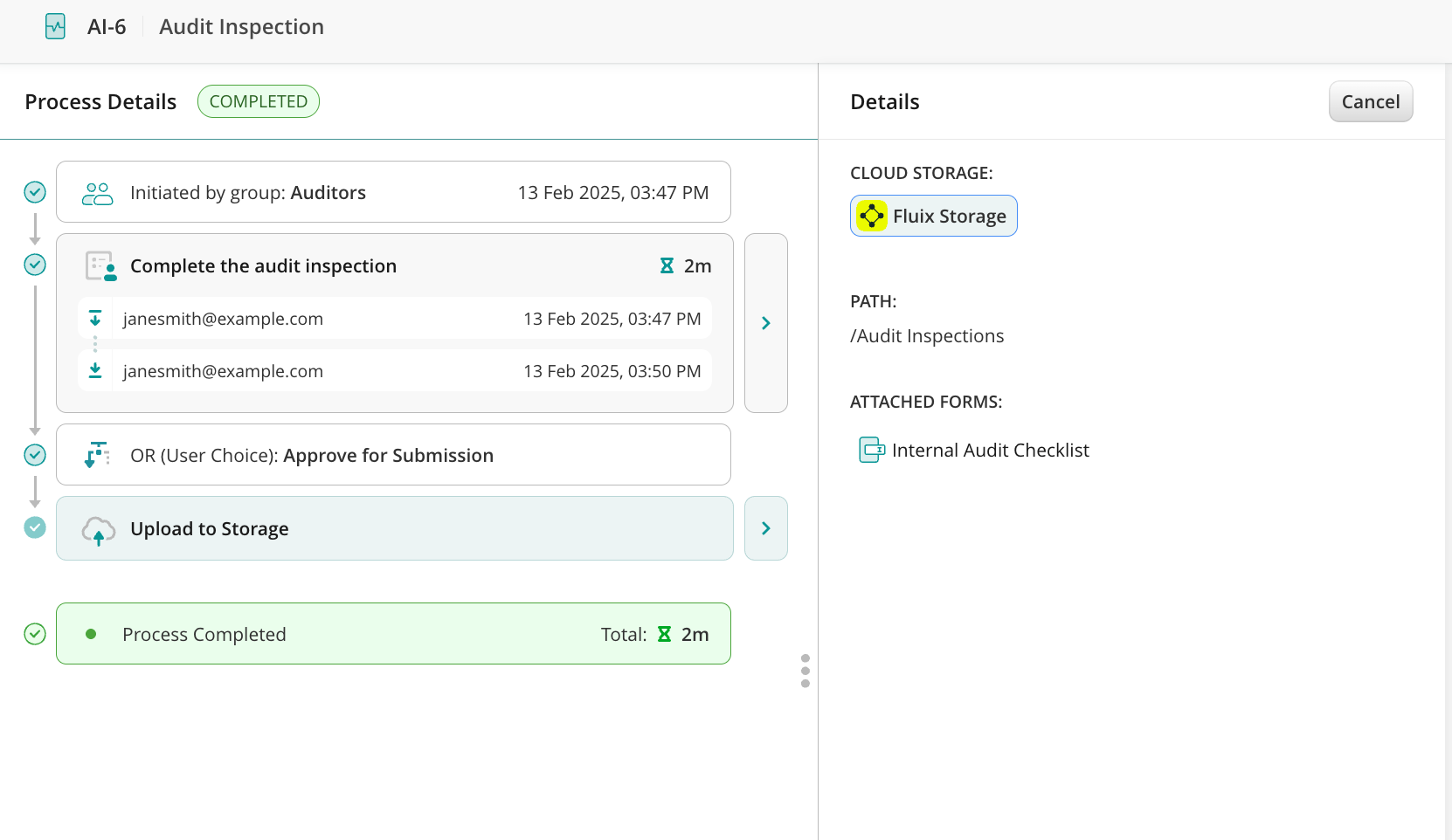
The user finished working on the respective task, hence it was successfully submitted to the path preconfigured in the submit action Upload to storage. Cloud storage will show the storage where the completed form will be stored: Fluix Storage or Third-party storage. The path section will show the directory where the submitted form will be stored. In the Attached forms section, you may download the form by clicking on the Download icon.
Failed Flow:
The user submitted the task to the preconfigured submit action Send by email; however, the process to which the task relates failed to be submitted due to various reasons (e.g., typo in the email address, non-existent email address, etc.). The submit action where the issue occurred will be highlighted in red. Click on the arrow next to the submit action to check the details.
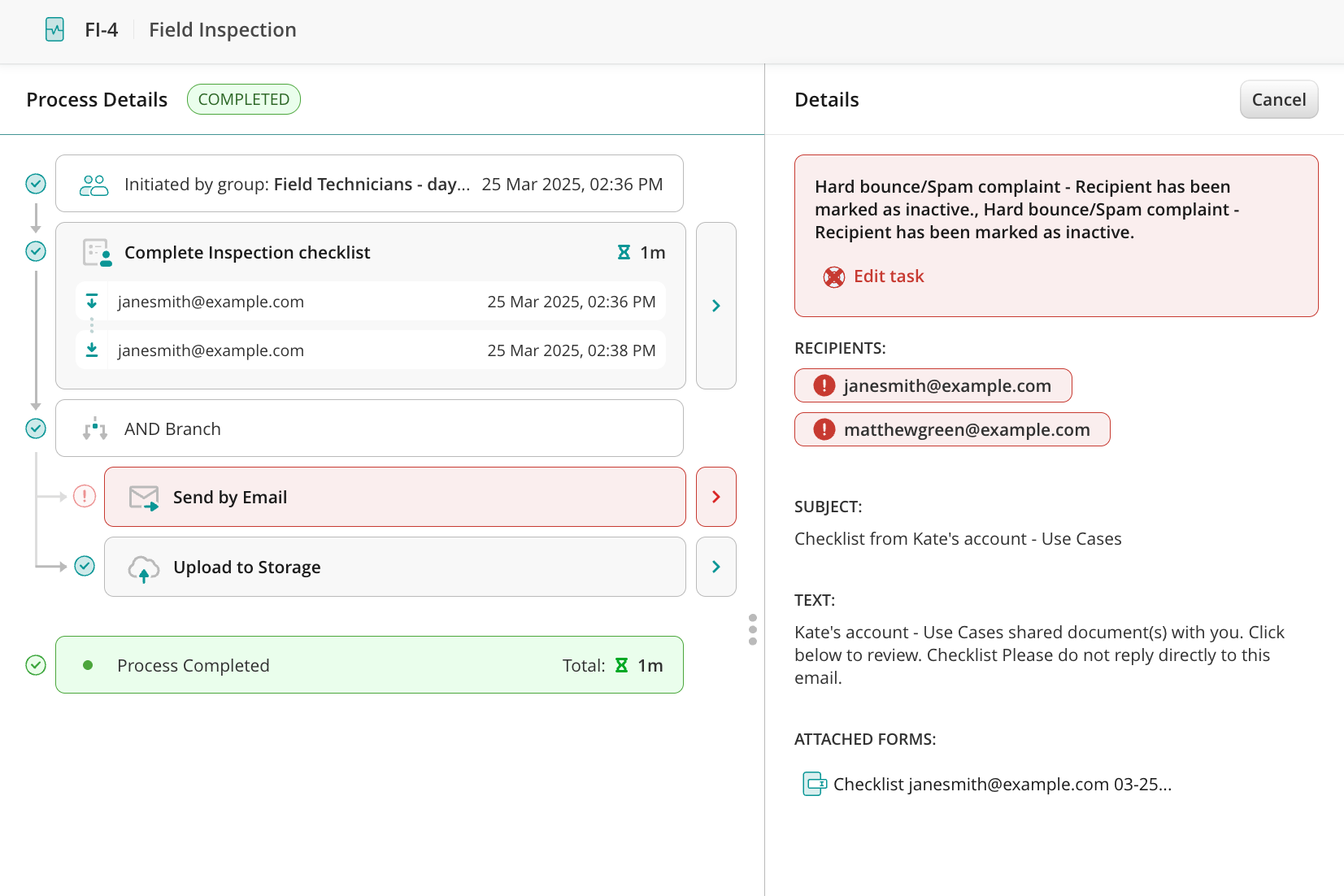
You can check the email addresses to which the documents should have been submitted. For example, you can check if the user who submitted the task mistyped the respective email address.
If you have difficulty understanding why the process failed, contact us at support@fluix.io to learn more.