


To simplify user management, admins can enable Email Two-Factor Authentication (2FA) for app users. This way, an extra verification step is added during login for the end users by sending a one-time security code to the user’s email.
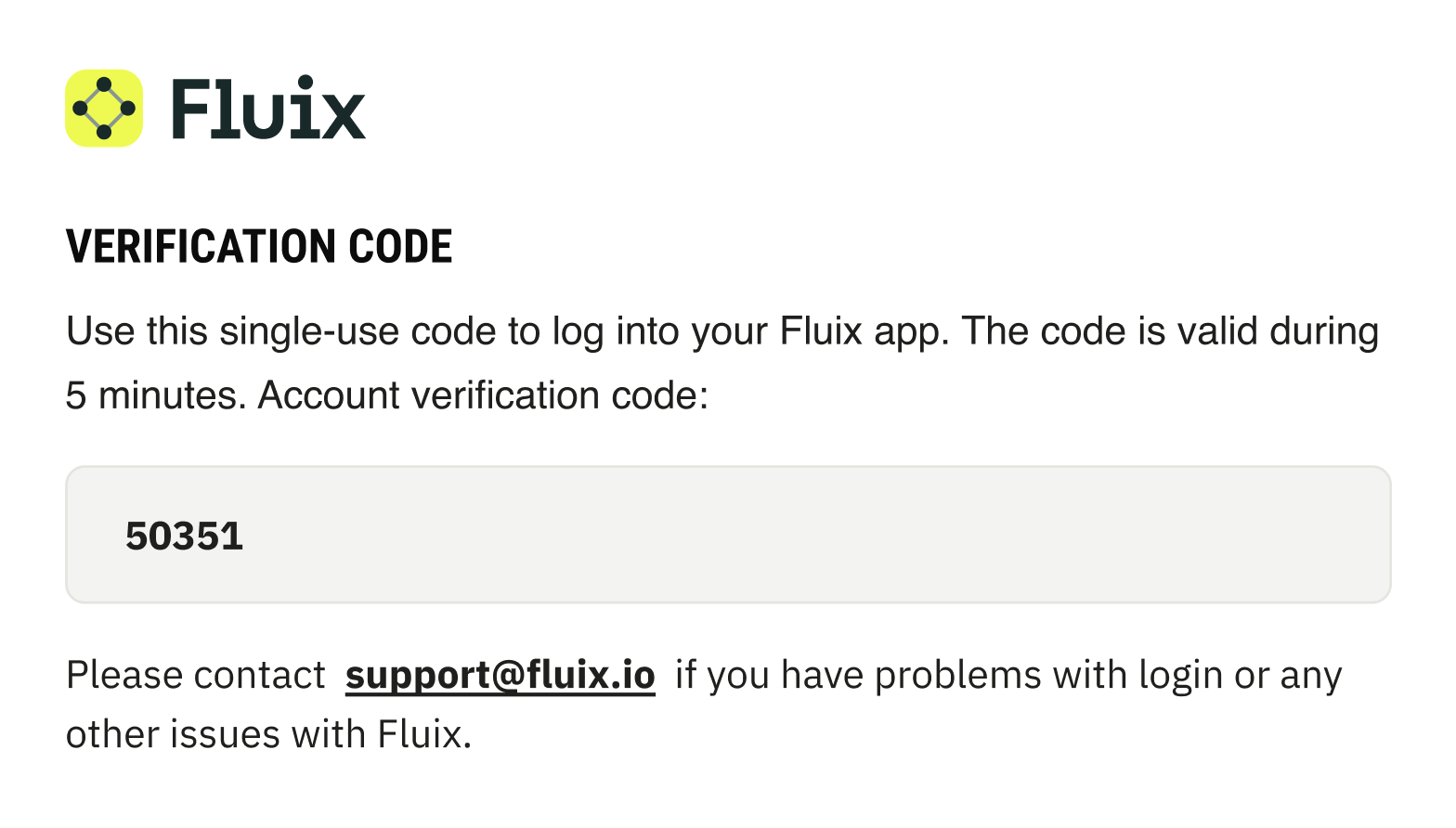
When Email 2FA is enabled, users must enter their email address and password, along with a one-time security code sent to their email, before they can sign in to the Fluix Docs app or the Web User App. A new security code is sent each time the user logs in, and it remains valid for 5 minutes before expiring.
Note: If Single Sign-On (SSO) is enabled, Email 2FA for app users does not apply. Additionally, Two-Factor Authentication is not required when the app is used in Offline Mode.
Admins can enable this feature in the Admin Portal by following this guide:
1. Go to the Admin Portal, the Security tab.
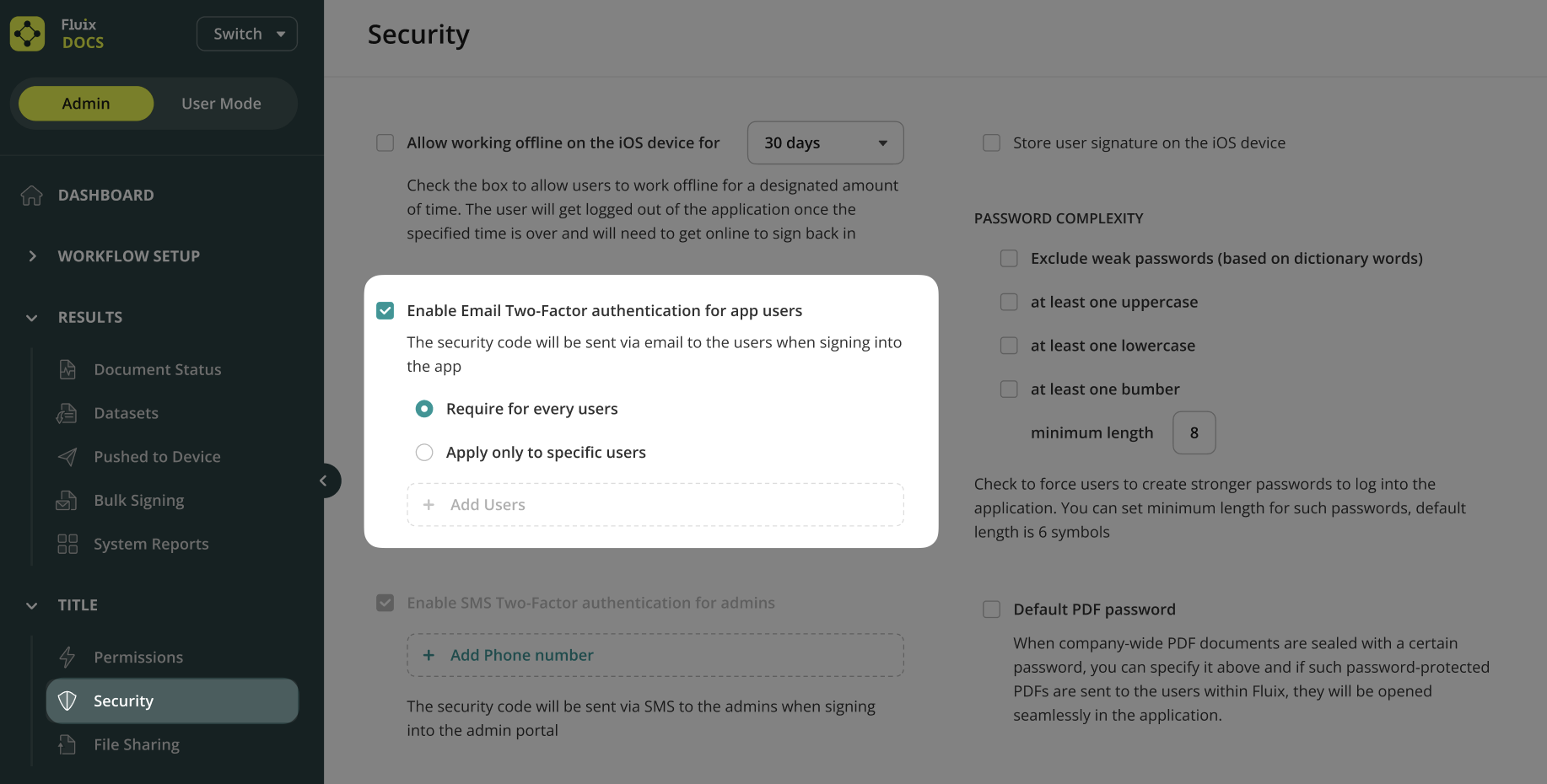
2. Select the checkbox “Enable Email Two-Factor authentication for app users.”
3. When switching it ON, a confirmation pop-up will appear, warning that:
- The change will affect users.
- All users will be logged out.
4. Click “Save changes”.
When the Email 2FA is enabled, all users are automatically logged out, forcing them to log in again with an Email 2FA verification code. On the next login, the user follows the same 2FA process as a first-time login.
Email 2FA for app users is disabled by default. When enabled, it can be applied either to all users, which is the default behavior, or only to specific users. Admins have the ability to add users to the specific users list and remove them from that list at any time.
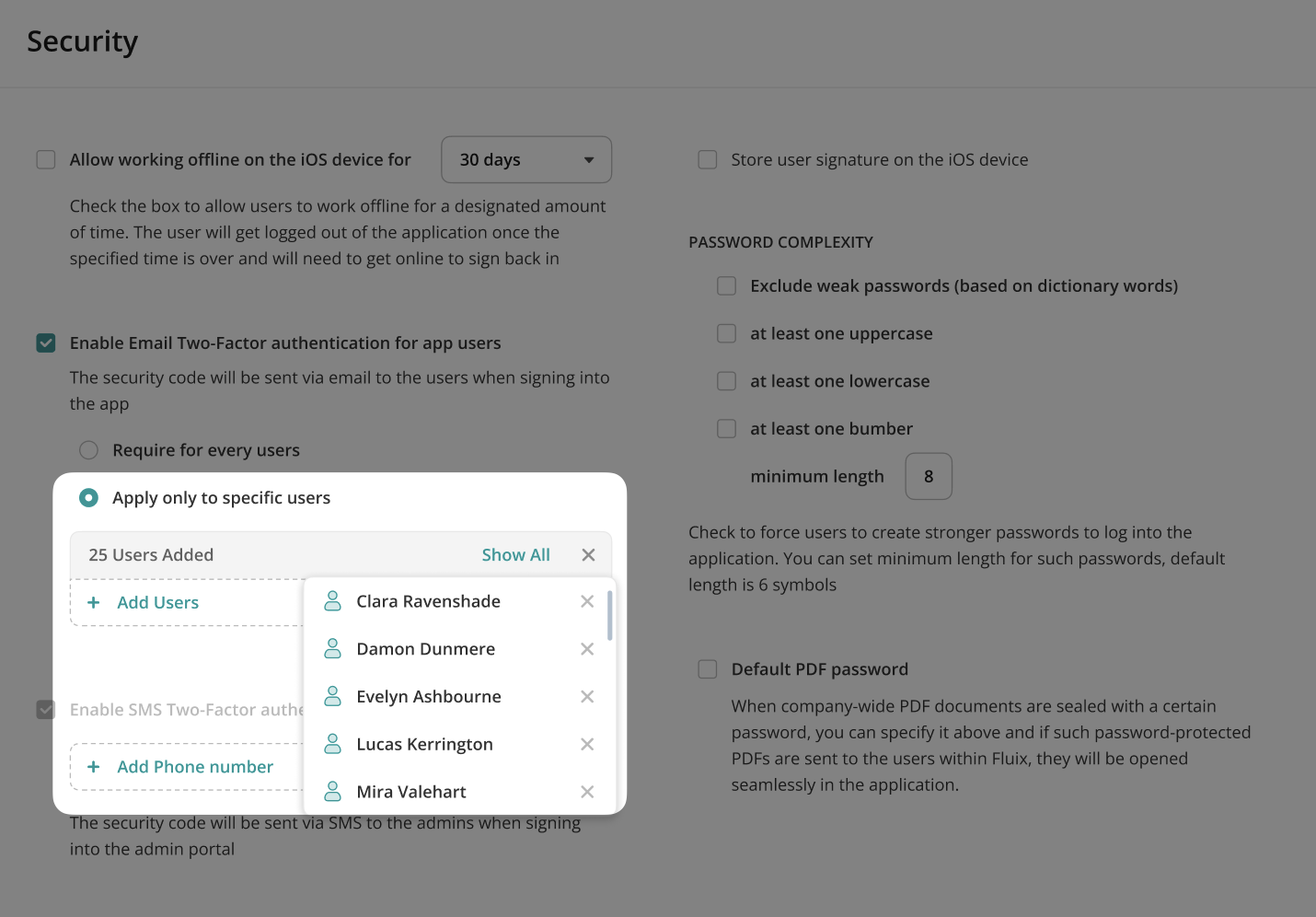
Note: If admins have both 2FA via SMS and email enabled, the SMS option will be used by default.
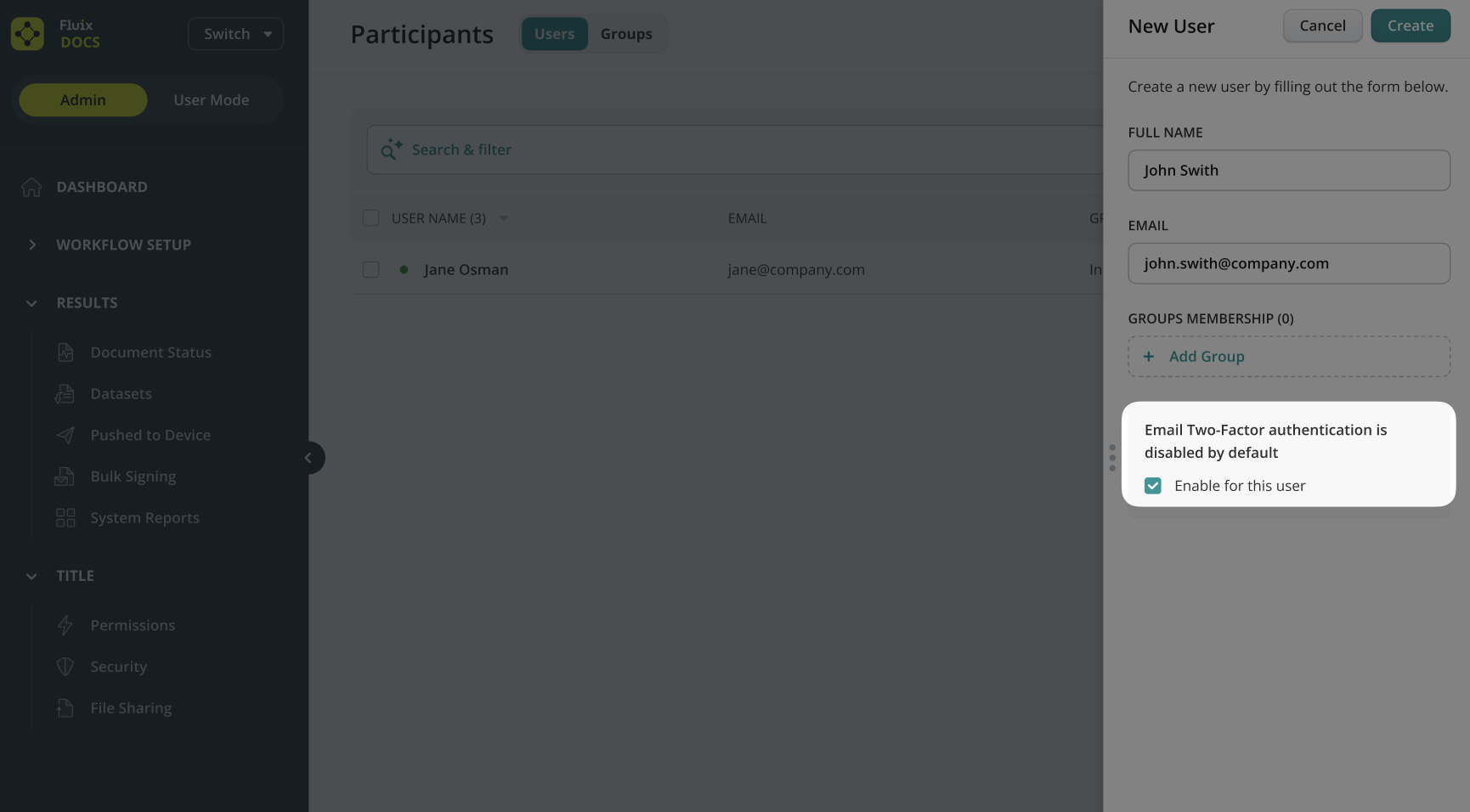
If Email 2FA for app users is disabled, admins can still manually enable 2FA for a new user during the account creation process. If Email 2FA is already enabled for all users, the admin will be informed during new user creation that 2FA is active automatically.
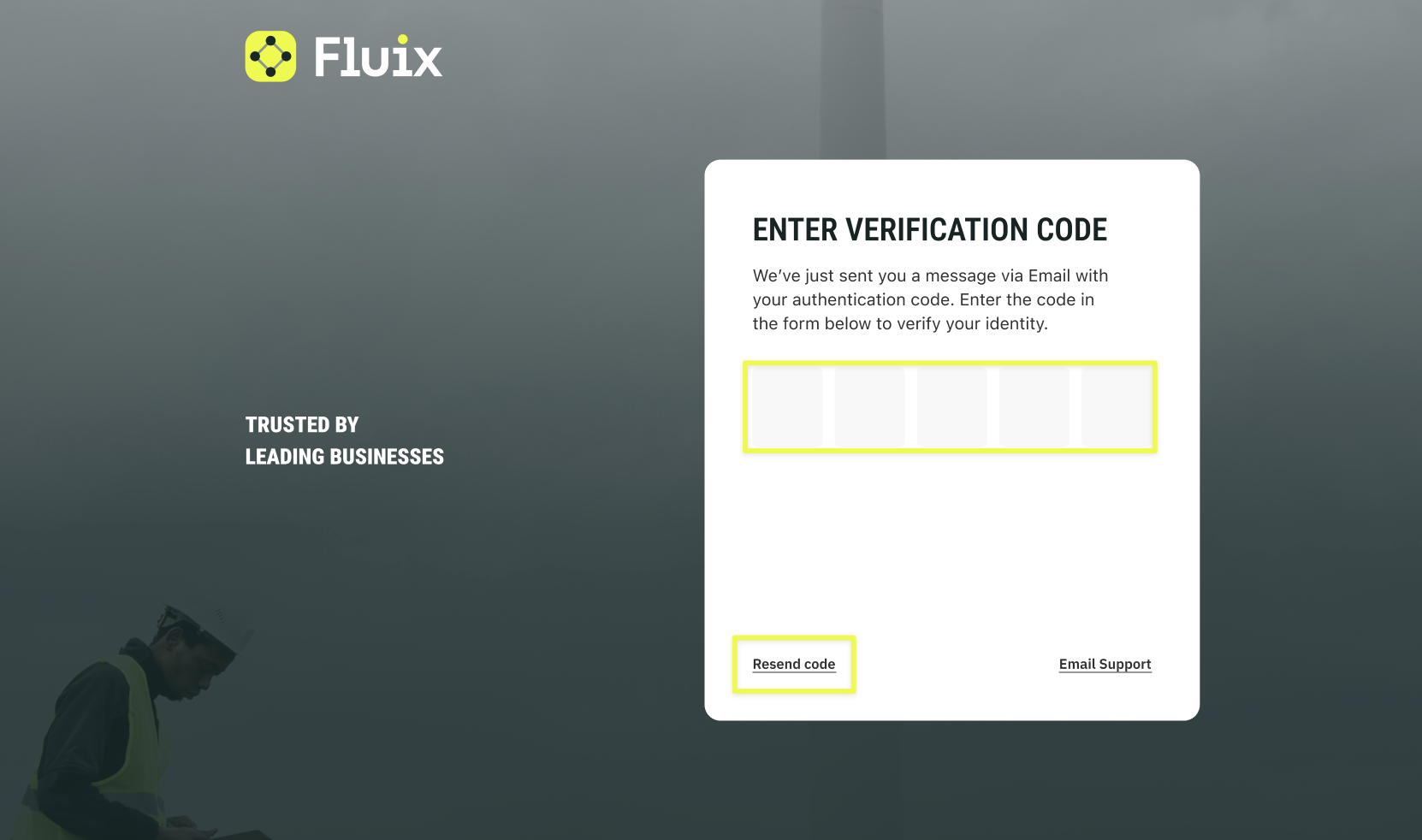
When the user opens the Fluix Docs app or the Web User App and enters their email and password on the login page, a screen appears requesting a two-factor authentication (2FA) security code. A one-time code is then sent to the user’s email. The user enters the code in the app and successfully logs in.
Users also have a chance to use the “Resend code” option in case their verification code has expired.
Feel free to contact us at support@fluix.io if you have any questions or comments.