


The Company Drive section includes the files from your company storage.
There are three ways to work with the files in Company Drive (preconfigured by your account Admin):
- Two-way sync. The content of the folder on remote storage will sync to your device. All changes made by you will sync back to storage, i.e., the original files in the folder will get overwritten.
- One-way sync. The content of the linked folder on remote storage will sync to your device. All changes you make to files on the device will be saved in a created copy on the device only, while the initial files on storage will stay intact.
- Manual download. Your device displays a list of files and folders located in the linked folder on remote storage. Files are downloaded only when they are opened. You can make any changes to the files, and they will be saved on your devices only. This option is usually selected to save device space.
There are a few ways to work with files and folders in Company Drive. Tap on Edit in the upper right corner, select a file or folder, and select an action on the left side bar:
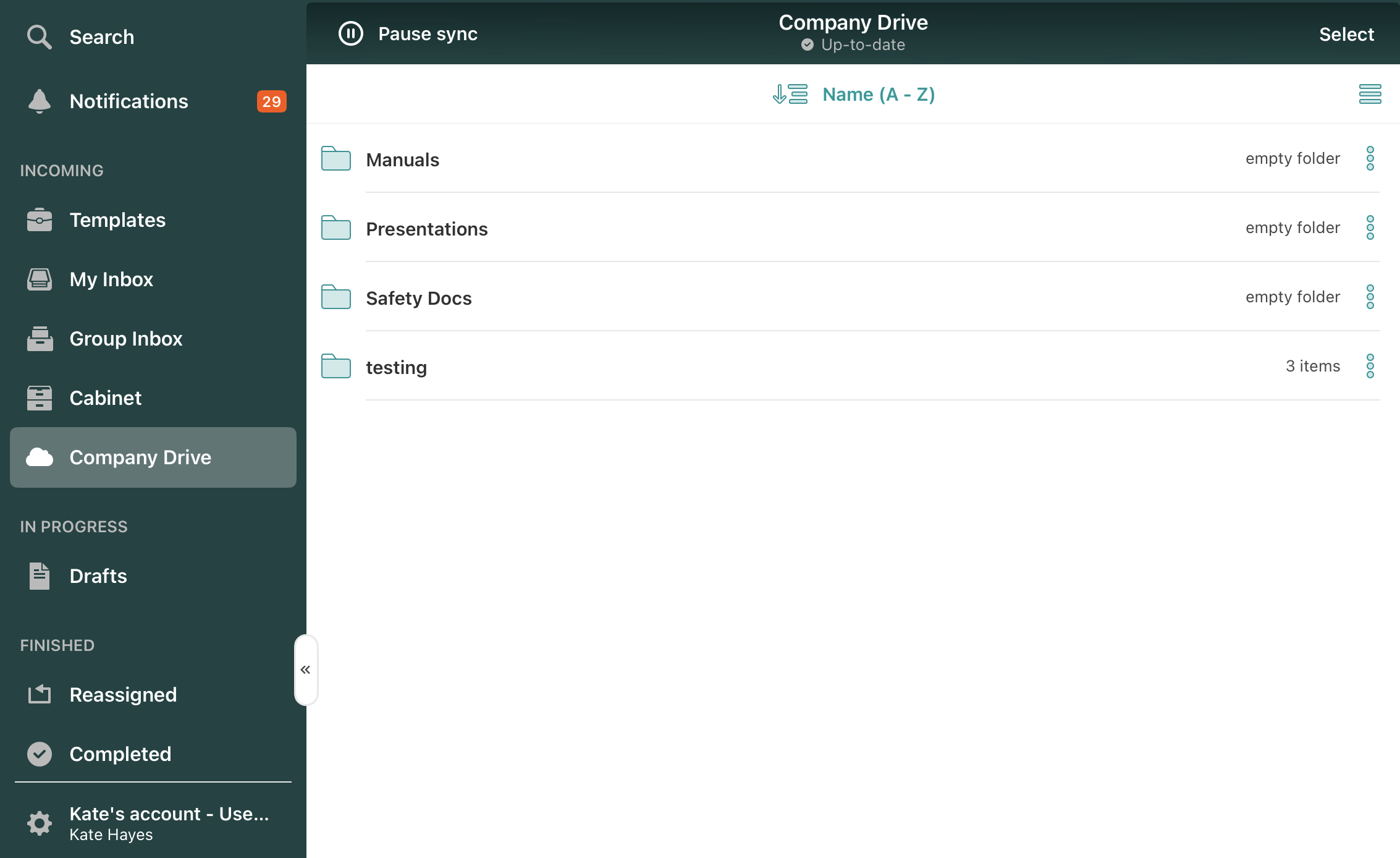
Actions you may take with documents and/or folders from Company Drive
- Pin—If you want quick access to the respective document from different sections of your account, you can tap the Pin option to save it to the Pinned section.
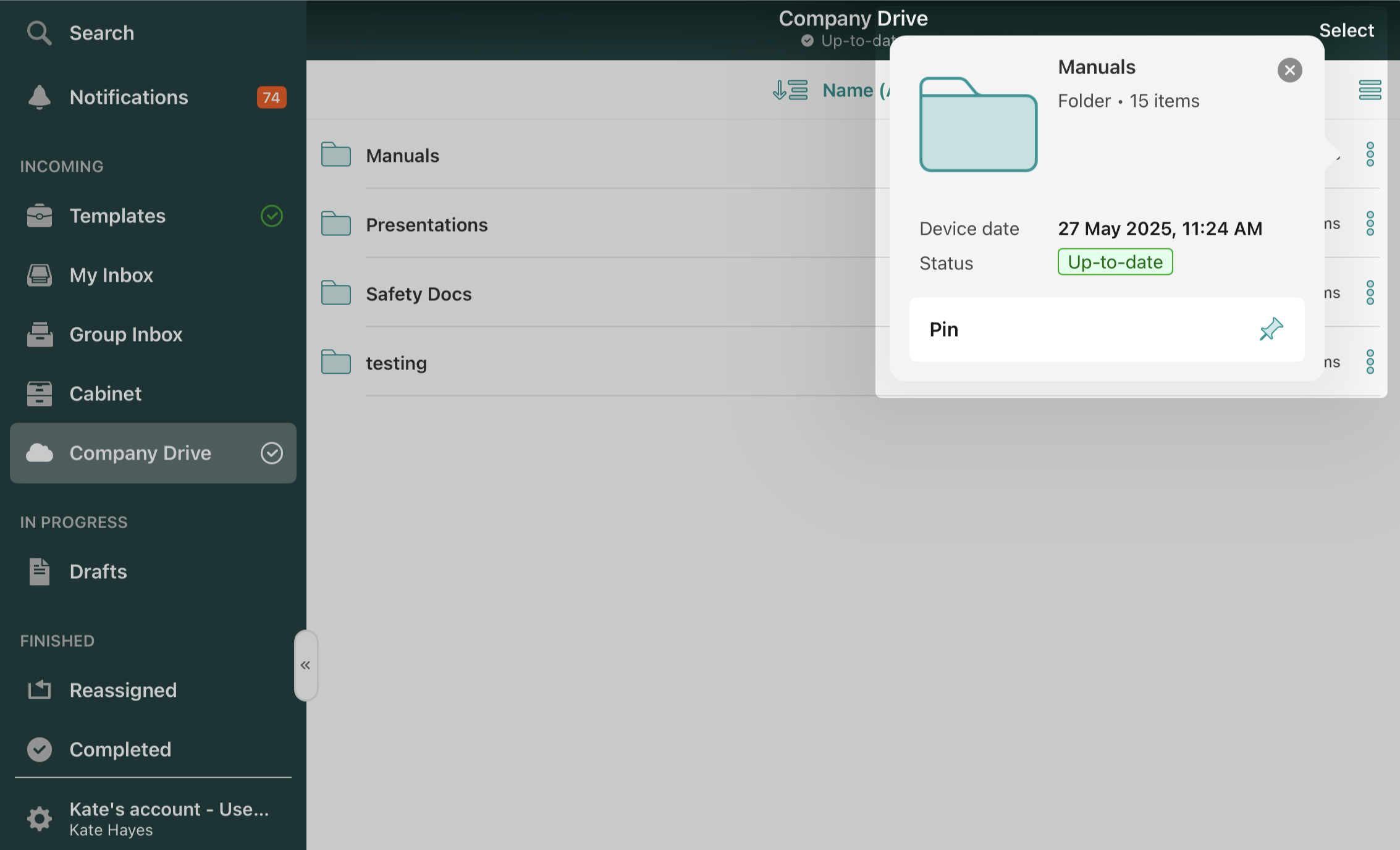
Admin-Configured Document Features
You may take many additional actions with the documents if your Fluix account admin has activated these features. Let’s check them below:
- Mail to — email files outside of the preconfigured workflow participants.
- Copy — copy files and paste them into another folder.
- Rename — rename files respectively.
- Move — move files from one folder to another.
- Zip — compress files into a zipped folder
- Delete — delete files.
- Open in — open files in another application.
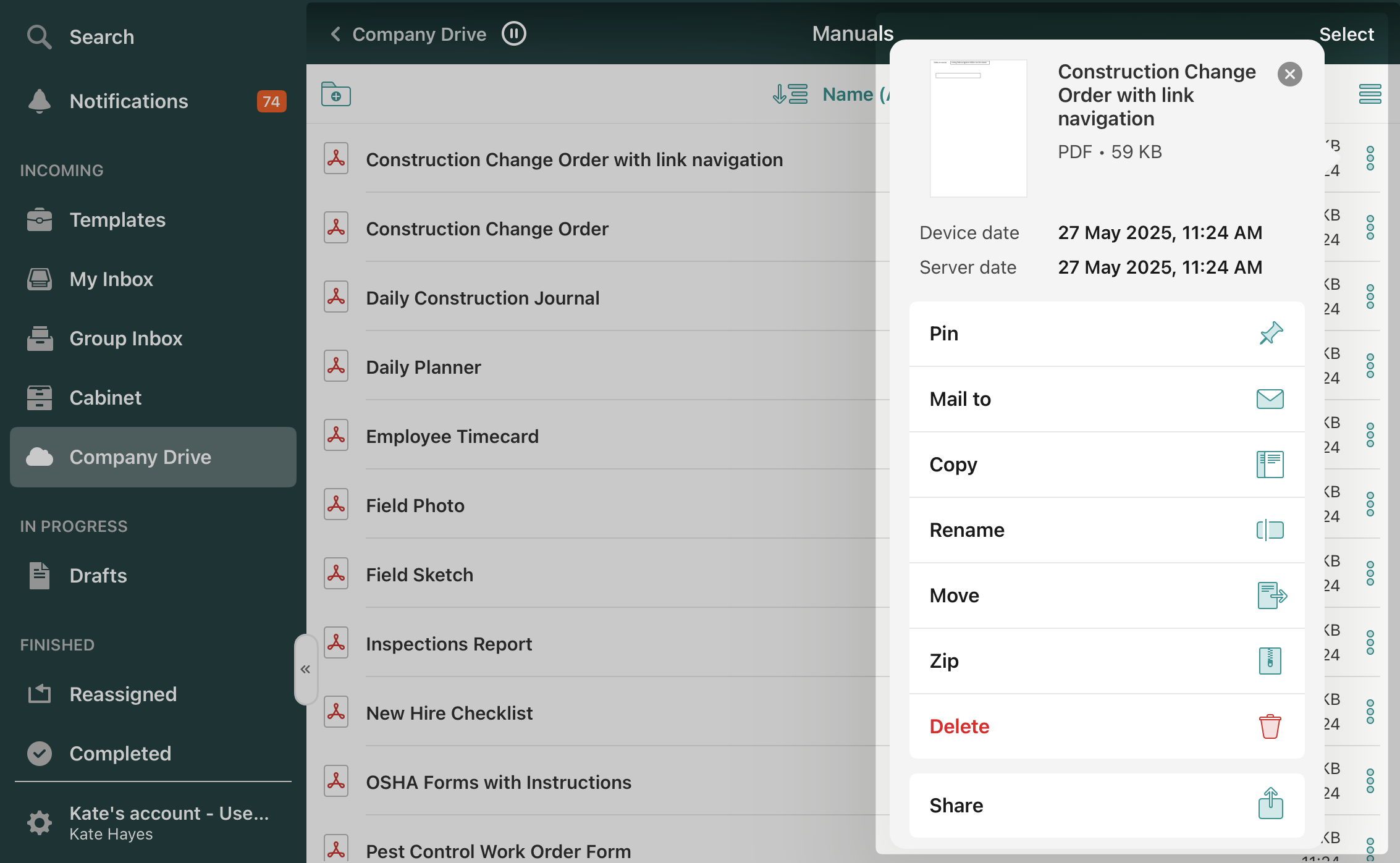
- Pause Sync—You may prioritize sync of the needed folders in the Company Drive section by pausing sync for the folders that you do not need access to right away. To learn more about Sync Control in your Fluix App, check the article How to Regulate the Sync Process in the Fluix App.
Can’t find what you’re looking for? Feel free to contact us at support@fluix.io if you have any questions or comments.
Check what you can do with Fluix. Explore features >