



Fluix is a web and mobile-based cloud platform that helps teams set up digital document management and workflow automation. In this integration, Fluix serves as an electronic data capture system.
SeaTable is online database software for managing data in a spreadsheet/database view. It allows you to store and process different types of data captured in Fluix.
What Fluix + SeaTable integration does
The integration between Fluix Tasks and SeaTable provides a seamless solution for efficient data capture and management, enabling data collected in Fluix forms to be automatically transferred and organized in SeaTable for further analysis and data-driven actions.
Picture this: the sales representative fills in the contracts with the customer details in the Fluix app, and all the data from the form is automatically extracted to the SeaTable database that can be used for analysis and further actions.
This integration enhances data visibility, simplifies data organization, and improves collaboration, leading to more effective data-driven decision-making and streamlined business processes.
Note. Integration requires a Core account in Fluix and an account in SeaTable. To try the option, you can register for a free trial account in both tools.
To set up SeaTable integration in Fluix Tasks, please follow the instructions below.
Step 1 – Create the repetitive process in Fluix
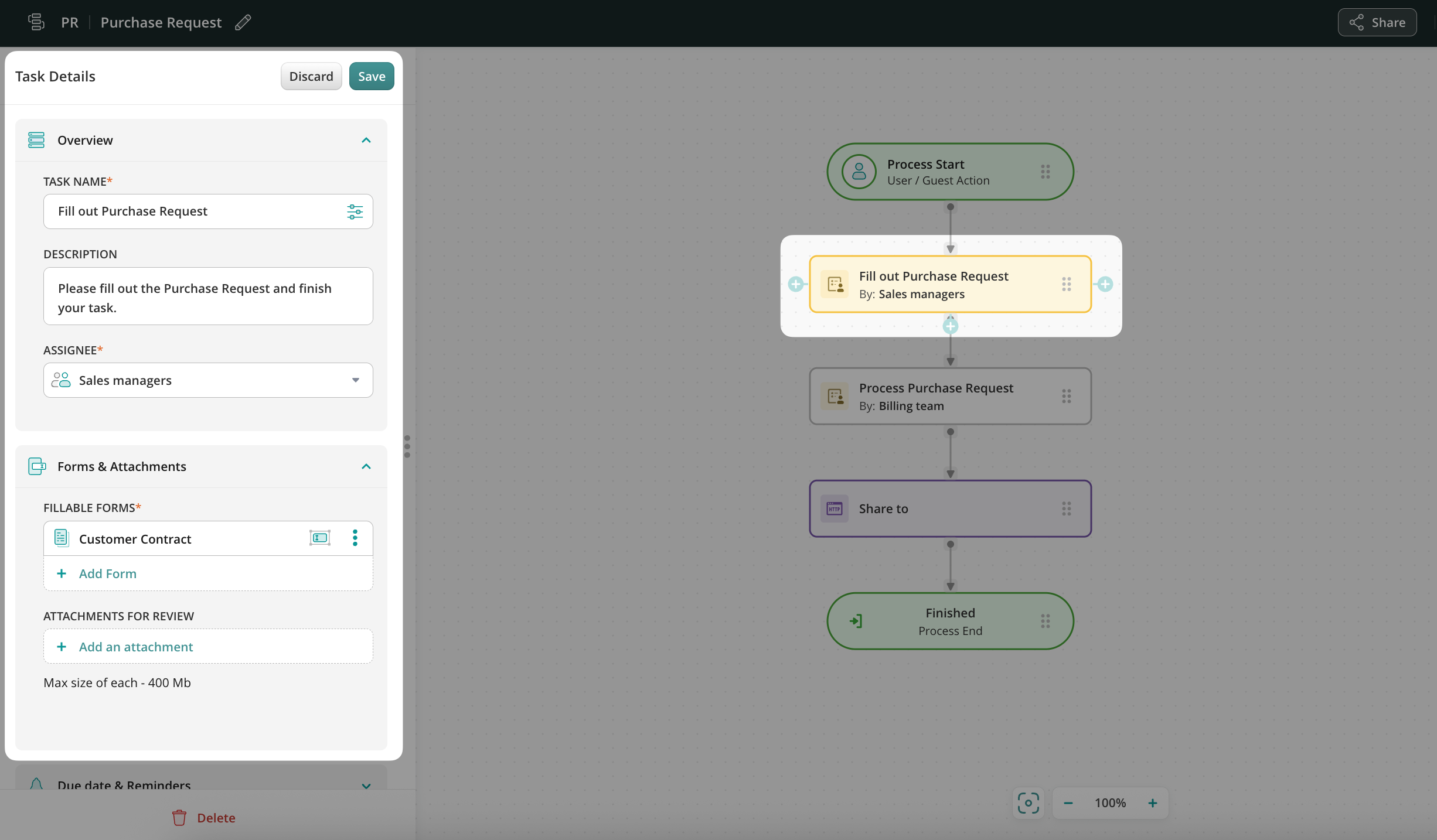
Navigate to the Fluix admin portal’s Workflows section to create a new workflow. Drag-n-drop a Process Start element and the User task to the working area, configure it by adding fillable forms, and assign it to the team working on it regularly. Make sure that you have added yourself to the group of users so that you can test the setup later.
Step 2 – Connecting Fluix with SeaTable
Drag and drop Share to submit action to the workflow builder chart and connect it with the User task that your team will be working on.
Click on the Share to element, select SeaTable from the list of available Integrations, and click Add an account button.
To authorize your SeaTable account in Fluix, fill out the username and the password you use for the SeaTable account, and confirm the action by clicking the Authorize button.

Step 3 – Configure the data extraction
In the Workspace, Base, and Table fields, you’ll need to select the specific SeaTable workspace, base, and table that you would like to extract the data entered by your team.
In the Columns field, you may configure which specific information from the form you would like aggregated to your SeaTable table using dynamic values. To configure, click on the configuration icon to open a dynamic values configurator and select the values from the suggested list.
Once all the fields are completed, confirm your action by clicking Save in the upper right corner.
Step 4 – Save and test the setup
Once you fill out all the fields, click Save & Publish to activate your workflow. Open the user app on the mobile device, or click User App in the right corner of the admin portal. Open the task that you configured, fill in the form, and finish the task.
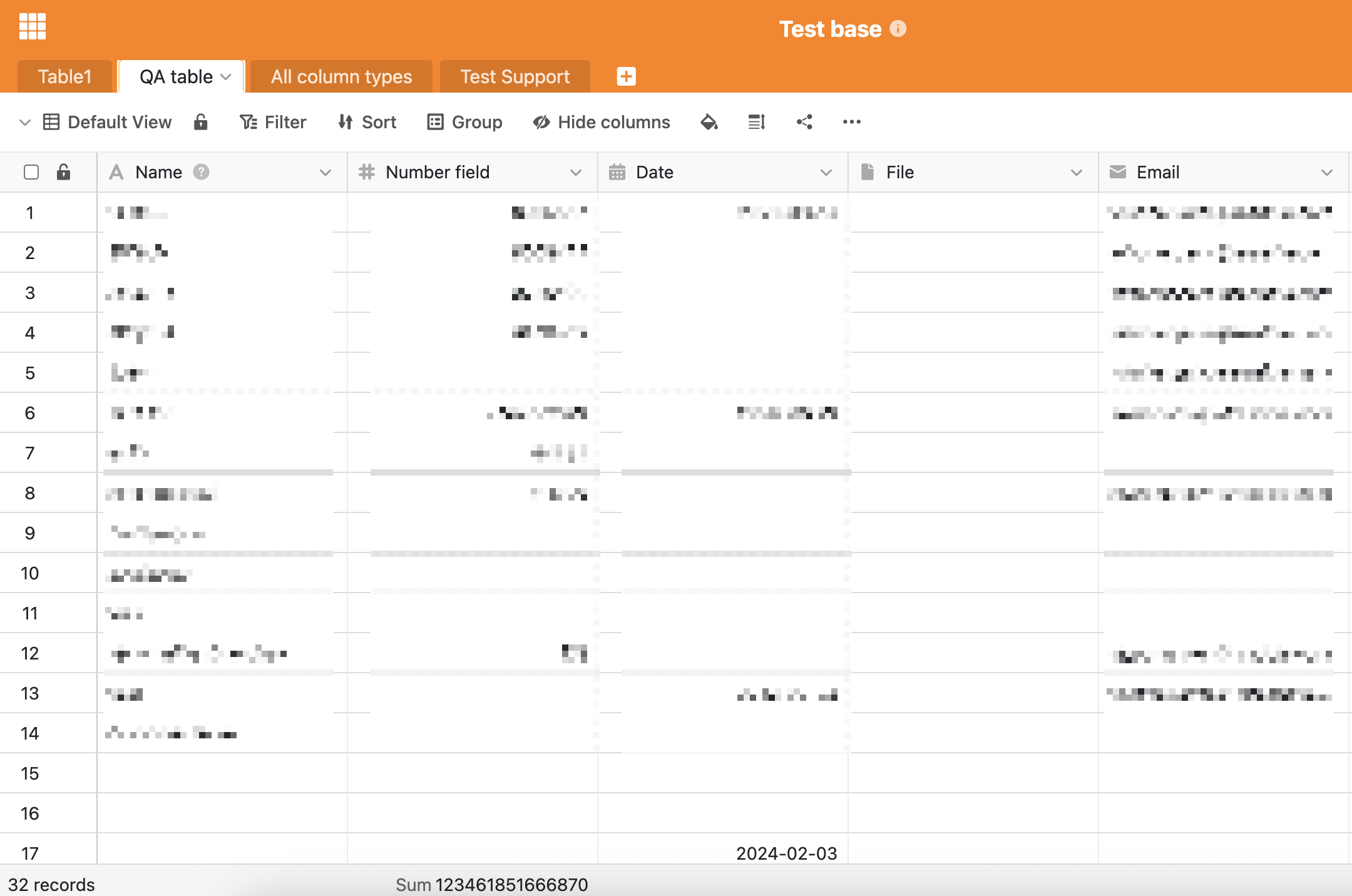
Once the task is finished, the data added to the form automatically appears in the SeaTable database in the respective columns.
In case you have any questions or difficulties with setup, contact our support at support@fluix.io and we’ll be happy to help you.