


Each Workflow rule is a pair of incoming Document sources and outgoing submit rules that control how users receive and send documents at each workflow step. Naturally, each participant needs to have at least one Document source to take part in the workflow.
You will need to define the document source for each participant in a workflow. This is where documents will be distributed.

Depending on the goal, you can select from the following:
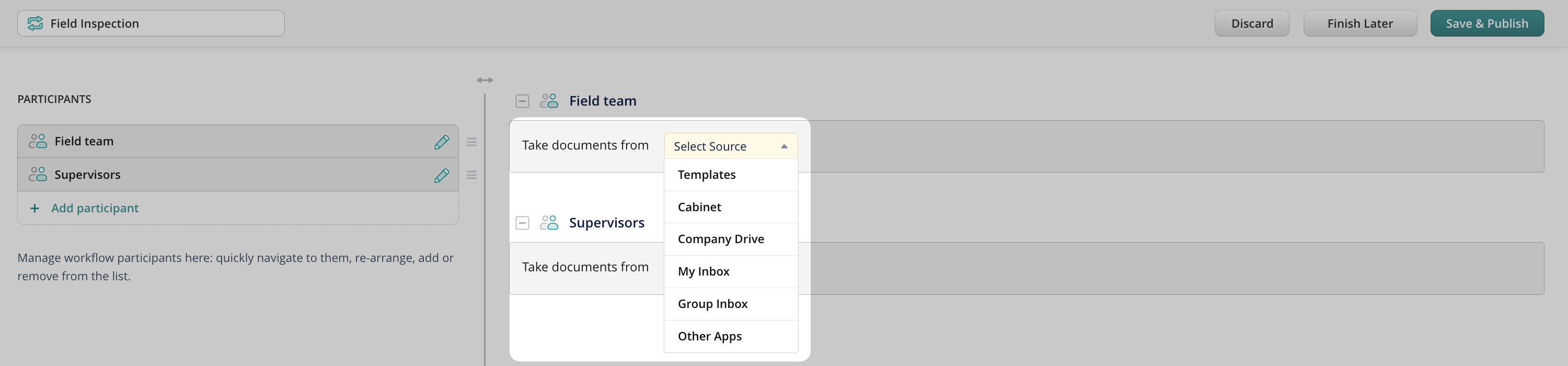
- Templates is a document source best used when you need to distribute blank forms and protect the original files on your remote storage from being overwritten. Each time a user opens a template file, it looks the same as it does on your remote storage. After a user fills out any information, a copy is saved to Drafts on their device for further actions, while the original template in storage remains intact.
- Cabinet is a folder that reflects the files stored on remote storage, making them accessible for a group of users in the Cabinet section on the device. When documents appear via Cabinet, they are available for viewing to the entire group. However, only one user can start working on them by assigning them to themselves. Once assigned to a particular user, the document becomes unavailable to the rest of the group.
- Company Drive acts as a mirror between your storage and the Fluix app and has a set of pre-configured actions. By choosing Company Drive as your document source, you will have a few options to choose from:
- Automatically sync iPad and storage, saving all changes. The content of the linked folder on remote storage will sync to the user’s device. All changes the user makes will sync back to storage, i.e., original files in the folder will get overwritten. This option is usually chosen to distribute manuals and any instructions.
- Automatically sync iPad and storage, no changes saved. The content of the linked folder on remote storage will sync to the user’s device. All changes made to files by a user on the device will be saved in a created copy only, while the initial files on storage will stay intact.
- Manually download. A list of files and folders located in the linked folder on remote storage is displayed to the user on the device. Files get downloaded only when they are opened. A user can make any changes to the files, and they will be saved on their devices only. This option is usually selected to save device space.
- My Inbox is for the documents that are sent to a single user in the following way:
- pushed by Admin
- reassigned from another user
- returned by the customer after remote signing
- Group Inbox is an Inbox for the documents that are sent to a group of users in the following way:
- pushed by Admin
- reassigned from another user
Once a document is reassigned to a group of users, the entire group can access it. Once one of the users in this group assigns the document to himself/herself, the document will no longer be available for others.
- Other Apps allows your users to open documents from other applications on iPad/iPhone to Fluix, act on them and submit further as per workflow rules, pre-configured by the admin.
Add Storage
After the type of document source is selected, please select the file storage and choose the root or particular folder with files that your users will get access to. Learn more about the integrations in Fluix Docs in this article.
After selecting which document sources the workflow will involve, you must determine what happens to them by creating submit actions. Please, follow the next article to learn how to create submit rules.