


Inspections often begin with the asset itself, whether it’s a piece of equipment, a vehicle, or another item you manage. In the Fluix Tasks app, you can start your inspection not only from the Templates or Assigned sections, but also from the Assets. Find the asset you are working on – by browsing, searching, or scanning its QR code – and start the related inspection from there.
Before you start
- Assets on device are enabled by your company admin. If you don’t see the Assets option, contact your admin.
Note: Assets are part of the Operations plan. If your company plan includes Fluix Assets, you can work with assets on your device too. If you do not see any Assets on your device, your Fluix account admin has not yet preconfigured them for you.
If you have any questions or experience challenges setting up Assets, contact us at support@fluix.io, and we will assist you shortly.
Start a task from an asset
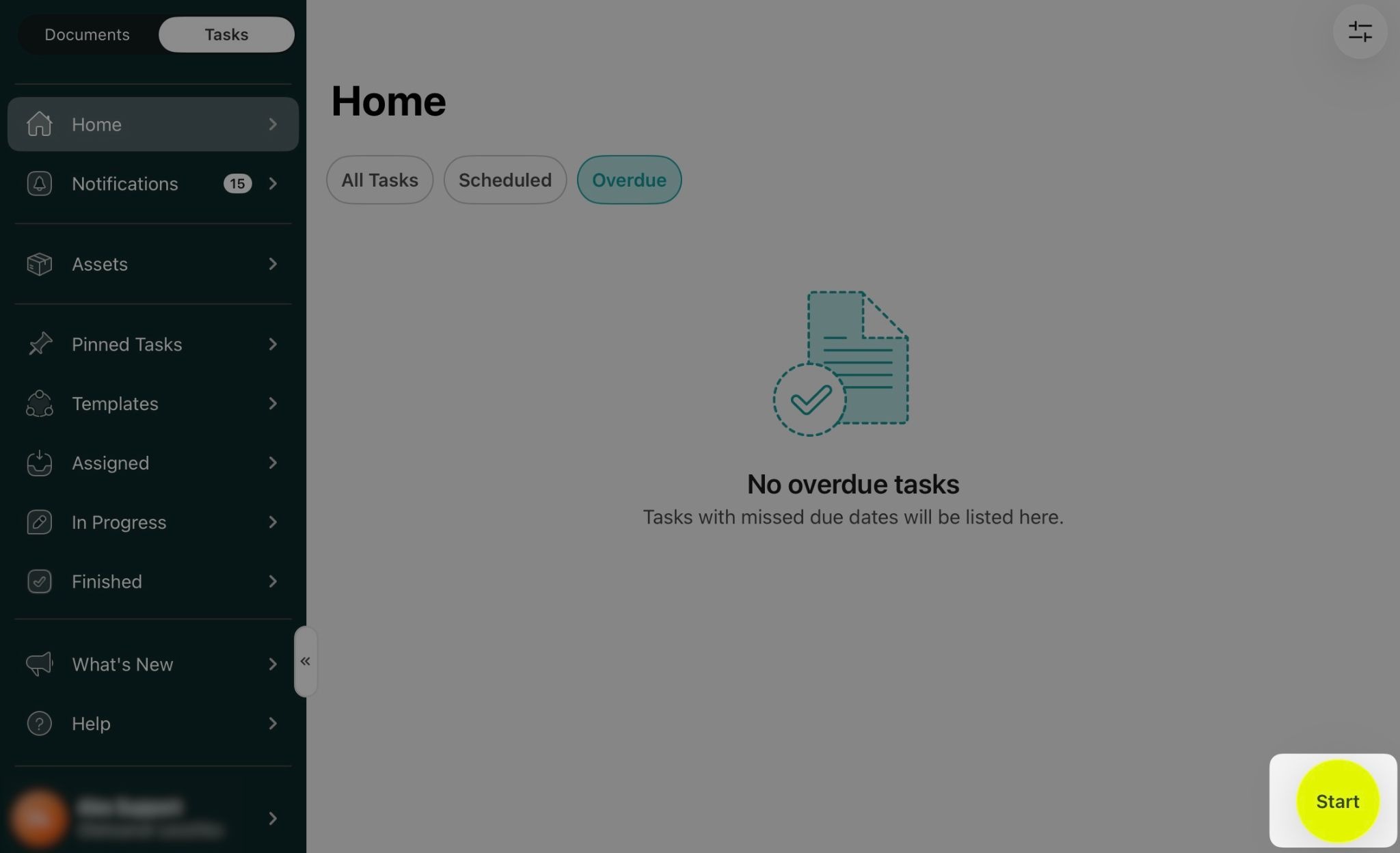
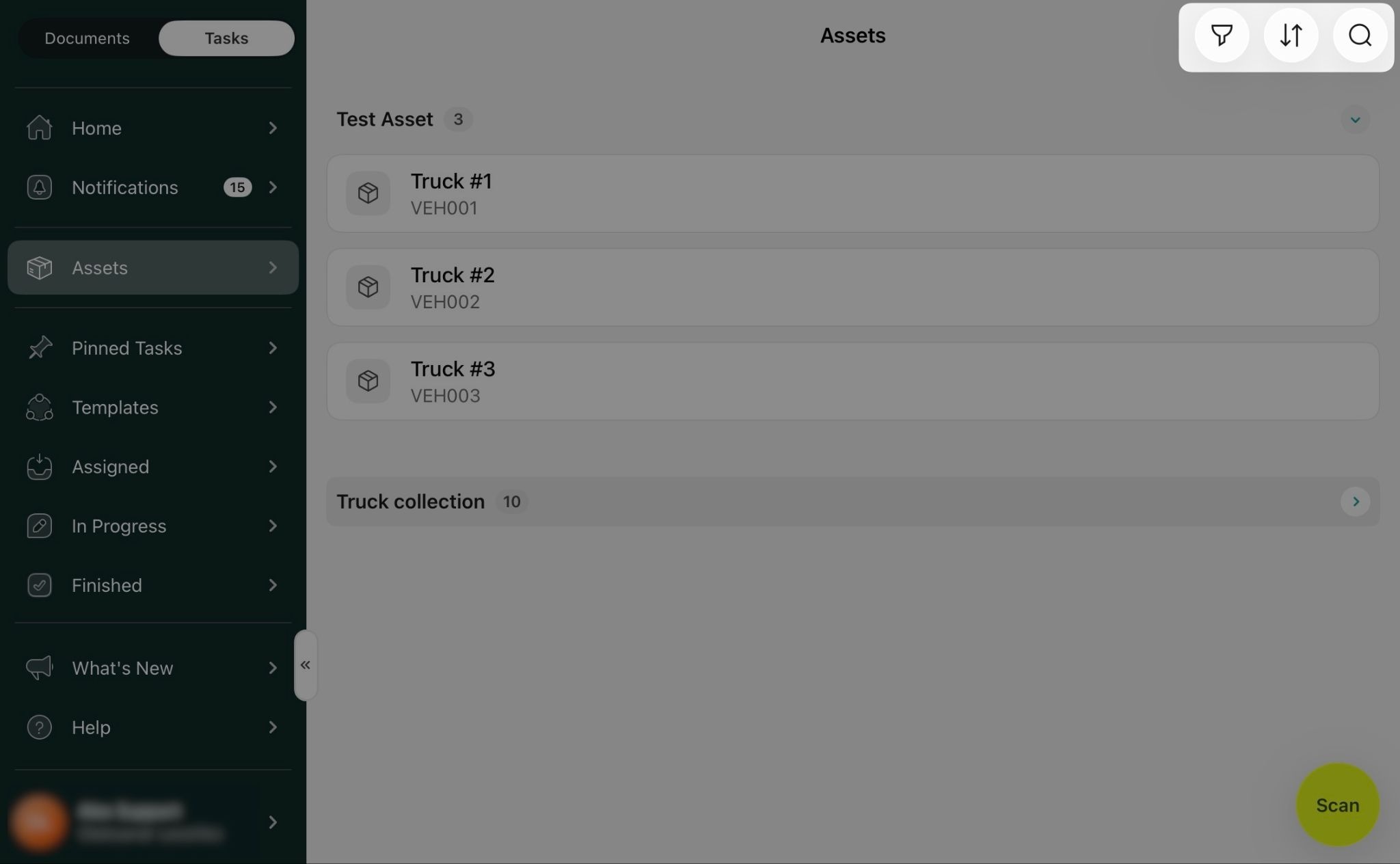
- Tap Start on the home screen and select Find an asset, or open Assets from the side menu. The Asset Collections screen opens. Collections are collapsed by default, with the number of assets shown next to each collection name. Tap a collection to expand it.

- Tap an asset to open it. You’ll see the tasks related to this asset, those already assigned to you or in progress, and the templates available for this collection.
- Tap a task to open it. The forms in the task are pre-filled with this asset’s data, so you can start working right away.
- If you need a different value, you can still change it manually in the dropdown.
- Scheduled inspections are marked in the list, so you can see what is due.
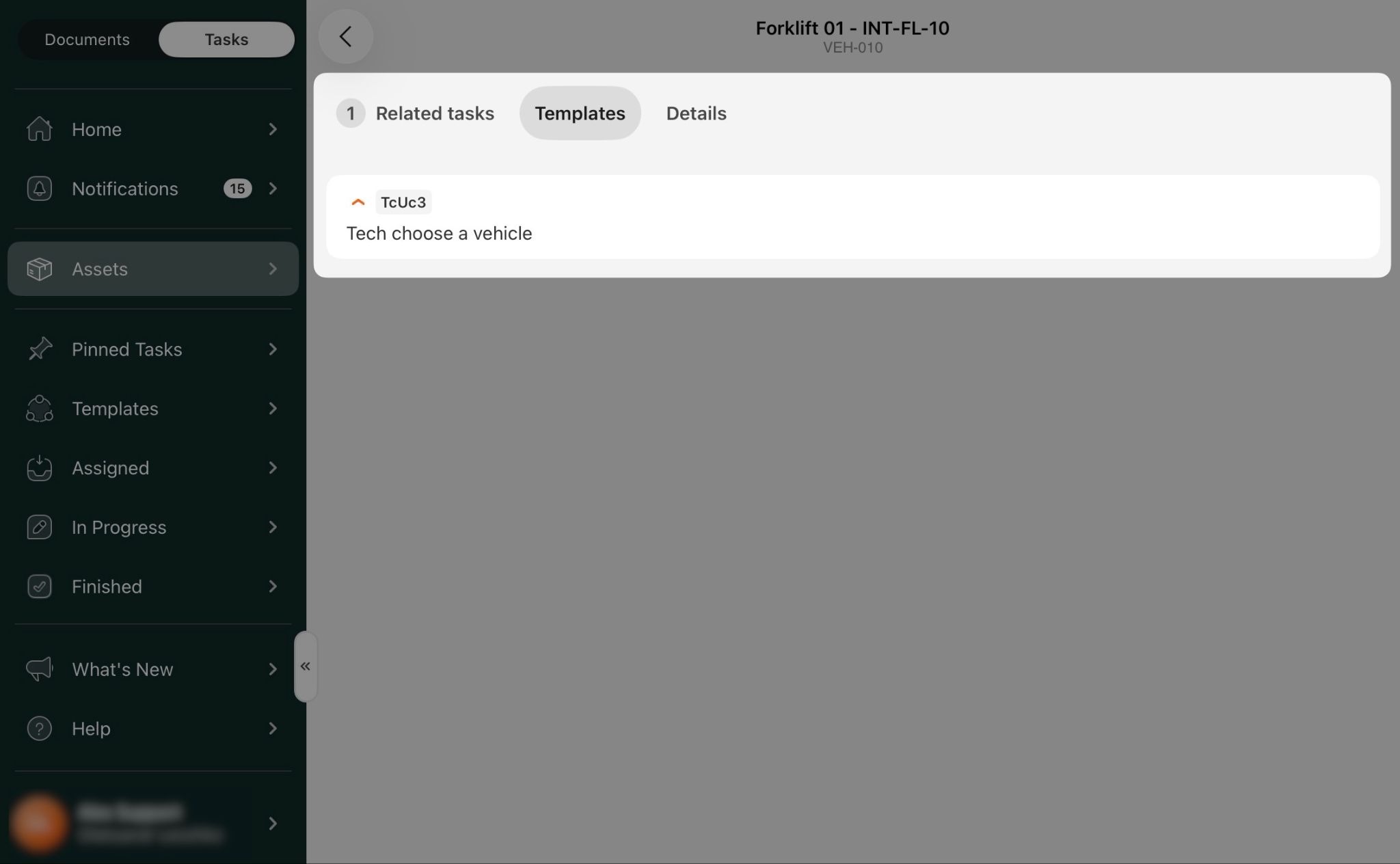
Note: if a task is linked to two different assets, it appears in the task list of both of them.
How to locate the asset you need
- Search – tap the search field and type the asset name or ID.
- Filter – filter assets by collection or show only assets with related tasks. Assets without related tasks will be hidden.
- Sort – sort collections and the assets inside them alphabetically, from A to Z or from Z to A.
How to locate the asset you need via a QR code/barcode
- Tap Scan to open the camera, and point it at the QR code or barcode on the asset.
- If the asset is found, it opens right away, and you can start the inspection you need.
- If the code is damaged or missing, tap Enter manually in the upper-right corner, then type the asset number instead.
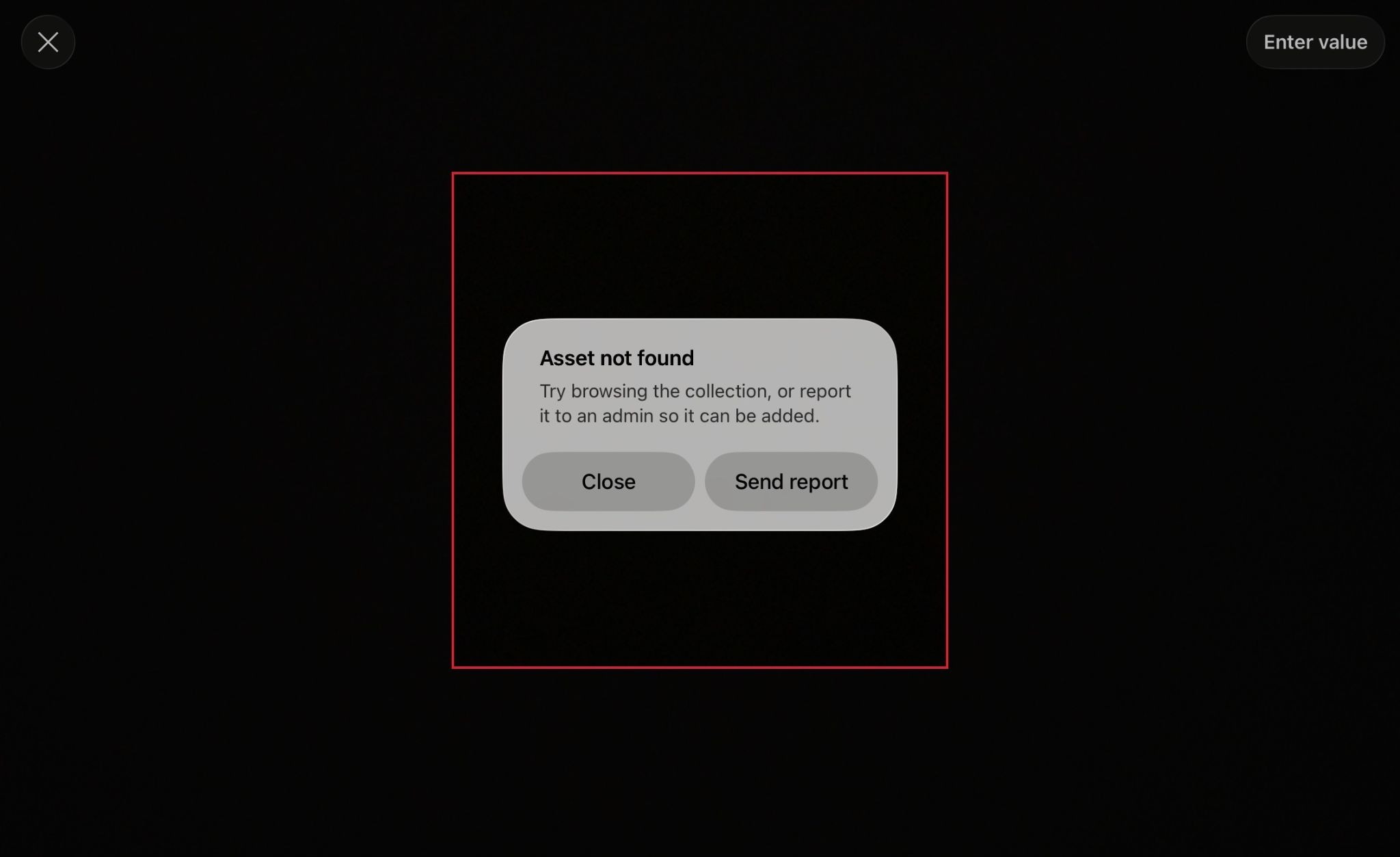
- If the asset isn’t found in your collections, you’ll see a message suggesting you browse your collections or report the asset to your admin. Tap Send Report to let your admin and the Fluix support team know that the asset is missing, or Close to go back to your collections.
How to work with your Assets offline
What you’ll see if no Assets are preconfigured for you yet:
- If the Related tasks is empty, create a task from Templates, or wait until a task is assigned to you.
- If the Templates are empty, your admin has not yet preconfigured template tasks for this collection.
- If you do not see any assets, assets related to your tasks will appear here as soon as they are assigned. Tap Scan to report a missing asset.
If you have any questions or would like to share feedback about your experience with Assets, contact us at support@fluix.io.