


Projects in Fluix tasks were designed to centralize forms, teams, workflows, and assets in a single dedicated space, organized by department, location, or function. By utilizing Projects, you can ensure that operations remain structured, secure, and easily manageable.
In the Fluix Tasks app, you now have the opportunity to view all your tasks, categorized by different criteria, including projects.
By clicking ‘All Activity,’ you will see the list of projects, which were sorted for you by your Fluix Account Admin.
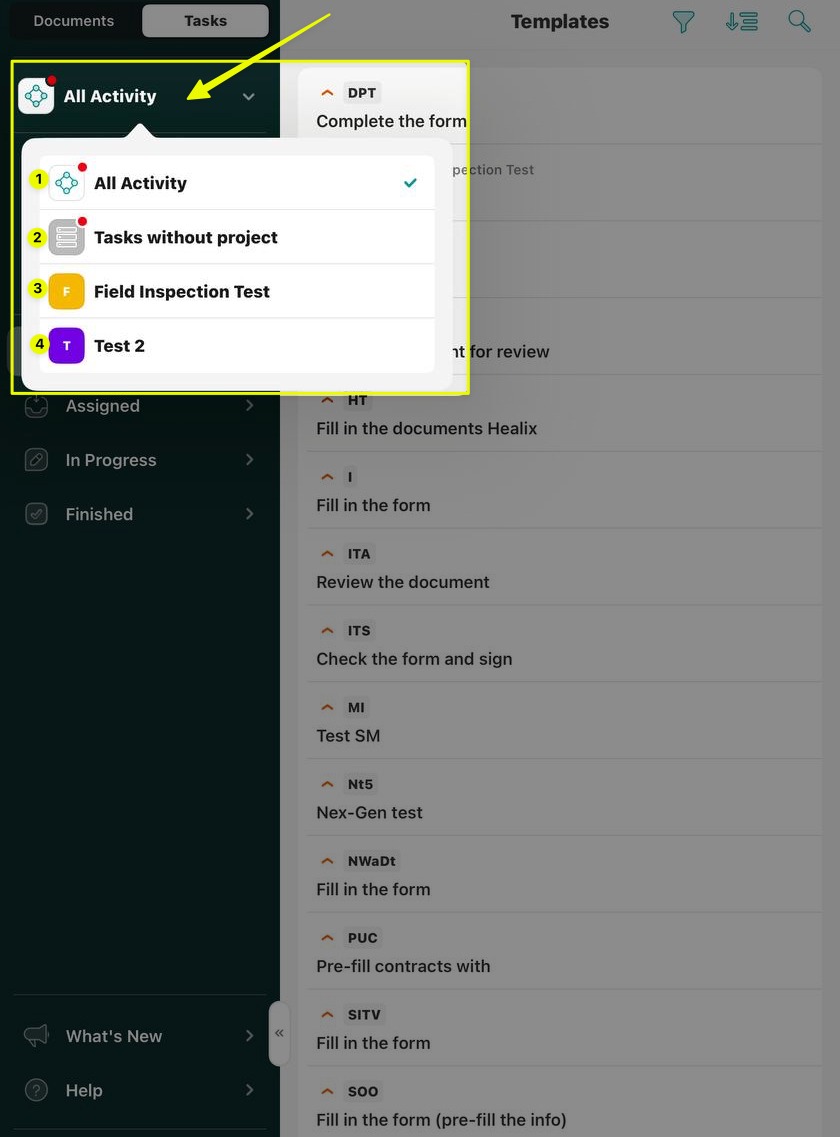
Note: The red dot on the “All Activity” icons in the left sidebar indicates unread notifications.
How to differentiate tasks in the app?
All Activity option
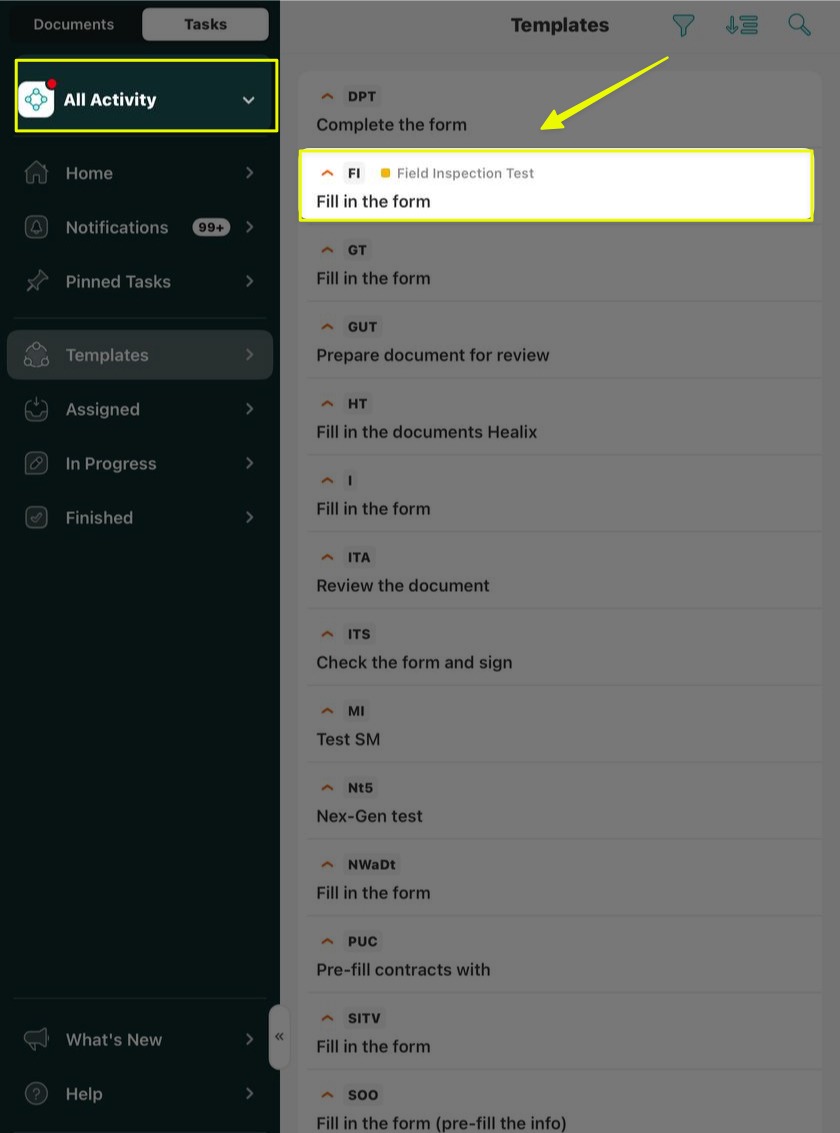
In the All Activity view, tasks related to a specific project will display the project name and color next to the Task ID.
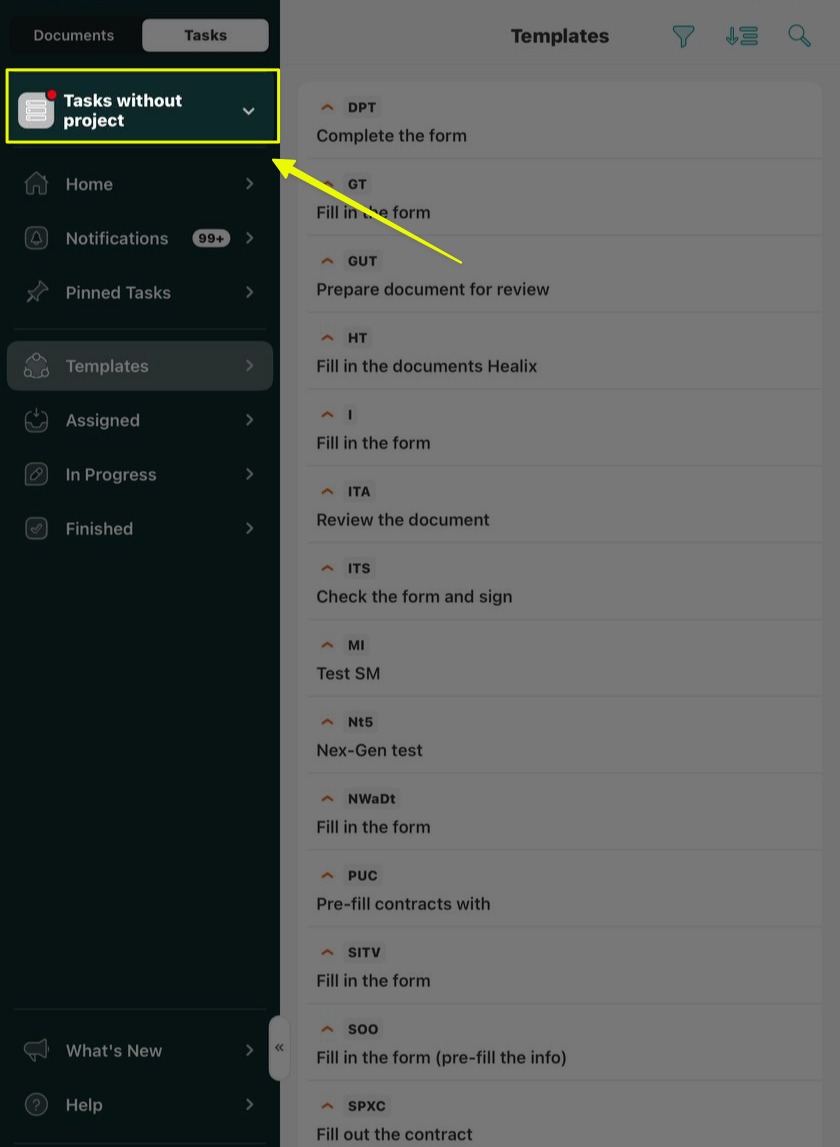
Tasks without project view
You can check all tasks that do not relate to specific projects and filter them in this view.
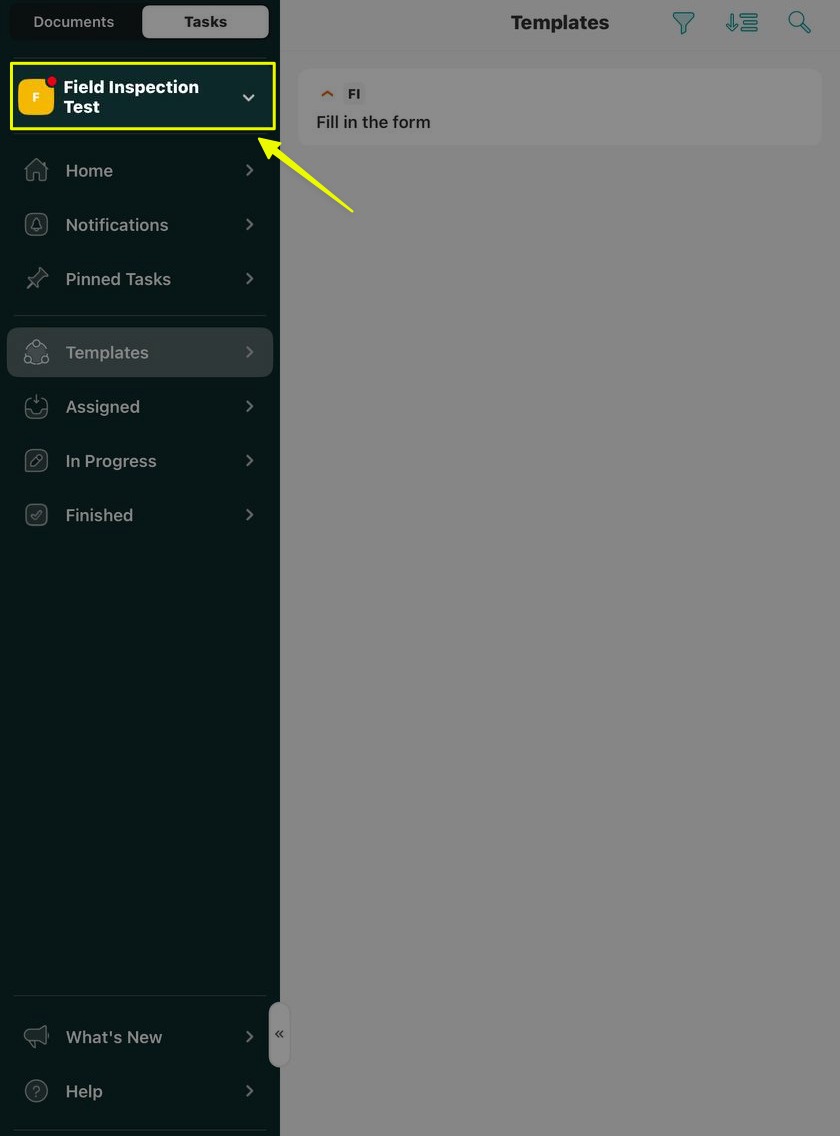
Project, created by the admin of your account
In this view, you will see the project’s custom name assigned by your admin for the tasks you organized in this project.
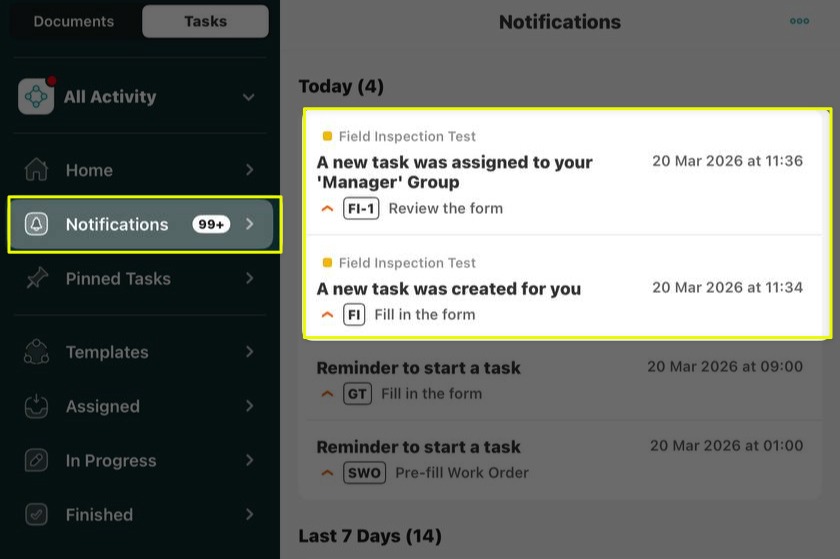
By clicking on the Notifications section, you will see all the notifications related to the tasks from projects, which will be defined by color and description of the project name under the other task details.
If you have any additional questions about the functionality, contact us at support@fluix.io to learn more.