


When working with large forms, it can sometimes be difficult to keep track of your progress or quickly navigate to a specific section. The Track Form Completion feature provides a clear overview of how much of the form has been completed and allows users to jump directly to any section.
This feature is especially useful for lengthy forms with multiple sections and when several users collaborate on completing the same document.
Note: The Form Completion feature works together with Dynamic Forms in Fluix.
How it works
As you complete fields in a Dynamic Form, Fluix automatically calculates the completion progress for:
- The entire form.
- Each individual section within the form.
Progress updates automatically whenever the form is autosaved.
View form completion progress
To view your progress:
- Open the assigned task and start filling out the form.
- Tap the Table of Contents icon in the upper-right corner of the form.
The Table of Contents panel will open, displaying:
- The overall completion percentage for the form.
- A list of all sections in the form.
- The completion percentage for each section.
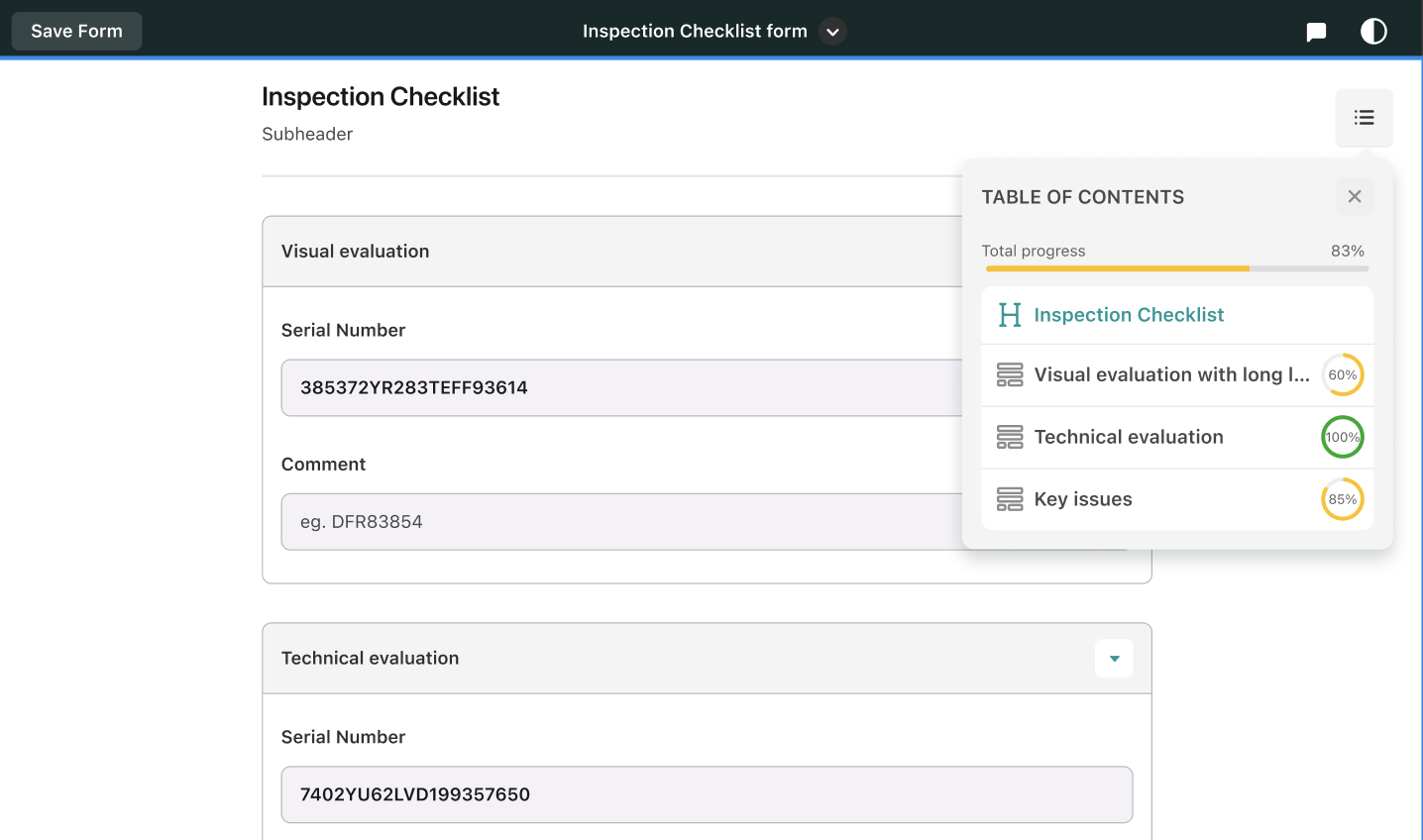
Navigate through large forms
The Table of Contents also makes it easy to navigate within large forms. To jump to a specific section:
- Open the Table of Contents.
- Tap the name of the section you want to review.
- Fluix will automatically scroll to the selected section in the form.
If you have any questions, contact our support at support@fluix.io , and we’ll be happy to help.