


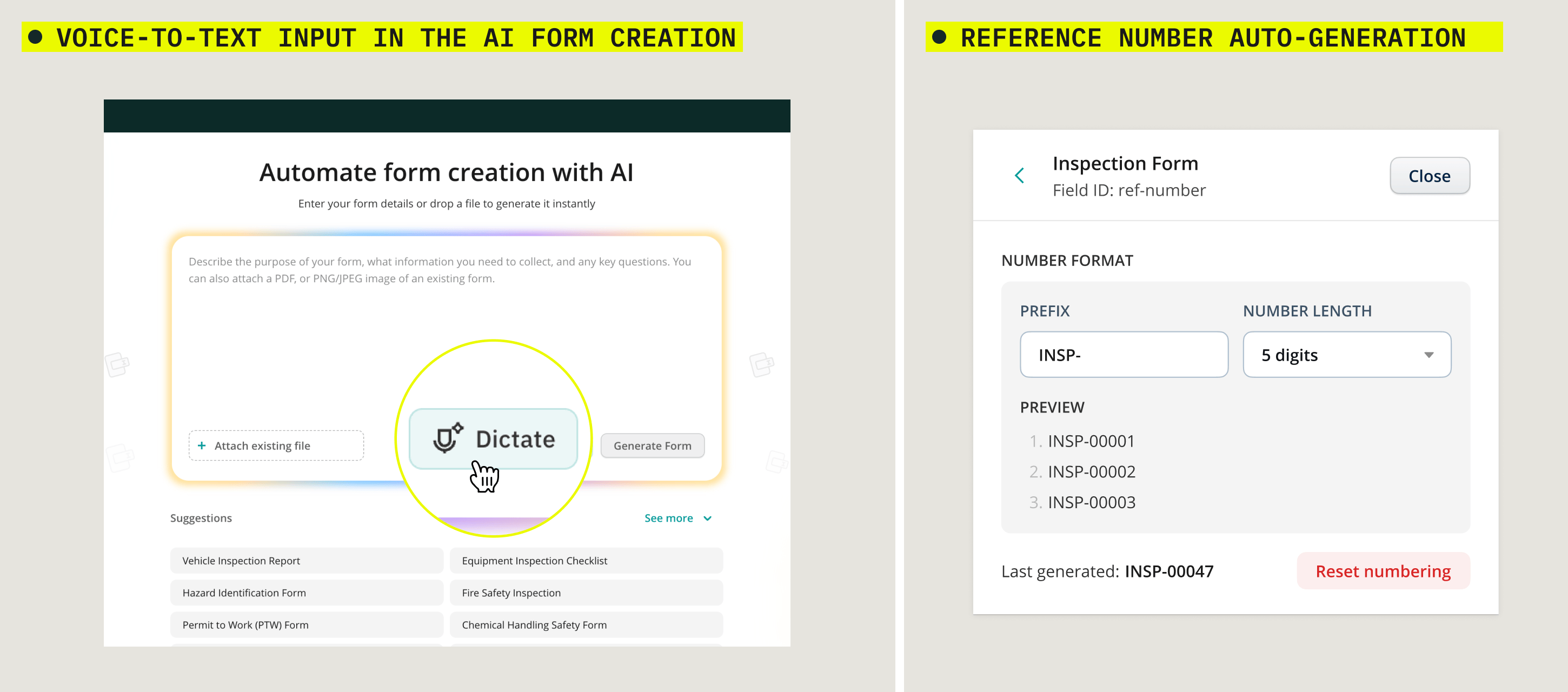
In this release, we introduce two features that take two typing-heavy jobs off your plate. To build a new dynamic form, you can now describe it out loud instead of typing longer prompts. When you reuse a dynamic form across different workflows, you can give each workflow its own reference number format, and Fluix numbers every form for you automatically. Let’s dive deeper into both of these features.
Describe your form out loud, and let AI build it
Talk instead of typing. Open Forms -> Create with AI, click the microphone, and describe the form you need, for example: “A daily pre-start checklist for excavator operators with a photo of the machine, hours meter reading, and a signature.” What you say appears as text in the prompt, so you can review or edit it before you generate the form.
Tip: describe the sections and fields the way you’d explain them to a new technician. The more context you give, the closer the first draft will be.
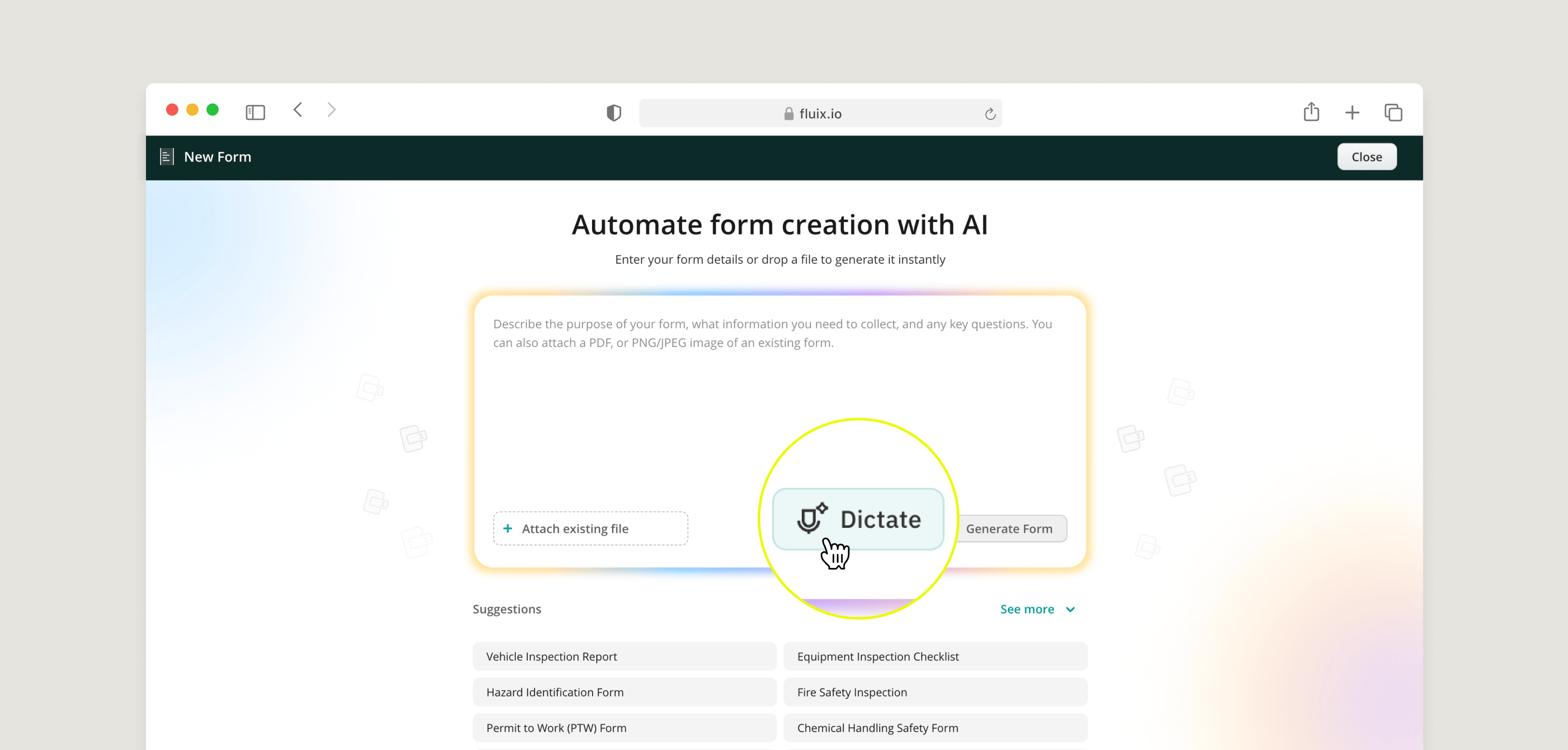
Learn more about AI Form Creation in Fluix.
One form, many workflows, and a unique numbering format for each, automatically
Managing the same dynamic form in several workflows just became easier. You can now customize each workflow’s reference numbers in its own format. Here is what it means:
- Set it once per workflow. In workflow settings, give the workflow its own reference number format. For example: one Site Inspection form can then produce
SOLAR-00042in your solar project workflow andWIND-00017in your wind project workflow. - The form’s format stays the default. Workflows without a custom format use the one set in Form Builder. A workflow’s custom format always takes priority for that workflow.
- Numbering happens on its own. Fluix generates the number when someone starts working on the form on a device or in the web app, and the field is read-only. No one types an ID, and nothing gets duplicated.
- Numbers in file names. Add Ref Number to your automated form names, so every document arrives with its workflow-specific number.
- Easy to undo. Click Restore Default to remove the workflow’s custom format and revert to the Form Builder default.
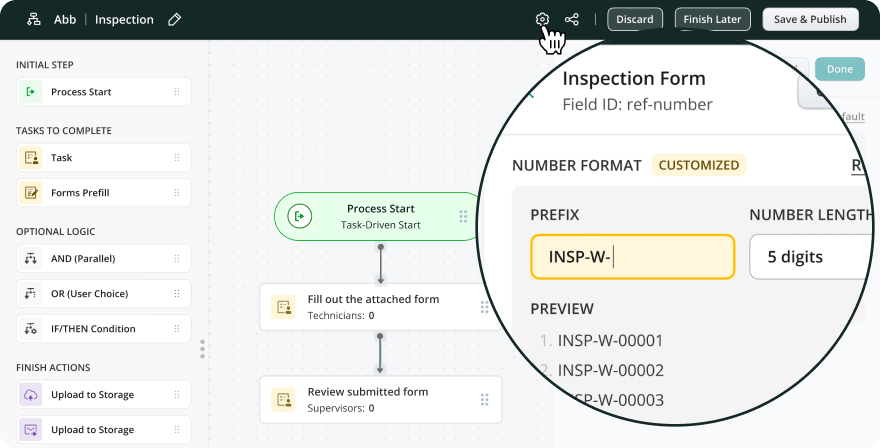
Tip: use a short prefix per project or site that your team will recognize at a glance.
Learn more: Reference Numbers for Dynamic Forms in Workflow Builder.
If you have questions or need help getting started, reach out to us at support@fluix.io, and we’ll be happy to help.