


If you use the same dynamic form across several projects or workflows, you may need a way to track each submit individually, without creating duplicate copies of the form. With custom reference numbers, admins can configure a unique numbering format for a dynamic form directly at the workflow level, making it easier to track and organize files.
Setting up a reference number in Workflow Builder
- Open the workflow that contains the dynamic form you’d like to configure.
- In Workflow Builder, navigate to the Workflow Settings tab in the side menu.
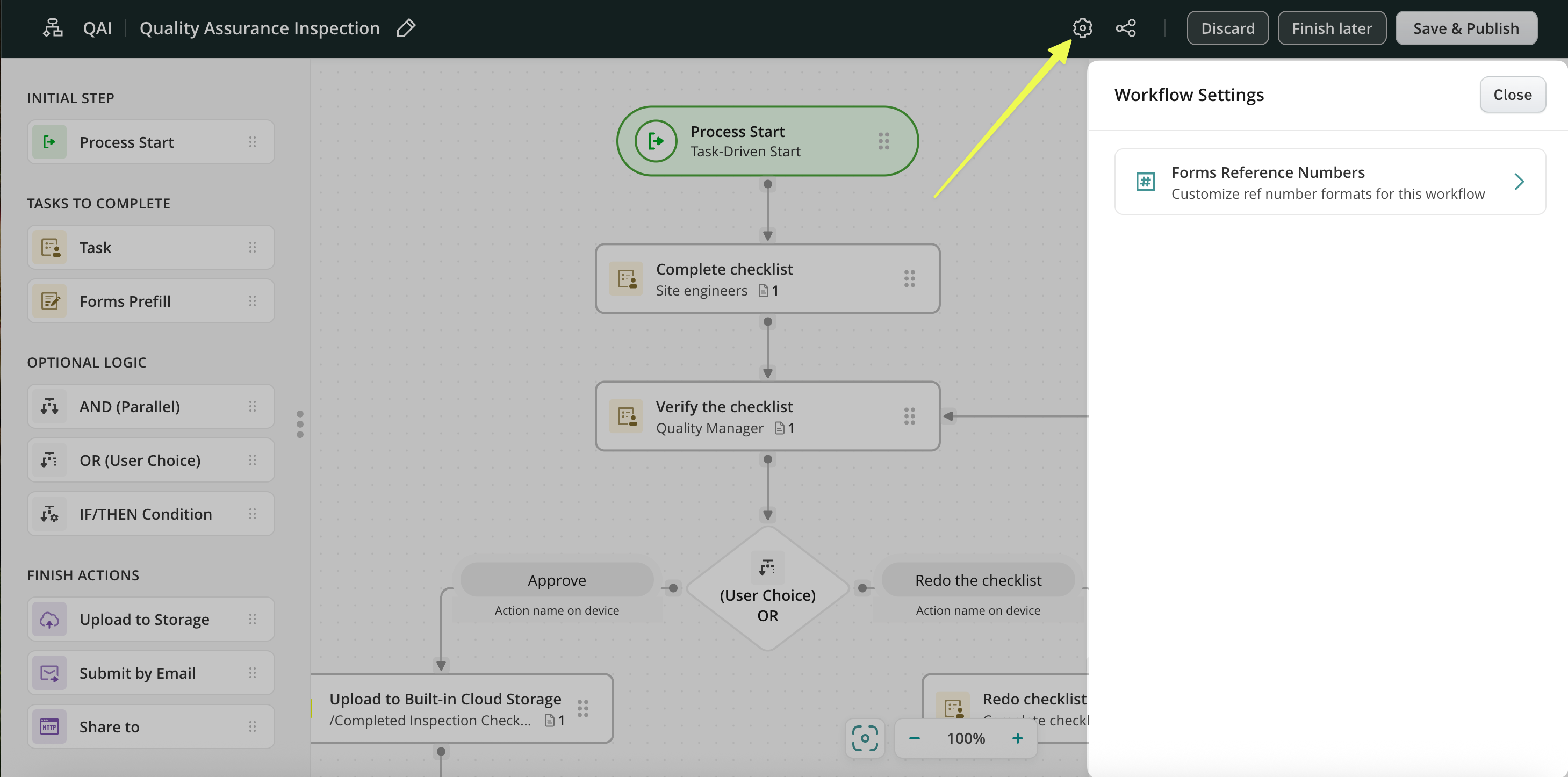
- Locate the Reference Number field and define its format. You can add custom text, prefixes, or other elements to match your naming conventions.
- Save your changes
Once configured, every time a user opens the form on a device or in the web app, the reference number is generated automatically and displayed in the form in read-only mode. This means you can use the same form across multiple projects while still generating a unique, project-specific number each time.
Adding the reference number to the form naming
To make it easier to locate a specific process at a glance, you can include the reference number in the automated form naming:
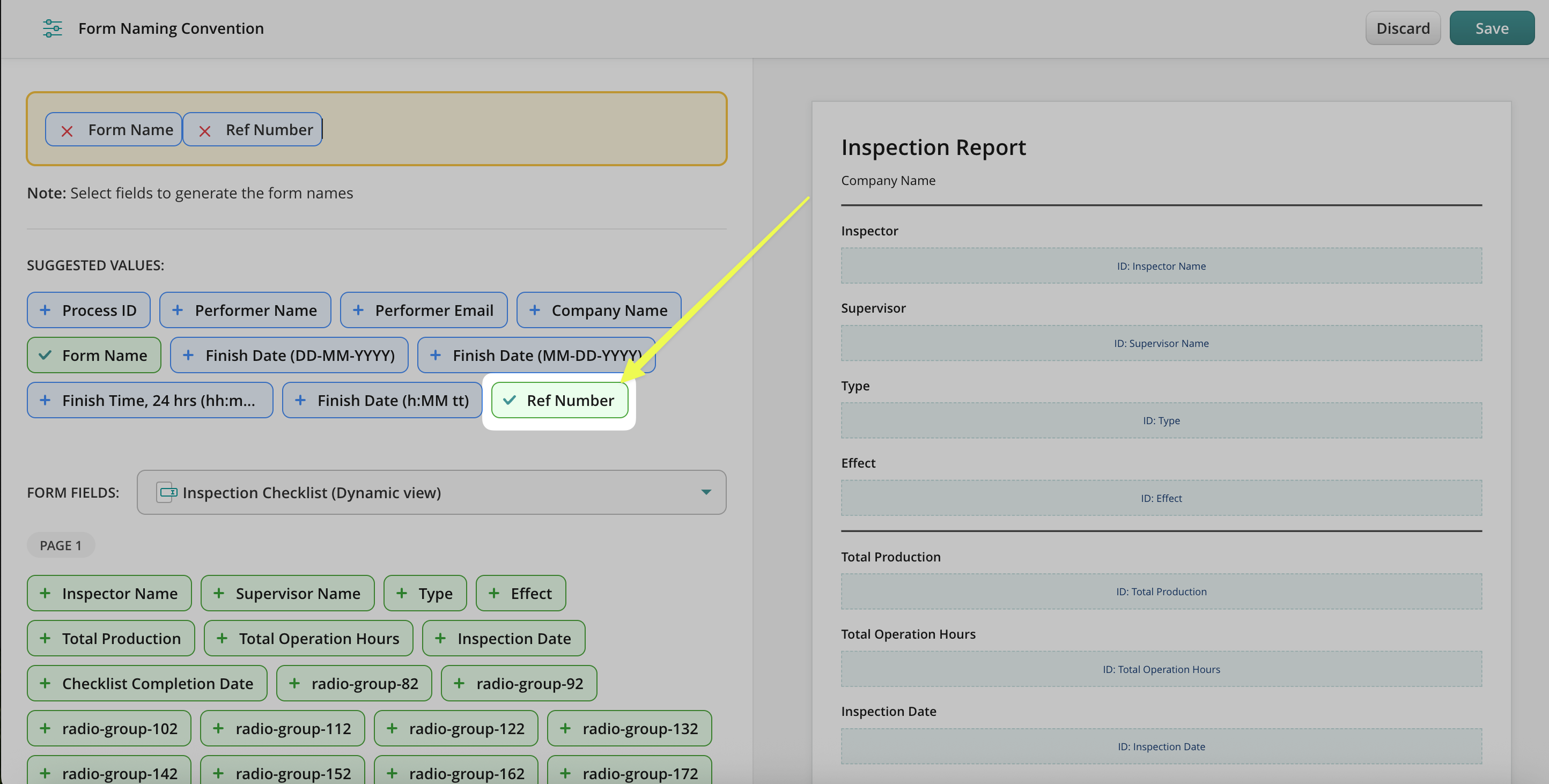
- In the form naming configurator, open the list of default naming options.
- Select the Ref Number from the list to add it to the form name.
How reference number settings work between Dynamic Forms and Workflows
When a reference number is configured in Form Builder, its format is used as the default for workflows that include that dynamic form.
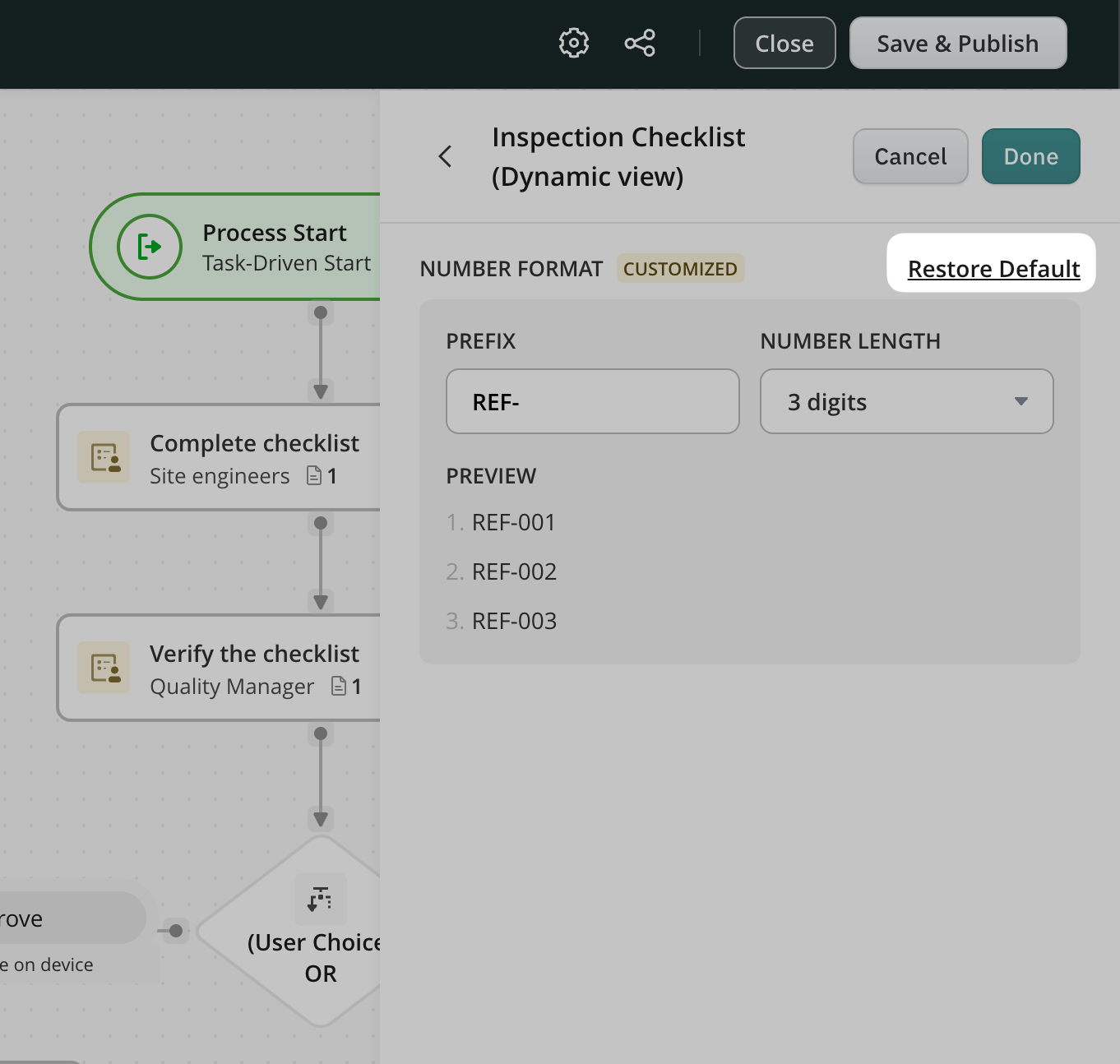
However, you can customize the reference number format for each workflow separately. If a custom format is configured in Workflow Settings, it takes priority over the default format defined in the Dynamic Form. If you’d like to return to the original format, click Restore Default in the workflow’s reference number settings. This removes the workflow-specific customization and restores the format defined in Form Builder.
Using the reference number in the Dashboard
Once the reference number field is added to your form, it becomes available in the Dashboard and datasets like any other field. Admins can:
- Sort and filter records by reference number
- Build charts based on reference number data
Feel free to contact us at support@fluix.io if you have any questions or comments.