


You can now link PDF documents stored in Fluix Storage directly to the sections within a dynamic form. This way, your Fluix app users can access the exact page of a manual, policy, or standard operating procedure directly from a checklist.
This allows app users to open the relevant reference material with a single tap, without having to manually search through attachments or switch between multiple applications.
This functionality is especially useful when working with lengthy technical documents (100+ pages) during inspections or audits. Linked PDFs can point to a specific page, giving app users instant access to the exact section they need.
Setting Up PDF Links in Form Builder
- Open your dynamic form in Form Builder and locate a Link Reference PDF element. Drag it where you want the link to appear.
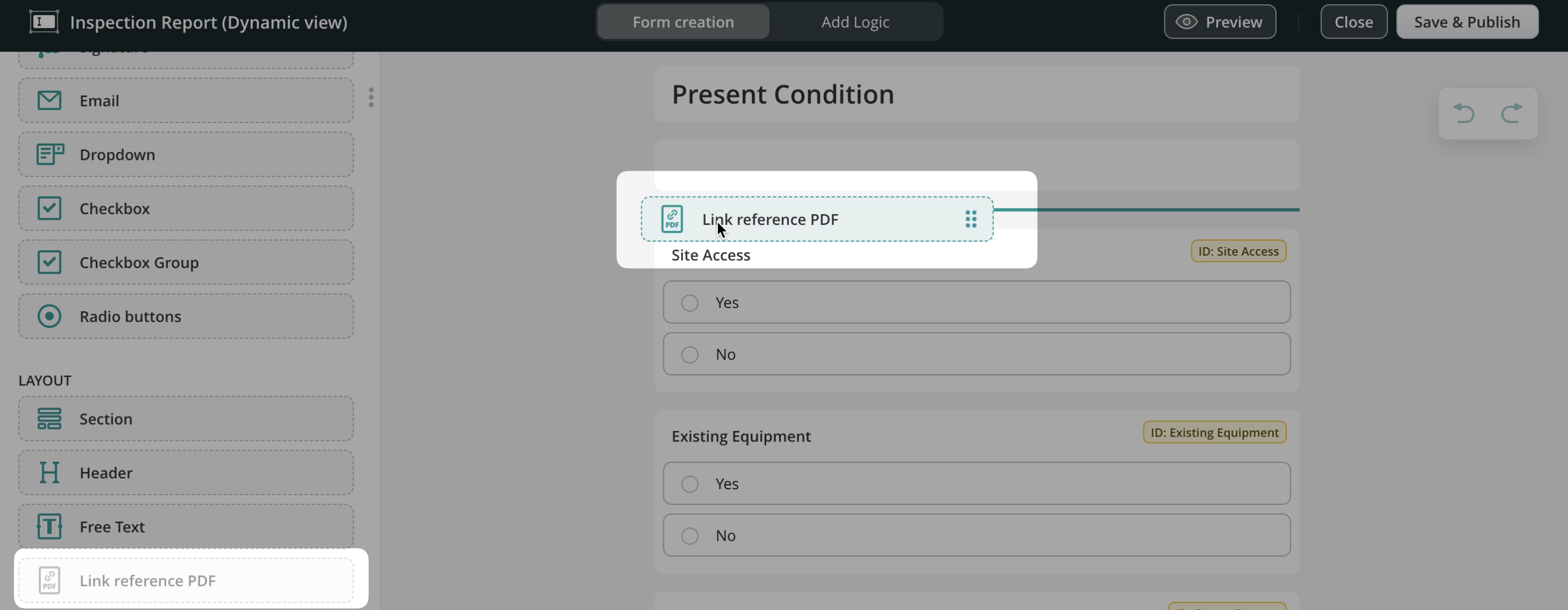
- Inside the Free Text element, select Link and choose a PDF from Fluix Storage.
- Optionally, specify a page number to open the document at a particular section. If no page is specified, the PDF will always open on the first page.
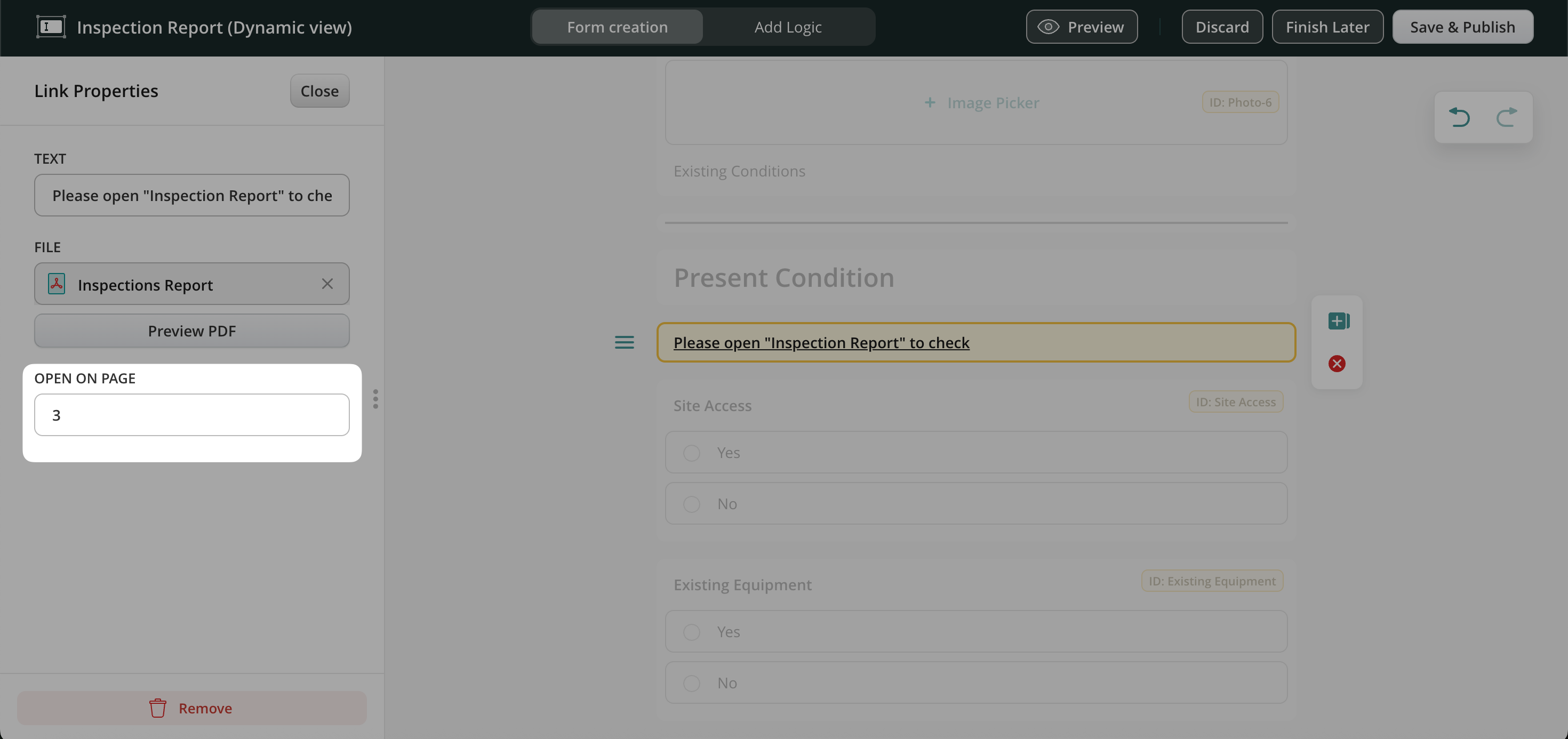
- Repeat as needed – you can add multiple links within a single form and link multiple different PDFs.
Note: All linked PDFs are automatically added to every task that includes this form, appearing in the Attachments for review section. You may not be able to remove linked PDFs at the individual task level.
How Linked PDFs Appear in Fluix Storage
When a PDF is linked to a form, it will display a linked indicator in File Storage. This helps quickly identify which files are referenced in dynamic forms, making it easier to decide when an update is needed.
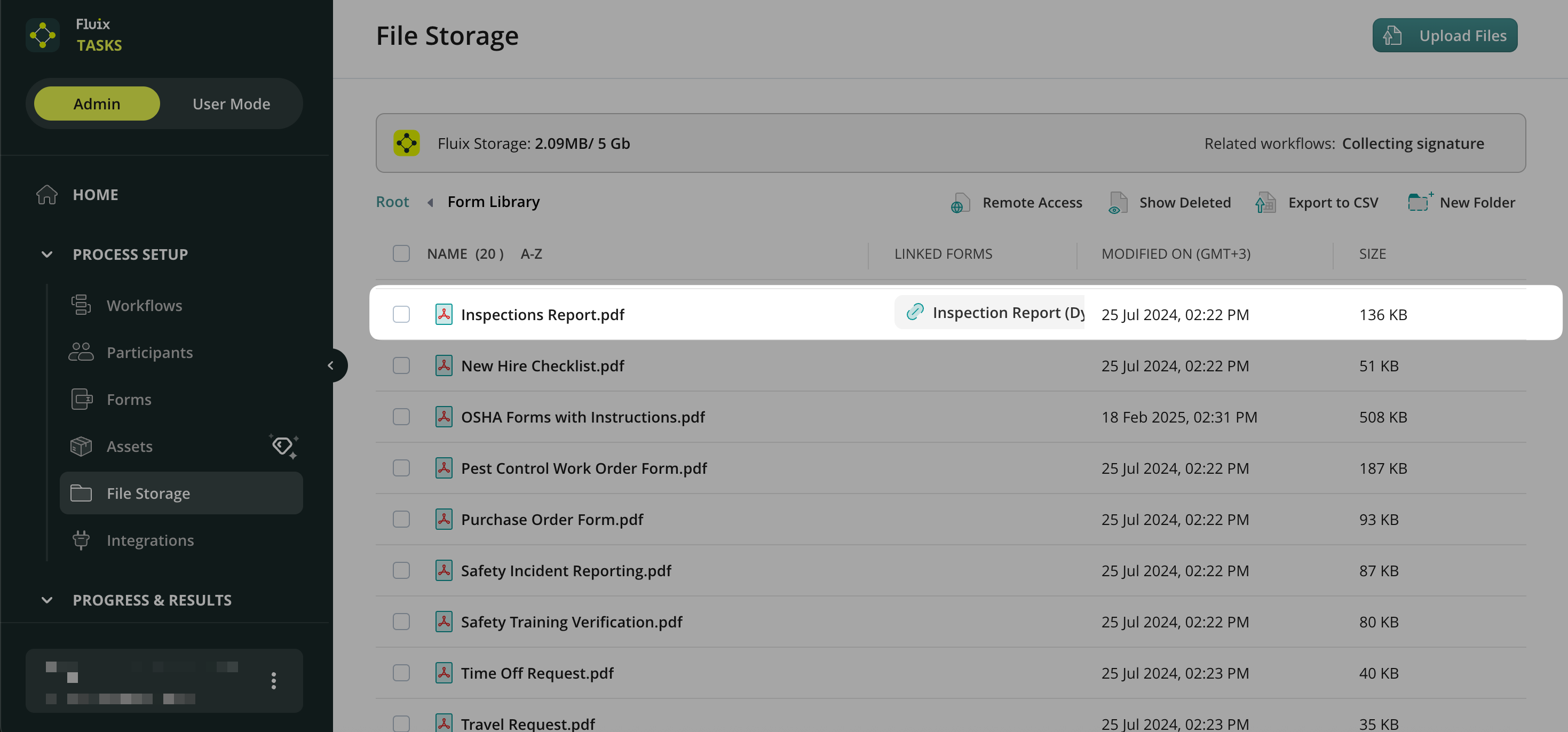
Note: Updating a linked PDF in File Storage will automatically reflect the change for all forms and tasks that reference it.
If you have any questions about setup, contact our team at support@fluix.io, and we’ll be happy to help.