


To connect your company storage to Fluix, please navigate to the Admin tab -> Process Setup -> Integrations section. Locate the storage that you would like to connect to Fluix and follow the instructions on the screen to authorize it.
Upon choosing storage, you will be redirected to the storage’s authorization page to confirm that you are granting access to Fluix. Upon authorizing it, the connected storage will be displayed in the Integrations section. It may have different statuses:
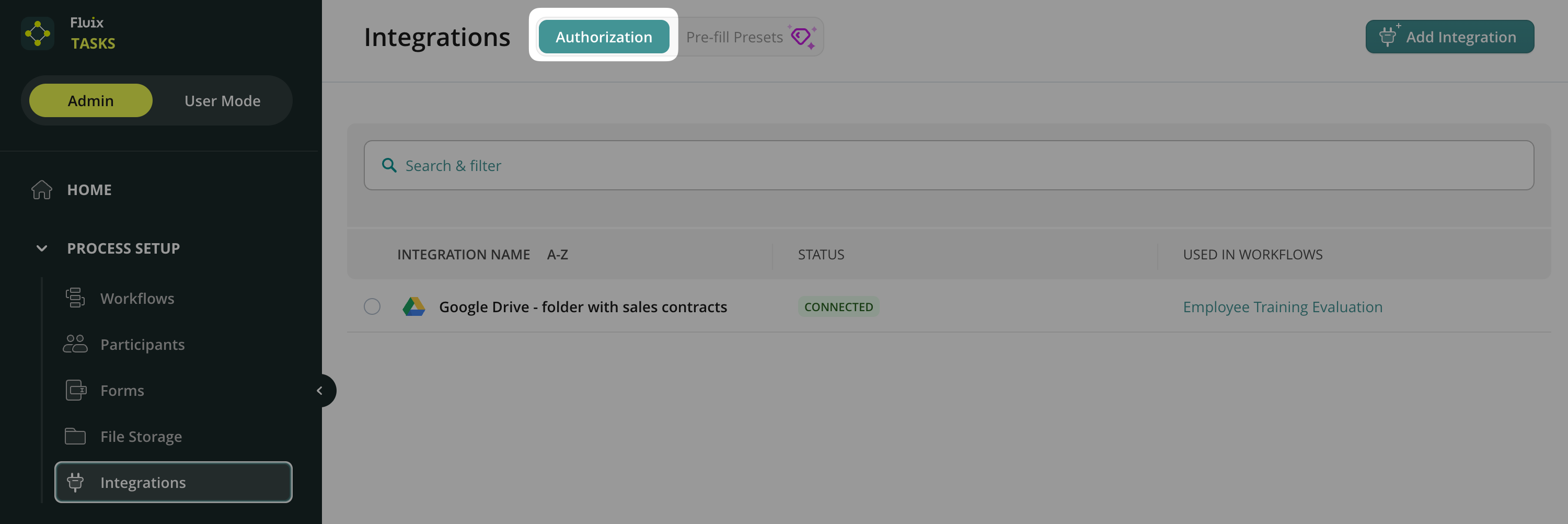
- Connected status means the storage was connected successfully.
- Disconnected status means the storage got disconnected from Fluix, and there are some problems with the connection between your storage and Fluix. To reauthorize, please select the storage and click on Reconnect.
The Authorization tab of the Integrations section contains a list of already connected storages, the names of all the Taskstreams where they are being utilized, and their current statuses.
If you do not yet have company storage, consider Fluix Built-in Cloud Storage.
Feel free to contact us at support@fluix.io if you have any questions.