


It’s difficult to imagine a modern business day that doesn’t include searching through and viewing documents on a mobile device. According to Gartner’s Survey, around 47% of digital workers struggle to find the information needed to effectively perform their jobs. With the Fluix Docs app, the scenario changes: your documents become significantly more accessible and manageable.
In this article, we will take a closer look at how the Search inside the document feature on iPad and iPhone can help make your workday more efficient and organized. Even when dealing with lengthy or complex documents, this feature allows you to instantly locate any specific information you need, saving both time and effort.
Let’s explore how the Search inside the document feature works and how it can streamline your daily workflow.
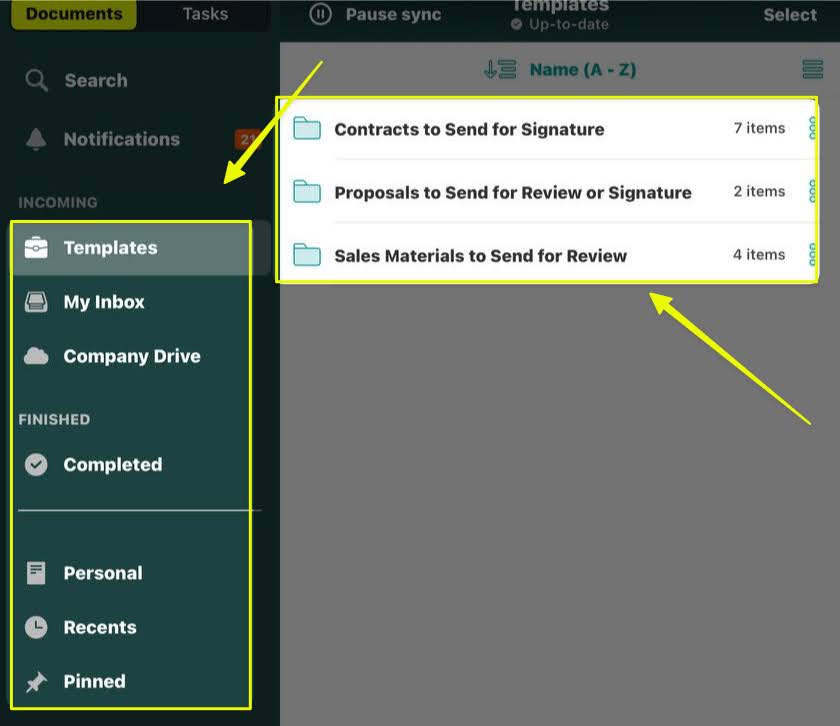
- Tap on the section where your document is located (Templates, My Inbox, Company Drive, Completed, Personal, etc).
- Choose the folder where the necessary document is located and open the respective file.
- Click on the Search button
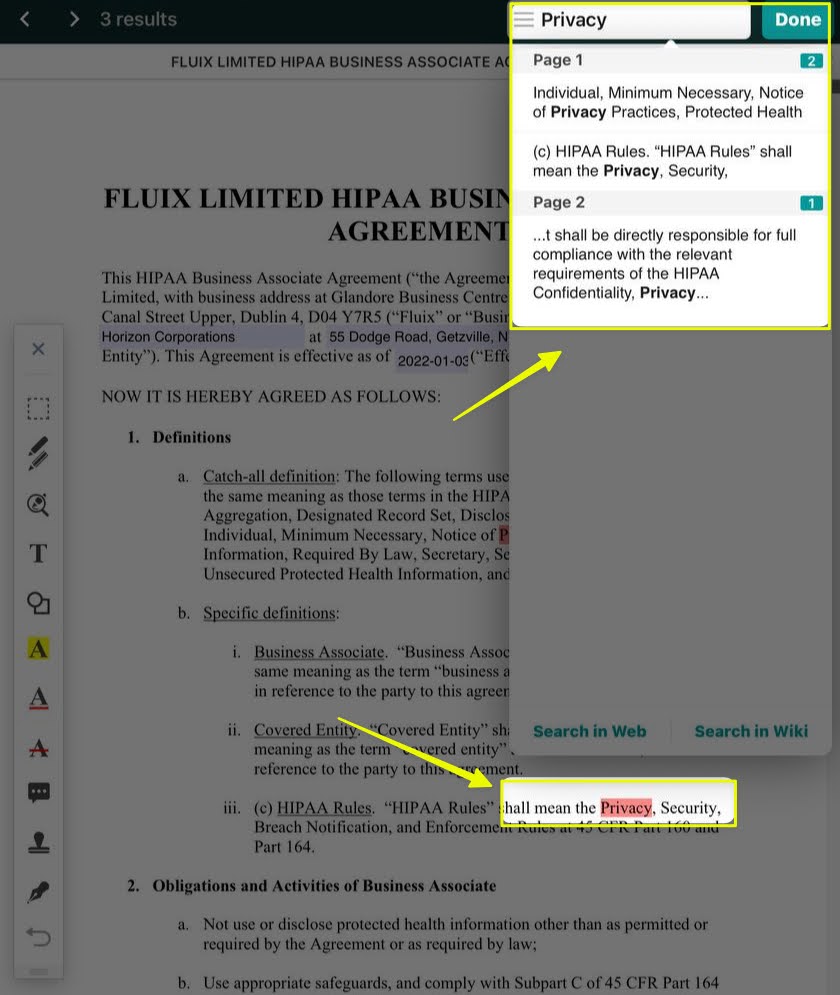
- In the search bar, type the word you are searching for in your file and click Done. The results of the search will be displayed below the search bar, accompanied by a reference to the number of pages and a brief excerpt from the document.
- Additionally, you’ll have the option to either Search in Web or Search in Wikipedia, if needed.
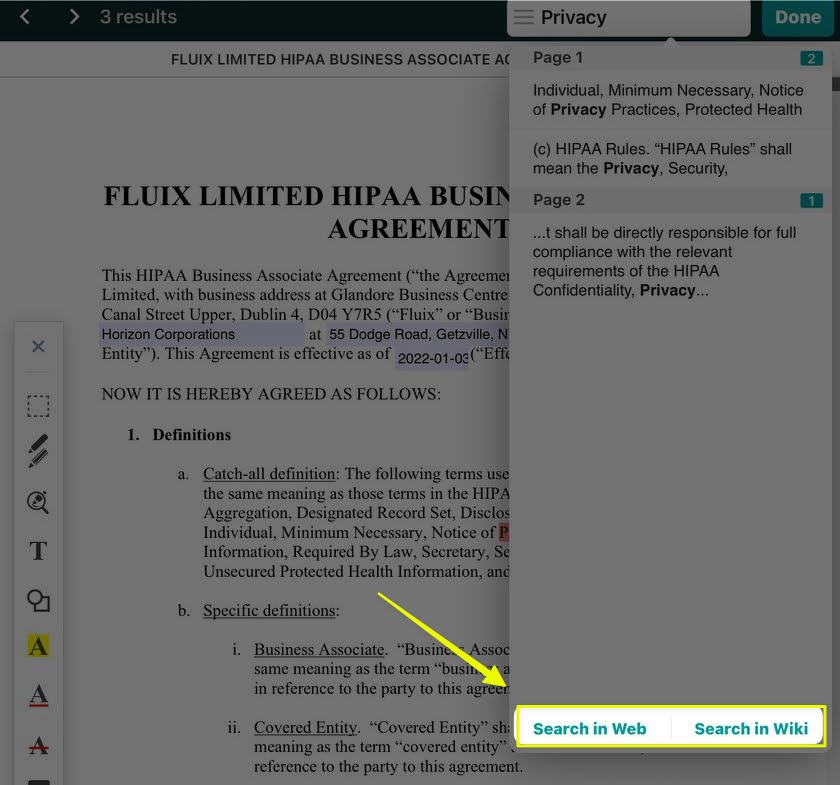
As you can see, searching for information in the documents becomes easier and faster with the Search inside the document functionality.
In case you have any questions or comments, contact us at support@fluix.io, and we’ll be happy to help you.