


Yes, this can be done using the Prefill functionality in Fluix. The prefill can be done in three different ways:
- Prefill from Forms Completed in Previous Tasks
- Prefill Initiated by Third-party Tool
- Fluix initiates prefill from Third-party Tool
To set up the prefill of the forms from one task to another, follow the steps below:
1. Open your Workflow, drag and & drop the Forms Prefill action from the list, and connect it with the previous task in the workflow chart.
2. Click on Forms & Prefill and select Forms completed in the previous task option.
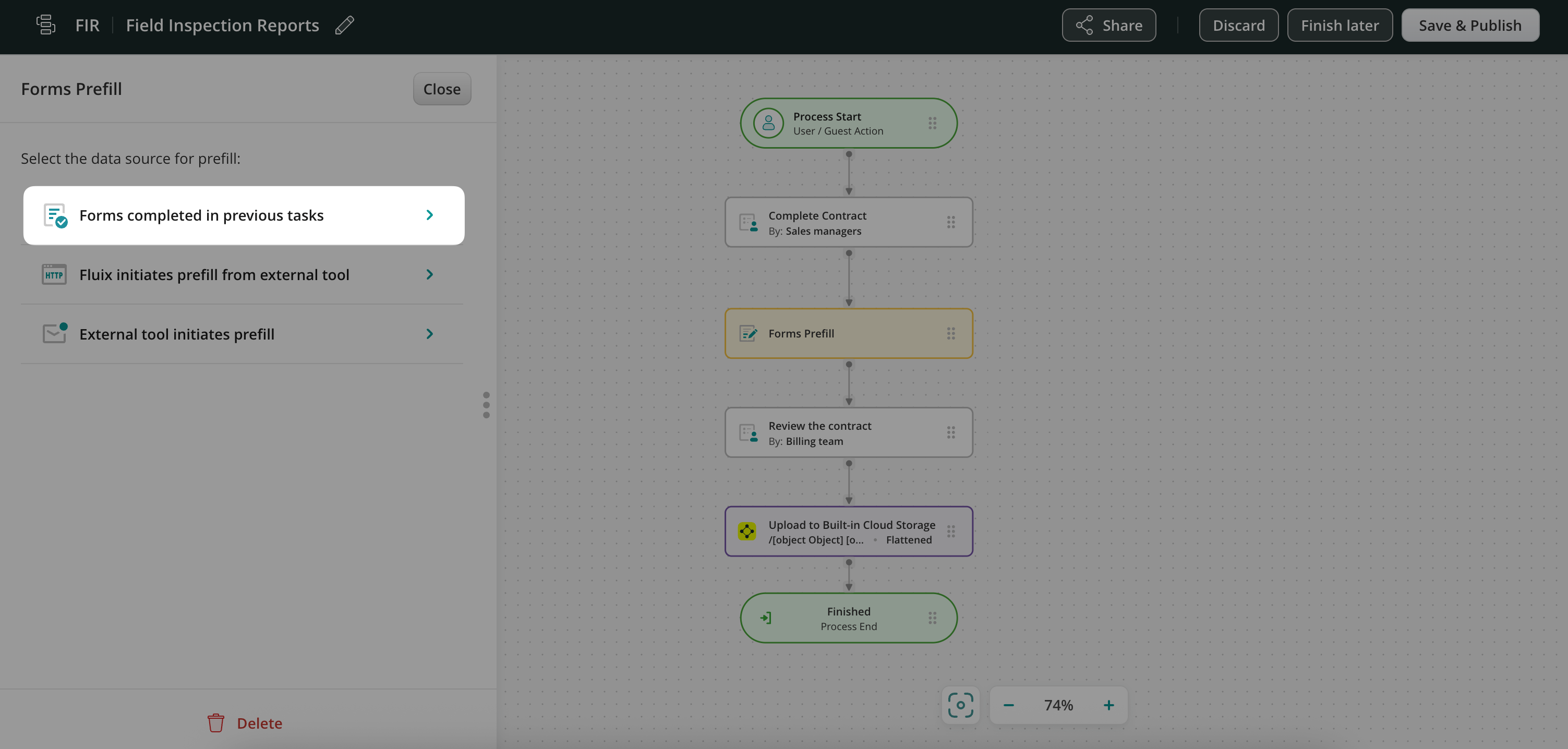
3. In the Templates to be Prefilled section, click Add Form and select the target form where the information will be transferred.
- Forms available for prefill will appear under the Forms Available as Data Source list.
Mapping fields between forms
1. Click the configuration symbol next to the form name.
2. Two documents will appear side by side, allowing you to map fields (e.g., map an email field in one form to the corresponding email field in the other).
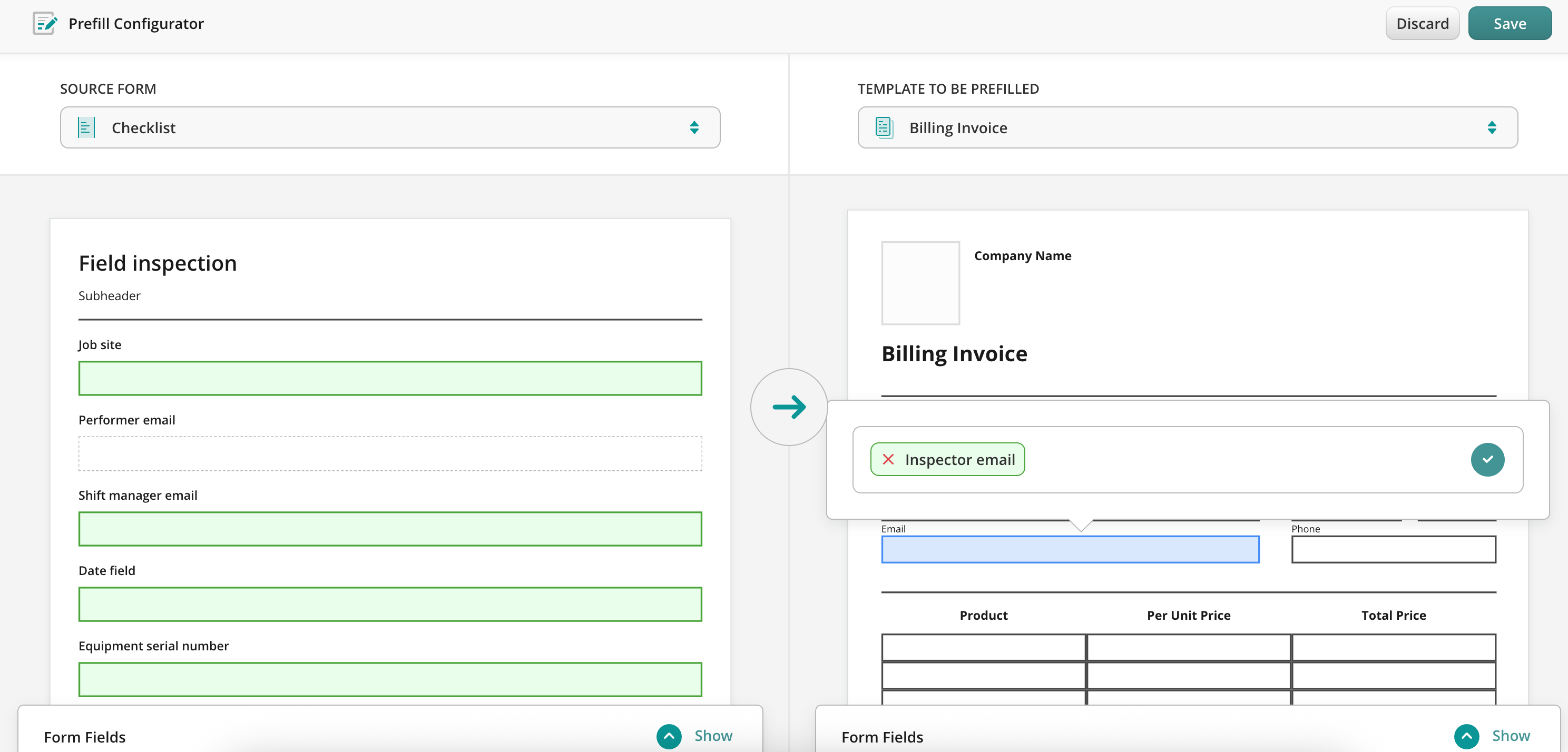
Once configured, the data will transfer seamlessly between forms when the flow participants fill them out.
In case you have any questions or difficulties with setup, contact our support at support@fluix.io, and we’ll be happy to help you.