


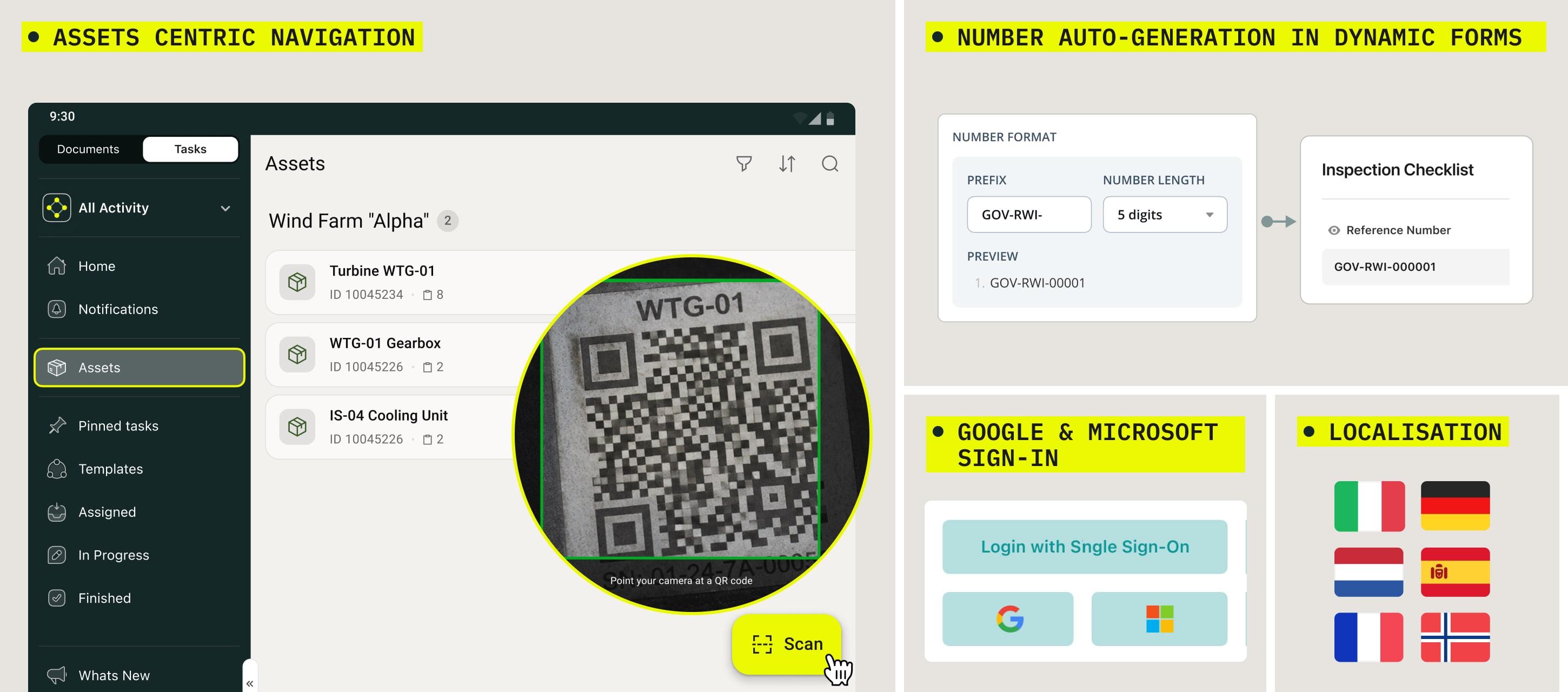
Asset-Centric Navigation in Fluix Tasks – Get straight to the asset that needs your attention
To learn more about how you can work with Assets on device, check this tutorial.
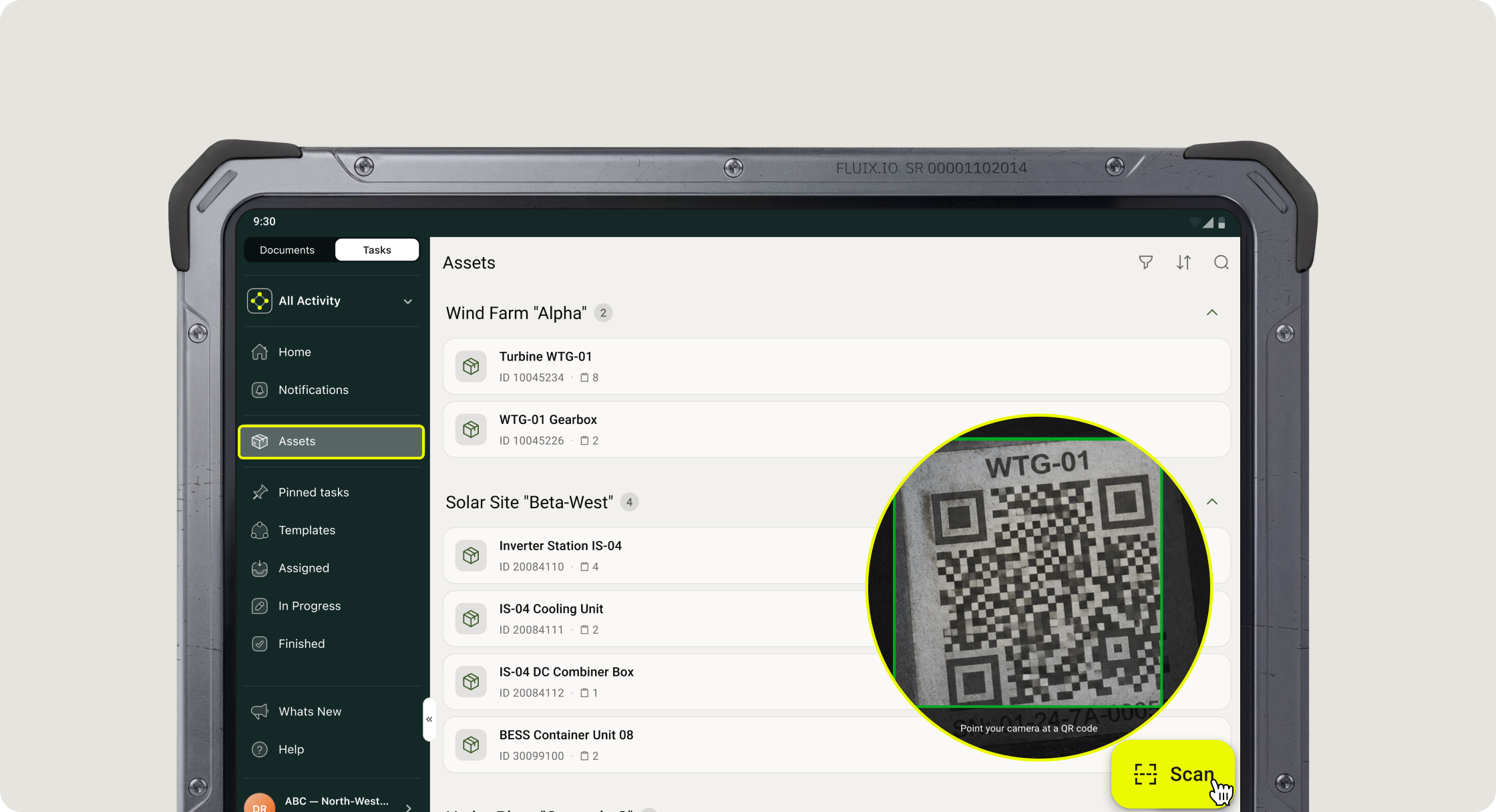
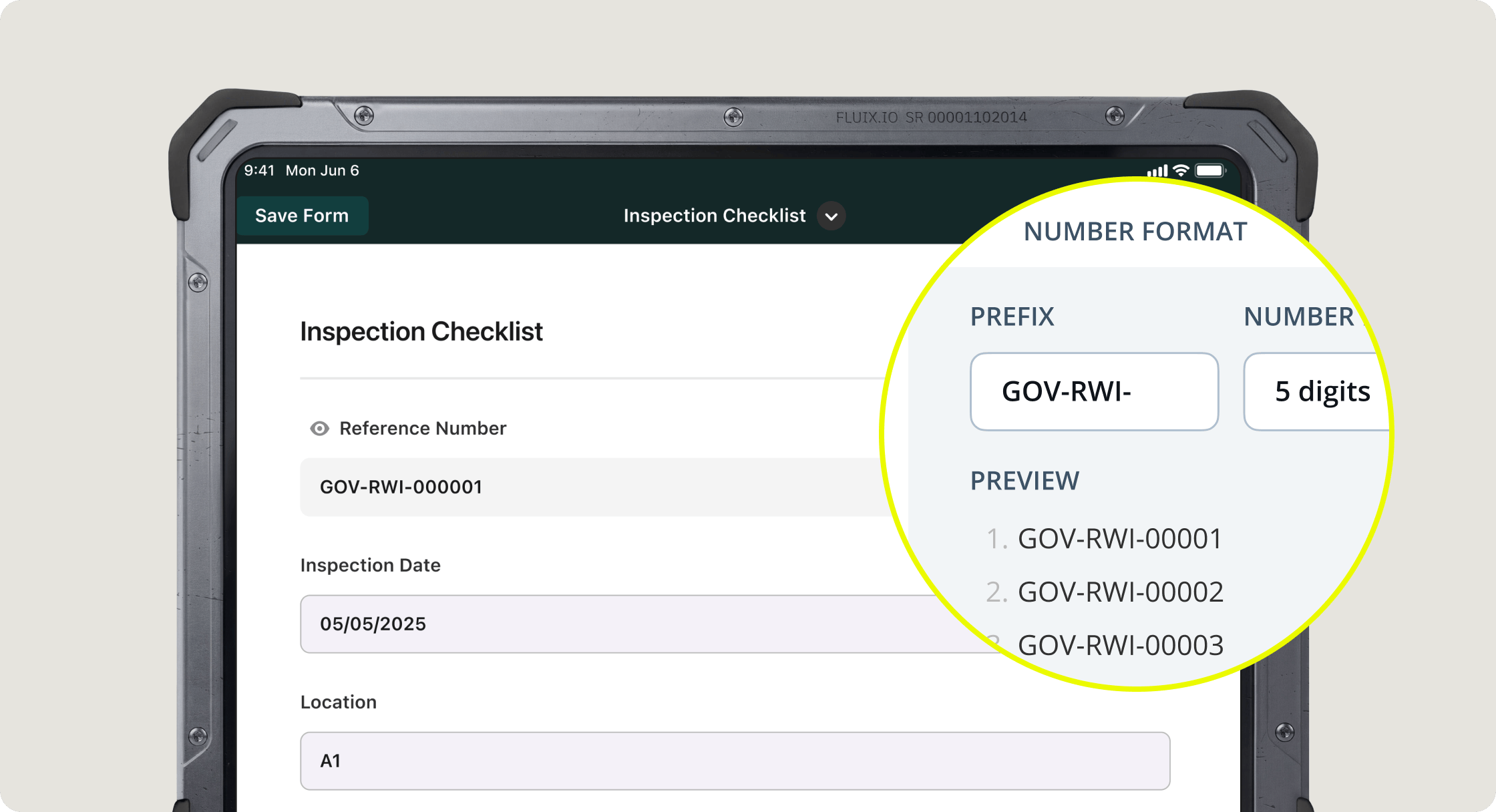
Form number auto-generation improvements
Your reference numbers can now follow the exact format your project needs: with custom prefixes or text, set per workflow. If the same form is used across several projects, each can now have its own unique numbering instead of everyone sharing a single sequence. The reference number is generated and automatically populated in a locked field the moment you open the form and start working on it. Your admin sets the format up once in Workflow Builder; after that, it just works for you in the field.
Learn more about Form number auto-generation per workflow in this tutorial.
Google & Microsoft Sign-In on Mobile – Sign in with the account you already use
One less password to remember! You can now sign in to Fluix Tasks with your Google or Microsoft work account. You can find both options right on the login screen alongside email and password.
Note: If you belong to more than one company, signing in with Google or Microsoft only shows the companies where that option is enabled; use email and password to see your full list.
Fluix Tasks in Your Language – Work in the language you know best
Fluix Tasks on Android is now available in Italian, Spanish, Norwegian, Dutch, French, and German. The app automatically follows your device’s language settings, so if your phone or tablet uses one of these languages, Fluix will too, with no setup needed. It’s now easier for teams across different countries to work together in the same app.
To change your app’s language manually, go to your device’s settings, find the Fluix Tasks app, and in the app settings, choose your preferred language.
If you need help getting started, please email us at support@fluix.io.