Product Updates

V. 4.11 - Work your way: test Fluix Docs on Android, plus share only the pages you need.

  • Fluix Docs
  • iOS App

Published: Nov 24, 2026

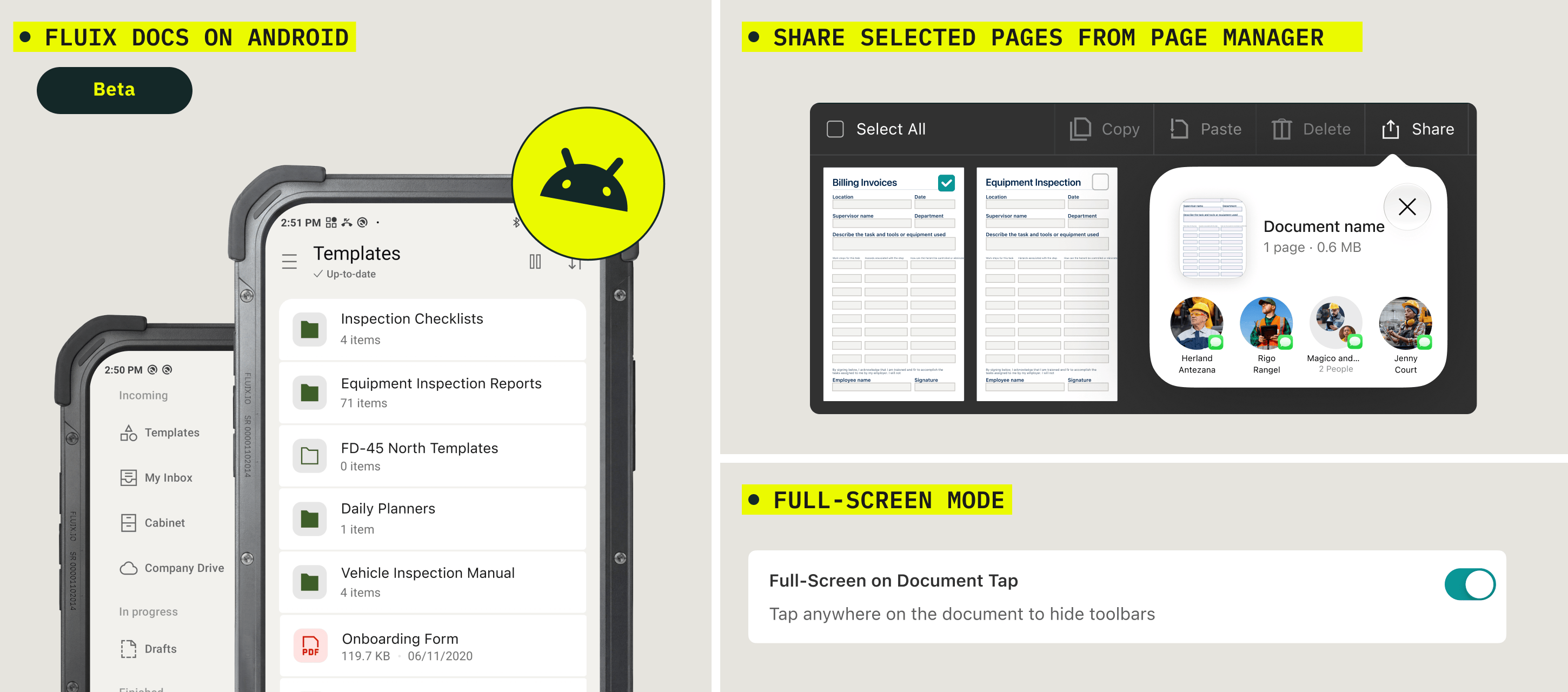
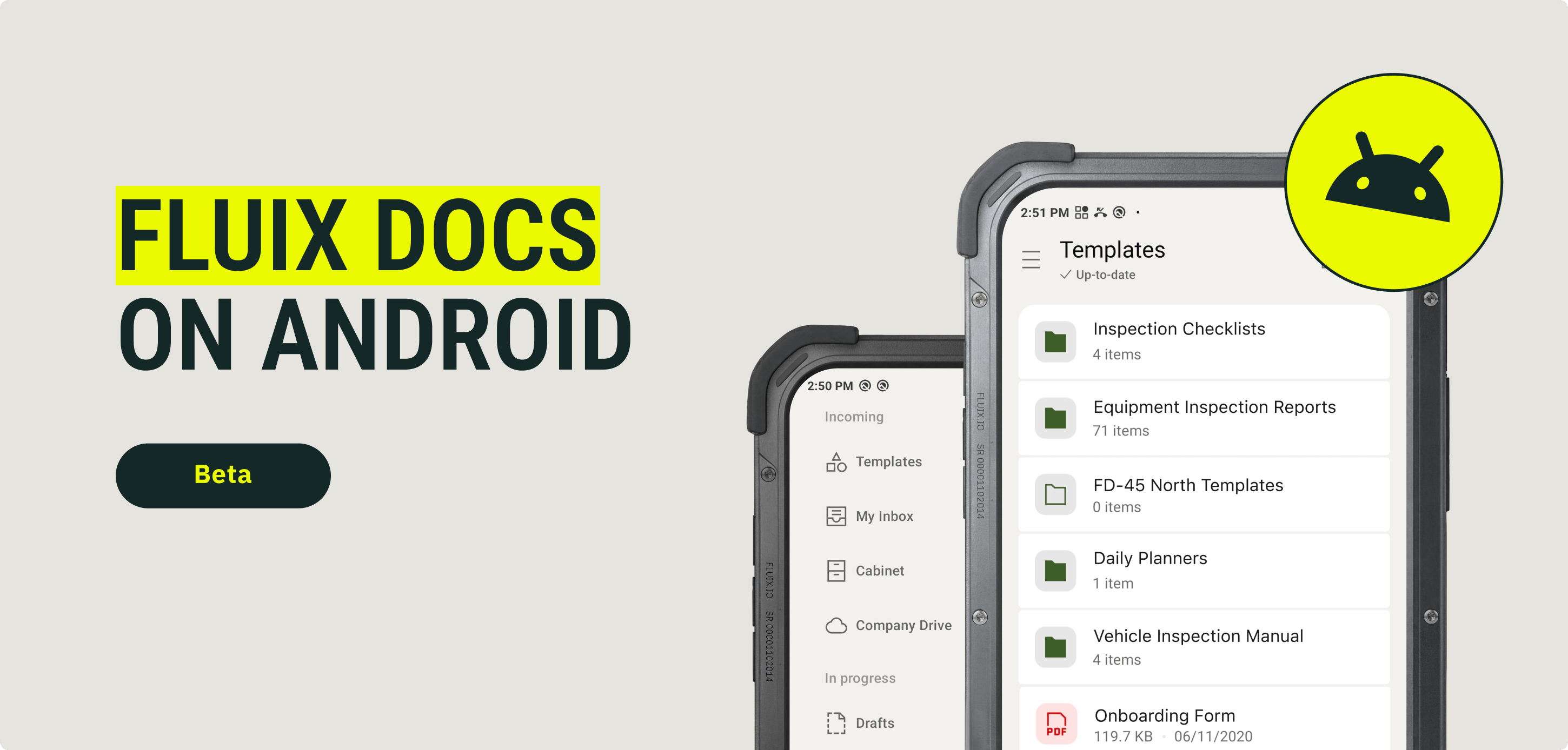
Fluix Docs is coming to Android, and you can try it first!

Fluix Docs for Android is now in beta, and we’re opening early testing to everyone. If you, your team, or your contractors work on Android phones or tablets, now’s your chance to get Fluix in your hands before the official release. Join the Android beta – email us at support@fluix.io, and we’ll get you set up.

Note: The beta covers the core essentials: form filling, e-signatures, and annotations, all with full offline support. Not every iOS feature is there yet, and that’s exactly where you come in. Your feedback will directly shape what we build next.
Share just the pages you need
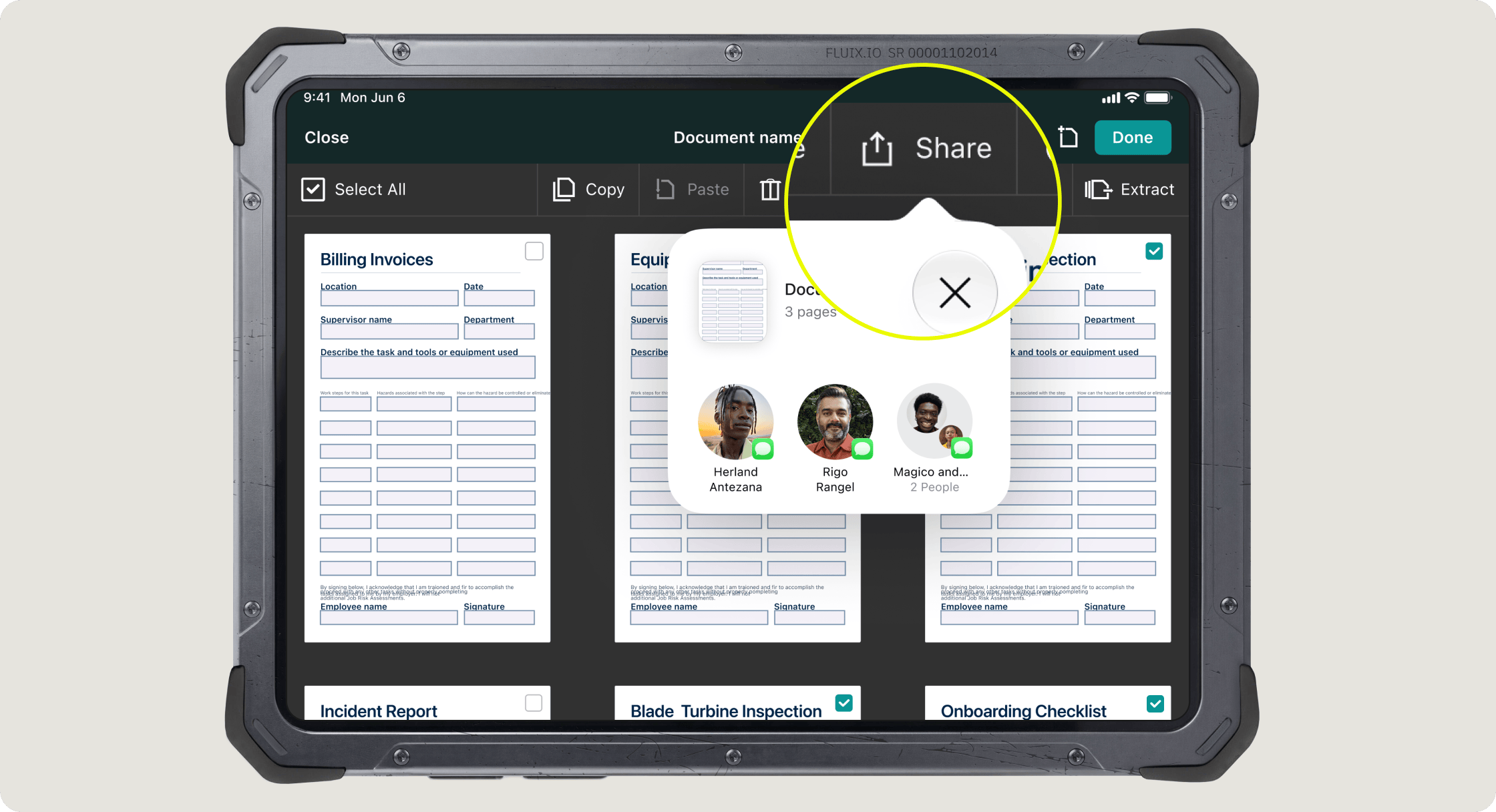
Until now, sharing documents to external platforms meant sending the whole document. With this release, you can select one or several pages in Page Manager and share only those.

Choose whether to share them as editable or flattened, then send them the way you usually do. It’s perfect when a colleague or client only needs one page of that report to stay in the loop.

Work in your language

Fluix Docs is now available in Brazilian Portuguese, Turkish, and Serbian (Latin script). The app automatically follows your device’s language settings, so if your phone or tablet uses one of these languages, Fluix will too, with no setup needed. It’s now easier for teams across different countries to work together in the same app. 🙂

To change your Fluix Docs app’s language manually, go to your device’s settings, find the Fluix Docs app, and in the app settings, choose your preferred language.

Keep your toolbar where you need it

If you often switch between open documents, tapping a page and accidentally hiding the toolbar and tabs can slow you down. You can now turn off full-screen mode in your Settings, so your controls always stay in view. It’s your choice: set up Fluix the way that works best for you.
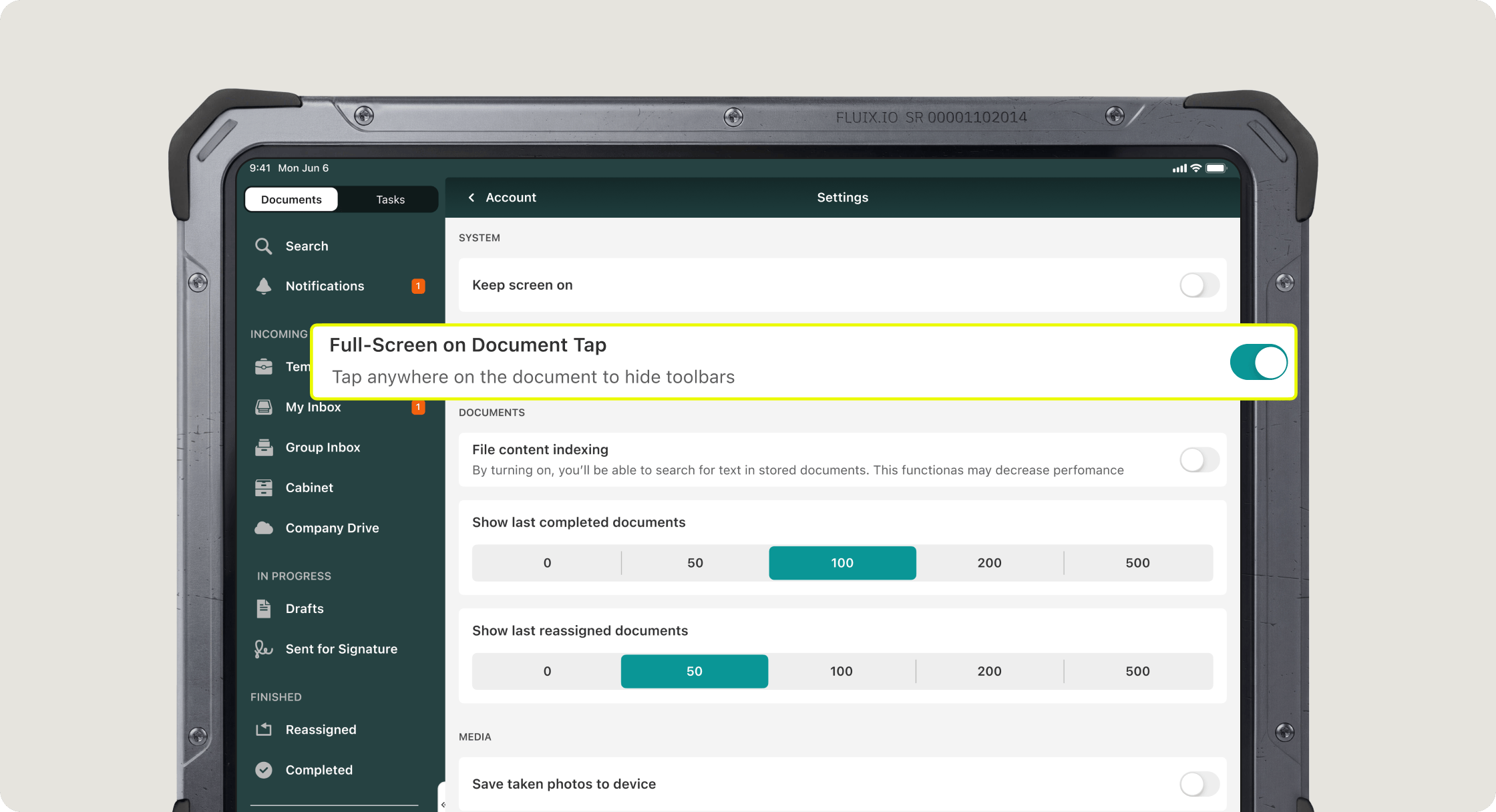
Check the how-to tutorial in our Help Center.

Ready for iOS 27, and more reliable all around

Fluix Docs now fully supports iOS 27. We’ve also fixed several issues to keep your work running smoothly, including app freezes, a crash when switching accounts, and time and file-naming glitches.

Feel free to contact us at support@fluix.io if you have any questions or comments.
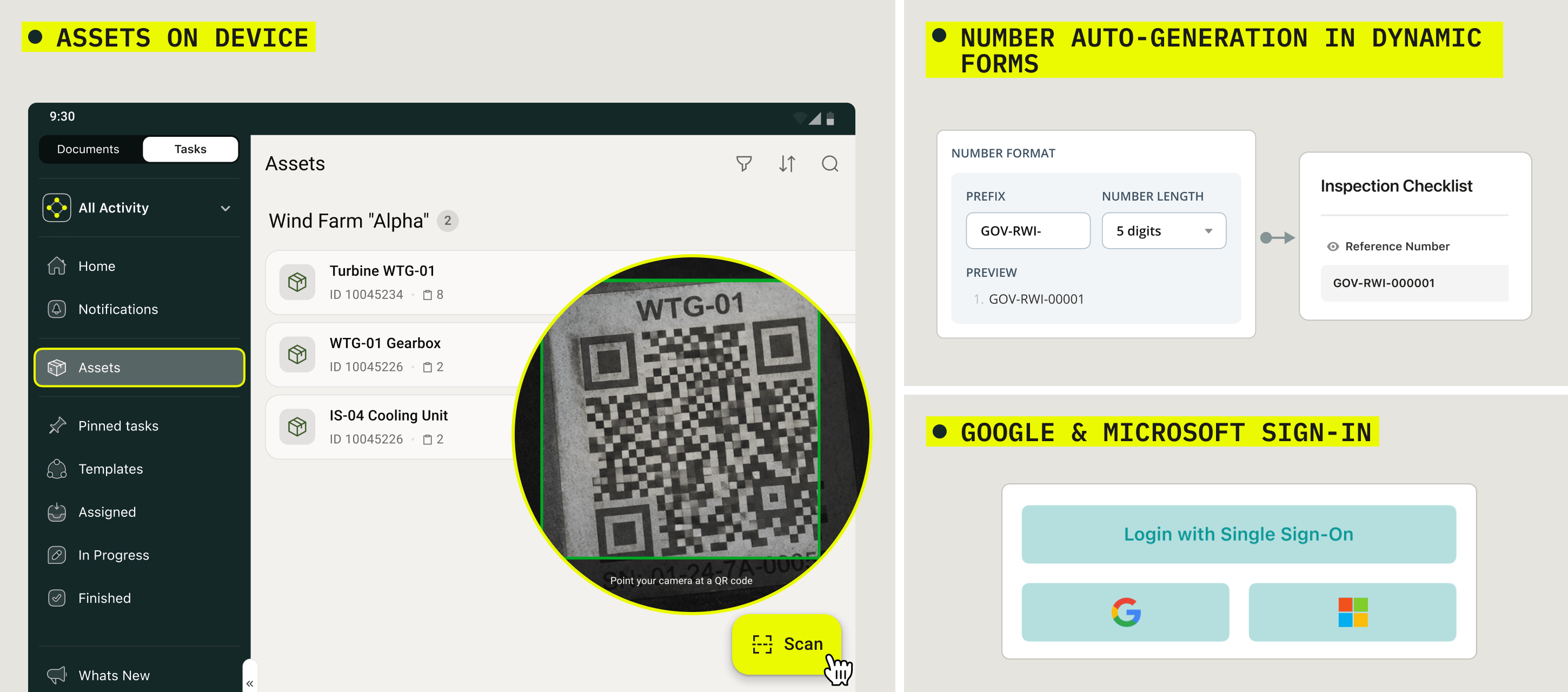

V. 2.10 - Find your assets faster, get consistent numbering, and sign in your way

  • Fluix Tasks

Published: Nov 4, 2026

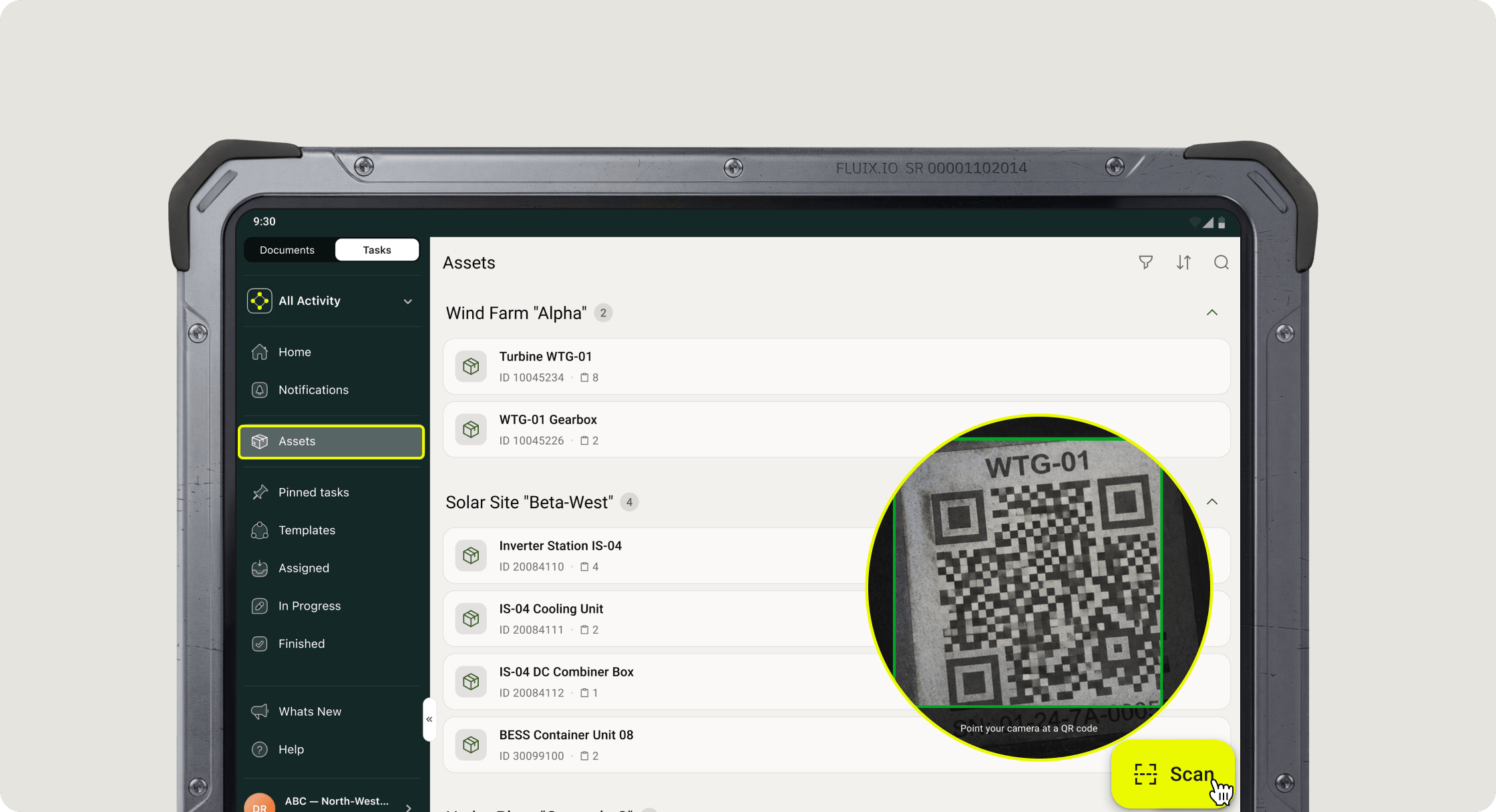
Asset-Centric Navigation in Fluix Tasks – Get straight to the asset that needs your attention

You can now start your work from your assets, not just your tasks. Tap Assets from the Start screen to see everything you’re responsible for, grouped by site, project, or status — or scan an asset’s QR code (or type its number in) to jump straight to its inspection, with the form pre-filled from the asset’s info. A status indicator on each asset shows at a glance whether its inspections are up to date, coming due, or overdue, so you know what to prioritize. It works with the same asset data your projects already use, so there’s nothing extra to set up before you start browsing.

To learn more about how you can work with Assets on device, check this tutorial.

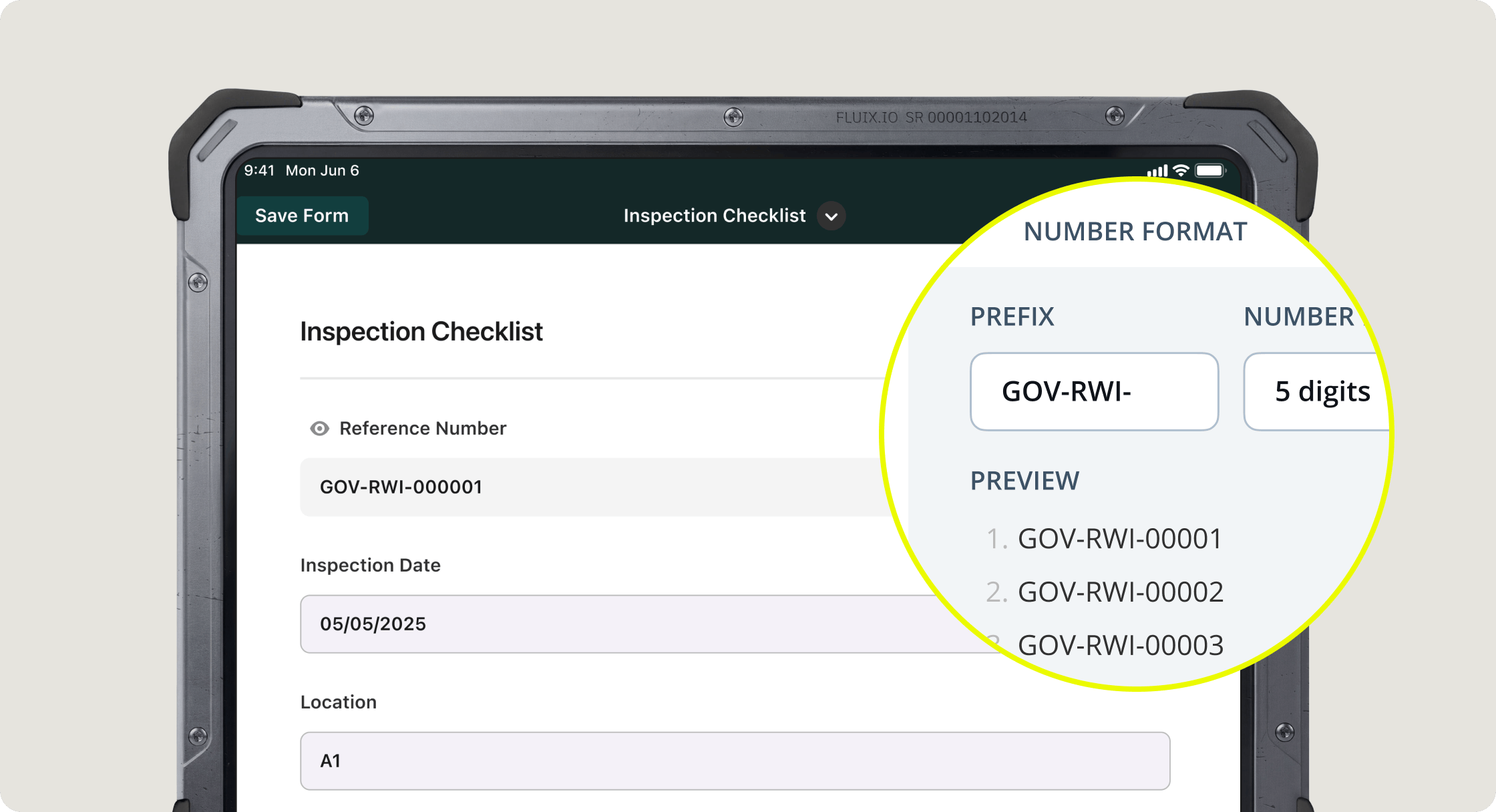
Form number auto-generation improvements

Your reference numbers can now follow the exact format your project needs — with custom prefixes or text, set per workflow. If the same form runs across several projects, each one can now get its own unique numbering instead of everyone sharing one sequence. The reference number is still generated and automatically filled in a locked field the moment you open and start working on the form. Your admin sets the format up once in Workflow Builder; after that, it just works for you in the field.

Learn more about Form number auto-generation per workflow in this tutorial.

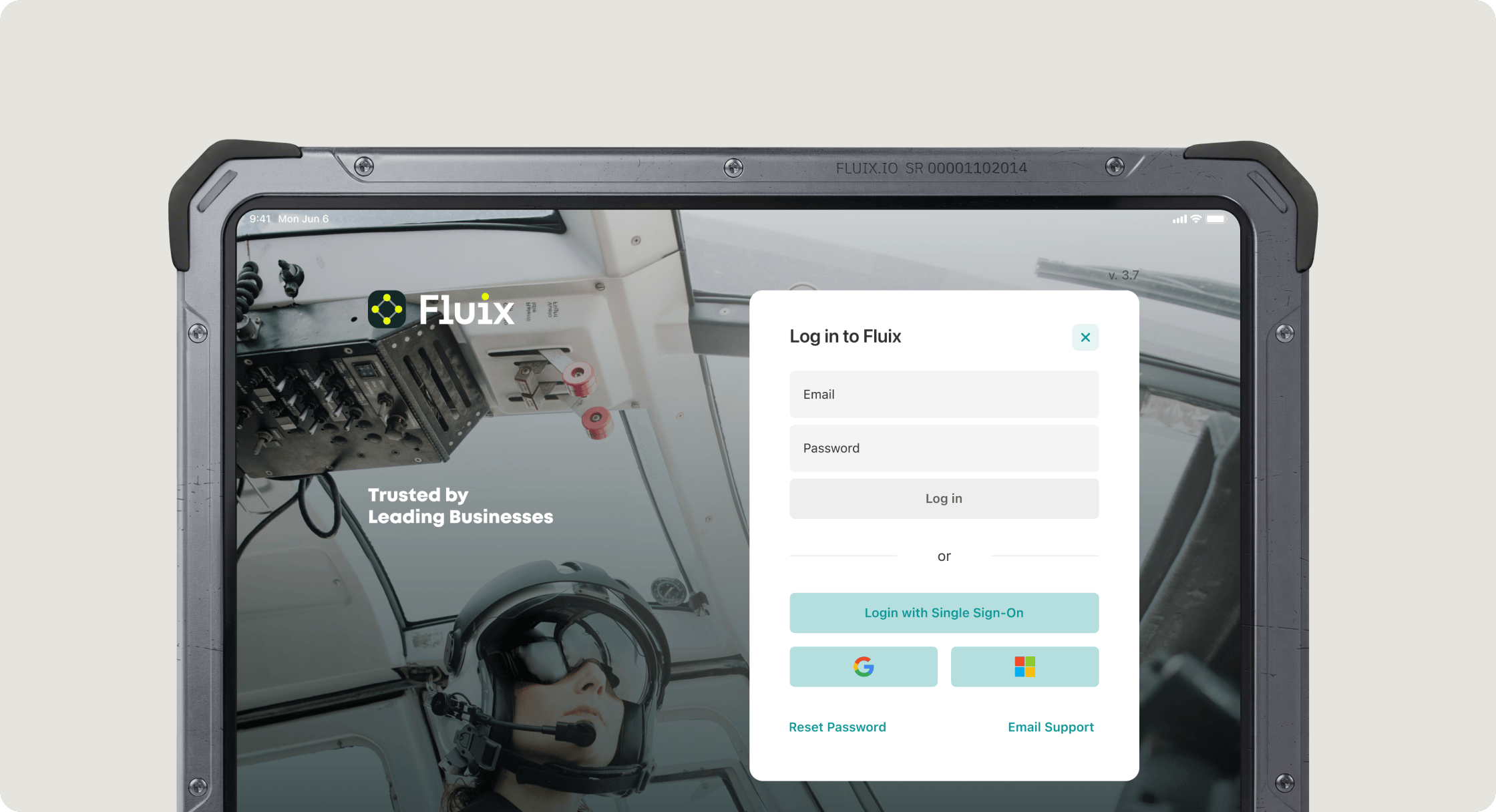
Google & Microsoft Sign-In on Mobile – Sign in with the account you already use

One less password to remember! You can now sign in to Fluix Tasks with your Google or Microsoft work account. You can find both options right on the login screen alongside email and password.

Note: If you belong to more than one company, signing in with Google or Microsoft only shows the companies where that option is enabled; use email and password to see your full list.

If you need help getting started, please email us at support@fluix.io.