


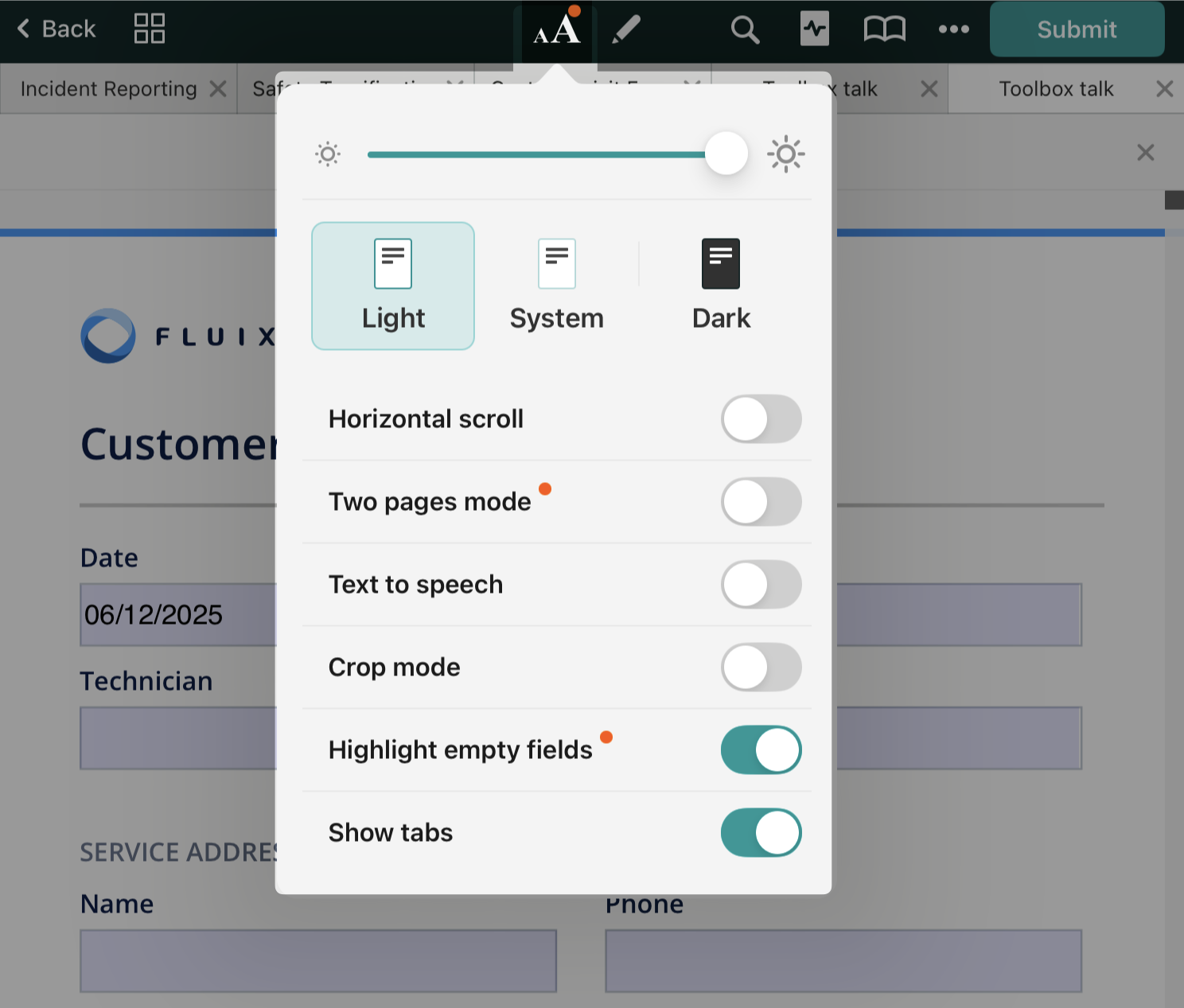
In the Fluix Docs app, when you open the PDF, you may see the ‘aA’ icon at the top. Tap on it to explore additional actions that you may configure to improve your daily work with PDFs. For example:
Zoom
To zoom in, bring your two fingers in a pinch gesture. To zoom in instantly, double-tap on the area of interest.
Control the brightness of the document display.
Moving the toggle towards the right will increase brightness, while moving it towards the left will decrease brightness.
Color themes
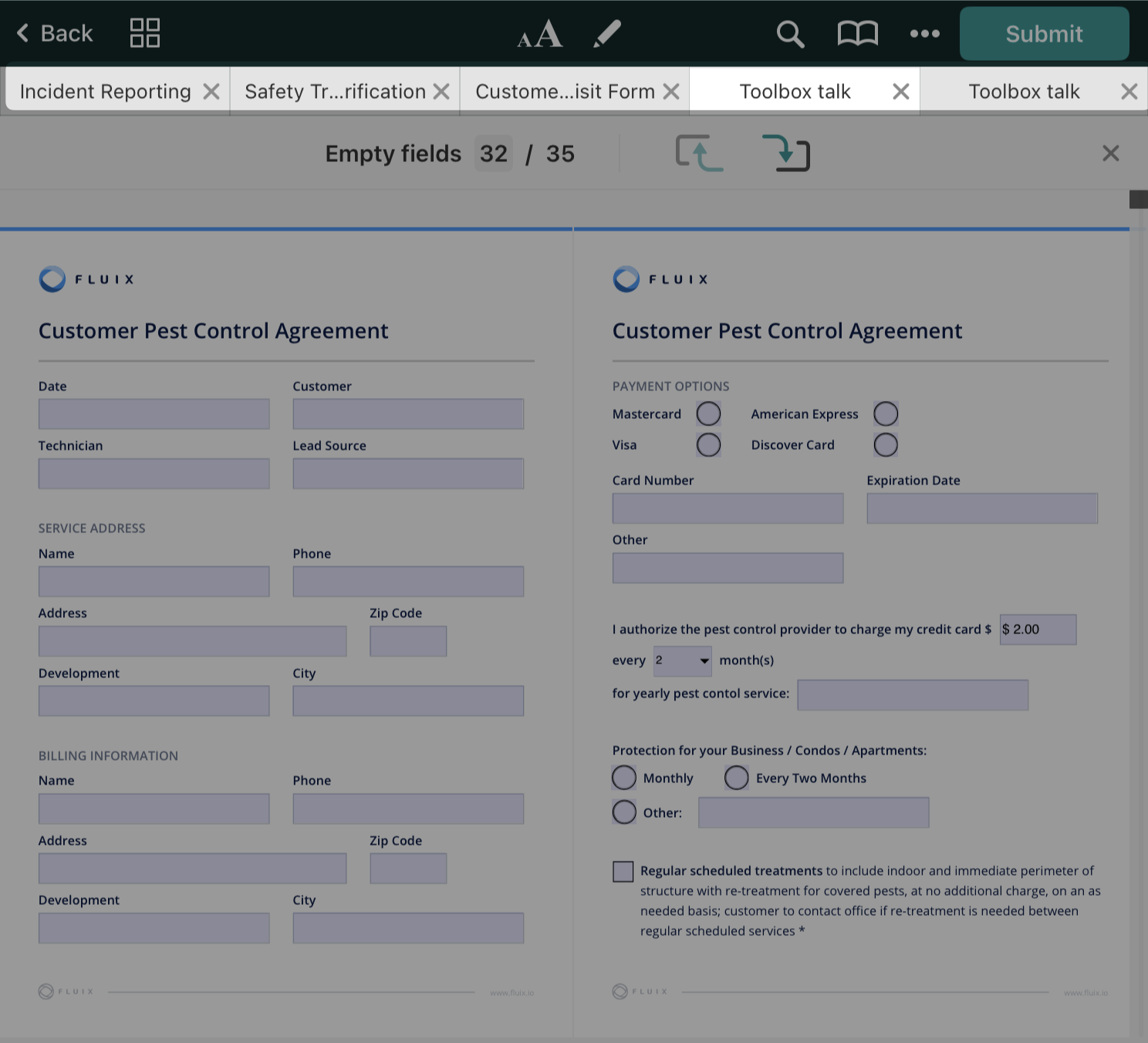
These themes improve your reading experience at different times of the day. You may select from three available modes:
- Dark
- Light
- System – will adjust the appearance based on your device settings.
Select a scrolling mode.
Enabling a horizontal scroll allows you to scroll through documents like a book, while disabling it allows vertical scrolls that provide a traditional scrolling experience.
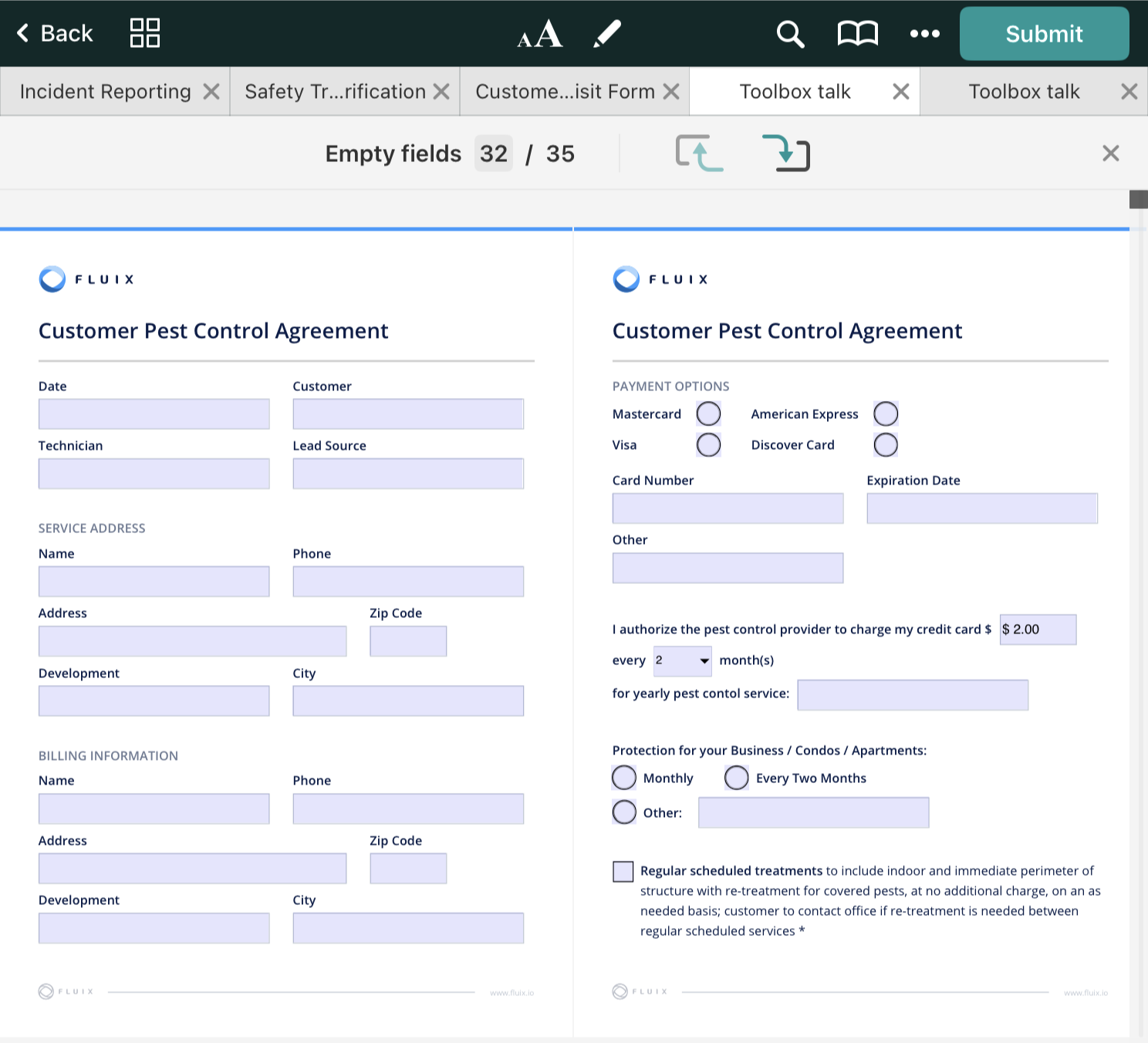
Two pages mode.
In this mode, the Fluix app splits your document into pages and allows you to see more document pages in one go.
Text to speech.
Enable this option to get a voiceover of the data in your form.
Crop mode
Tap on the AA icon to enable or disable ‘Crop mode.’ Fluix will automatically analyze a document and hide the margins by enabling crop mode.
Highlight empty fields
This function highlights the fields that remained empty and shows the number of empty fields. You may use the arrows to switch between the fields.
Show Tabs
Enable this mode to see the other documents you previously opened and switch between them easily.
Navigate a document using outlines.
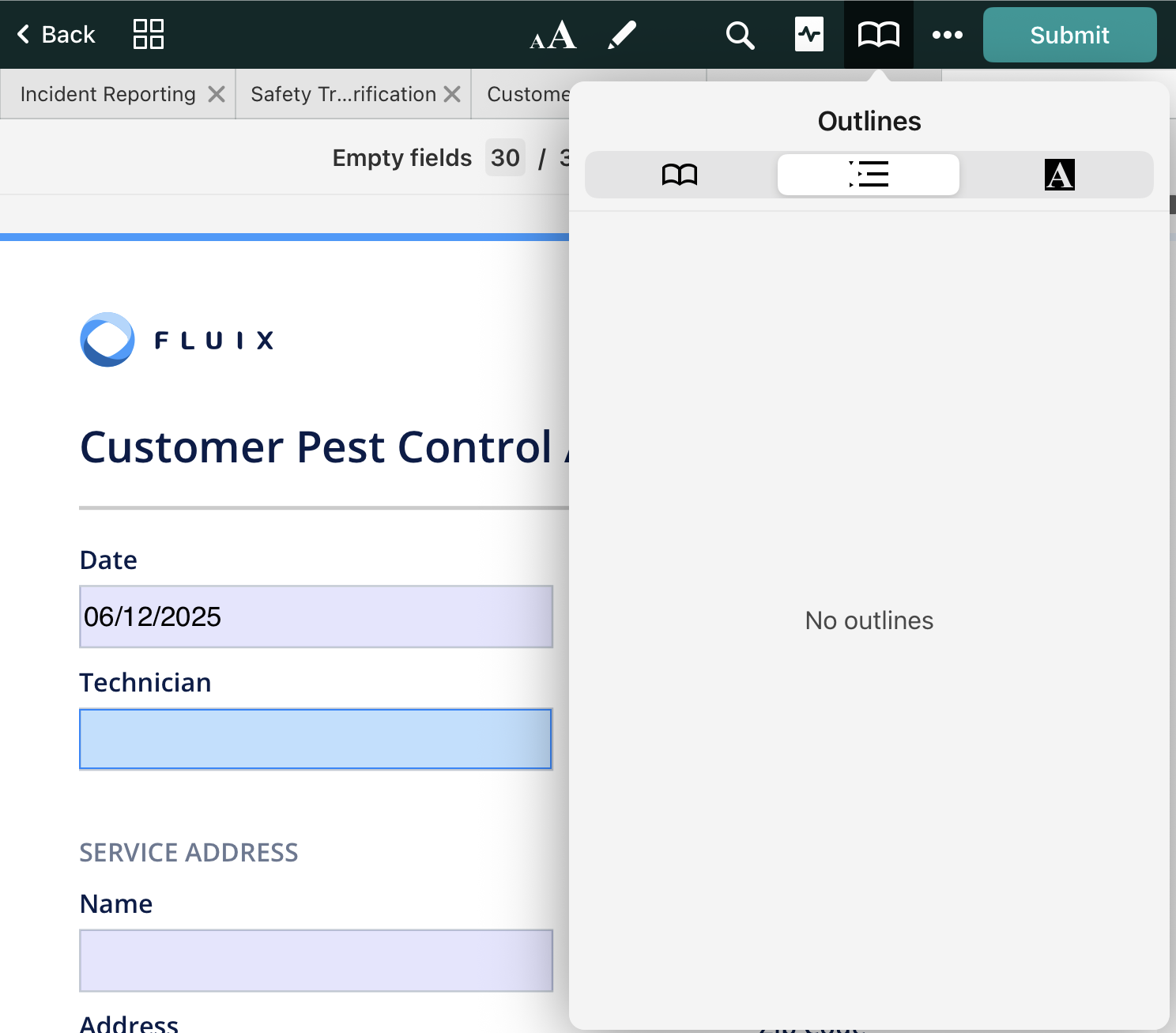
Tap on the ‘Bookmark’ icon and select ‘Outlines.’ Then select the chapter you are interested in, and tap the arrow to expand it.
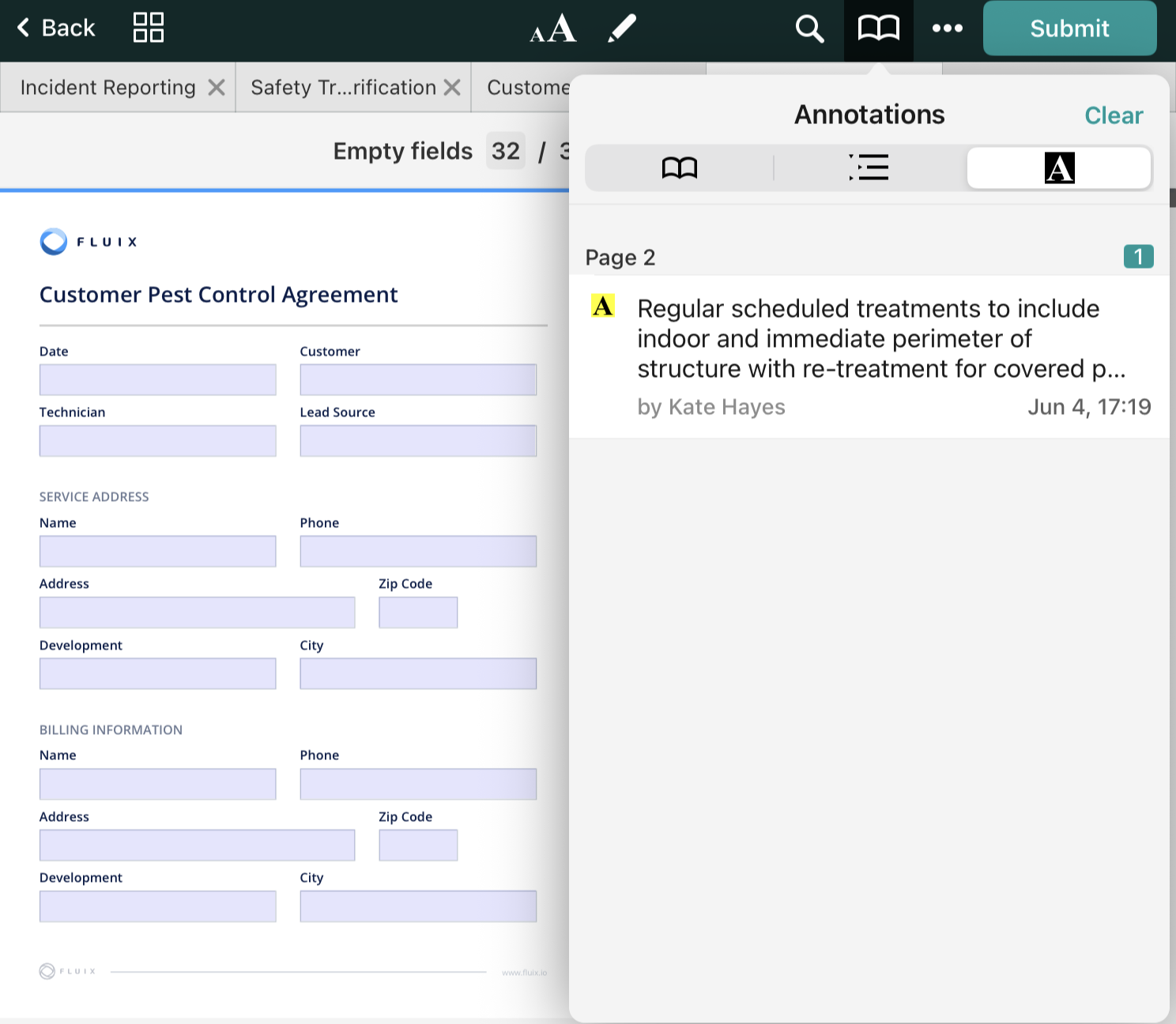
Review annotations
To review annotations, click on the ‘Annotations’ to see a list of all annotations in a PDF.
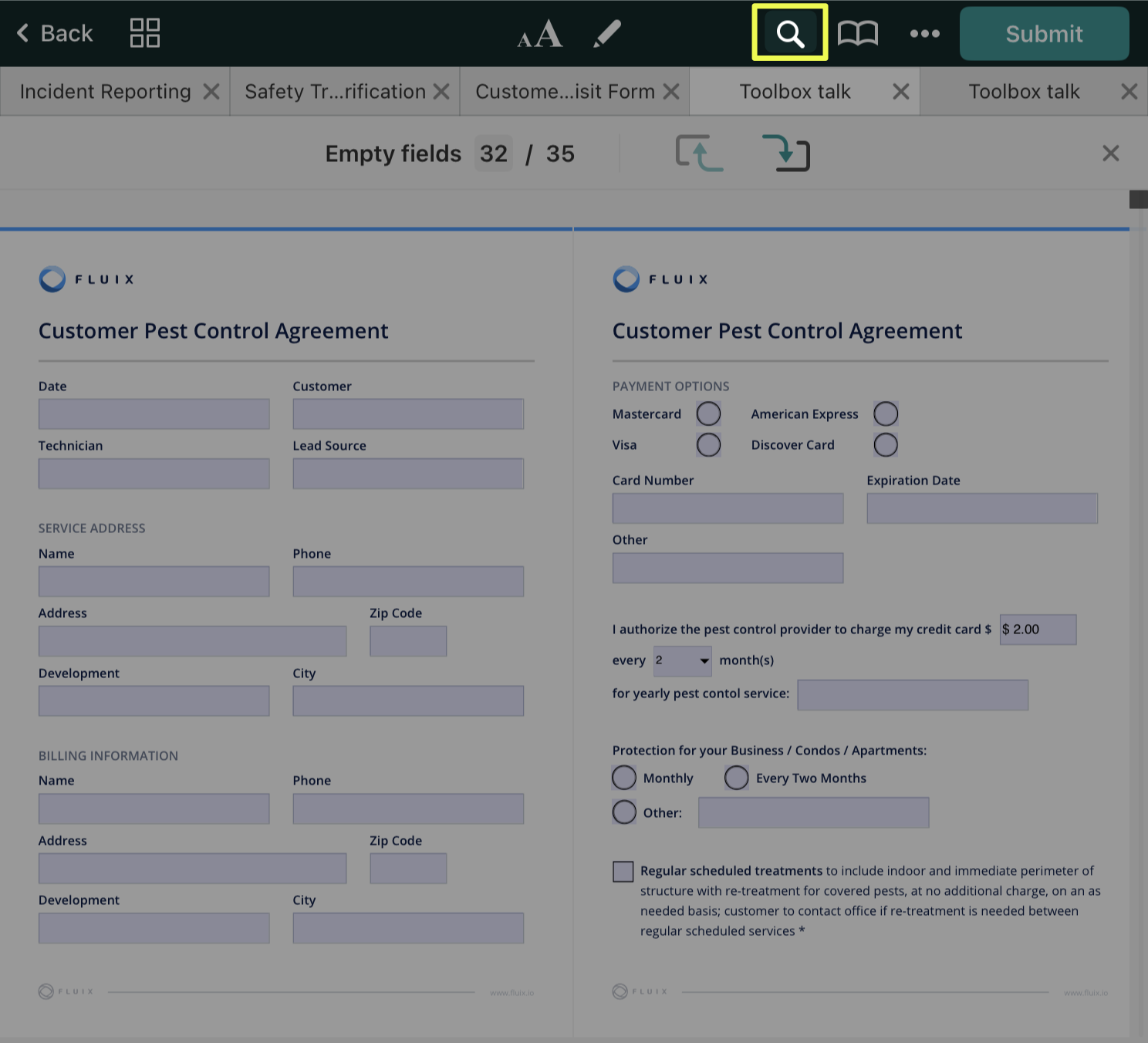
Search in a document
Click on the search icon and type the word or phrase you would like to find in the form. You will then see a list of results, starting from the current page. Tap on any item from the list to be redirected to the page listing its location. Tap on the page number to see all the search results on a particular page.
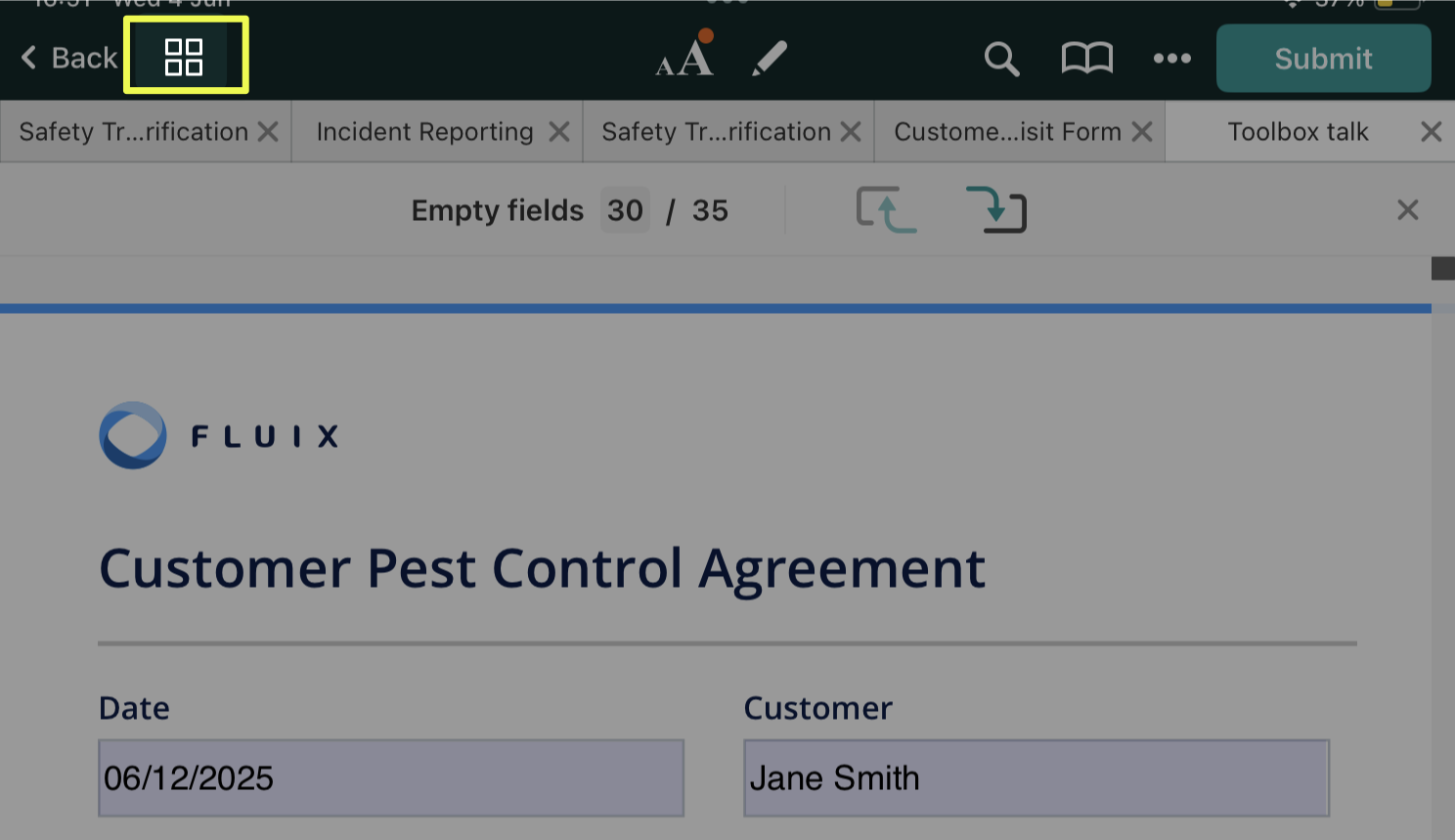
Navigate to a specific page in a document
Tap on the icon with four squares to select a page you would like to open.
Feel free to contact us at support@fluix.io if you have any questions or comments.