


The Pinned section in the Fluix Tasks app suggests quick access to tasks that you frequently work on or want to keep readily available. Whether these are templates, assigned tasks, or completed ones you’d like to reference, pinning helps streamline your workflow.
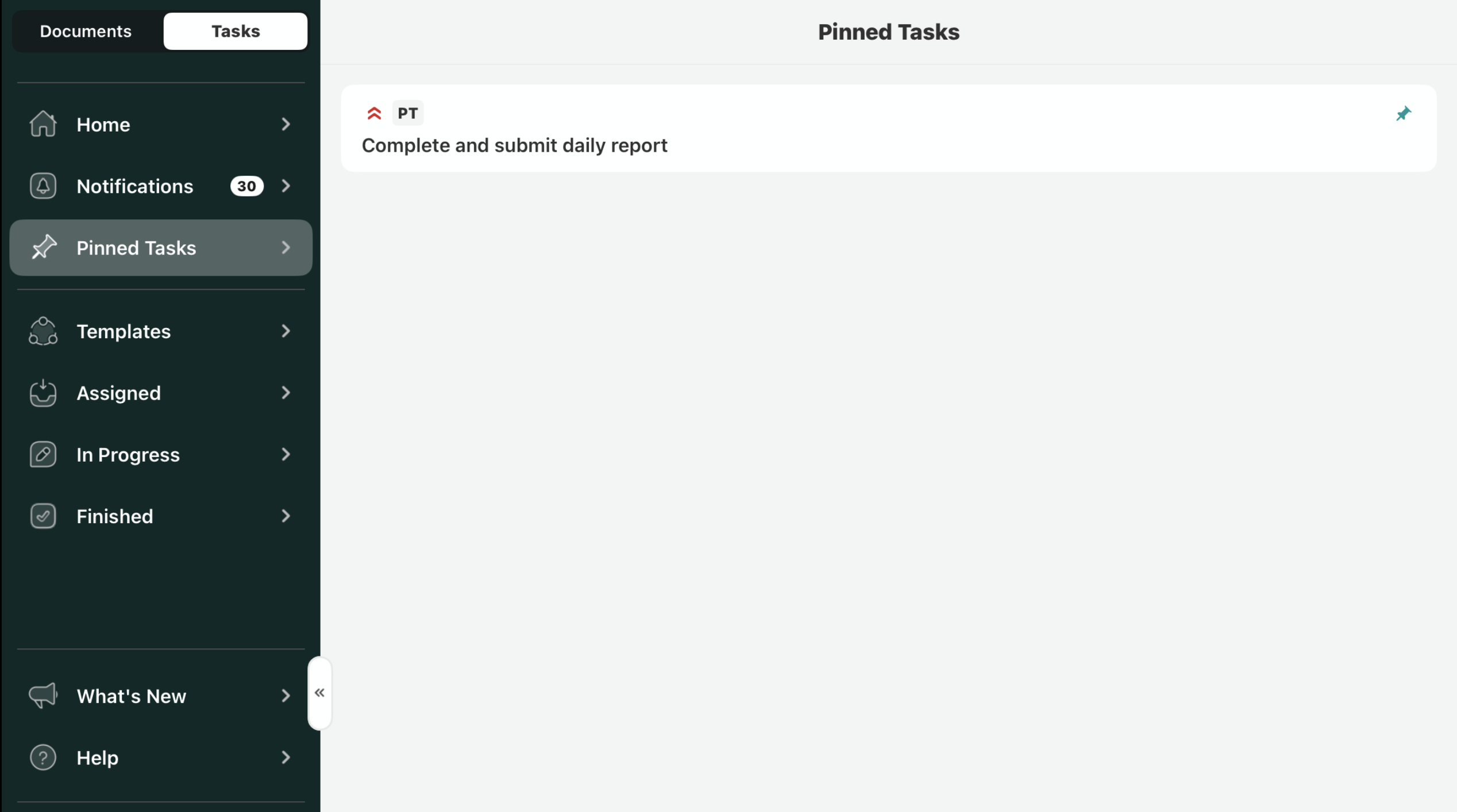
Pinning a Task
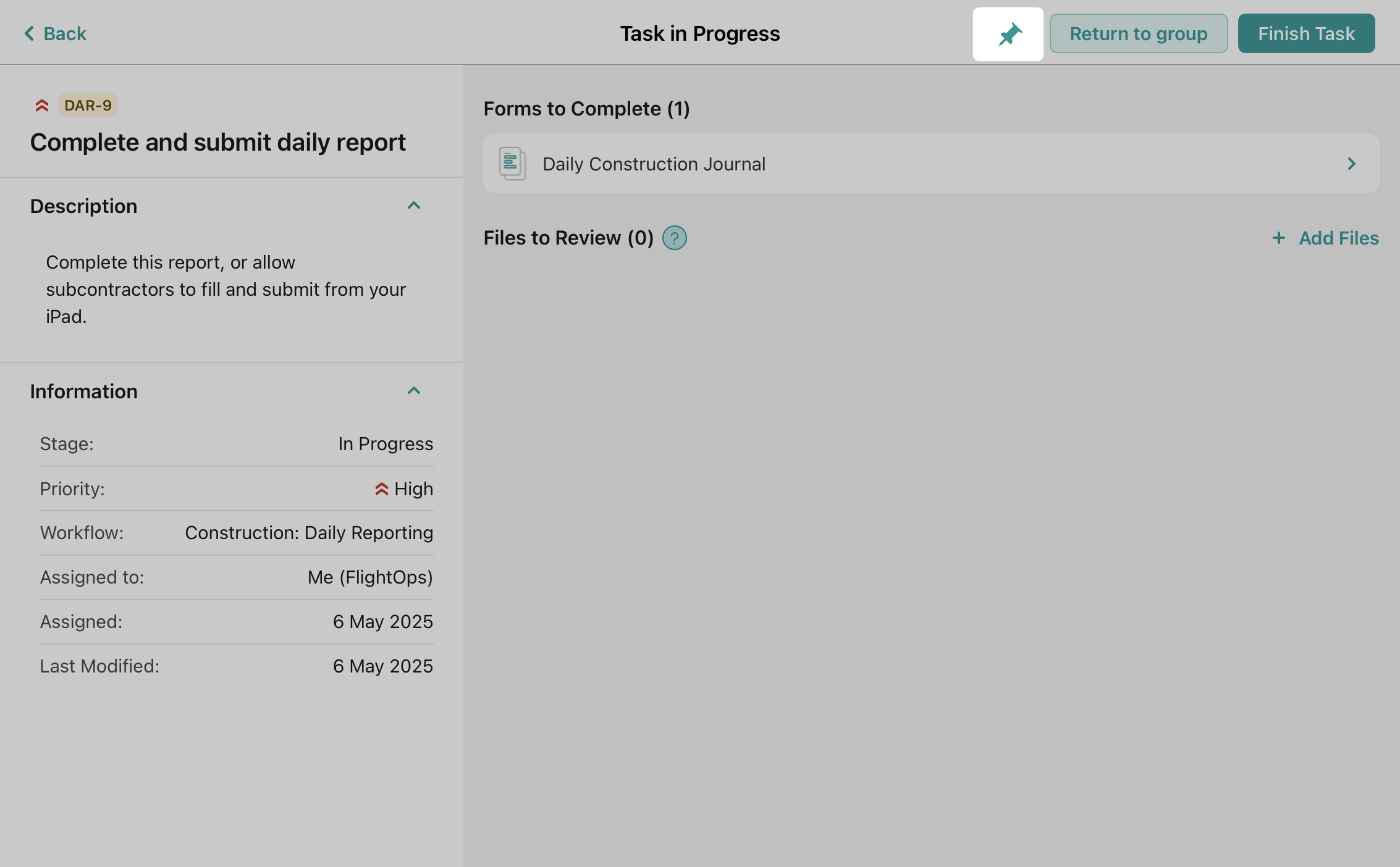
To pin a task:
- Open the task you want to pin.
- Tap the Pin action, as shown below.
Working with Pinned Tasks
You can start working on pinned tasks if they are in any of the following states:
- Templates
- Assigned
- In Progress
If you edit a document from a pinned task, the task will automatically move to the In Progress section to reflect the changes.
Can’t find what you’re looking for? Feel free to contact us at support@fluix.io if you have any questions or comments.