


App Sidebar Shortcuts enable field teams to quickly switch between the Fluix Docs app and other work-related apps installed on the same device. This provides fast access to essential tools used in daily operations without disrupting workflows.
Shortcuts are created and managed by an admin in the Admin Portal and appear automatically on users’ devices.
Note: App Shortcuts in the sidebar are available starting from the Fluix Docs 4.8 app version.
How it works
- Admin creates app shortcuts in the Admin Portal.
- Shortcuts appear in a dedicated Shortcuts section in the Fluix Docs app sidebar.
- Users can open another app or webpage with a single tap.
How to Configure Shortcuts in the Admin Portal
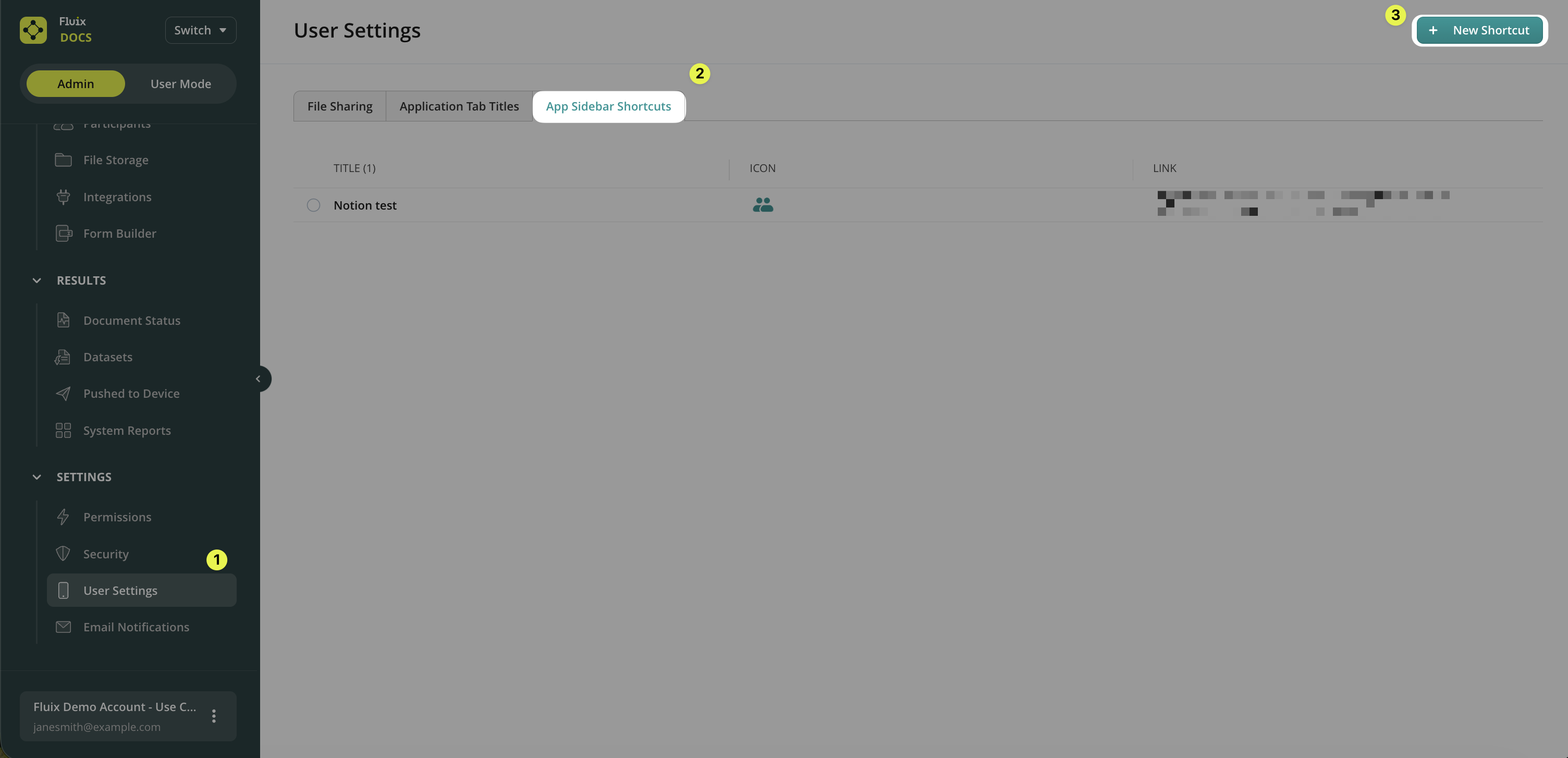
- In the Admin Portal, navigate to User Settings.
- Open the App Sidebar Shortcuts tab.
- Click Add Shortcut.
- In the modal window, fill in all required fields.
Shortcut settings
- Link requirements
Fluix supports one of the following formats:- Universal Link: Enter a full URL that opens an app or webpage.
- Example:
https://example.com - Custom Link: Enter the app scheme for an installed application.
- Example:
myapp://
- Icon requirements
A default icon is pre-selected. However, you can:- Choose from preset icons, or
- Upload a custom square image in JPEG or PNG format.
- Maximum size: 1 MB
How to Manage Shortcuts in the Admin Portal
You can see all shortcuts appear in a table in the App Sidebar Shortcuts tab. You can perform the following action with the shortcuts.
- Edit – update shortcut details
What will the Fluix Docs Users’ experience be?
Where to find shortcuts
Admin-created shortcuts are displayed in a separate Shortcuts section within the app sidebar. If no shortcuts were created by an admin, this section is not shown.
Open a shortcut
- Tap a shortcut to open the linked app or webpage.
If the end user is unable to open the link, please contact the Fluix account manager or Fluix Support at support@fluix.io.
Notes and limitations
- Custom links work only if the linked app is installed on the device.
- All shortcuts are managed centrally by the admin.
- Device users cannot add or edit shortcuts.
Feel free to contact us at support@fluix.io if you have any questions or comments.