


Sometimes, there are cases when you need to duplicate pages in the document you are working on to include some additional data. In this article we are going to show how it can be accomplished in the Fluix app on mobile device.
1. Open the document.
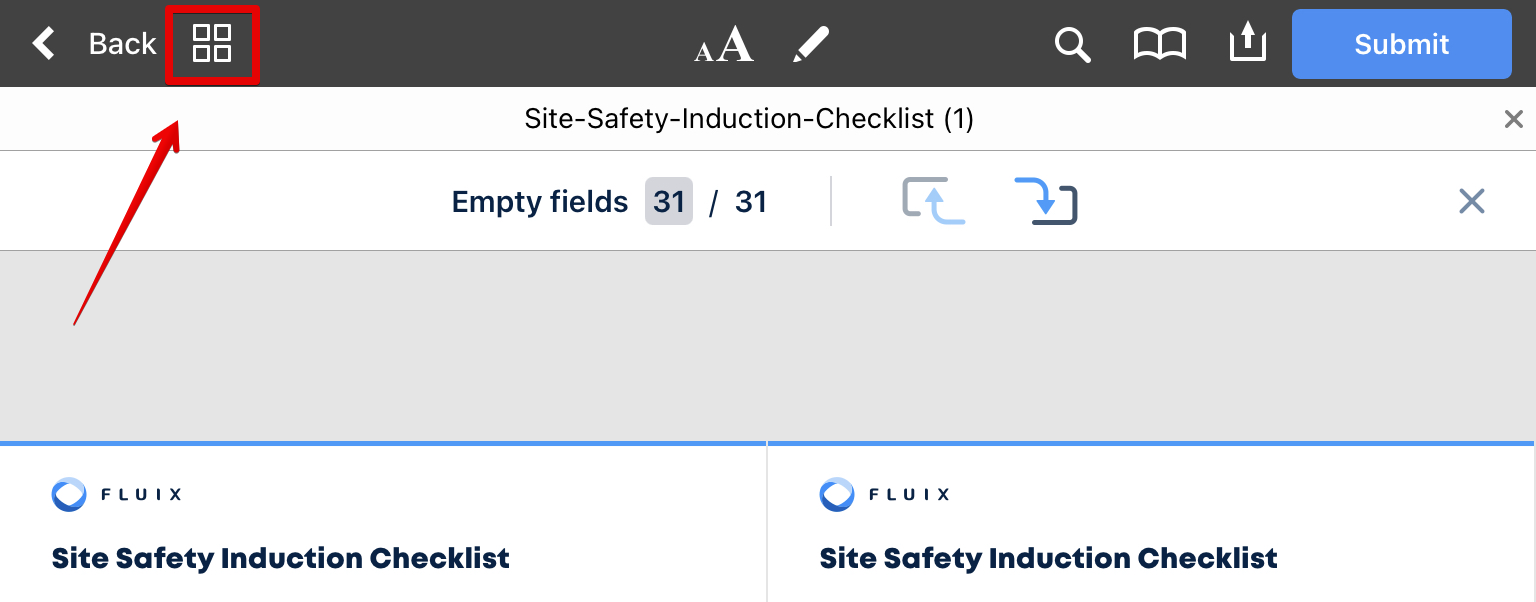
2. Tap on the thumbnail view.
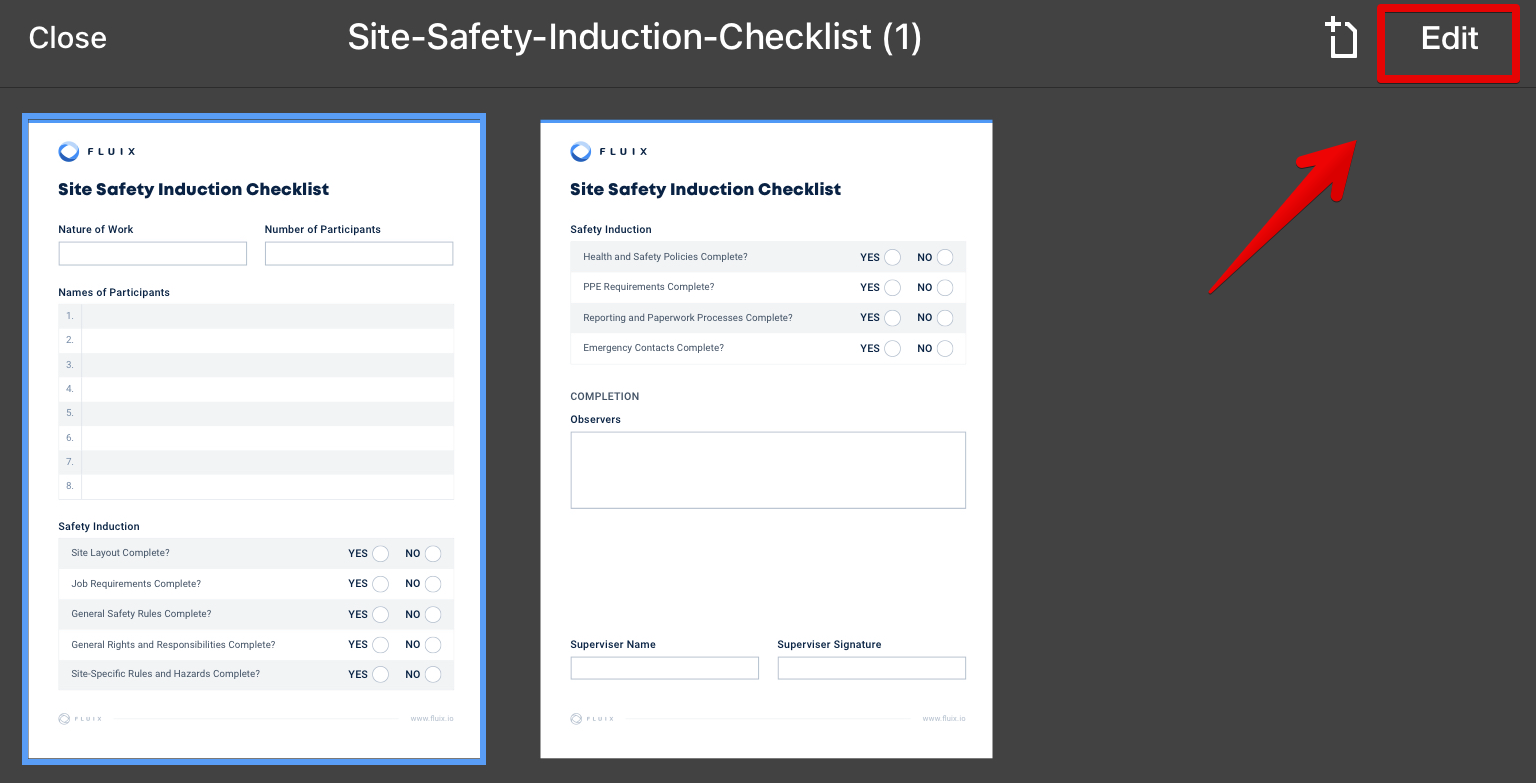
3. Tap Edit in the upper right corner
4. Check the boxes to select the pages you want to copy.
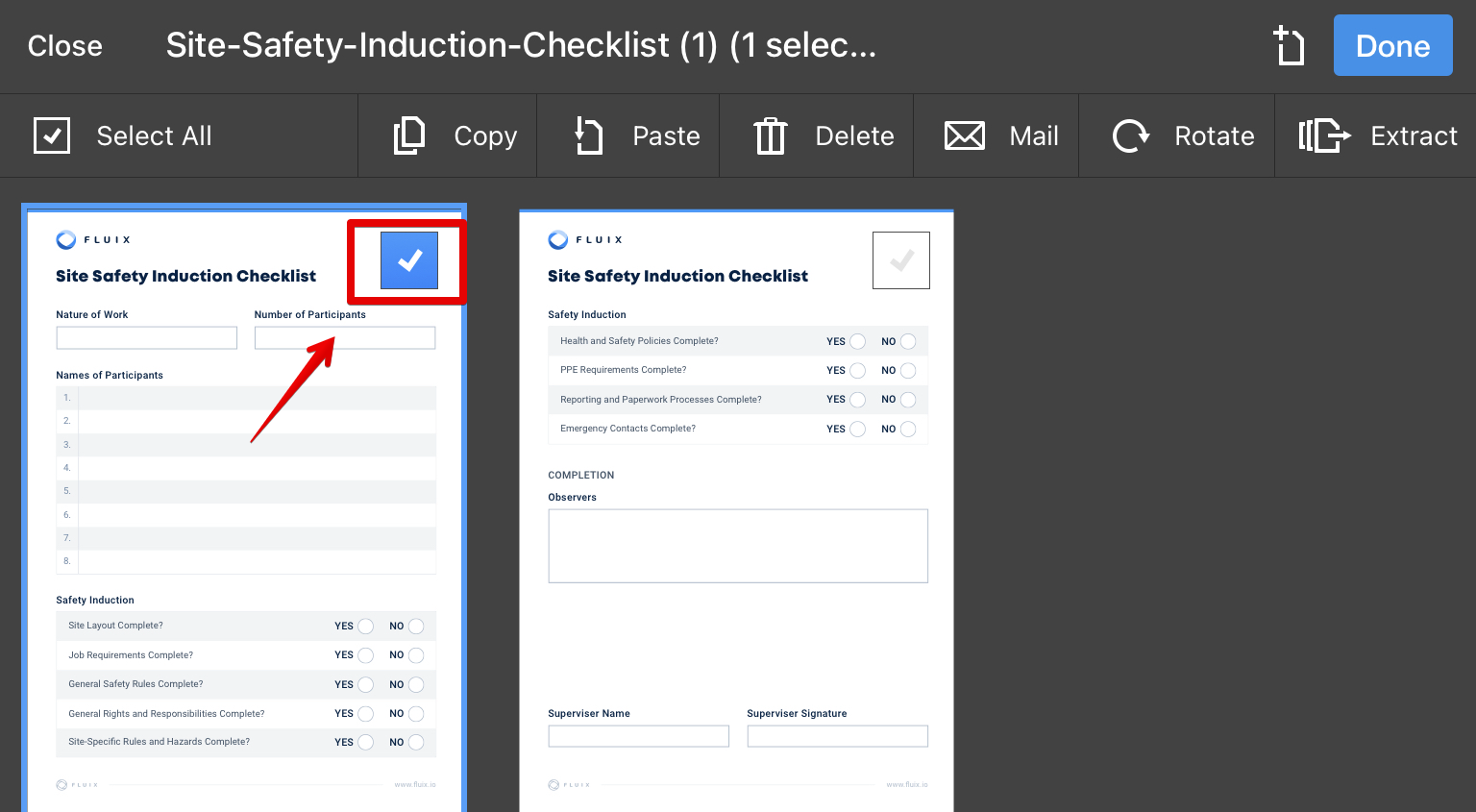
5. Tap Copy.
6. Tap Paste
7. A new page will appear. Tap on it to insert the copied pages, or if needed – drag the new page first to the right place in a document.
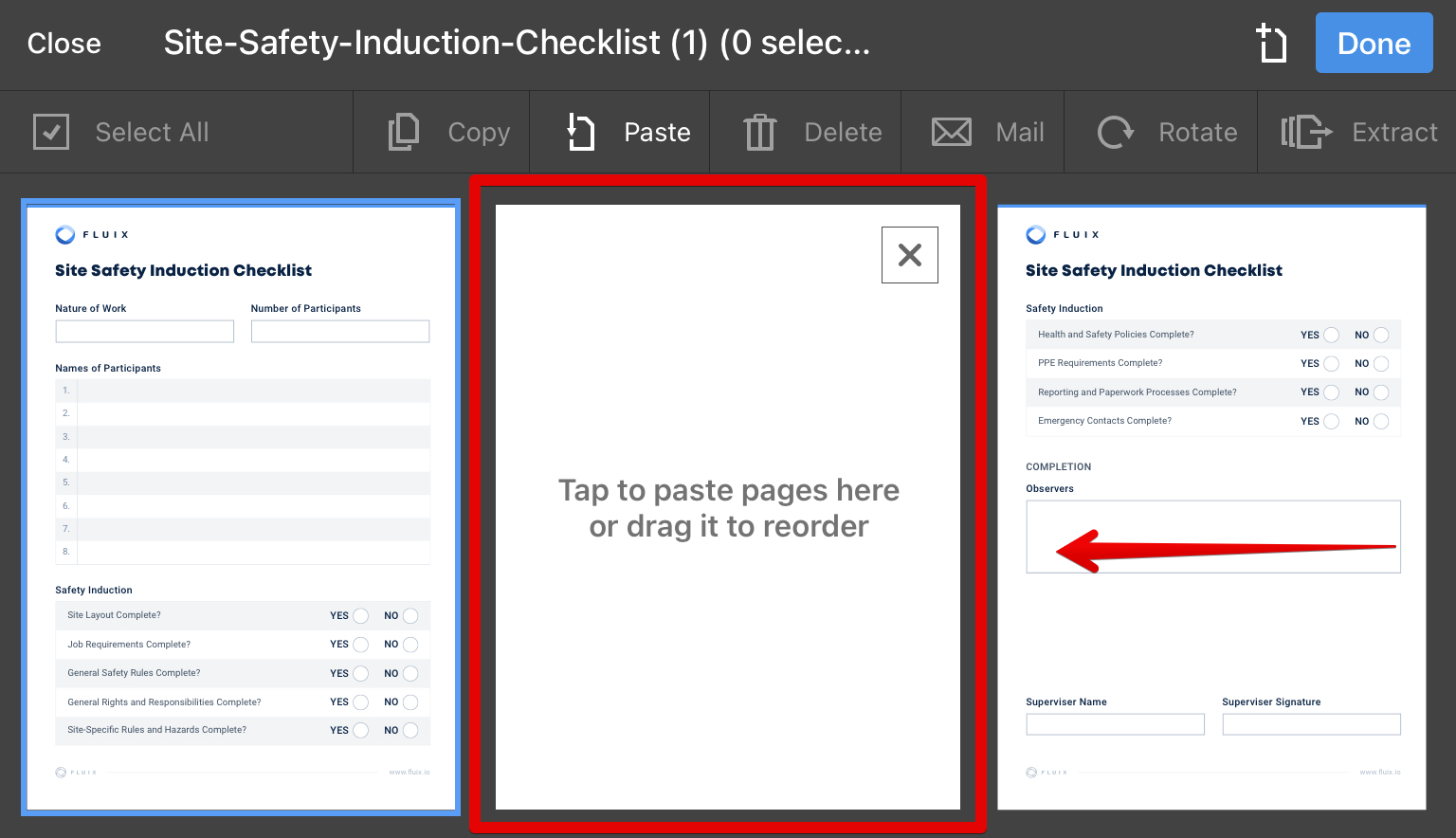
8. Now you should be seeing the added page. In case you require to add more pages, repeat the process starting from the 4th step. Once everything is copied, tap Done.