


Fluix File Storage can be connected as a network drive for Windows-based workstations.
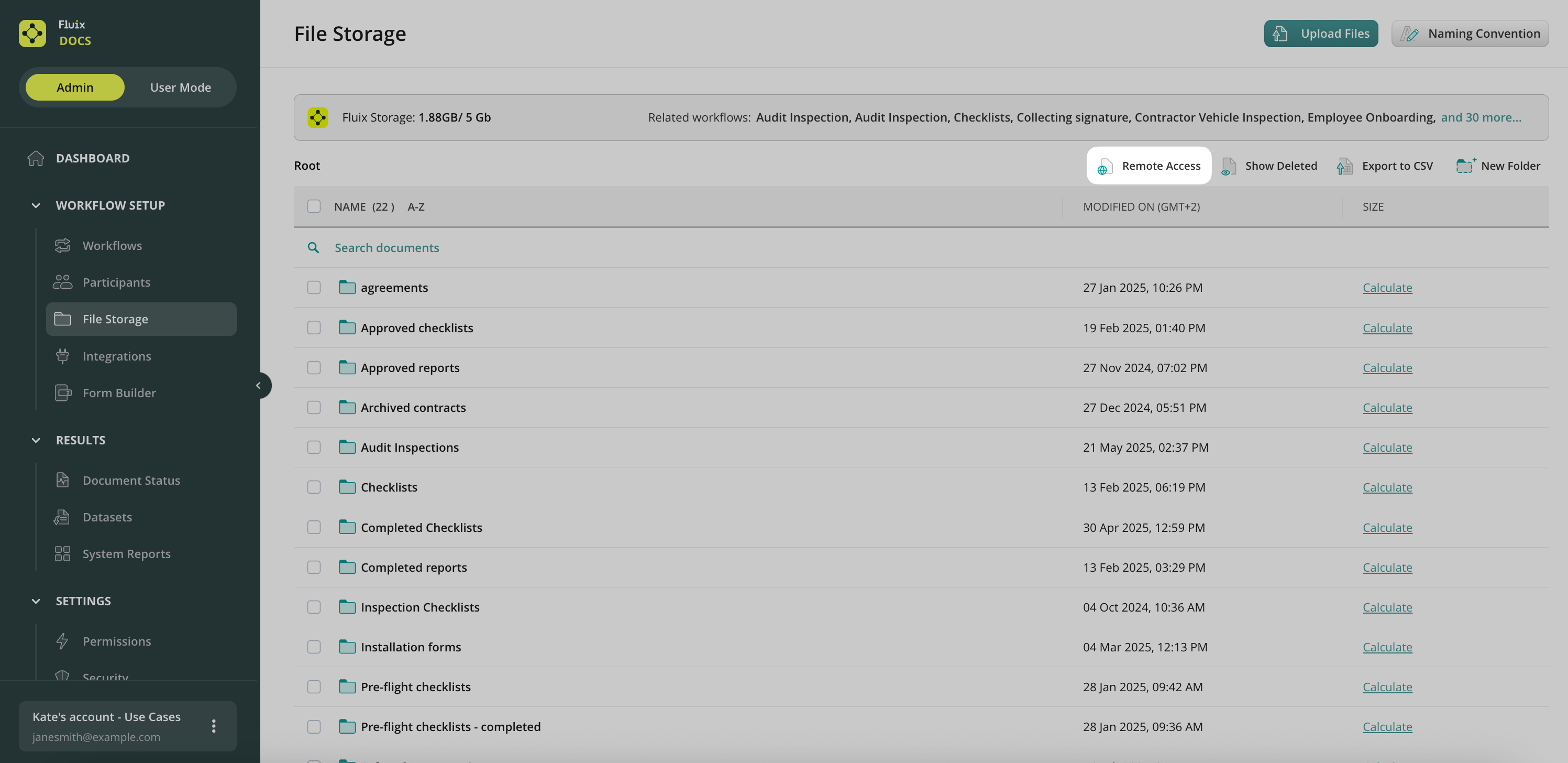
1. In the Fluix Admin Tab, navigate to the Workflow Setup -> File storage section and click on Remote access to obtain a unique user name identifier.
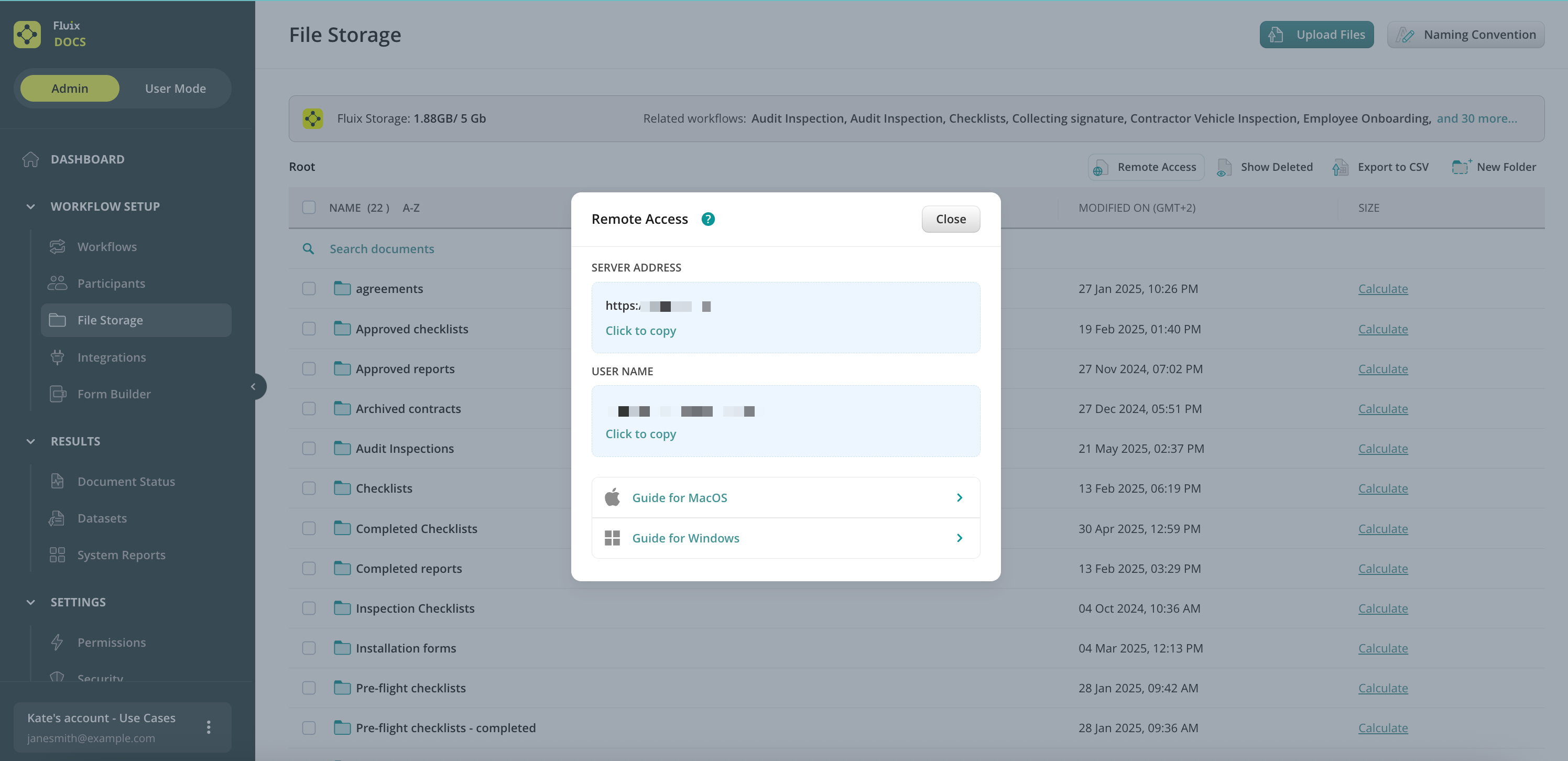
2. Copy the user name and server address.
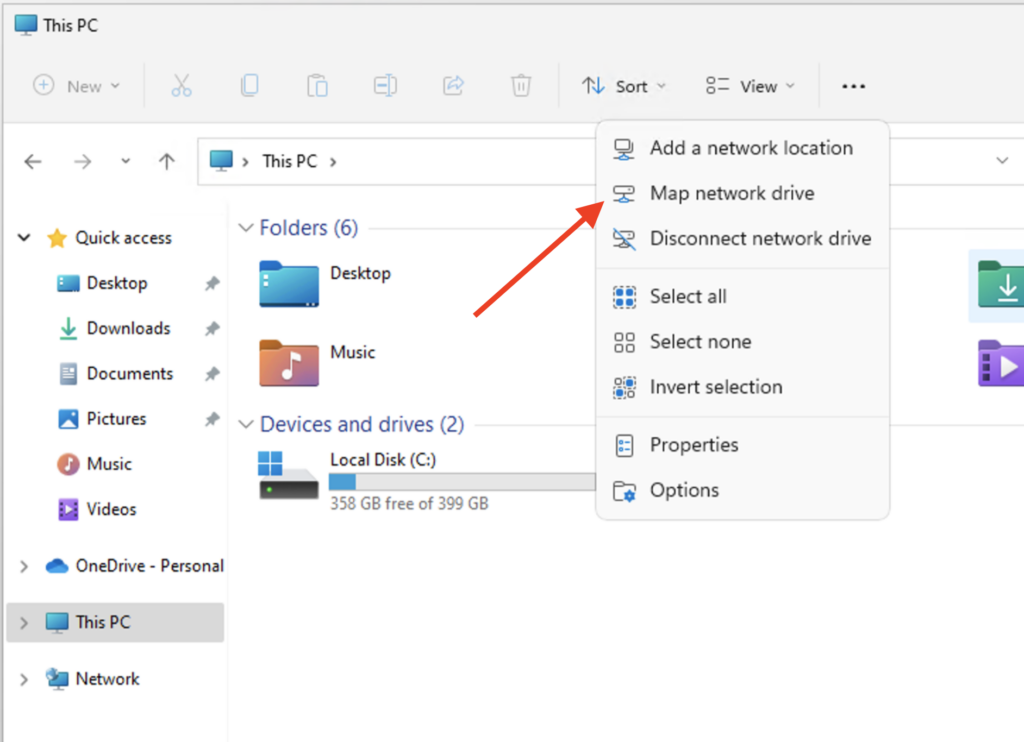
3. Open My PC -> Map Network Drive
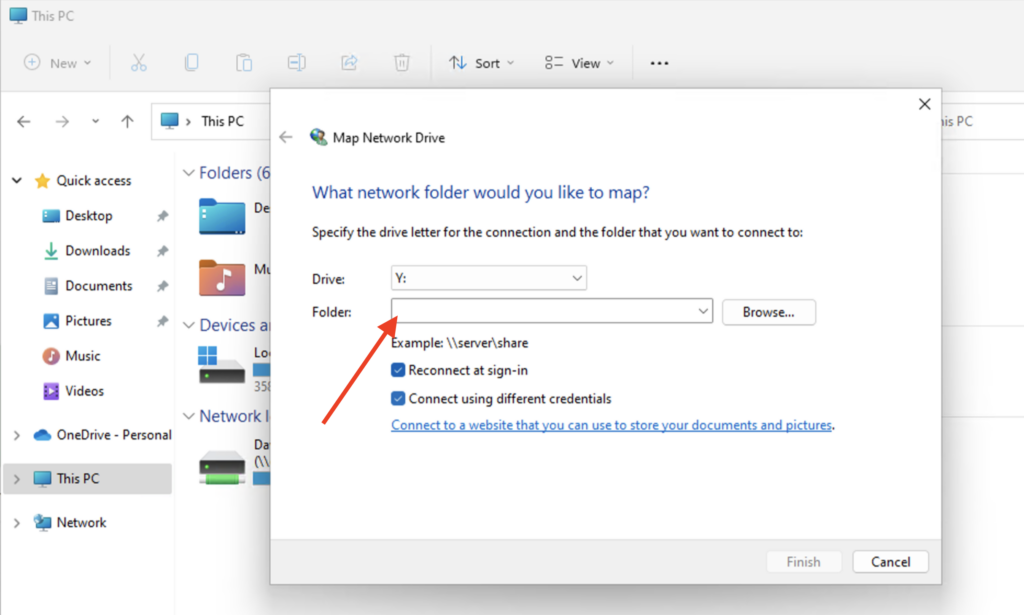
4. Fill out the Server address from Step 2 in the Folder URL and click Finish.
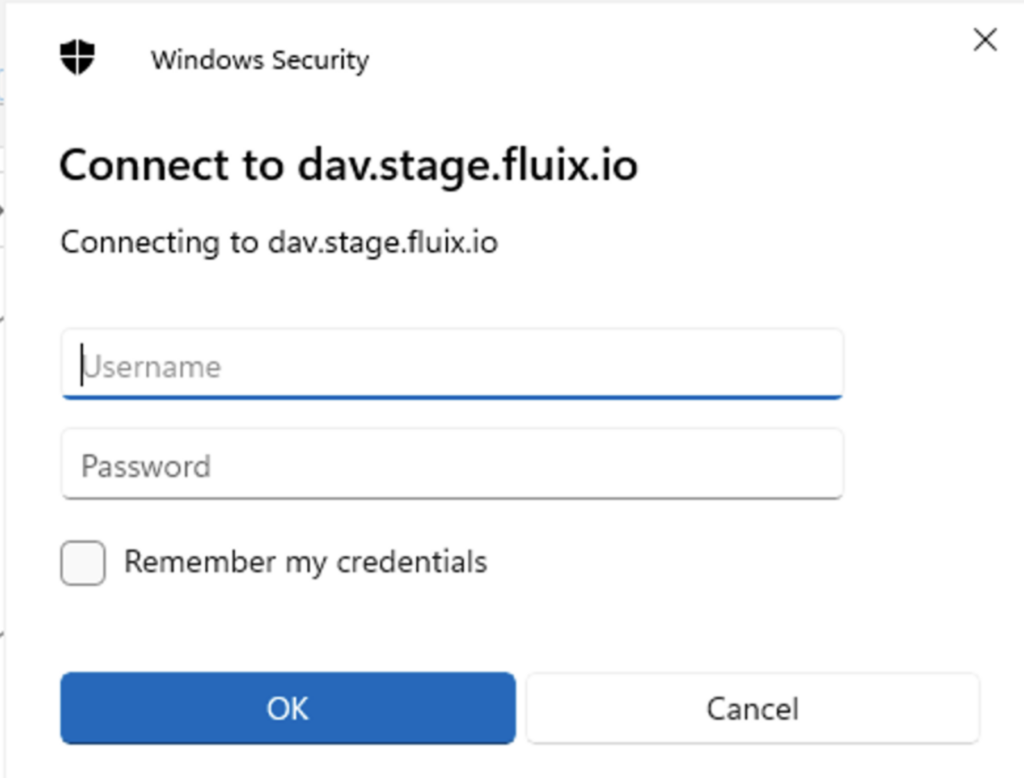
5. In the pop-up window, enter the Username that you copied earlier in Step 2 and the Fluix password that you use to log into the Fluix Admin Portal for the Password line. Then click OK.
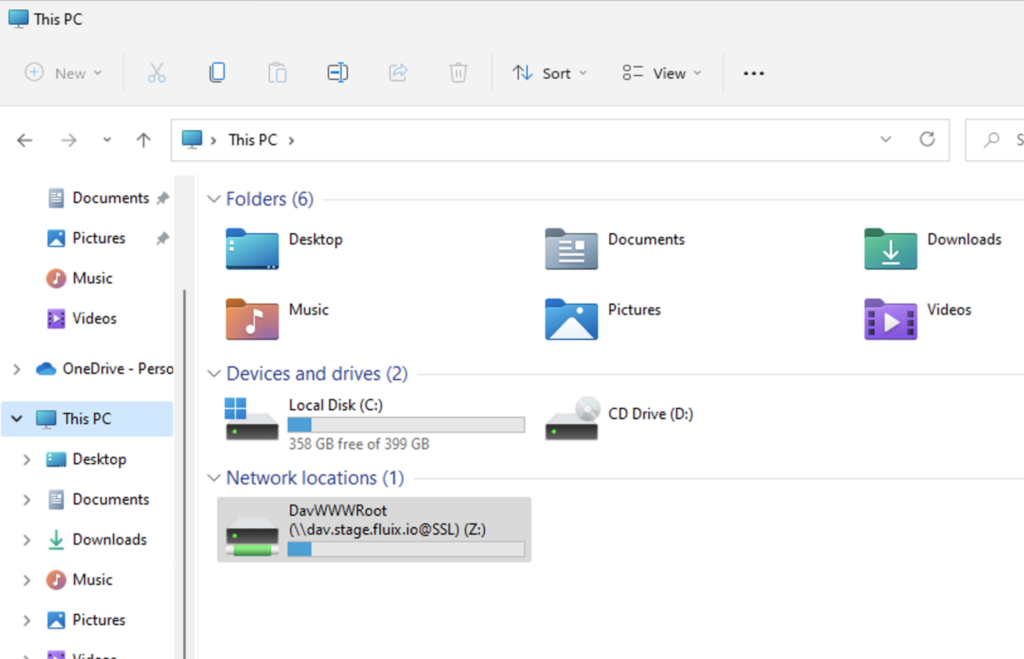
6. Fluix storage will appear in My PC -> Network Locations.
Feel free to contact us at support@fluix.io if you have any questions.