



Giving your users the proper permissions in the Admin Portal is key to efficiency and more protected team processes. With Fluix’s advanced permissions, admins can now grant access, assign ownership, and manage sharing for Workflows and Reports.
Why Use Permissions?
With permissions, account admins can:
- Create Workflows and Reports.
- Automatically become owners of what they create.
- Share their projects with others in view-only or edit mode.
- Manage existing projects if granted the proper access.
What Is Workflow/Report Ownership?
Whenever an admin creates a Workflow or Report, they automatically become its owner. This means they can:
- Manage and update their own projects.
- Decide who can view or edit them.
- Ensure smooth collaboration across departments or teams.
Ownership = full control over what you create.
Sharing Projects with Others
As an owner, you can share your Workflows and Reports with:
- Other admins in your company account.
- Specific users.
- A group of users—even if they’re not admins.
Sharing Options:
- View mode – Users can see the Workflow or Report but can’t make changes. Here is how the users will see the Workflow in view mode:
- Edit mode – Only available to admins; allows full editing access.
How to Grant Admins Permission to Create & Manage Projects
- Go to the Admin Portal > Permissions section.
- Open an existing role or create a new one.
- In the Workflows and/or Reports section, check:
✅ Create new Workflow/Reports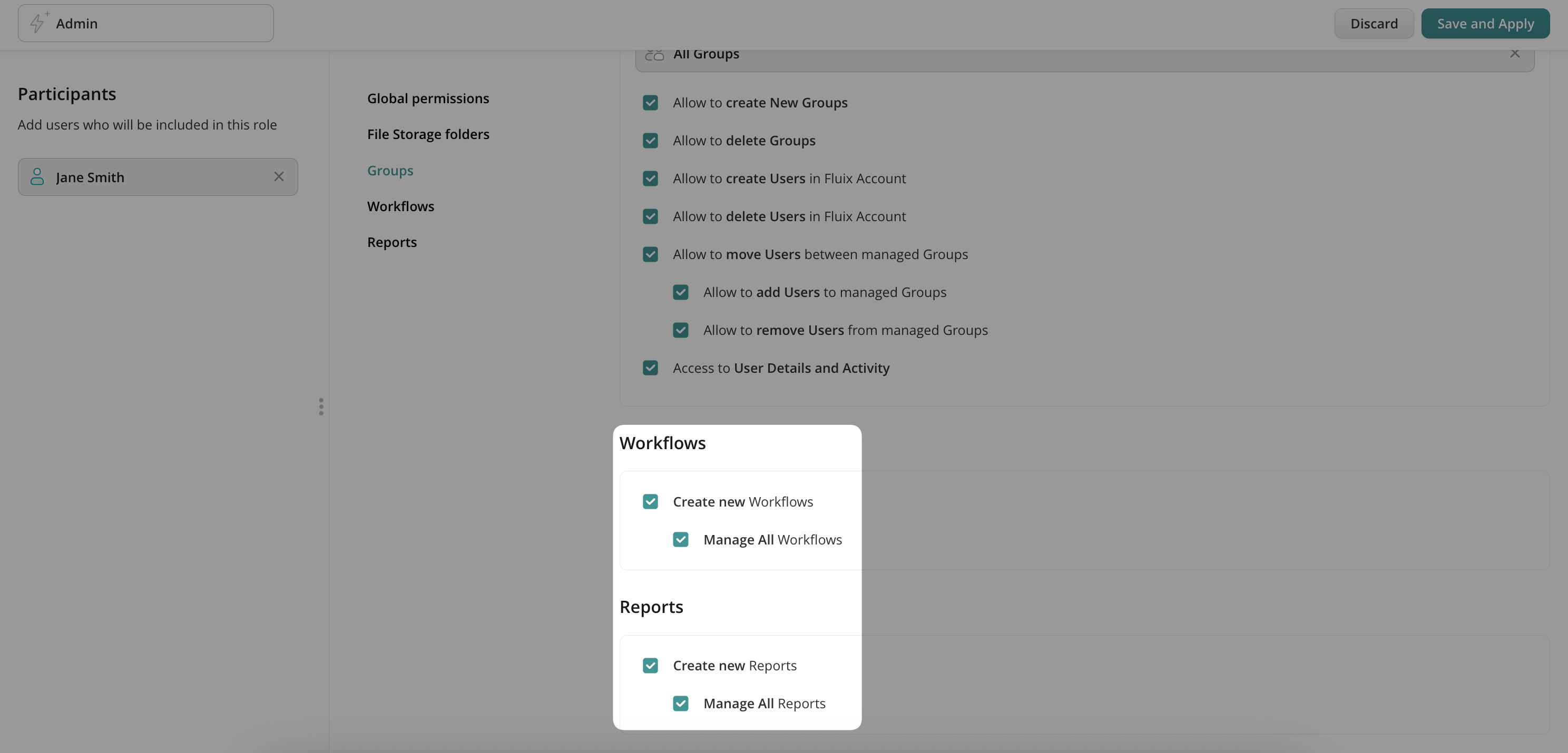
- Save your changes.
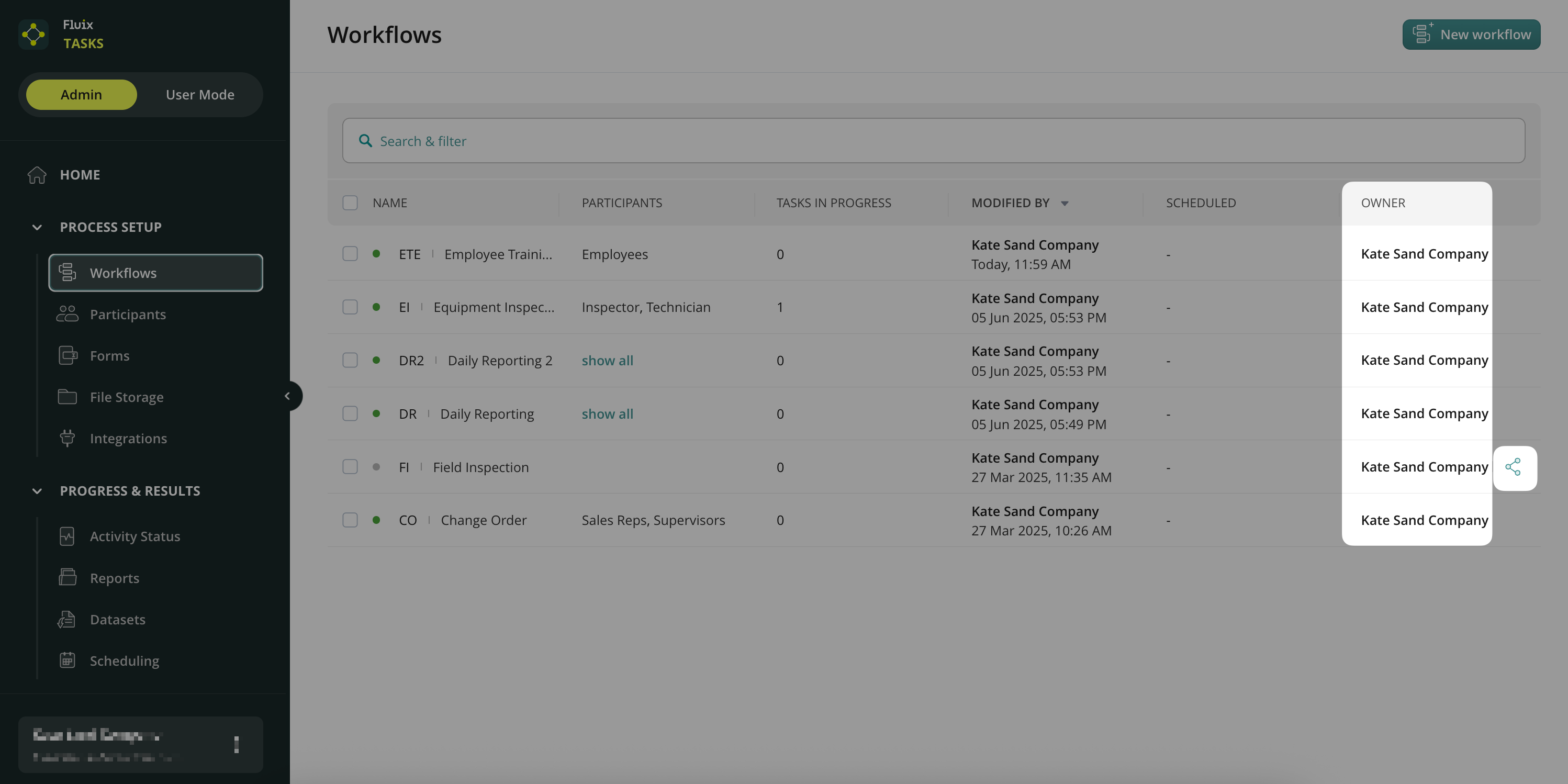
Once enabled, any new Workflow or Report created by this admin will list them as the owner. You’ll also see a new column showing the owner’s name in the Workflows and Reports sections.
Let Admins Manage Existing Projects Too
To allow admins to edit Workflows they didn’t create, follow these steps:
- In the same Permissions settings, enable:
- ✅ Manage all Workflows/Reports
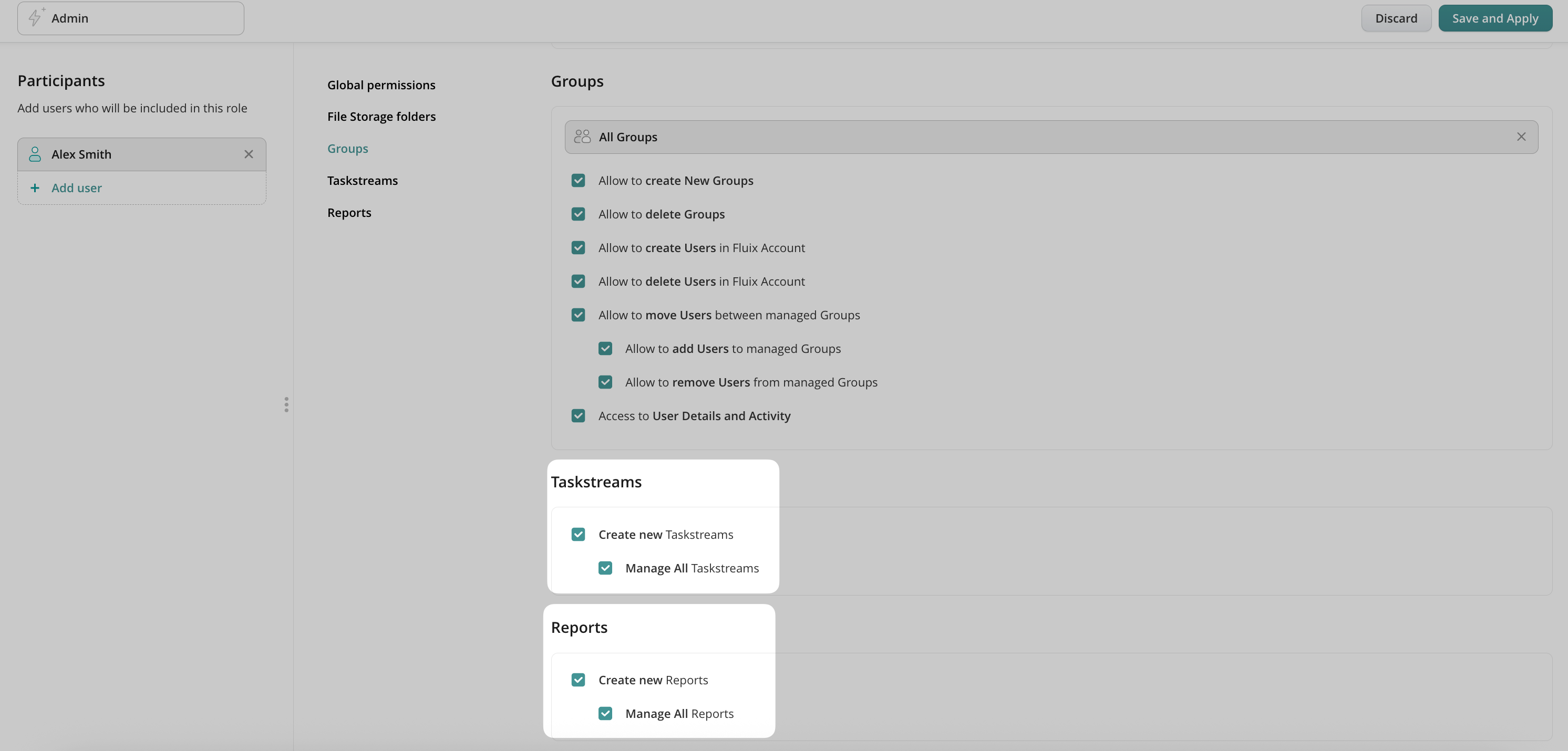
This gives them full access to edit all existing content in your account.
- ✅ Manage all Workflows/Reports
How to Share a Workflow in Fluix
- Open the Workflow you want to share.
- Click the Share button.
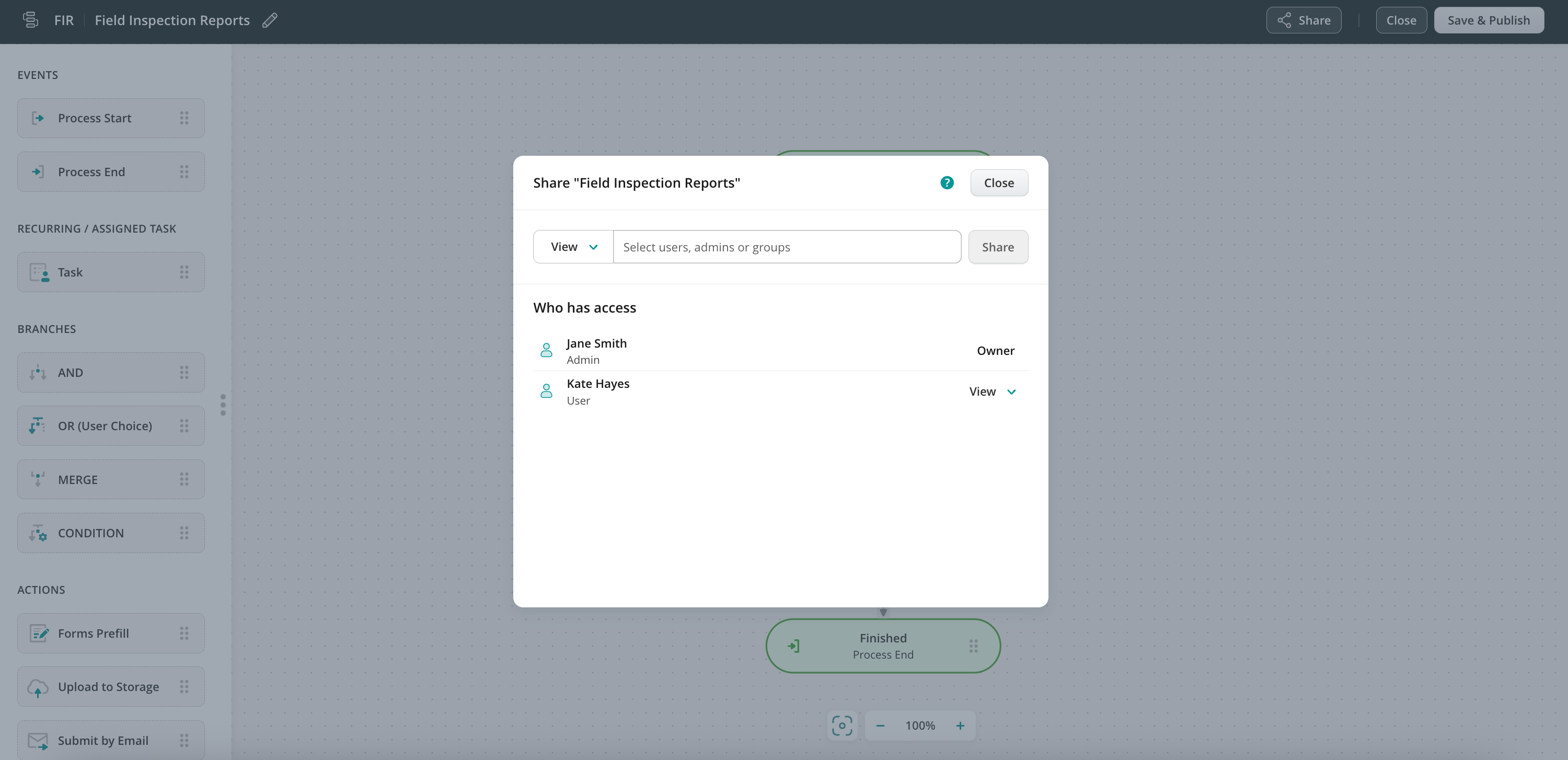
- Choose how you want to share:
- View mode – For regular users or groups.
- Edit mode – For admins only.
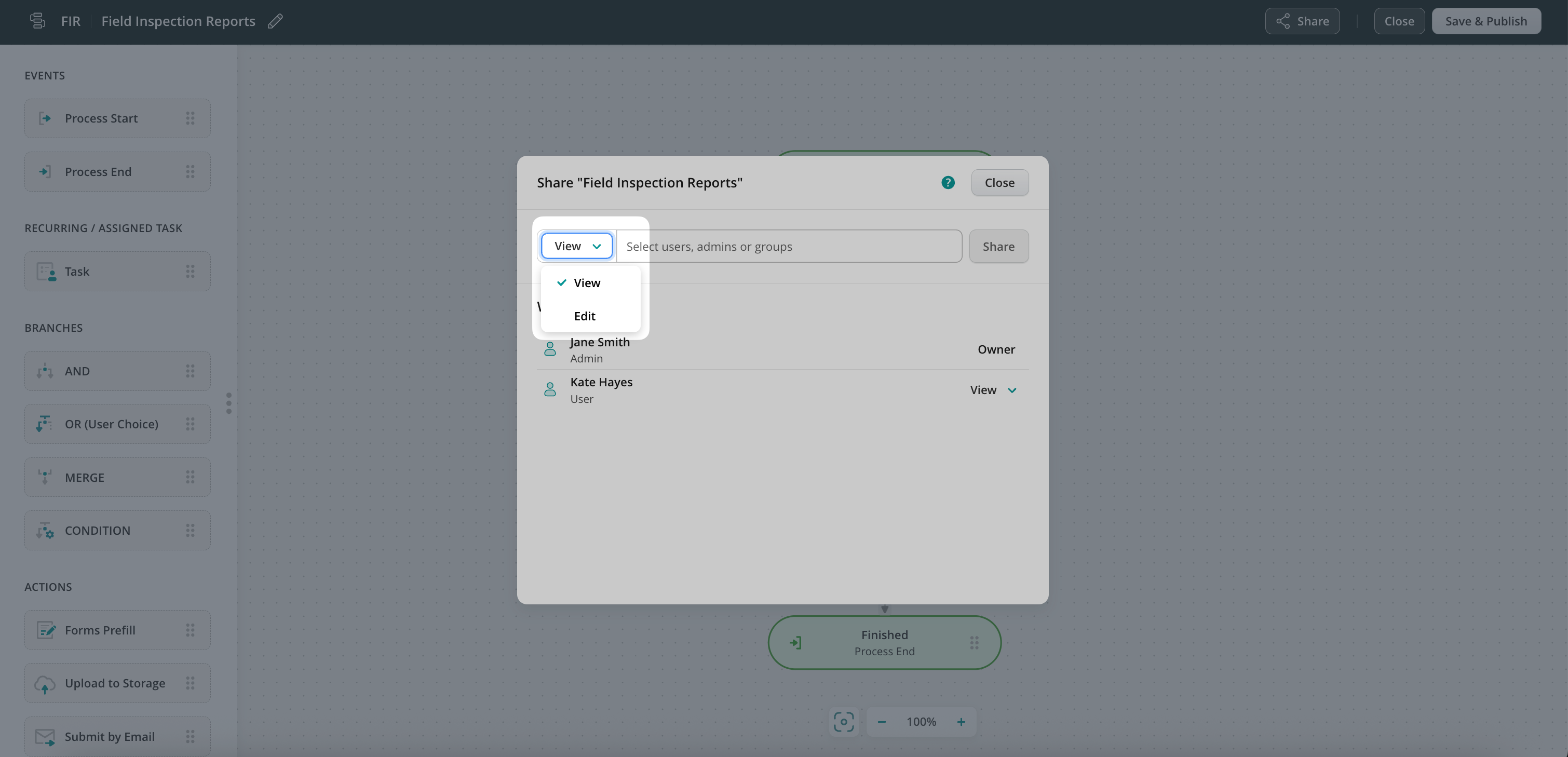
- View mode – For regular users or groups.
Once shared, users will see the Workflow under the Admin tab in the Fluix Web App.
Key Things to Remember
- The creator of a Workflow/Report is always its owner.
- Owners retain control even if their “Create new Workflows/Reports” permissions are later removed.
- Only users with “Create and manage own” or “Manage all” permissions can be owners.
- If the owner is deleted or loses admin status, ownership transfers to the Account Owner.
Track Shared Workflows
In the Workflows section, look for the share icon next to the Workflow. Click the icon to view or update who has access.
Feel free to contact us at support@fluix.io if you have any questions about the setup.