



Connect Microsoft Copilot to Fluix to access your Fluix task reports, form submissions, and document statuses using natural language.
The Fluix agent is already available in the Microsoft 365 Copilot Agent Store. Simply add it to your Copilot, sign in with your Fluix account, and start asking questions about your Fluix data.
Before you start
You need:
- A Fluix account with access to at least one company.
- The MCP Server feature enabled for your company’s Fluix plan. This feature is not enabled by default — contact your Fluix admin or support@fluix.io to enable it.
- Access to Microsoft Copilot.
What Copilot can access in Fluix Tasks
| Permission | What it allows |
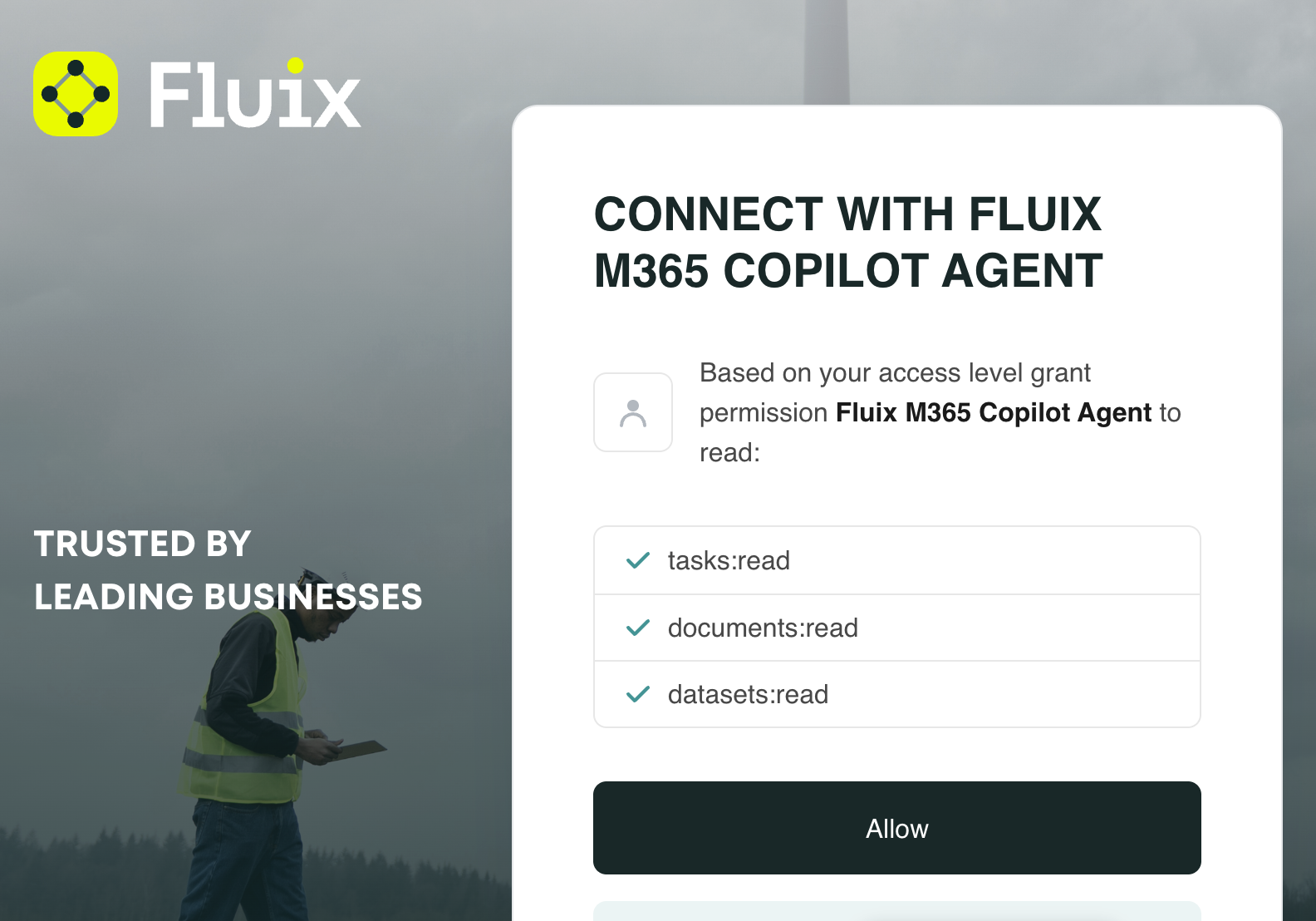
| Tasks | Read task reports |
Access is read-only — Copilot can read your Fluix data, but cannot create, modify, or delete anything. Access is limited to the single company you select during sign-in and to the data your own Fluix user account can already see. Connecting Fluix to Copilot does not give the agent broader access than you already have in Fluix.
Set up Fluix in Microsoft Copilot
Unlike AI assistants, which require manual configuration of the Fluix MCP server, Fluix is available as a Microsoft 365 Copilot agent. Once the agent is available in your organization, connecting it is just a matter of signing in to Fluix.
- Sign in to Microsoft Copilot Chat.
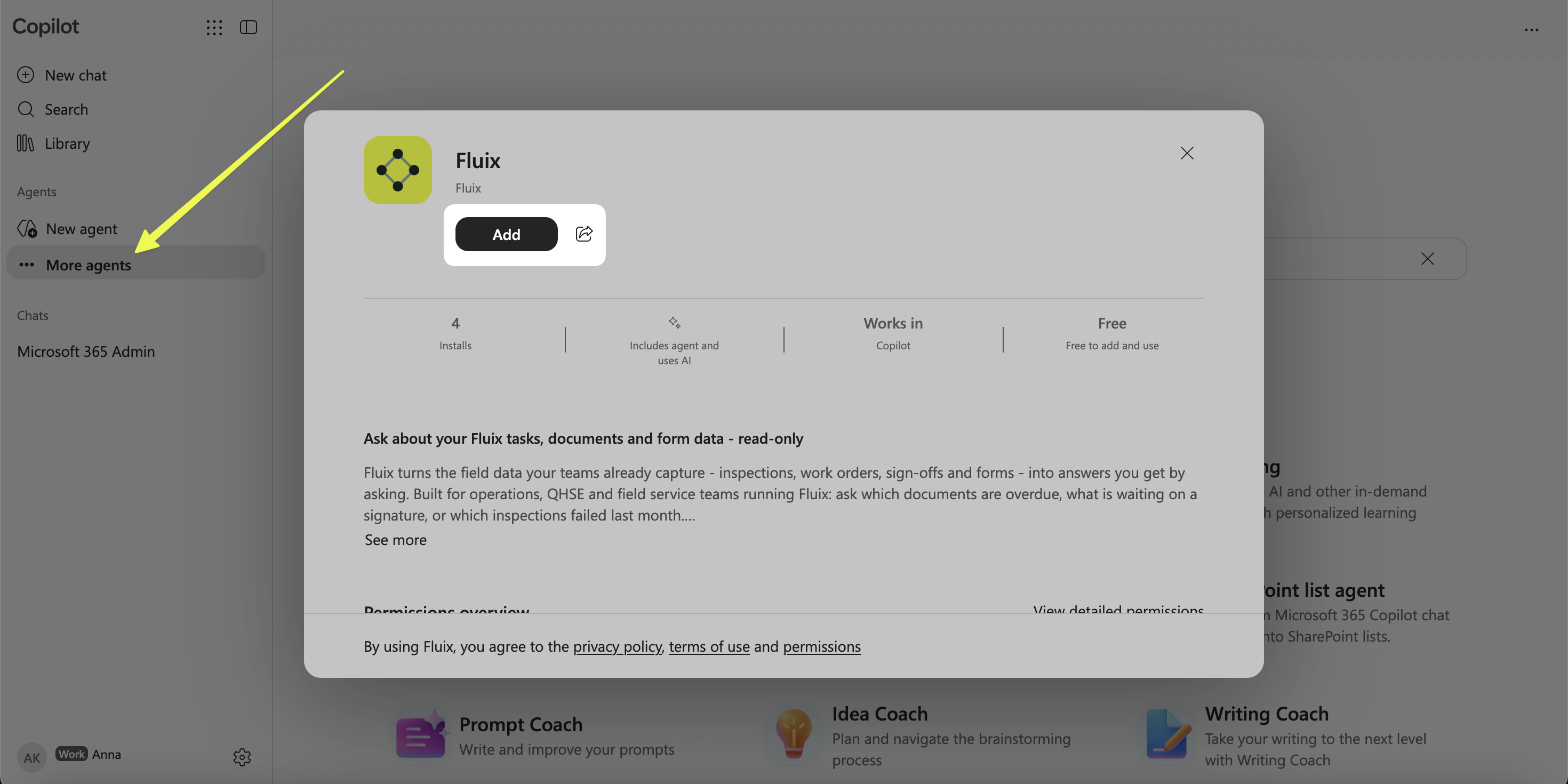
- In the left sidebar, click on the “More Agents” tab and search for Fluix.
- Click Add. If your admin has already deployed it directly to you, it may already be installed and appear in your Agents list.
- Open the Fluix agent and start a conversation. You can enter your own question or select one of the suggested prompts.
- The first time Copilot needs to use a Fluix tool, it asks you to confirm the action. Once confirmed, Copilot then asks you to connect your Fluix account.
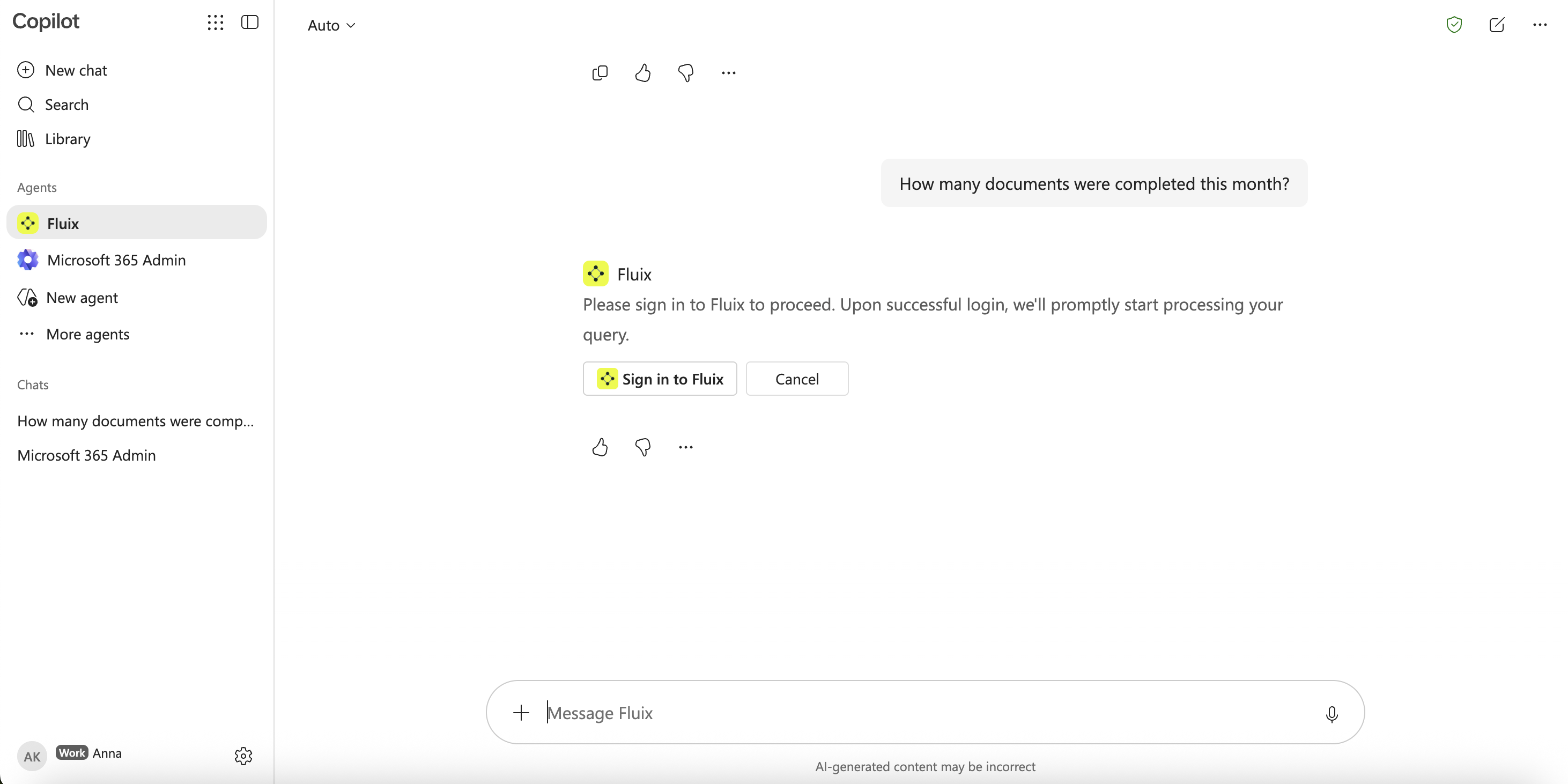
- Sign in to your Fluix account. Review the requested permissions on the consent screen and press Allow.
Note: Copilot may ask you to confirm again the first time it calls a different Fluix tool. For example, after listing your task reports, it may ask for another confirmation before reading the rows of a selected report.
The Fluix connection provides read-only capabilities for:
- Task reports — list reports you can access, inspect report columns, and read report rows.
Datasets — list available datasets and subviews, inspect their fields, and read form submissions. - Document statuses — find and analyze documents by status, workflow, owner, group, date range, document name, and other available properties
How long the connection last
The connection renews itself automatically while you keep using it. If it goes unused for more than 30 days, you will be asked to sign in again. To disconnect sooner, revoke Copilot’s access from the Fluix side. You can also ask your Microsoft 365 admin to remove the Fluix agent if you no longer need it.
Using Fluix with Copilot
You can ask questions about your Fluix data in plain language.
For example:
- “Show me the tasks that are currently overdue and group them by assignee.”
- “Which documents are currently in progress, and what workflows do they belong to?”
- “How many documents were completed this month?”
- “Show me the columns available in my process report before pulling any rows.”
For more examples and tips on building effective requests, see What to ask your AI Assistant about your Fluix data.
For broad questions, we recommend specifying the report, dataset, workflow, or time period you are interested in. This helps Copilot retrieve the most relevant Fluix data.
Privacy and data handling
When connecting Copilot to Fluix:
- Your Fluix access remains limited to the company selected during authentication.
- Copilot can access only the Fluix data that your user account is already authorized to see.
- The integration provides read-only access and cannot create, edit, or delete your Fluix data.
- Your Fluix credentials are entered through the Fluix authentication flow rather than provided to the AI assistant.
- The Fluix MCP server reads the required information from Fluix on demand and does not store a separate copy of your Fluix content.
See the Fluix Privacy Notice for full details on how Fluix handles personal data.
Your organization’s use of Microsoft Copilot and the handling of data within Microsoft services are also subject to your organization’s Microsoft configuration and policies.
Troubleshooting
| Symptom | What it means and how to fix it |
| The connection fails after I sign in to Fluix | Make sure the MCP Server feature is enabled for your Fluix company. It is not enabled by default. Contact your Fluix admin or support@fluix.io if you are unsure. |
| Copilot cannot see my reports, datasets, or documents | First, check whether your Fluix user has access to the requested information directly in Fluix. Copilot receives the same level of access as your Fluix user and cannot retrieve data that your account is not authorized to access. |
| Copilot shows data from the wrong Fluix company | If your Fluix account belongs to multiple companies, a different company may have been selected during authentication. Reconnect Fluix and select the correct company. |
| I don’t see Fluix among the available agents | If Fluix is unavailable, contact your Microsoft 365 admin and ask them to make the Fluix agent available for your organization. |
| Copilot asks me to authenticate again | Your Fluix session may have expired or been revoked. Please sign in to Fluix again when prompted. |
In case you need our assistance, feel free to contact us at support@fluix.io. We are always here to help!